NTFSTool
NTFSTool Help Center
Install, first mount, common fixes, and how to reach us.
Get started
- 1
Download
Download from this site. It gives you NTFSTool Pro on macOS 12 or later and the classic version on macOS 10.15–11.
- 2
Install
NTFSTool Pro: open the DMG and drag NTFSTool Pro into Applications. Classic version: open the pkg and click Continue.
- 3
Connect your drive
Plug in the NTFS drive. The first time, macOS asks for your Mac's login password so NTFSTool can mount the drive. It is stored encrypted in your Keychain on this Mac and is never uploaded.
- 4
Activate
You get 3 free mounts. After that, buy a license and paste the key from your purchase email into the app.
Common questions
My drive still mounts read-only. What now?
Usually Windows left the drive in a hibernated or "dirty" state (Fast Startup). On the Windows PC, hold Shift while choosing Shut down, or turn off Fast Startup, then reconnect. NTFSTool Pro can also repair the drive in one click.
The drive doesn't appear in Finder.
NTFSTool Pro shows mounted drives on the Desktop and in the Finder sidebar by default. Check Finder › Settings › Sidebar › External disks, then unplug and reconnect the drive.
Why does NTFSTool ask for my Mac password?
Mounting a drive with write access needs administrator rights once. The password is encrypted in your Keychain on this Mac, used only to mount drives, and never sent anywhere.
Do I need to change SIP, Recovery Mode or security settings?
No. NTFSTool uses no kernel extension and never asks you to lower your Mac's security. Apple Pay keeps working.
Where is my license key?
It's in your purchase email. If you can't find it, email [email protected] with your order number and we'll resend it.
How do I get a refund?
Email us within 45 days of purchase for a full refund, no questions asked. If NTFSTool can't read and write your drive, you get a full refund at any time. The license is deactivated after the refund.
Is my data safe?
NTFSTool verifies writes, and Pro checks drives before repairing them. As with any external disk, always eject before unplugging.
Is there a free version?
Yes — the free edition is on the Mac App Store for macOS 15.6 or later. Learn more →
How do I uninstall NTFSTool?
Follow the uninstall guide to remove the app and its helper cleanly. Learn more →
Tip: always eject a drive before unplugging it, and keep a backup of important files. Full terms are in our License Agreement.
Legacy kernel-extension versions (historical)
Legacy kext versions (historical)
The following steps apply only to historical kernel-extension builds. They remain here as engineering heritage and for users still on those versions. Do not follow them for the current installer.
Reason for Installing the NTFSTool Kernel Extension
Due to Microsoft's licensing restrictions, macOS has removed write support for the NTFS disk format. Historical NTFSTool releases therefore installed an Apple-signed kernel extension. This is engineering heritage. The current release does not use these steps.
Requirements and Steps for Installing Drivers in macOS Kernel (legacy only)
For Intel Chip Systems
Requirements: Disable System Integrity Protection (SIP)
- Enter system recovery mode, disable System Integrity Protection (SIP). Completely shut down your Mac, then start it up, and immediately press and hold Command+R during startup until the Apple logo appears for 3 seconds, then release the button and wait to enter Recovery mode
- Click 'Utilities' in the top toolbar, select 'Terminal'
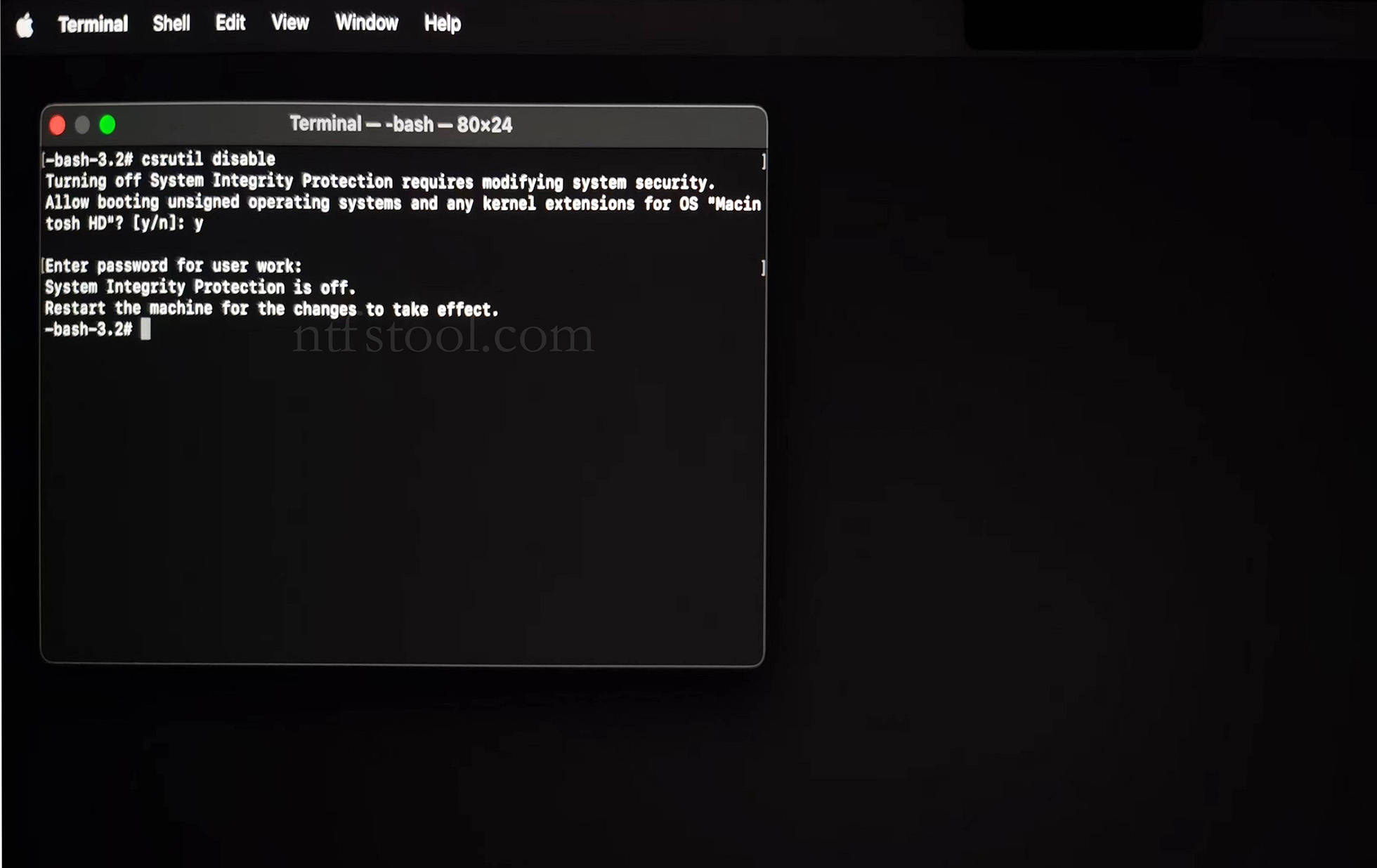
- Type 'csrutil disable' in the terminal, then press Enter
- Close the terminal and restart your Mac
- Related Screenshots
For Apple Silicon systems
Requirements: Disable SIP; enable Allow user management of kernel extensions from identified developers.
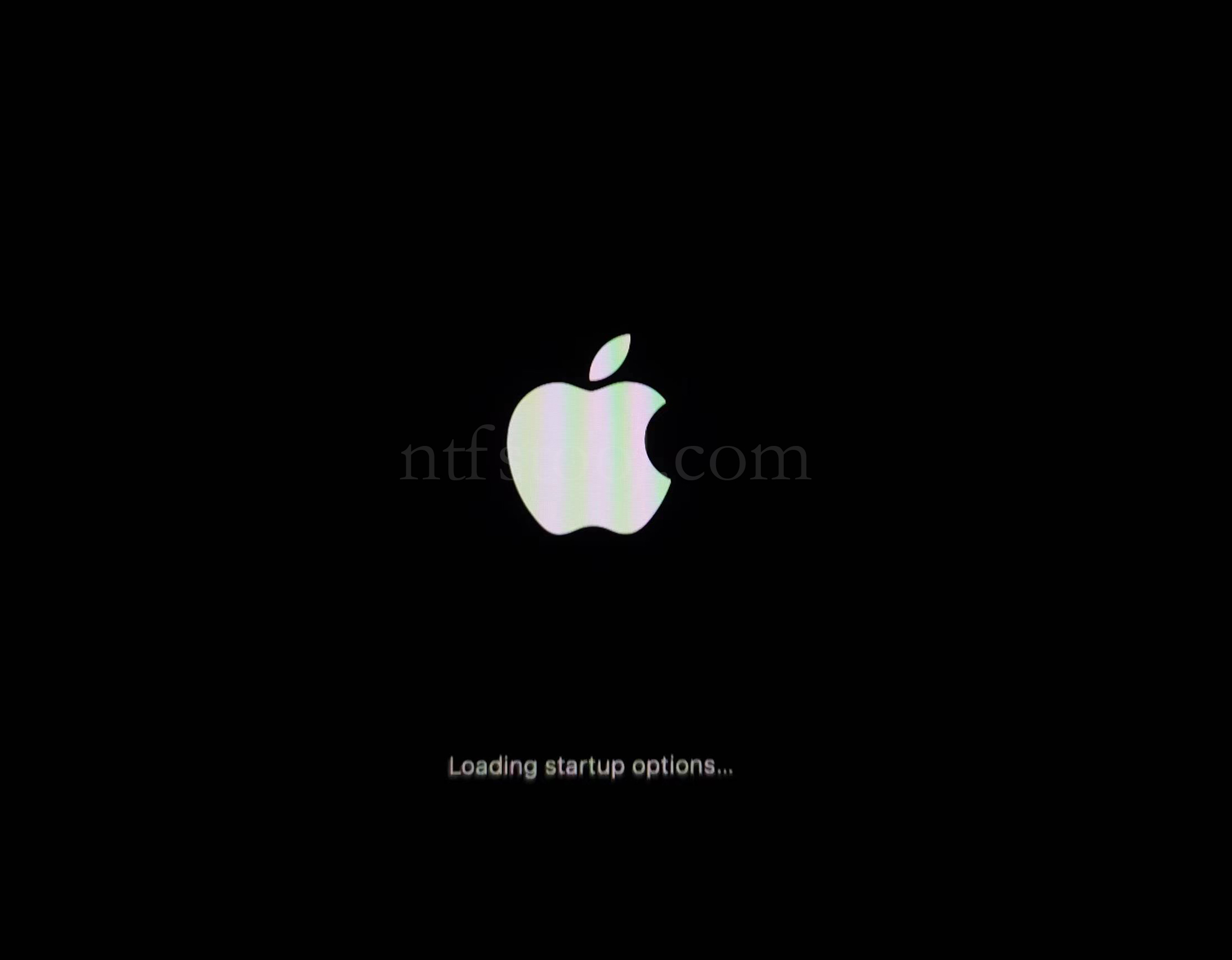
- Restart and hold the power button until Loading startup options appears, then enter recovery
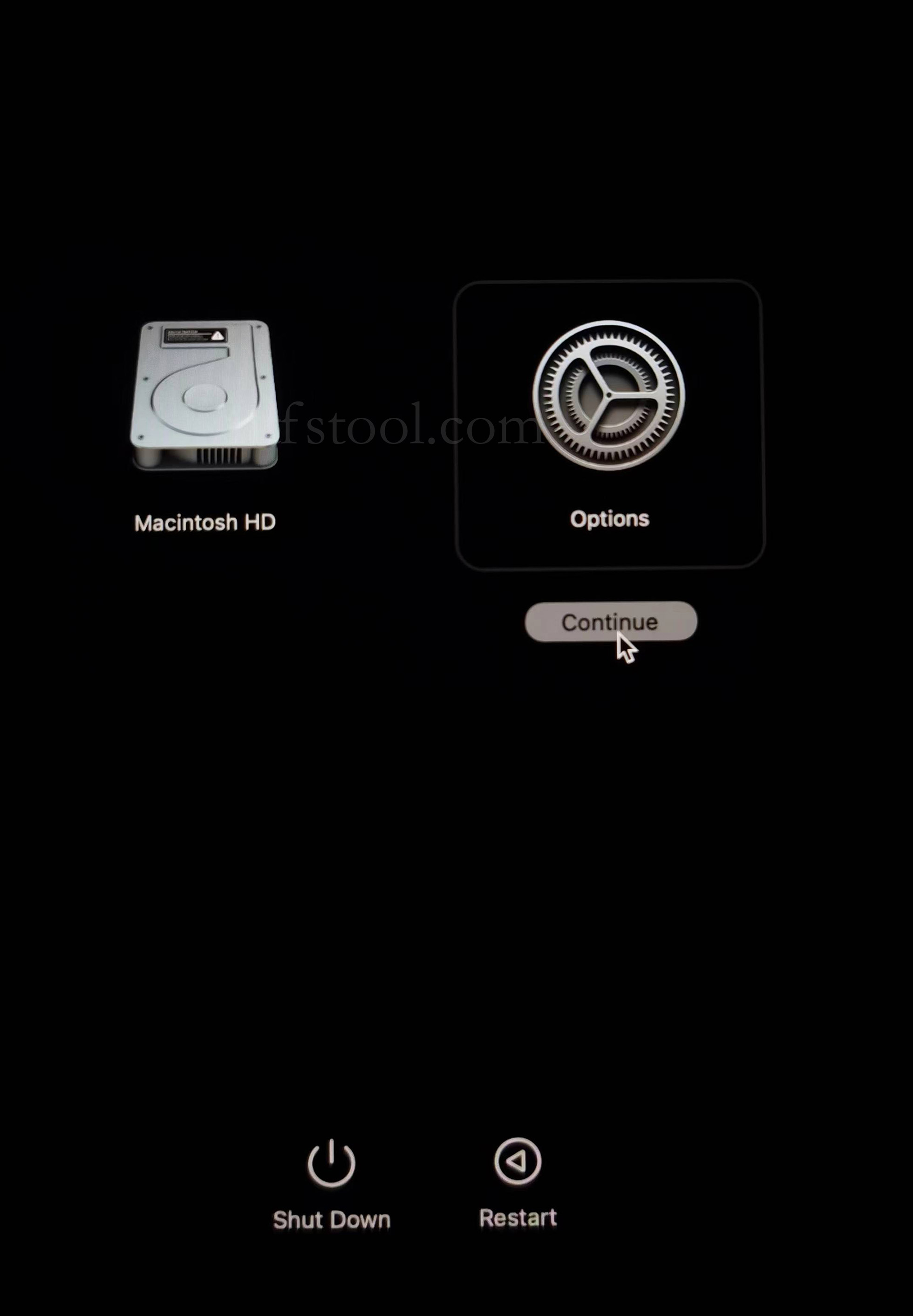
- Select Options, Continue
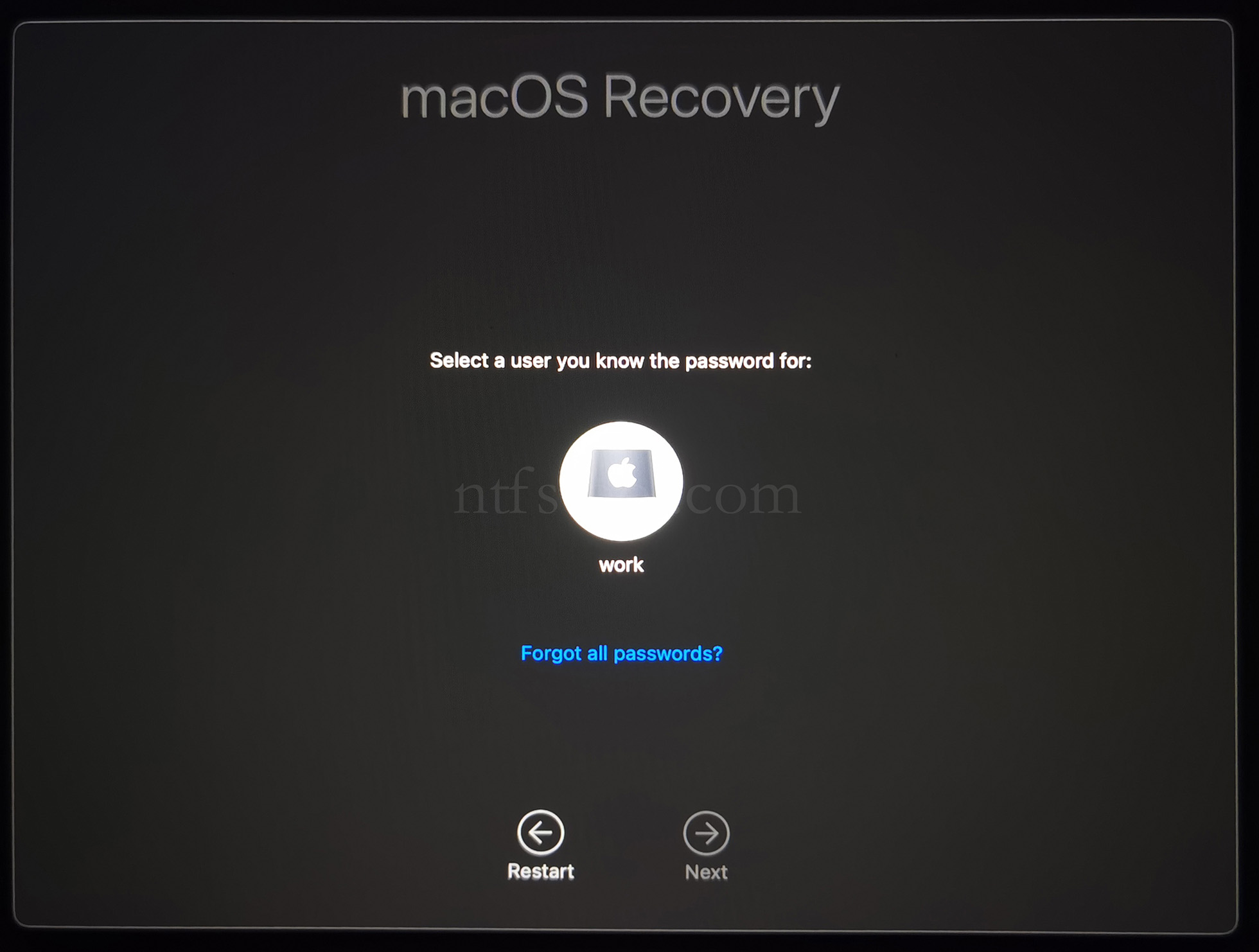
- Select the admin user and enter the password
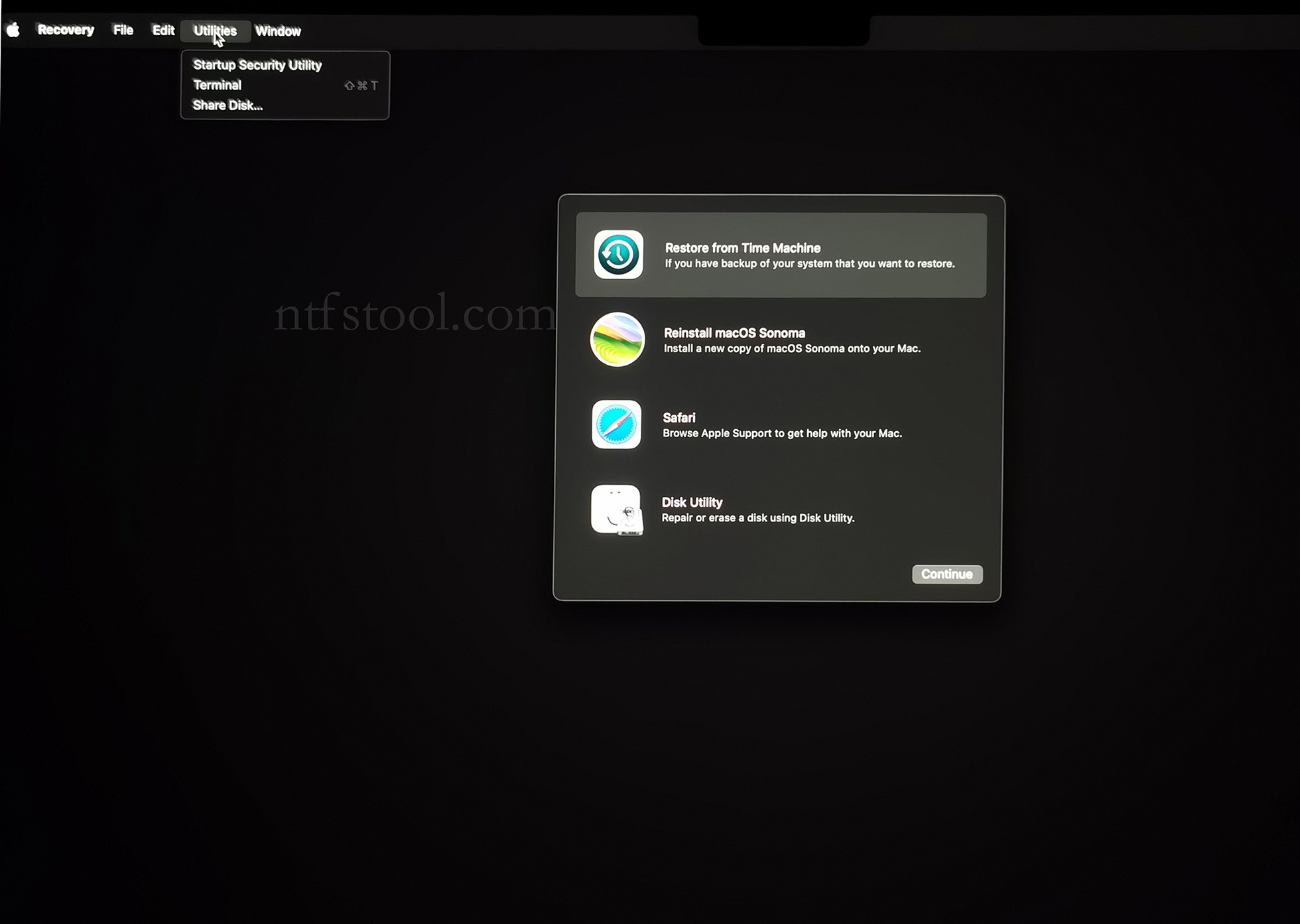
- Utilities → Terminal
- Type csrutil disable, press Enter
- Close Terminal
- Utilities → Startup Security Utility
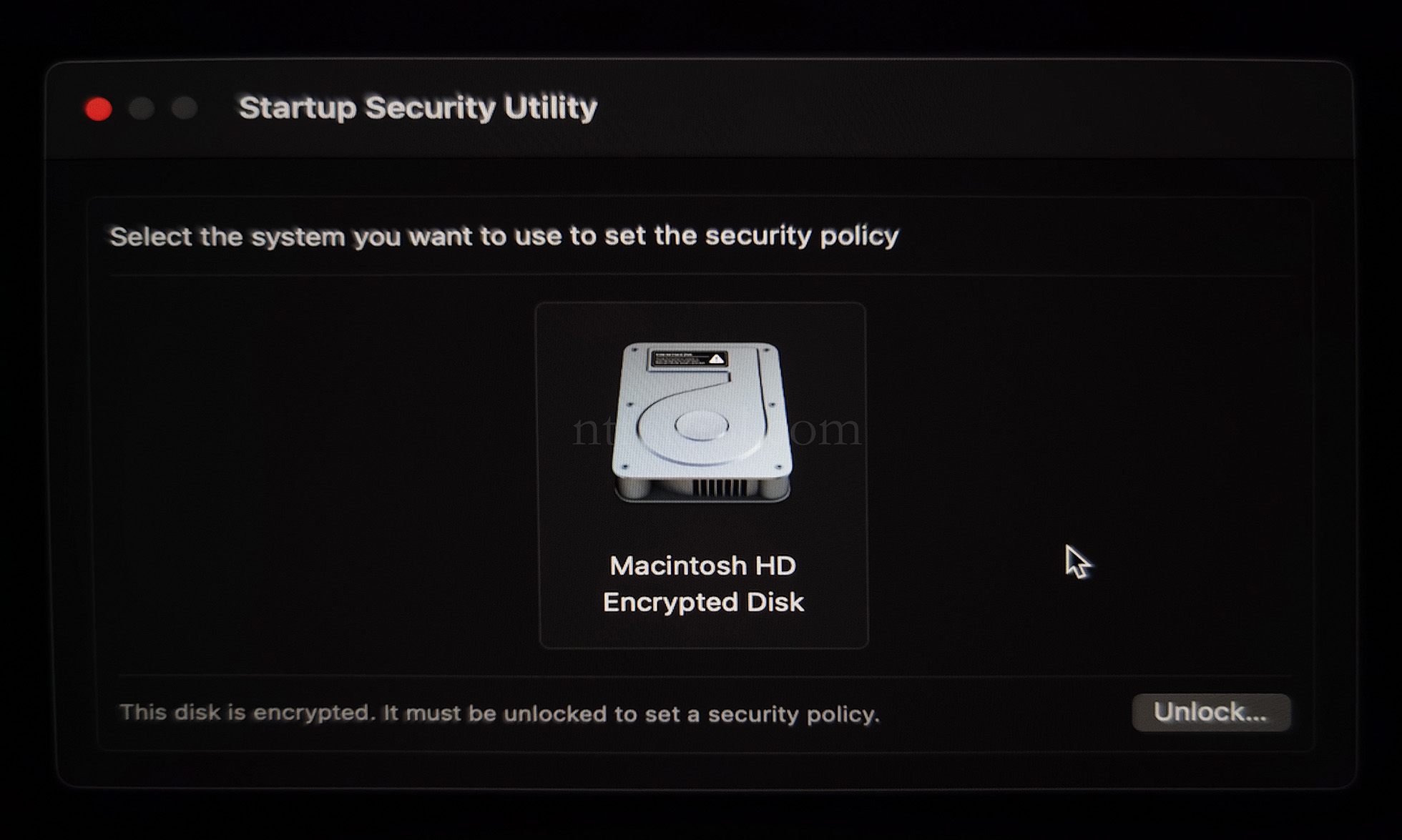
- Select the system disk, then Security Policy
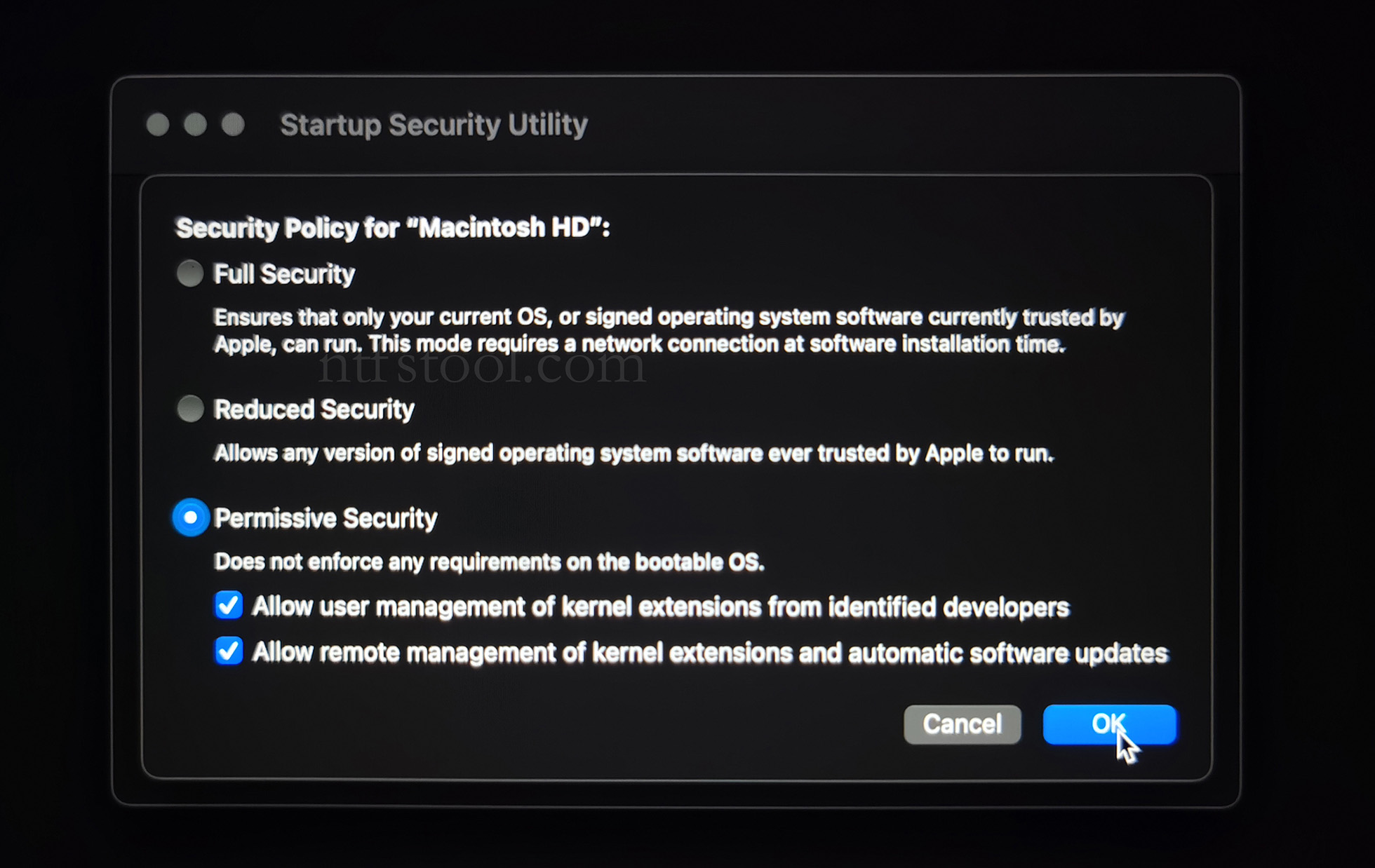
- Check Reduced Security and Allow user management of kernel extensions from identified developers
- Restart from the Apple menu
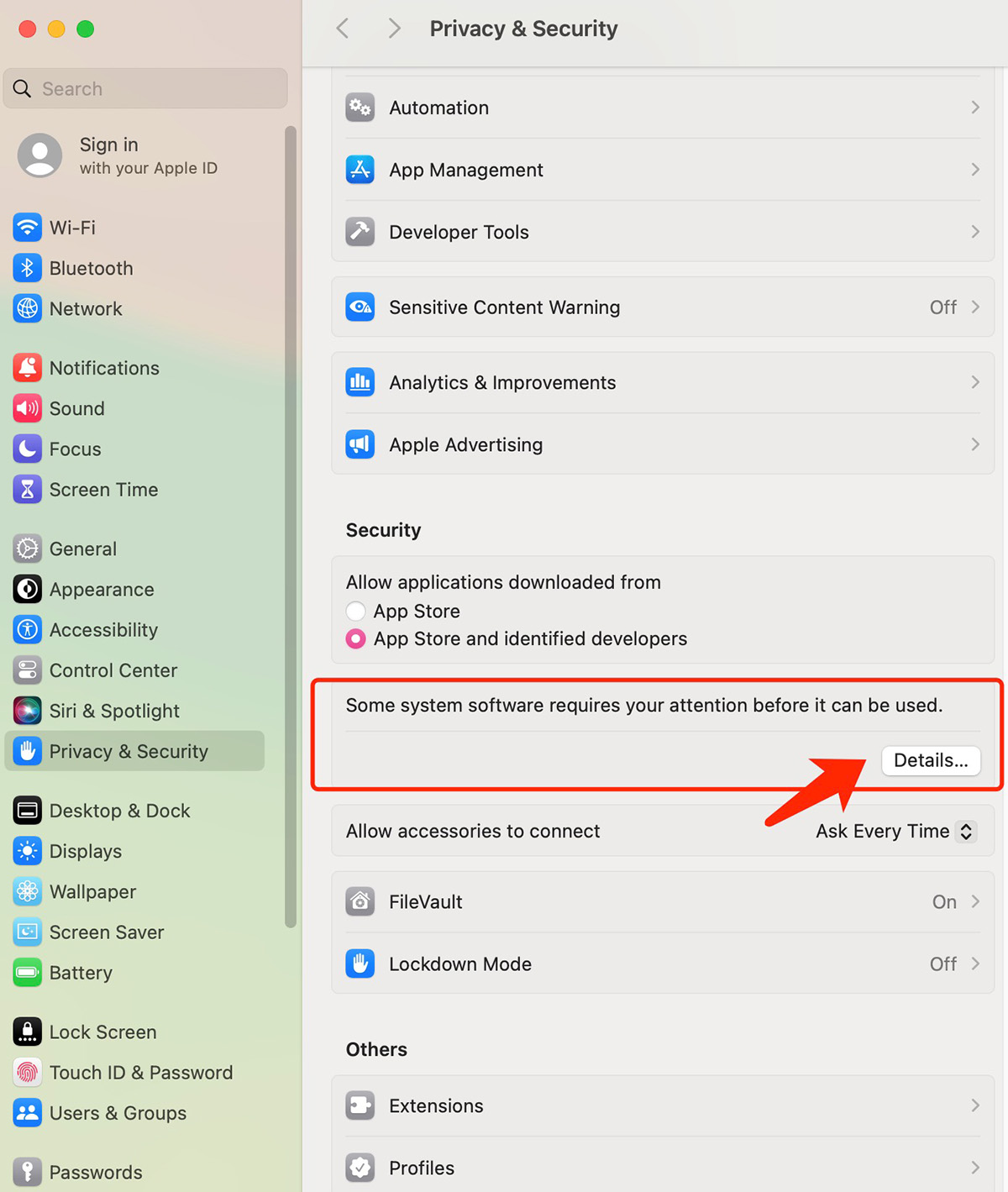
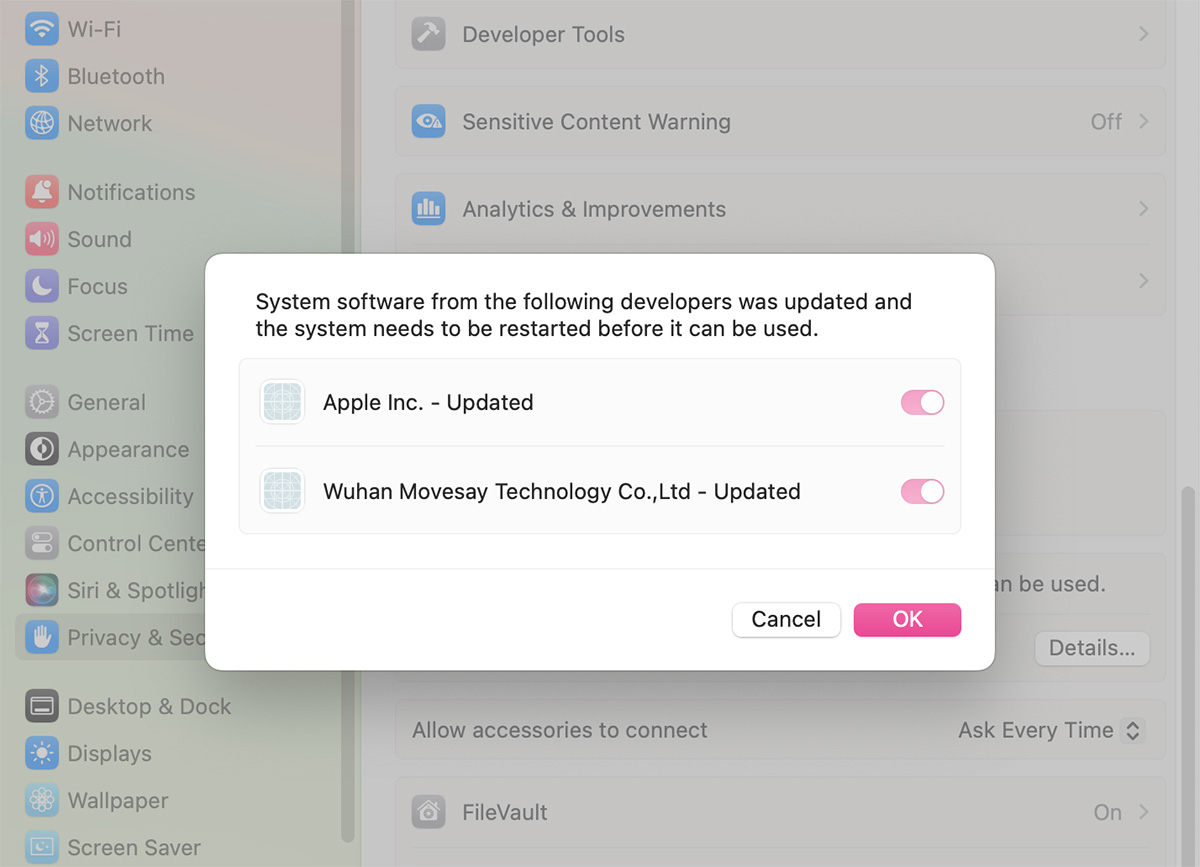
- Open System Settings → Privacy & Security, then allow the extension if prompted
- Related Screenshots