NTFSTool
Kituo cha Msaada cha NTFSTool
Usakinishaji, kuweka diski mara ya kwanza, suluhisho za kawaida, na jinsi ya kuwasiliana nasi.
Anza
- 1
Pakua
Pakua kutoka tovuti hii. Inakupa NTFSTool Pro kwenye macOS 12 au baadaye na toleo la classic kwenye macOS 10.15–11.
- 2
Sakinisha
NTFSTool Pro: fungua DMG na uburute NTFSTool Pro kwenye Applications. Toleo la classic: fungua pkg na ubofye Continue.
- 3
Unganisha diski yako
Chomeka diski ya NTFS. Mara ya kwanza, macOS itaomba nenosiri la kuingia la Mac yako ili NTFSTool iweze kuweka diski. Linahifadhiwa likiwa limesimbwa kwenye Keychain ya Mac hii na halipakiwi popote.
- 4
Washa
Unapata uwekaji 3 wa bure. Baada ya hapo, nunua leseni na ubandike ufunguo kutoka barua pepe ya ununuzi kwenye programu.
Maswali ya kawaida
Diski yangu bado inawekwa kwa kusoma tu. Nifanye nini?
Kwa kawaida Windows iliiacha diski katika hali ya hibernation au “chafu” (dirty) kutokana na Fast Startup. Kwenye kompyuta ya Windows, shikilia Shift huku ukichagua Shut down, au zima Fast Startup, kisha uiunganishe tena. NTFSTool Pro pia inaweza kurekebisha diski kwa mbofyo mmoja.
Diski haionekani kwenye Finder.
Kwa chaguo-msingi, NTFSTool Pro huonyesha diski zilizowekwa kwenye Desktop na kwenye upau wa pembeni wa Finder. Angalia Finder › Settings › Sidebar › External disks, kisha uchomoe diski na uichomeke tena.
Kwa nini NTFSTool inaomba nenosiri la Mac yangu?
Kuweka diski kwa ruhusa ya kuandika kunahitaji haki za msimamizi mara moja. Nenosiri husimbwa kwenye Keychain ya Mac hii, hutumika tu kuweka diski, na halitumwi popote.
Je, ninahitaji kubadilisha SIP, hali ya uokoaji au mipangilio ya usalama?
Hapana. NTFSTool haitumii kiendelezi cha kernel na kamwe haikuombi upunguze usalama wa Mac yako. Apple Pay inaendelea kufanya kazi.
Ufunguo wangu wa leseni uko wapi?
Uko kwenye barua pepe yako ya ununuzi. Usipoupata, tuma barua pepe kwa [email protected] pamoja na namba ya oda yako nasi tutautuma tena.
Ninawezaje kurejeshewa pesa?
Tutumie barua pepe ndani ya siku 45 tangu ununuzi upate kurejeshewa pesa yote, bila maswali. Ikiwa NTFSTool haiwezi kusoma na kuandika diski yako, unarejeshewa pesa yote wakati wowote. Leseni huzimwa baada ya kurejeshewa pesa.
Je, data yangu iko salama?
NTFSTool huthibitisha data inayoandikwa, na Pro hukagua diski kabla ya kuirekebisha. Kama ilivyo kwa diski yoyote ya nje, daima toa (Eject) diski kabla ya kuichomoa.
Je, kuna toleo la bure?
Ndiyo — toleo la bure liko kwenye Mac App Store kwa macOS 15.6 au baadaye. Jifunze zaidi →
Ninawezaje kuondoa NTFSTool?
Fuata mwongozo wa kuondoa ili kuondoa programu na msaidizi wake kikamilifu. Jifunze zaidi →
Kidokezo: daima toa (Eject) diski kabla ya kuichomoa, na weka nakala rudufu ya faili muhimu. Masharti kamili yako kwenye Mkataba wetu wa Leseni.
Matoleo ya zamani yenye kiendelezi cha kernel (ya kihistoria)
Matoleo ya kext za zamani (kihistoria)
Hatua zifuatazo zinatumika tu kwa majengo ya kiendelezi cha kernel ya kihistoria. Zimehifadhiwa kama historia ya uhandisi na kwa watumiaji wa matoleo hayo. Usizifuatie kwa kisakinishaji cha sasa.
Reason for Installing the NTFSTool Kernel Extension
Due to Microsoft's licensing restrictions, macOS has removed write support for the NTFS disk format. Historical NTFSTool releases therefore installed an Apple-signed kernel extension. This is engineering heritage. The current release does not use these steps.
Requirements and Steps for Installing Drivers in macOS Kernel (legacy only)
For Intel Chip Systems
Requirements: Disable System Integrity Protection (SIP)
- Enter system recovery mode, disable System Integrity Protection (SIP). Completely shut down your Mac, then start it up, and immediately press and hold Command+R during startup until the Apple logo appears for 3 seconds, then release the button and wait to enter Recovery mode
- Click 'Utilities' in the top toolbar, select 'Terminal'
- Type 'csrutil disable' in the terminal, then press Enter
- Close the terminal and restart your Mac
- Related Screenshots
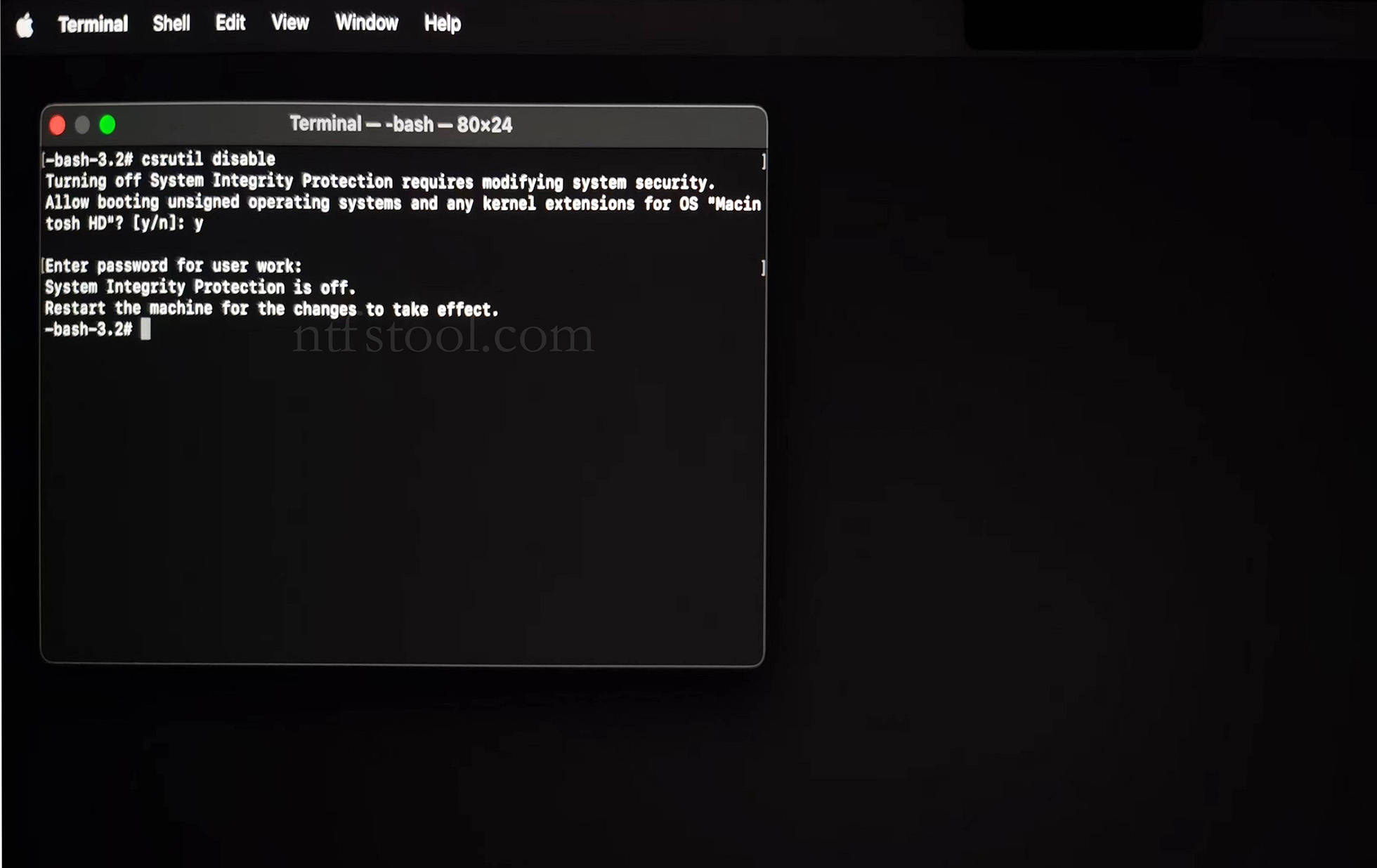
For Apple Silicon systems
Requirements: Disable SIP; enable Allow user management of kernel extensions from identified developers.
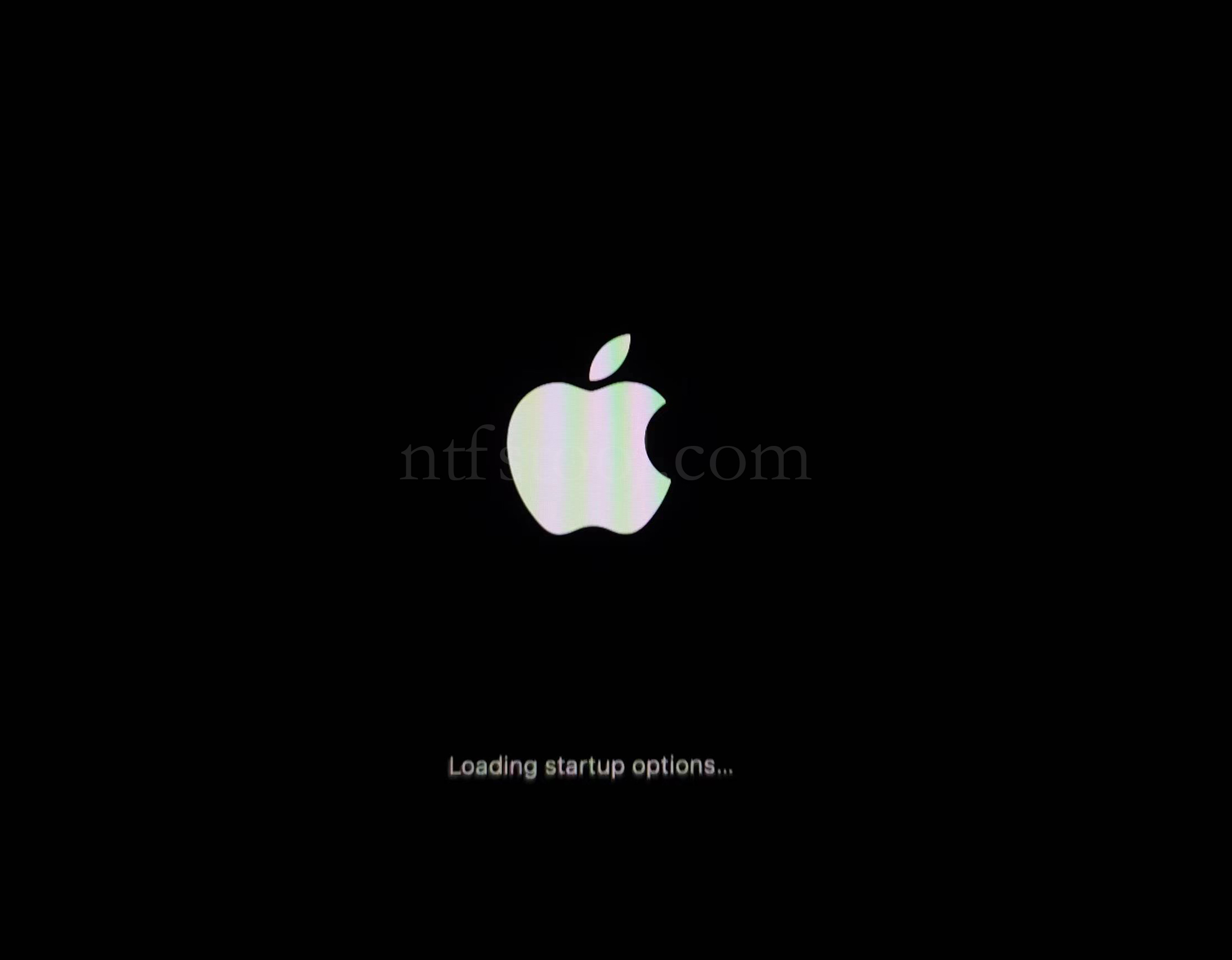
- Restart and hold the power button until Loading startup options appears, then enter recovery
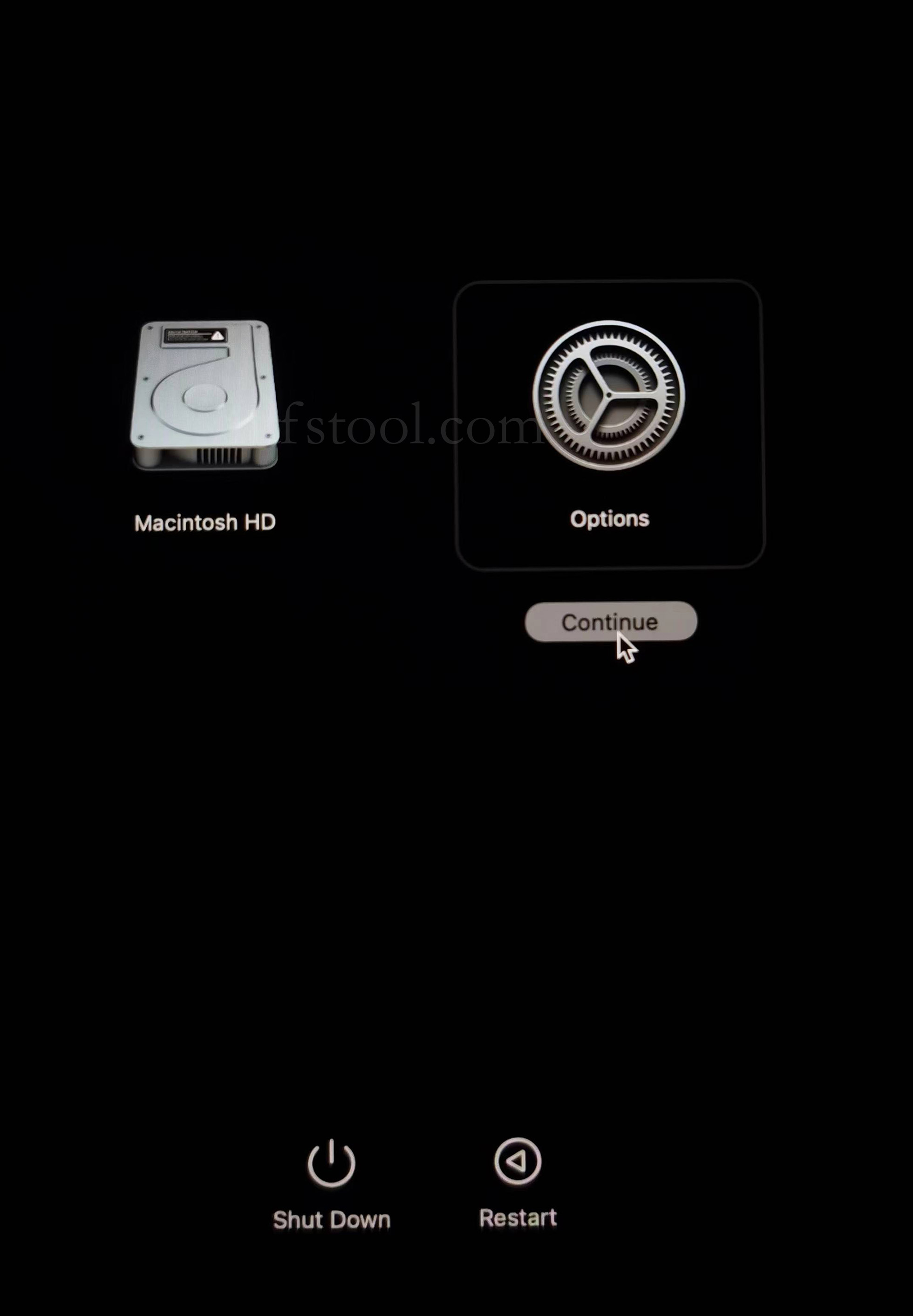
- Select Options, Continue
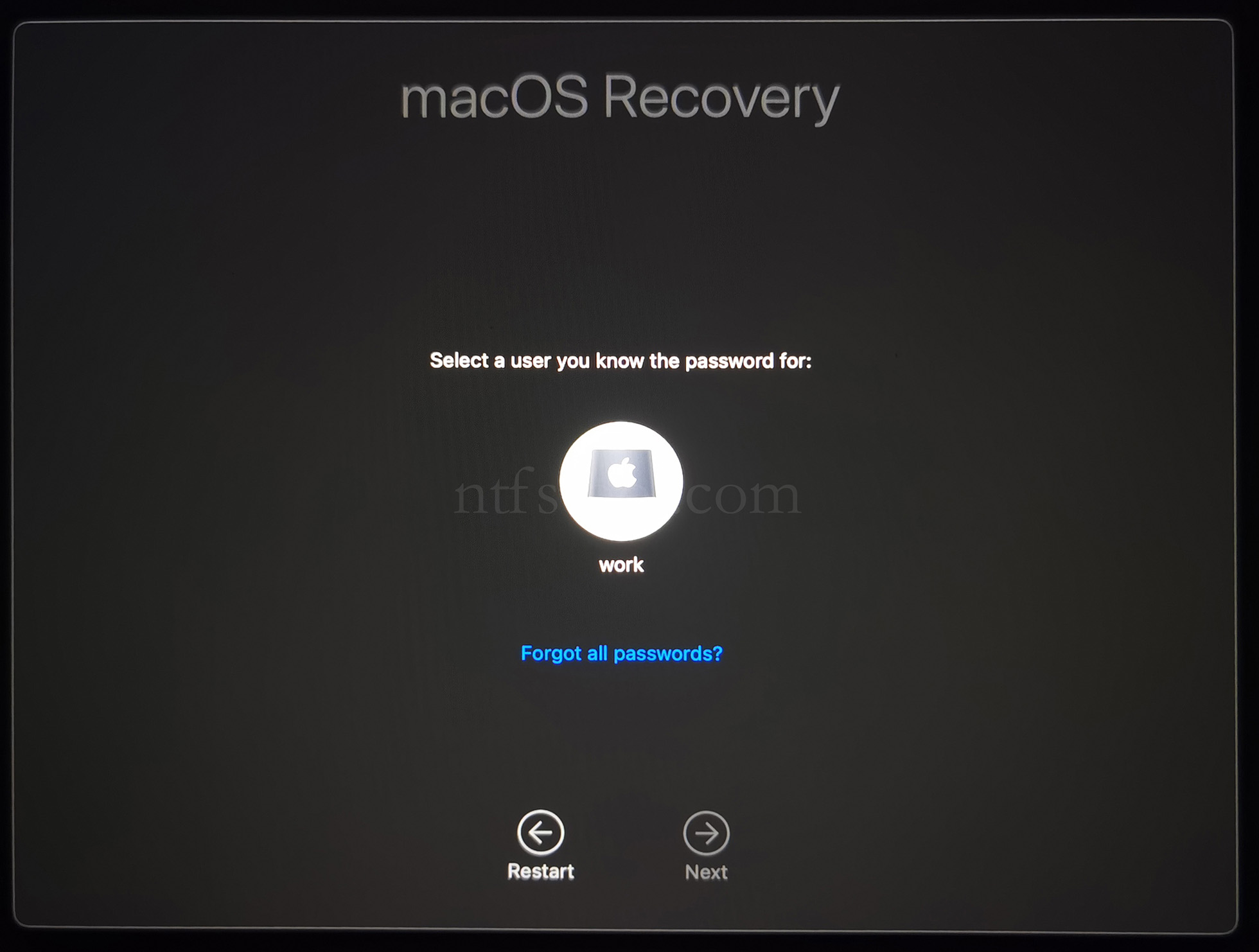
- Select the admin user and enter the password
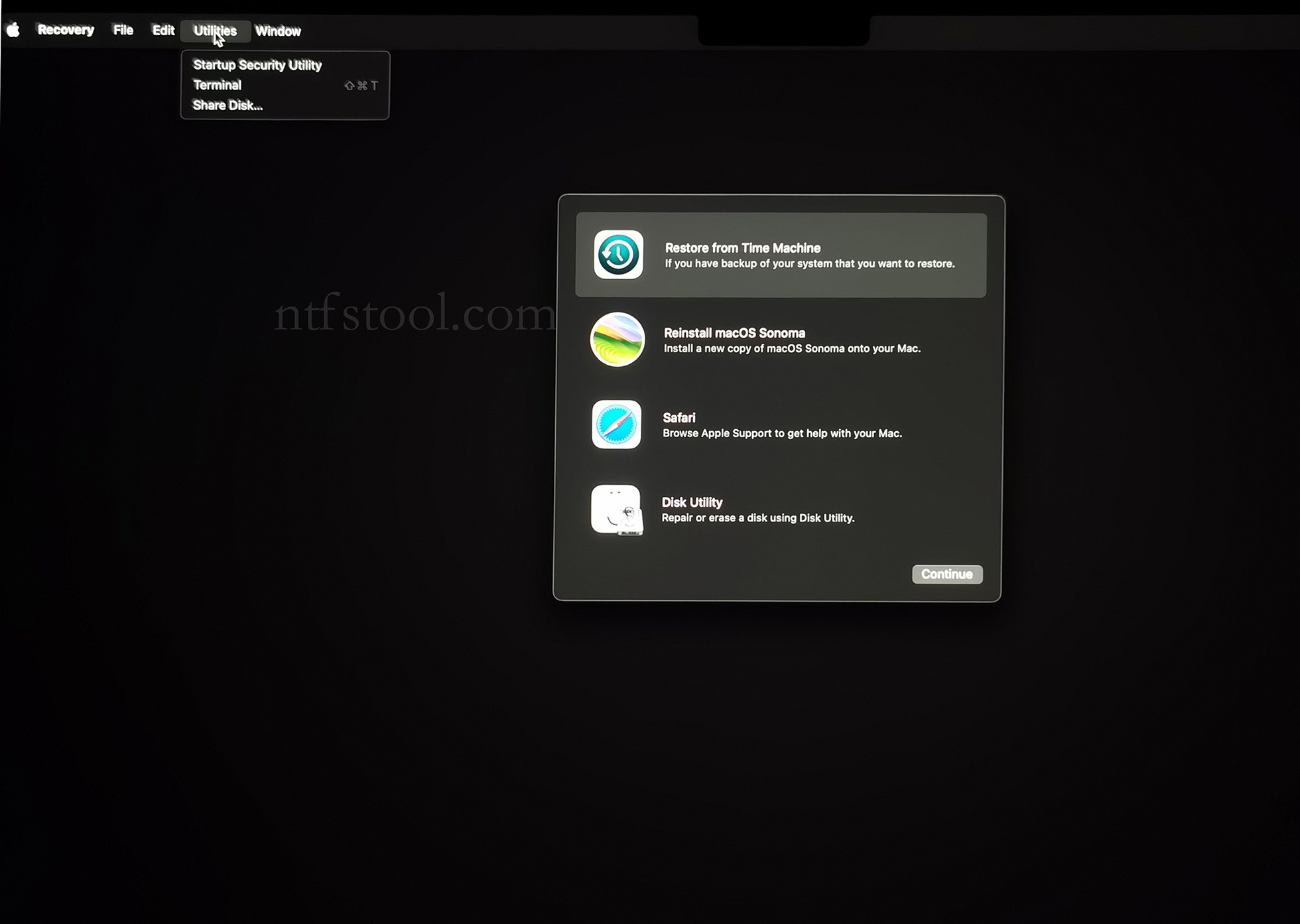
- Utilities → Terminal
- Type csrutil disable, press Enter
- Close Terminal
- Utilities → Startup Security Utility
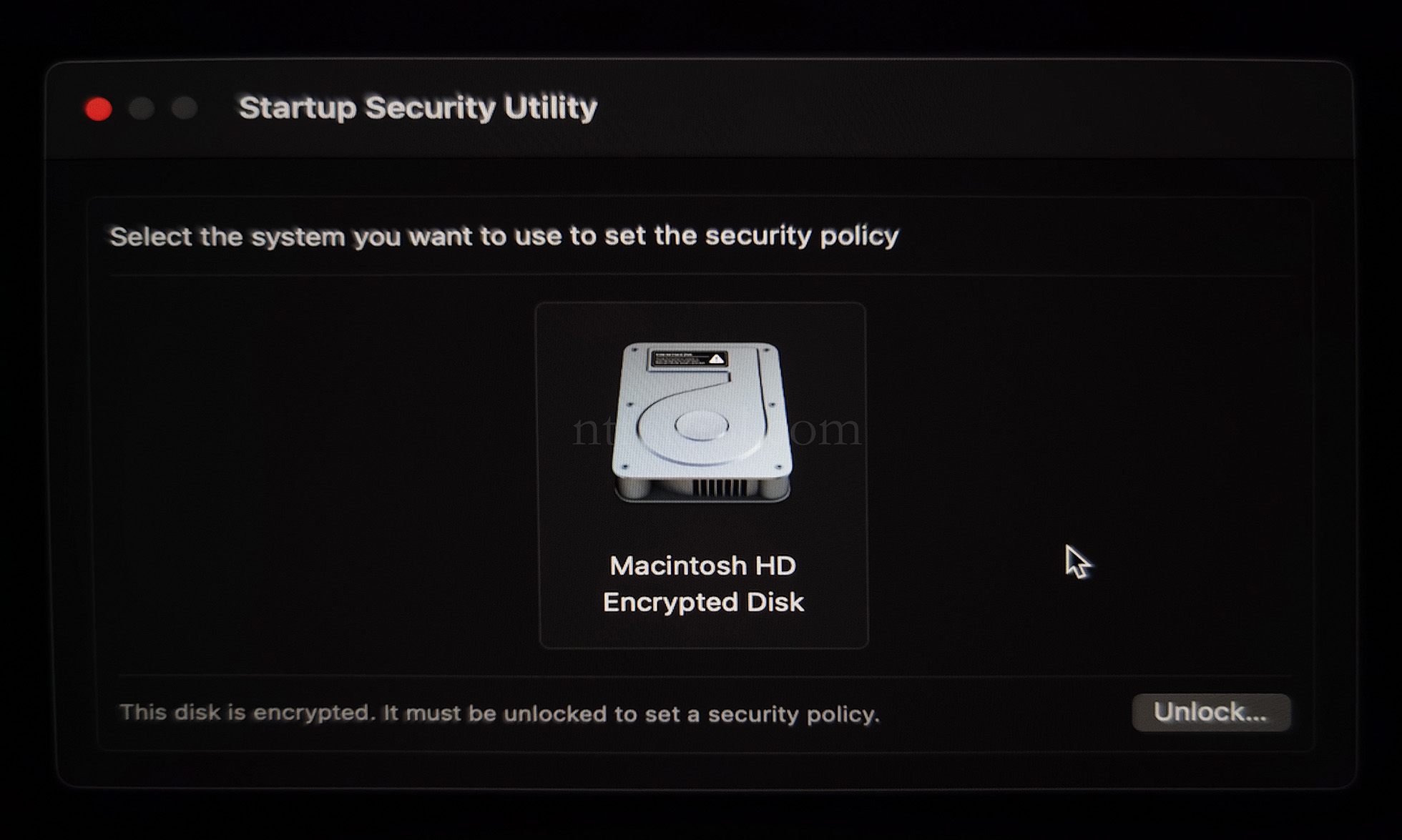
- Select the system disk, then Security Policy
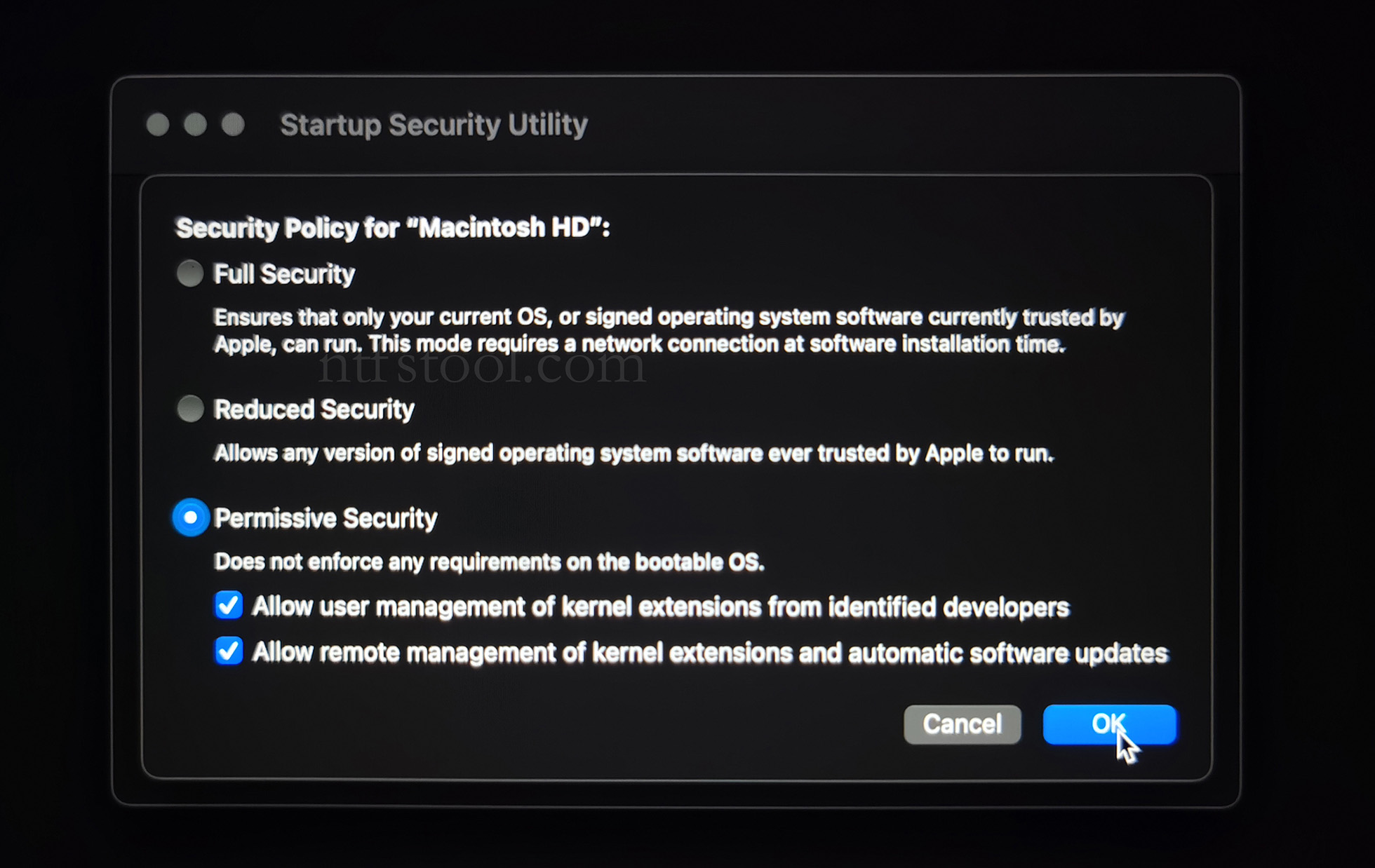
- Check Reduced Security and Allow user management of kernel extensions from identified developers
- Restart from the Apple menu
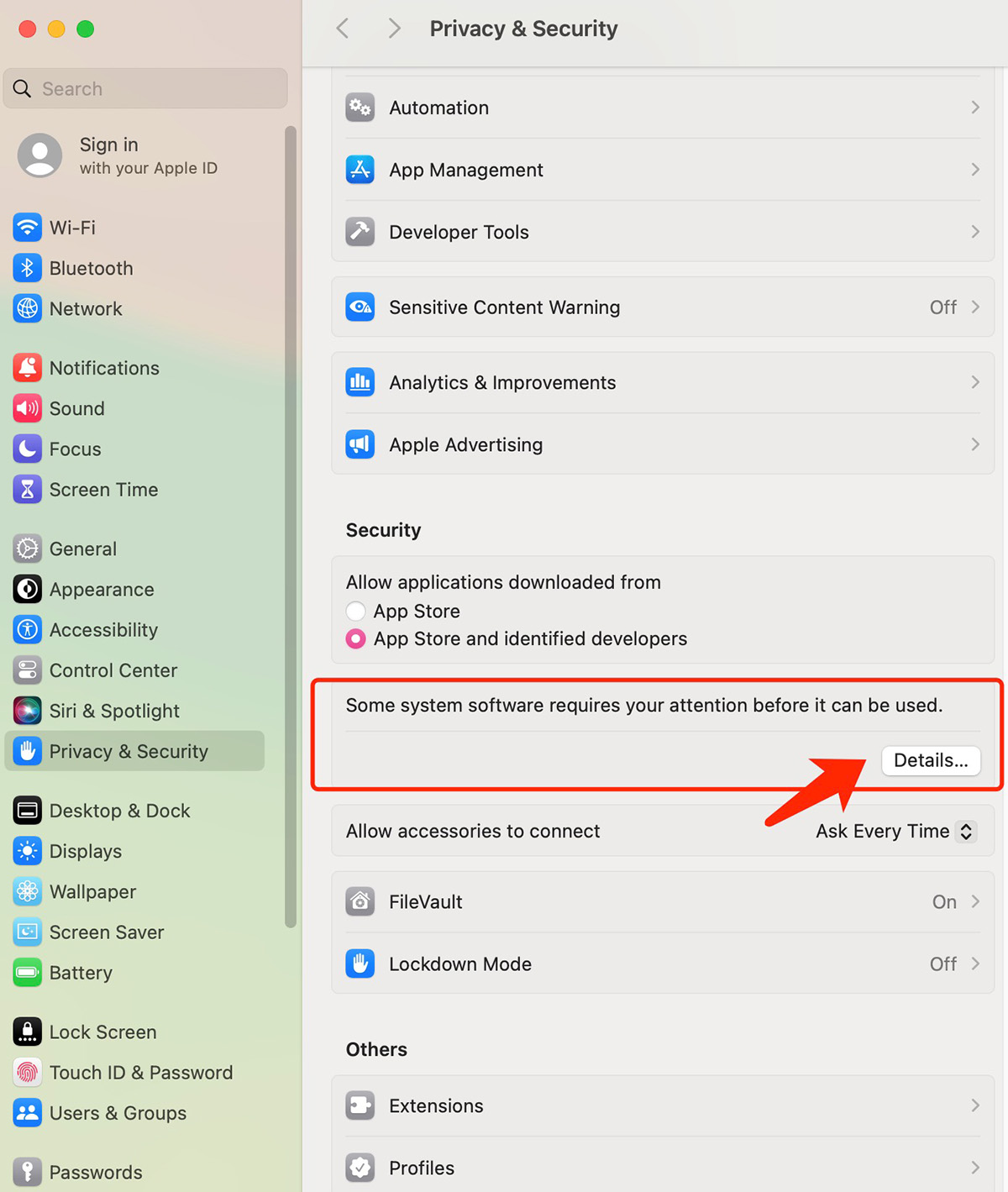
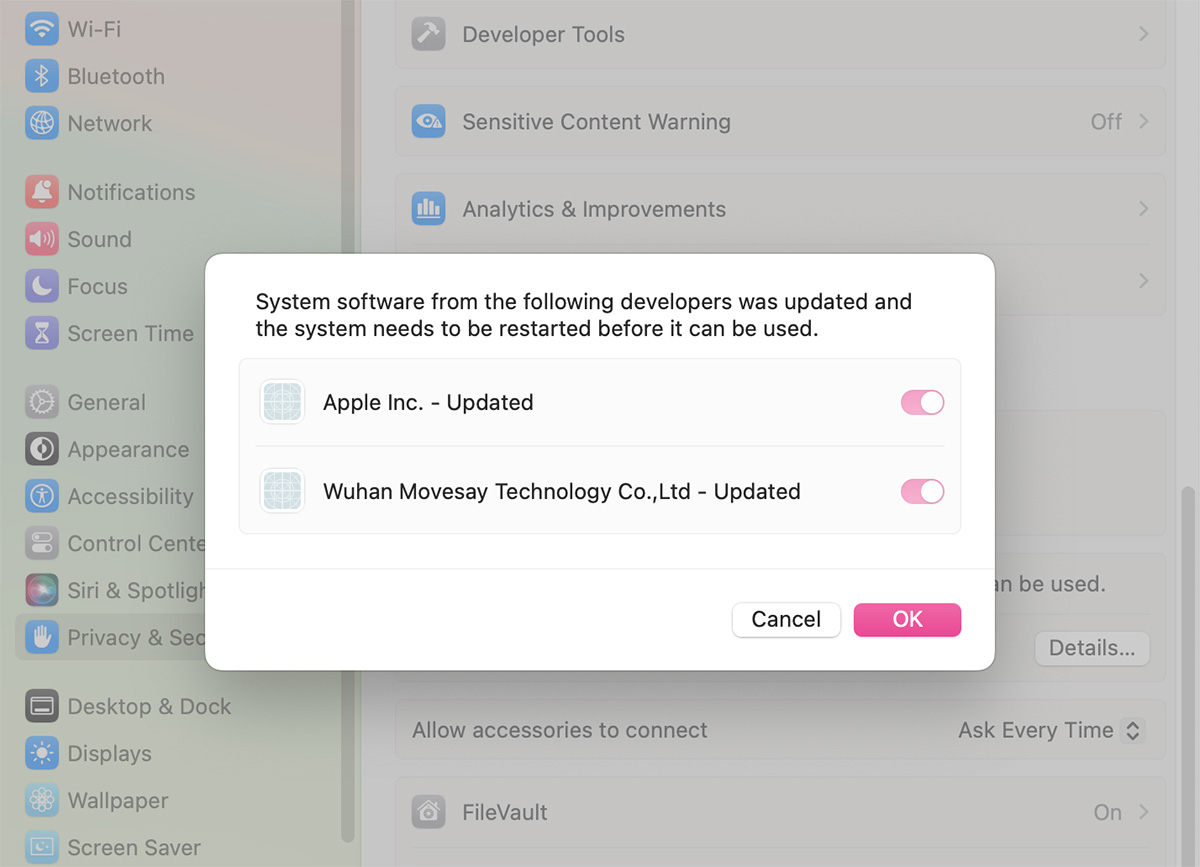
- Open System Settings → Privacy & Security, then allow the extension if prompted
- Related Screenshots