NTFSTool
NTFSTool 帮助中心
安装、首次挂载、常见问题,以及怎么联系我们。
开始使用
- 1
下载
从本站下载。macOS 12 及以上会得到 NTFSTool Pro,macOS 10.15–11 会得到经典版。
- 2
安装
NTFSTool Pro:打开 DMG,把 NTFSTool Pro 拖进“应用程序”。经典版:打开 pkg,点“继续”完成安装。
- 3
连接磁盘
插上 NTFS 磁盘。第一次 macOS 会要求输入 Mac 的开机密码,以便挂载磁盘。密码加密保存在这台 Mac 的钥匙串里,不会上传。
- 4
激活
可以免费挂载 3 次。之后购买授权,把购买邮件里的激活码粘贴到 App 里即可。
常见问题
磁盘还是只读,怎么办?
通常是 Windows 让磁盘处于休眠或“脏”状态(快速启动)。在 Windows 电脑上按住 Shift 再点“关机”,或关闭快速启动,然后重新连接。NTFSTool Pro 也可以一键修复。
Finder 里看不到磁盘。
NTFSTool Pro 默认会把已挂载的磁盘显示在桌面和 Finder 边栏。请检查 Finder › 设置 › 边栏 › 外置磁盘,然后拔下磁盘重新连接。
为什么要输入 Mac 密码?
以可写方式挂载磁盘需要一次管理员权限。密码加密保存在这台 Mac 的钥匙串里,只用于挂载磁盘,不会发送到任何地方。
需要改 SIP、进恢复模式或改安全设置吗?
不需要。NTFSTool 不用内核扩展,也不会要求你降低 Mac 的安全设置,Apple Pay 照常可用。
激活码在哪里?
在你的购买邮件里。找不到的话,带上订单号发邮件到 [email protected],我们重新发给你。
怎么退款?
购买后 45 天内发邮件即可全额退款,不问原因。如果 NTFSTool 无法读写你的磁盘,任何时候都全额退款。退款后授权会失效。
数据安全吗?
NTFSTool 会校验写入,Pro 在修复前会先检查磁盘。和所有外置磁盘一样,拔出前请先推出。
有免费版吗?
有。免费版在 Mac App Store 上架,支持 macOS 15.6 及以上。 了解更多 →
怎么卸载 NTFSTool?
按卸载指南操作,可以干净地移除 App 和辅助组件。 了解更多 →
提示:拔出磁盘前请先推出,并备份重要文件。完整条款见许可协议。
旧版内核扩展版本(历史资料)
历史 kext 版本
以下步骤仅适用于历史内核扩展版本,作为工程底蕴与旧版用户文档保留。现行安装请不要执行这些步骤。
Reason for Installing the NTFSTool Kernel Extension
Due to Microsoft's licensing restrictions, macOS has removed write support for the NTFS disk format. Historical NTFSTool releases therefore installed an Apple-signed kernel extension. This is engineering heritage. The current release does not use these steps.
Requirements and Steps for Installing Drivers in macOS Kernel (legacy only)
For Intel Chip Systems
Requirements: Disable System Integrity Protection (SIP)
- Enter system recovery mode, disable System Integrity Protection (SIP). Completely shut down your Mac, then start it up, and immediately press and hold Command+R during startup until the Apple logo appears for 3 seconds, then release the button and wait to enter Recovery mode
- Click 'Utilities' in the top toolbar, select 'Terminal'
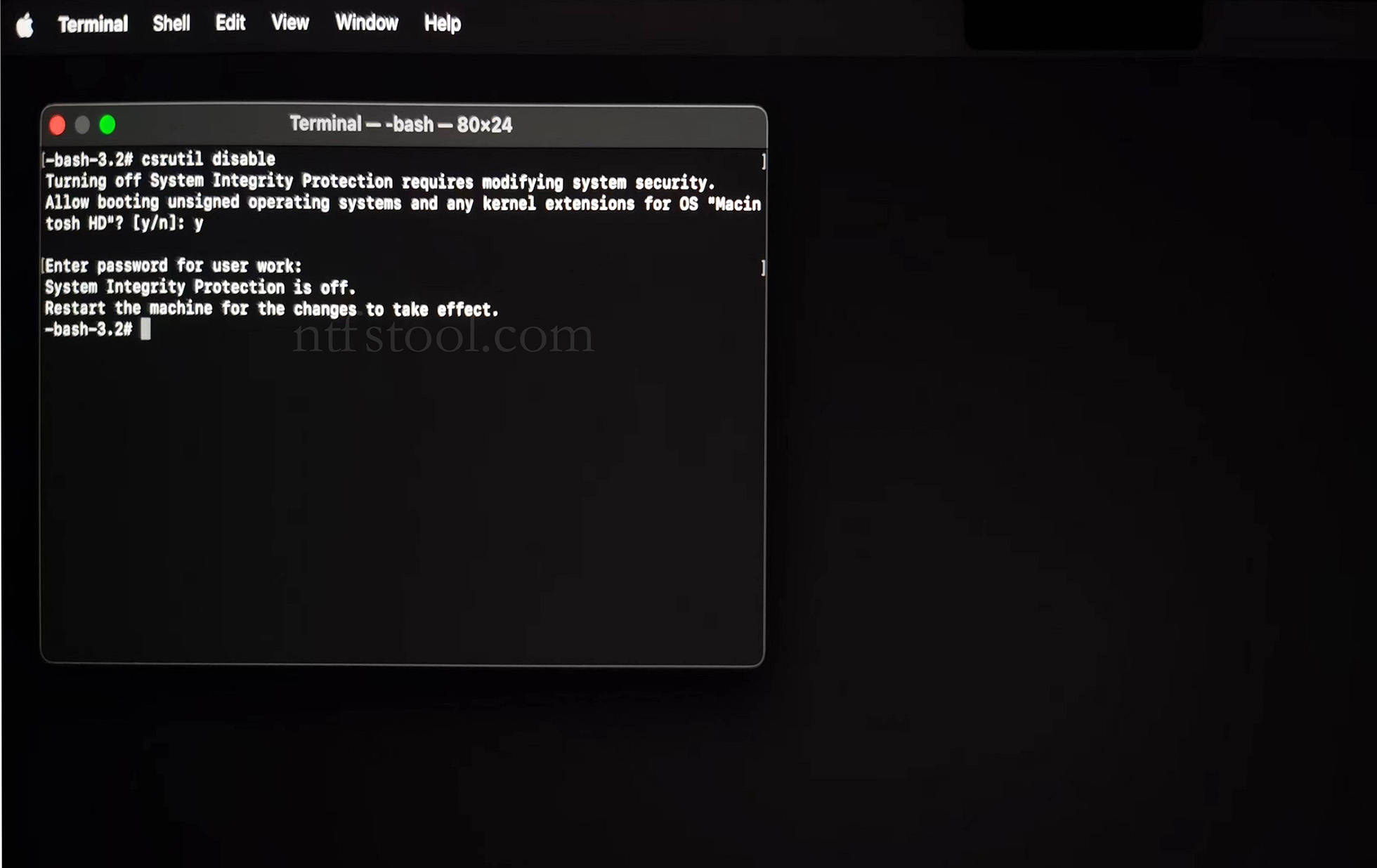
- Type 'csrutil disable' in the terminal, then press Enter
- Close the terminal and restart your Mac
- Related Screenshots

For Apple Silicon systems
Requirements: Disable SIP; enable Allow user management of kernel extensions from identified developers.
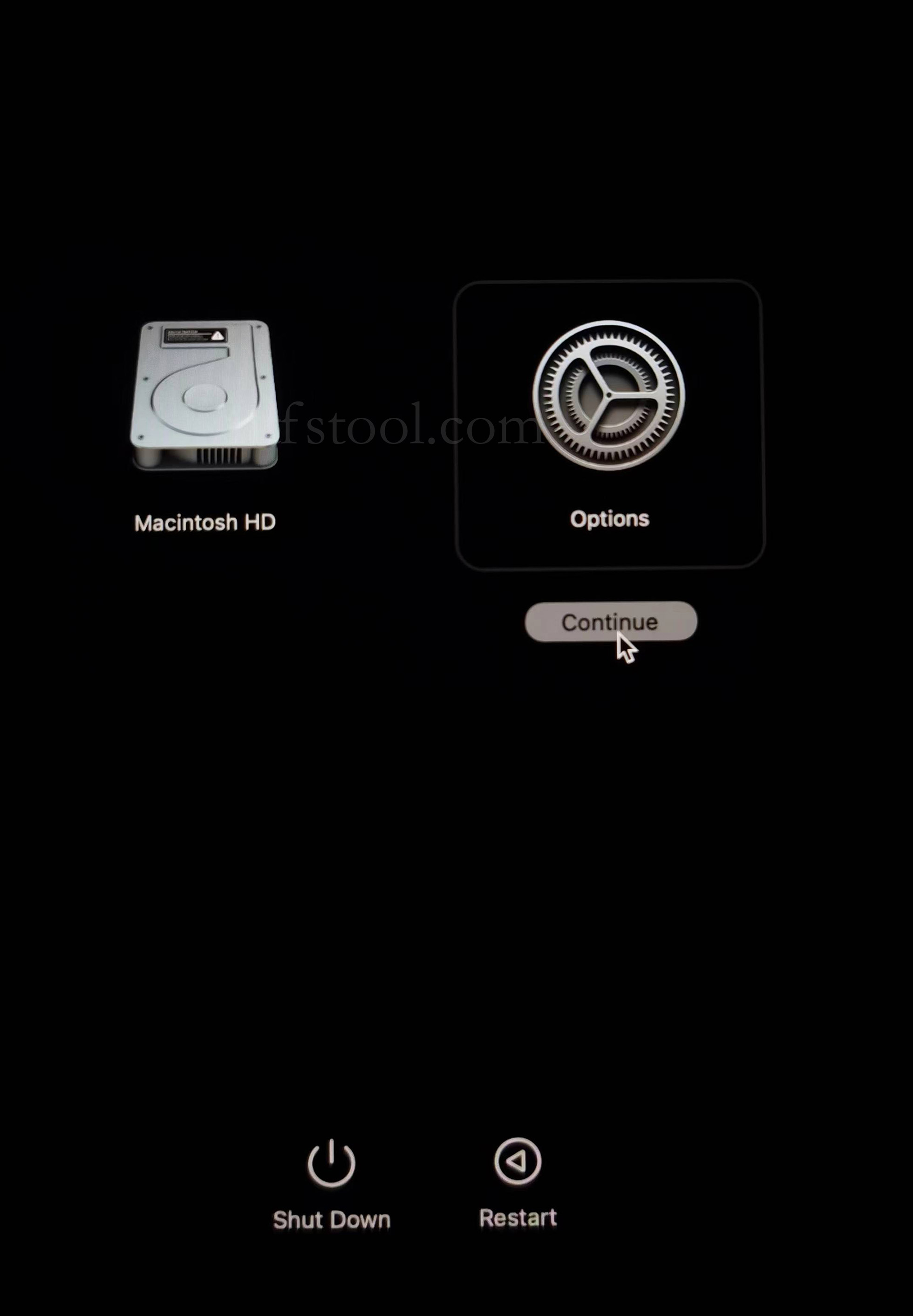
- Restart and hold the power button until Loading startup options appears, then enter recovery
- Select Options, Continue
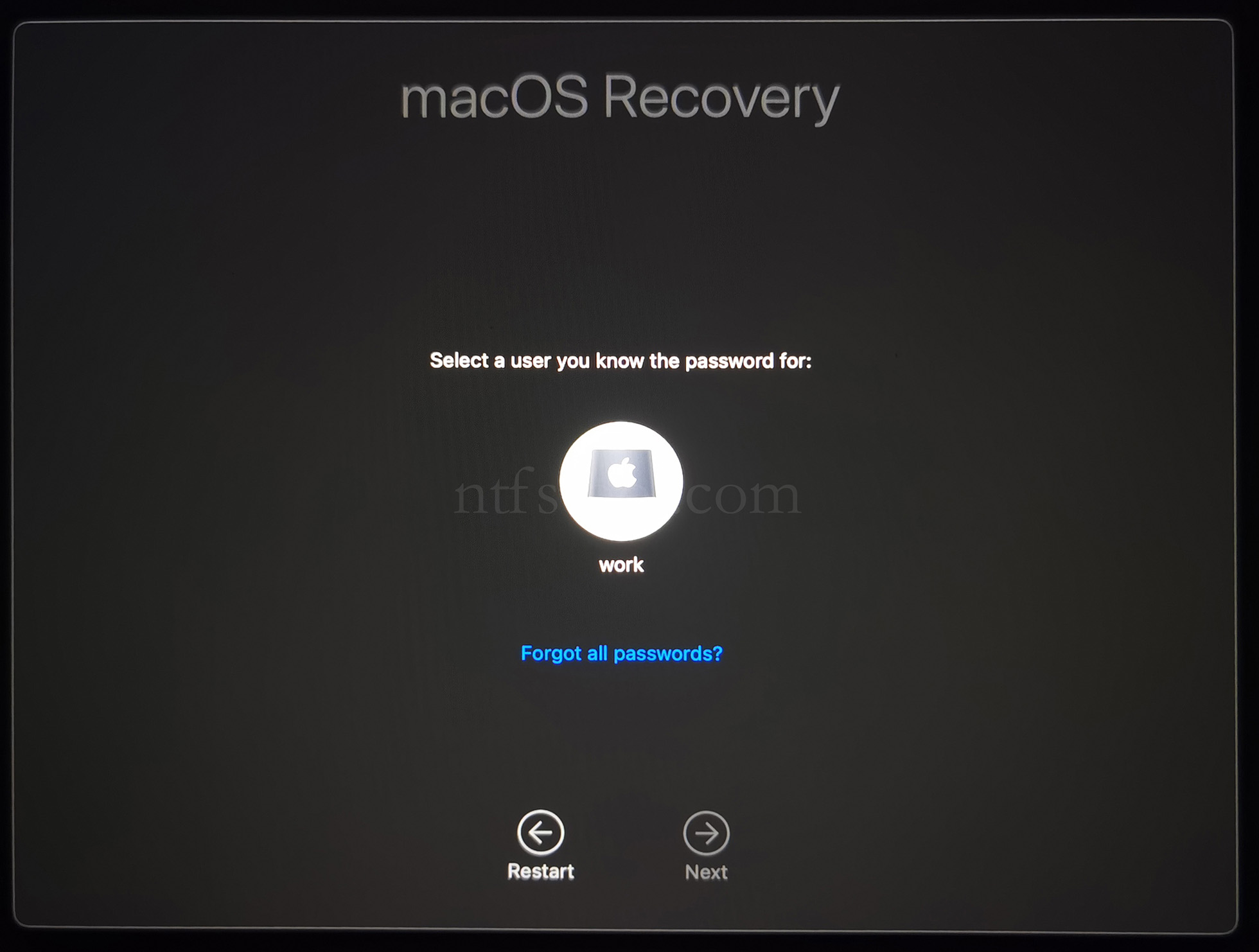
- Select the admin user and enter the password
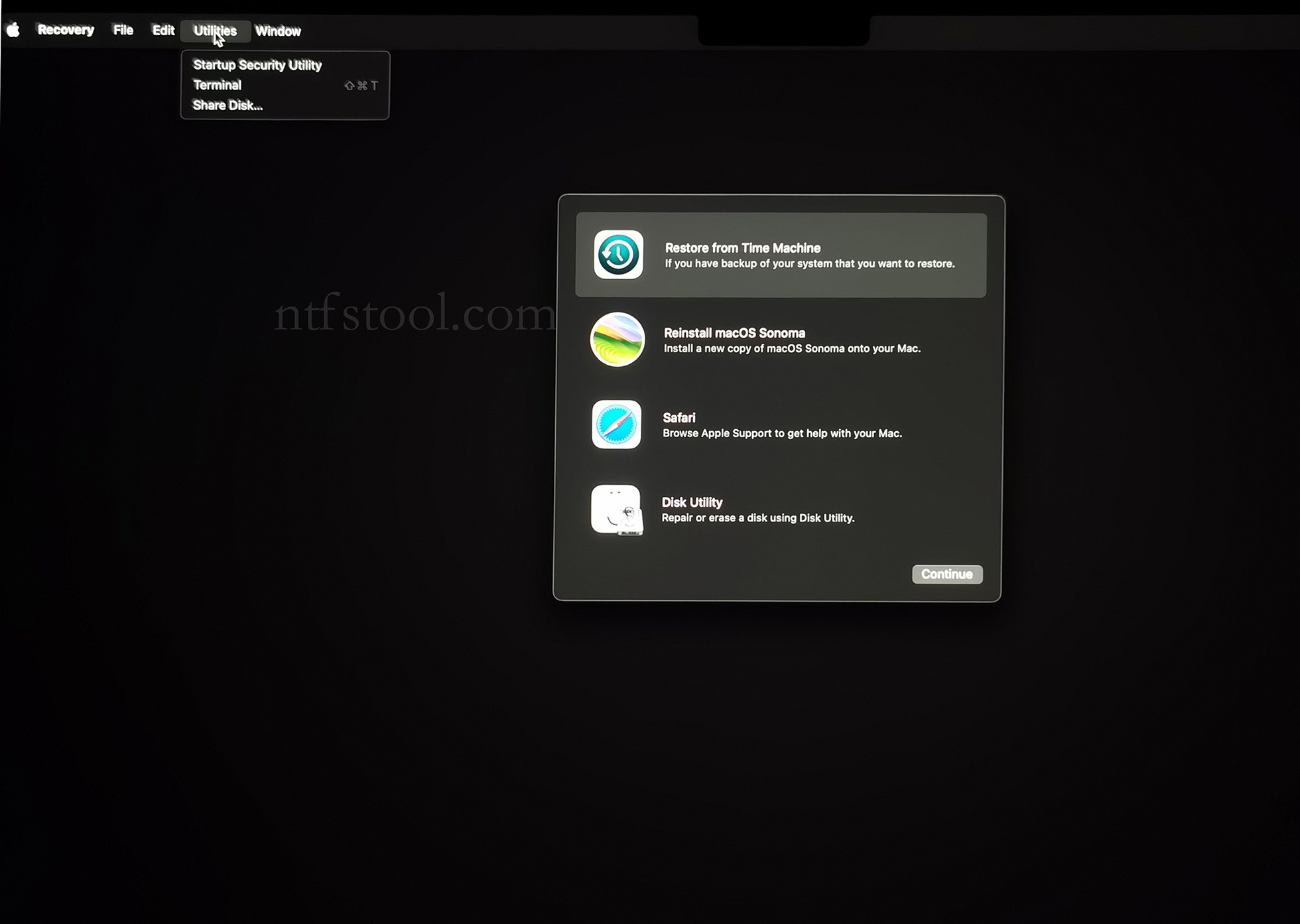
- Utilities → Terminal
- Type csrutil disable, press Enter
- Close Terminal
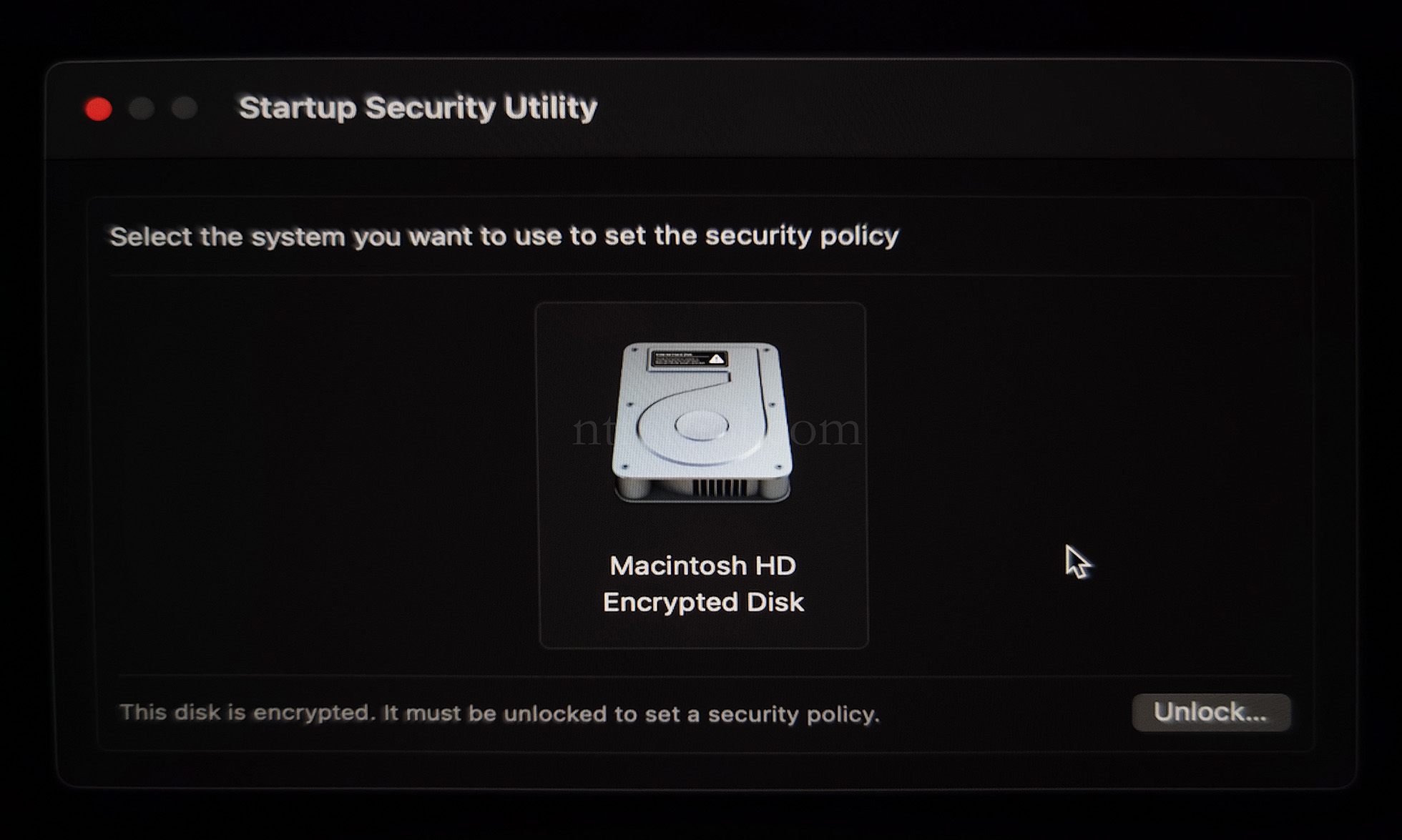
- Utilities → Startup Security Utility
- Select the system disk, then Security Policy
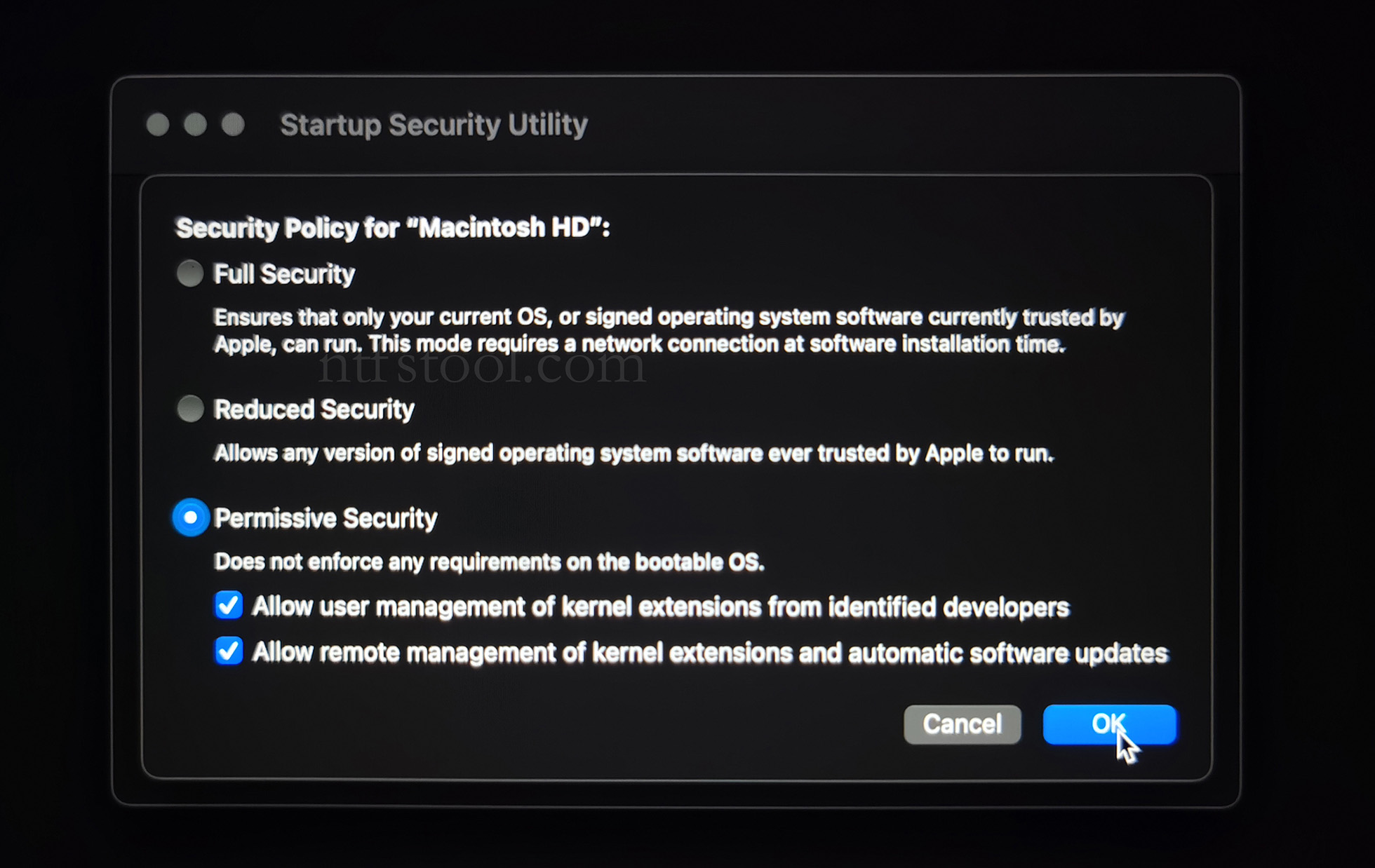
- Check Reduced Security and Allow user management of kernel extensions from identified developers
- Restart from the Apple menu
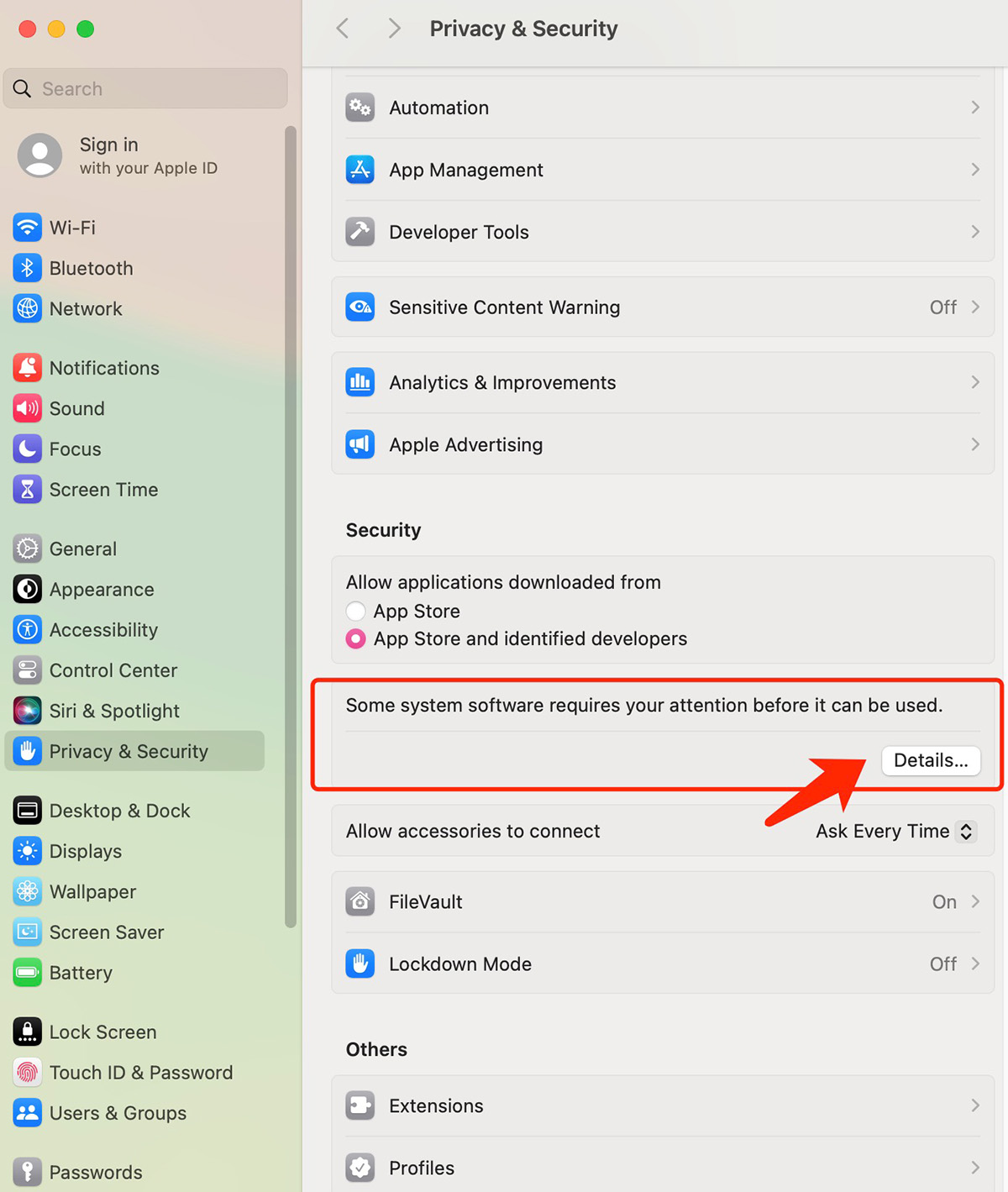
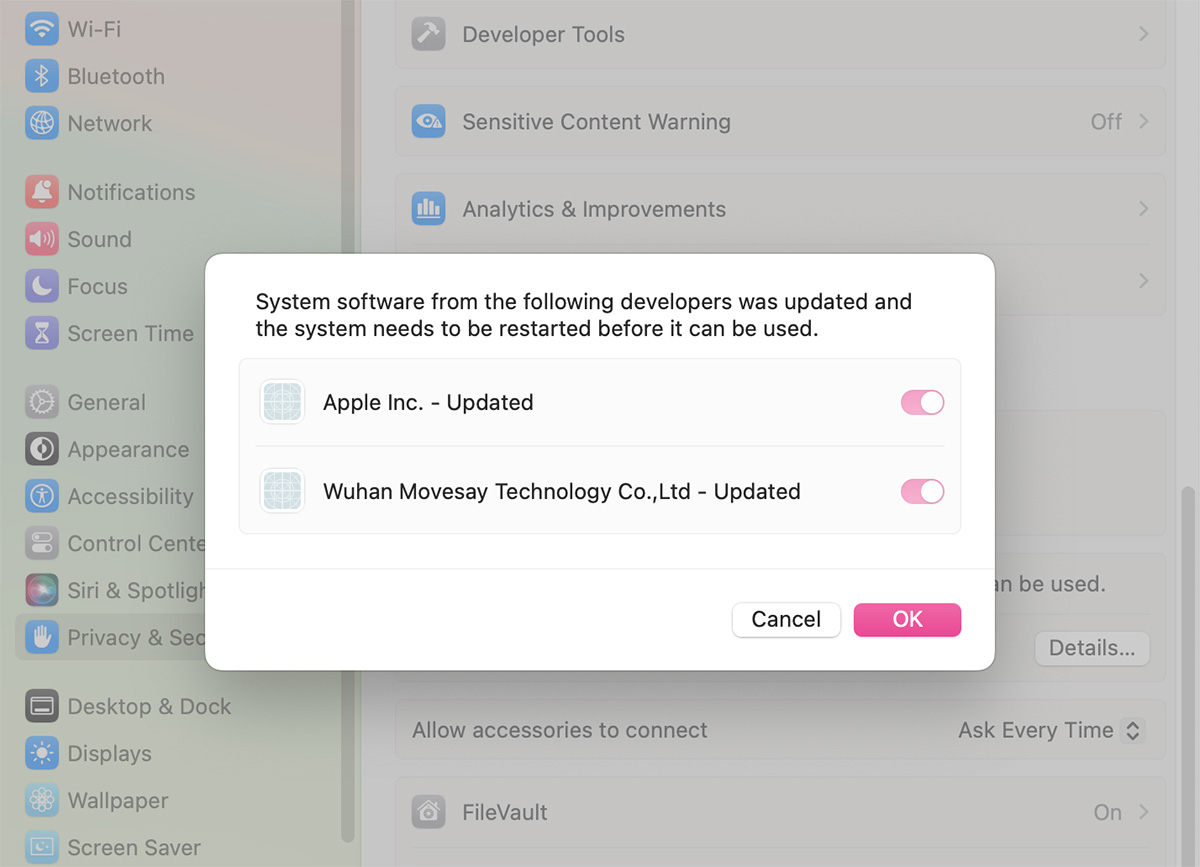
- Open System Settings → Privacy & Security, then allow the extension if prompted
- Related Screenshots