NTFSTool
NTFSTool 고객센터
설치, 첫 마운트, 자주 생기는 문제 해결, 문의 방법.
시작하기
- 1
다운로드
이 사이트에서 다운로드하세요. macOS 12 이상에서는 NTFSTool Pro, macOS 10.15–11에서는 클래식 버전이 제공됩니다.
- 2
설치
NTFSTool Pro: DMG를 열고 NTFSTool Pro를 '응용 프로그램'으로 드래그합니다. 클래식 버전: pkg를 열고 '계속'을 클릭합니다.
- 3
드라이브 연결
NTFS 드라이브를 연결합니다. 처음에는 NTFSTool이 드라이브를 마운트할 수 있도록 macOS가 Mac 로그인 암호를 묻습니다. 암호는 이 Mac의 키체인에 암호화되어 저장되며 업로드되지 않습니다.
- 4
활성화
3회까지 무료로 마운트할 수 있습니다. 그 후에는 라이선스를 구매하고 구매 이메일에 있는 키를 앱에 붙여 넣으세요.
자주 묻는 질문
드라이브가 여전히 읽기 전용으로 마운트됩니다. 어떻게 하나요?
대개 Windows가 드라이브를 최대 절전 또는 '더티' 상태(빠른 시작)로 남겨 둔 경우입니다. Windows PC에서 Shift 키를 누른 채 '시스템 종료'를 선택하거나 빠른 시작을 끈 다음 다시 연결하세요. NTFSTool Pro로 원클릭 복구도 할 수 있습니다.
드라이브가 Finder에 보이지 않습니다.
NTFSTool Pro는 기본적으로 마운트된 드라이브를 데스크탑과 Finder 사이드바에 표시합니다. Finder › 설정 › 사이드바 › 외장 디스크를 확인한 다음 드라이브를 뽑았다가 다시 연결하세요.
NTFSTool이 왜 Mac 암호를 묻나요?
쓰기 가능한 상태로 드라이브를 마운트하려면 한 번 관리자 권한이 필요합니다. 암호는 이 Mac의 키체인에 암호화되어 저장되고, 드라이브 마운트에만 사용되며, 어디에도 전송되지 않습니다.
SIP, 복구 모드 또는 보안 설정을 바꿔야 하나요?
아니요. NTFSTool은 커널 확장을 사용하지 않으며 Mac 보안을 낮추라고 요구하지 않습니다. Apple Pay도 계속 사용할 수 있습니다.
라이선스 키는 어디에 있나요?
구매 이메일에 있습니다. 찾을 수 없다면 주문 번호와 함께 [email protected]으로 이메일을 보내 주세요. 다시 보내 드립니다.
환불은 어떻게 받나요?
구매 후 45일 이내에 이메일을 보내 주시면 이유를 묻지 않고 전액 환불해 드립니다. NTFSTool이 드라이브를 읽고 쓰지 못하면 언제든 전액 환불해 드립니다. 환불 후에는 라이선스가 비활성화됩니다.
데이터는 안전한가요?
NTFSTool은 쓰기를 검증하고, Pro는 복구 전에 드라이브를 검사합니다. 다른 외장 디스크와 마찬가지로 뽑기 전에는 항상 추출하세요.
무료 버전이 있나요?
네. 무료 버전은 Mac App Store에 있으며 macOS 15.6 이상에서 사용할 수 있습니다. 더 알아보기 →
NTFSTool은 어떻게 제거하나요?
제거 가이드를 따라 앱과 헬퍼를 깔끔하게 제거하세요. 더 알아보기 →
팁: 드라이브를 뽑기 전에는 항상 추출하고, 중요한 파일은 백업해 두세요. 전체 약관은 라이선스 계약에 있습니다.
이전 커널 확장 버전(과거 자료)
레거시 kext 버전(기록)
다음 단계는 역사적 커널 확장 빌드에만 적용됩니다. 엔지니어링 역사 및 해당 버전 사용자를 위해 보관. 현재 설치 프로그램에는 따르지 마세요.
Reason for Installing the NTFSTool Kernel Extension
Due to Microsoft's licensing restrictions, macOS has removed write support for the NTFS disk format. Historical NTFSTool releases therefore installed an Apple-signed kernel extension. This is engineering heritage. The current release does not use these steps.
Requirements and Steps for Installing Drivers in macOS Kernel (legacy only)
For Intel Chip Systems
Requirements: Disable System Integrity Protection (SIP)
- Enter system recovery mode, disable System Integrity Protection (SIP). Completely shut down your Mac, then start it up, and immediately press and hold Command+R during startup until the Apple logo appears for 3 seconds, then release the button and wait to enter Recovery mode
- Click 'Utilities' in the top toolbar, select 'Terminal'
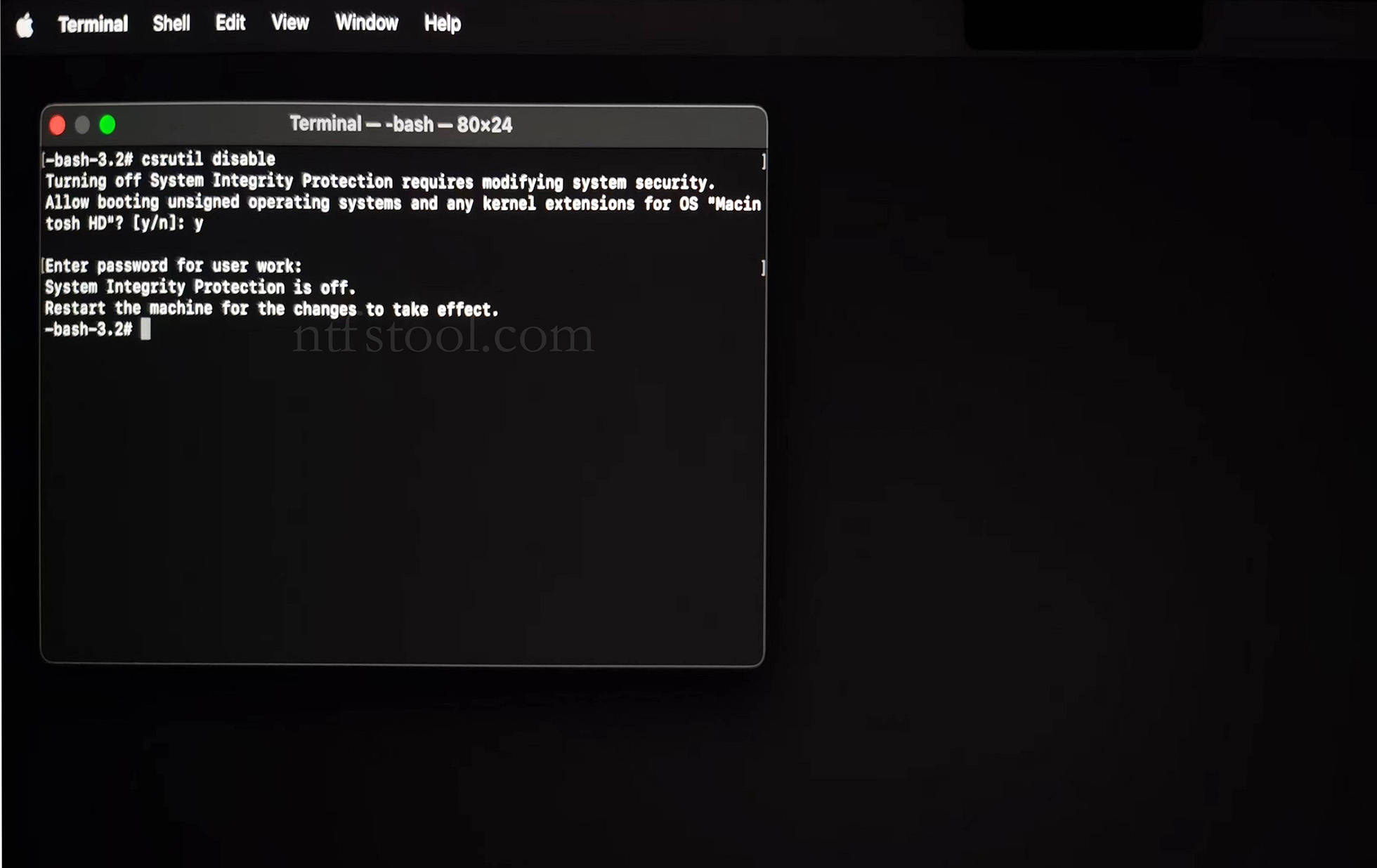
- Type 'csrutil disable' in the terminal, then press Enter
- Close the terminal and restart your Mac
- Related Screenshots

For Apple Silicon systems
Requirements: Disable SIP; enable Allow user management of kernel extensions from identified developers.
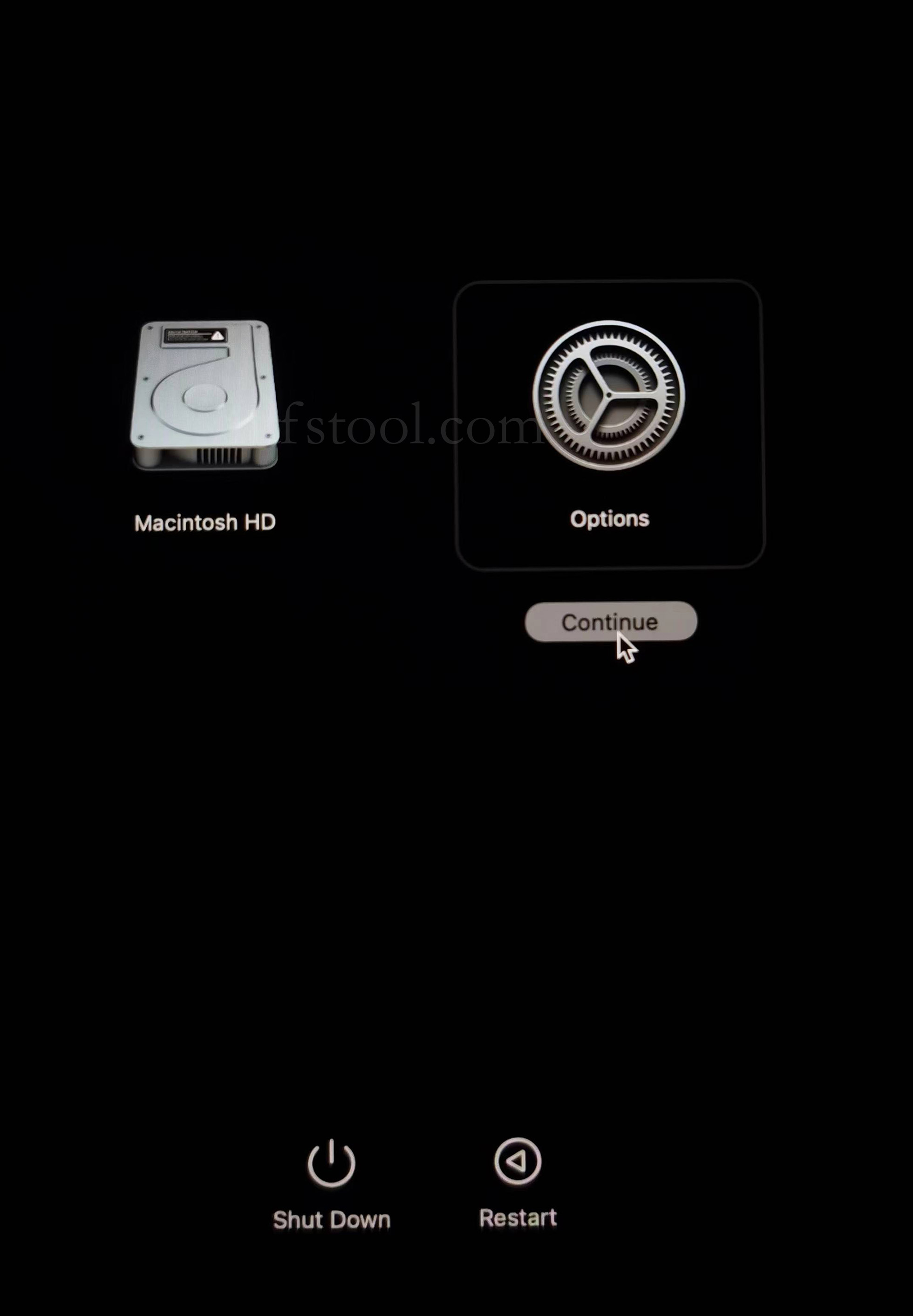
- Restart and hold the power button until Loading startup options appears, then enter recovery
- Select Options, Continue
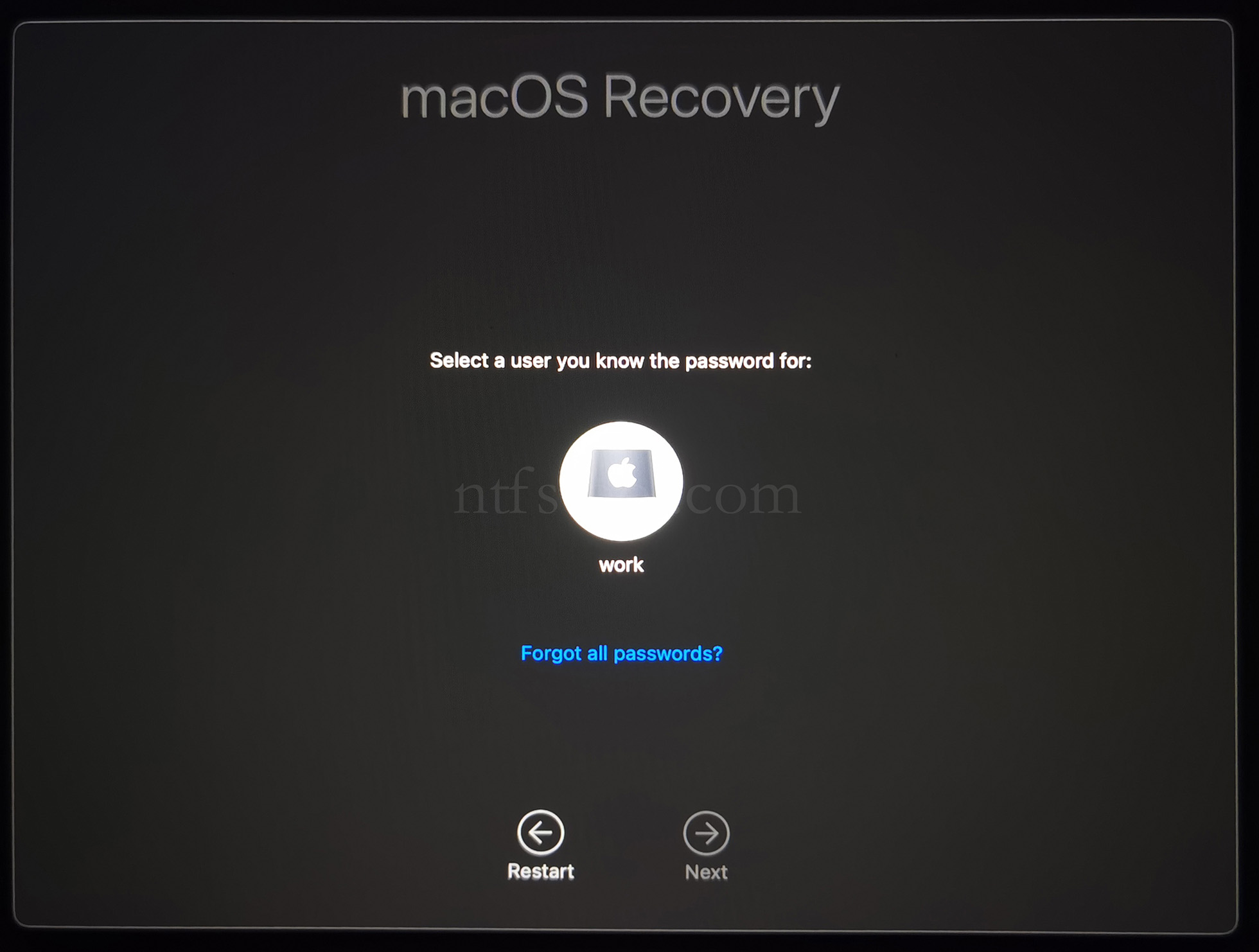
- Select the admin user and enter the password
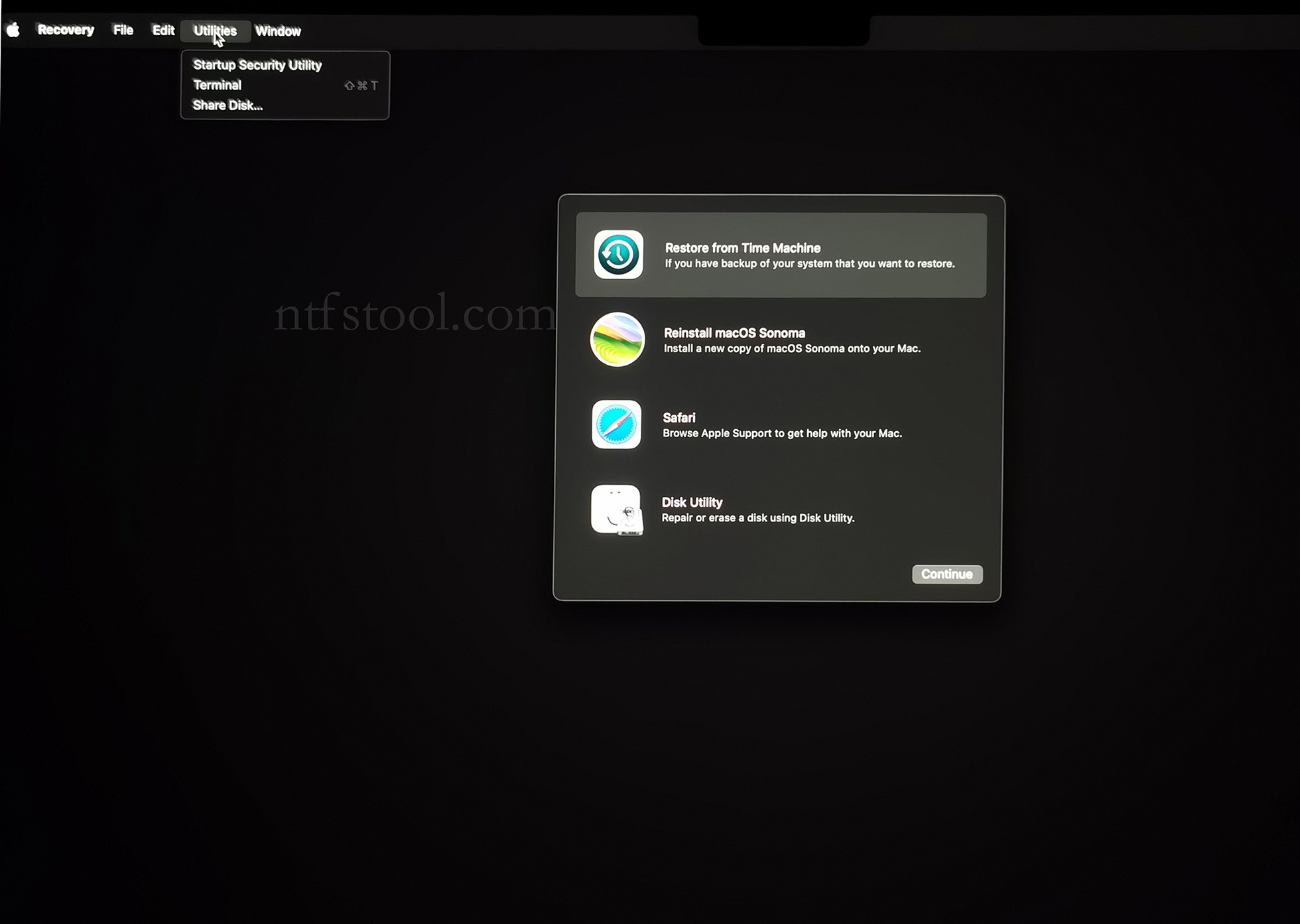
- Utilities → Terminal
- Type csrutil disable, press Enter
- Close Terminal
- Utilities → Startup Security Utility
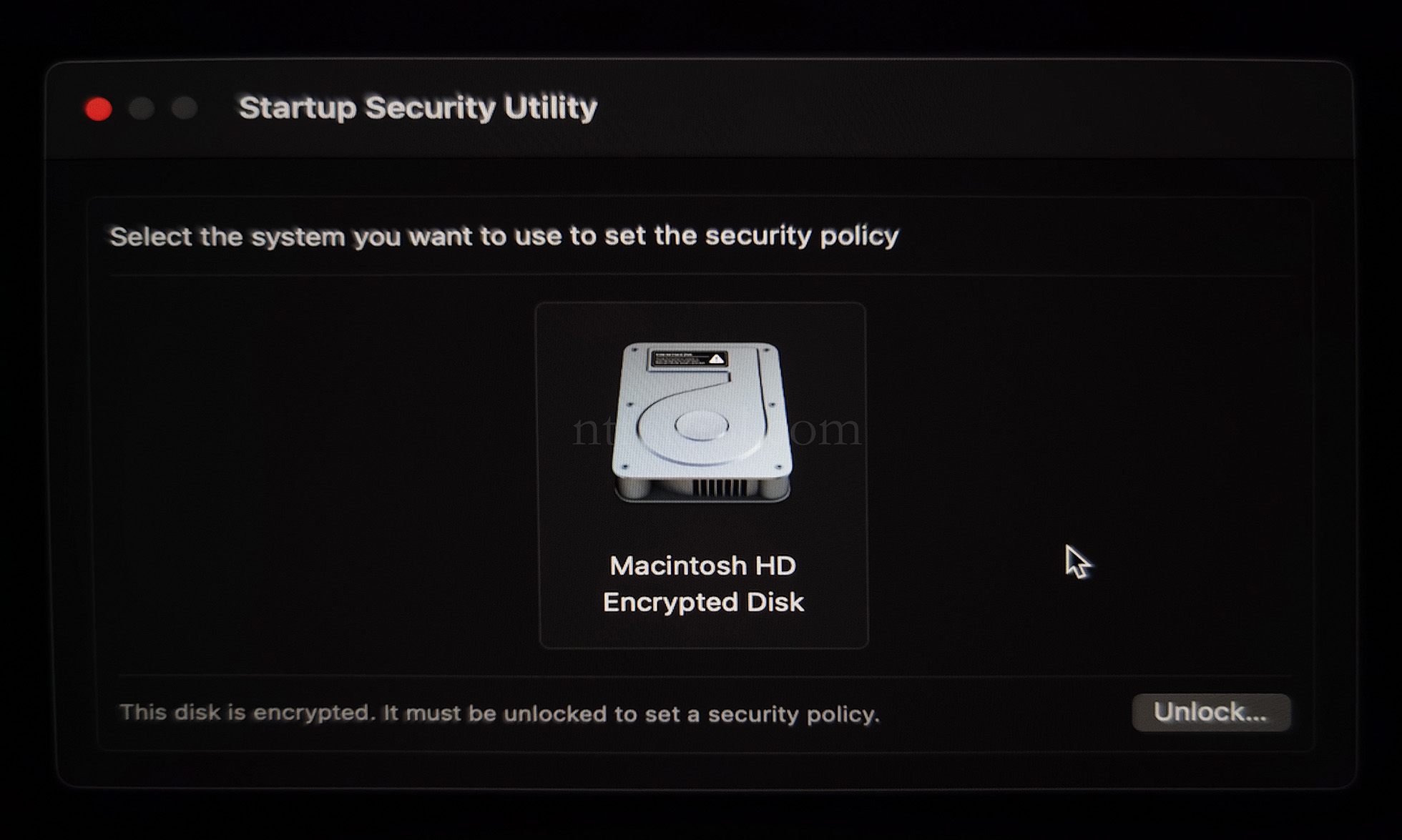
- Select the system disk, then Security Policy
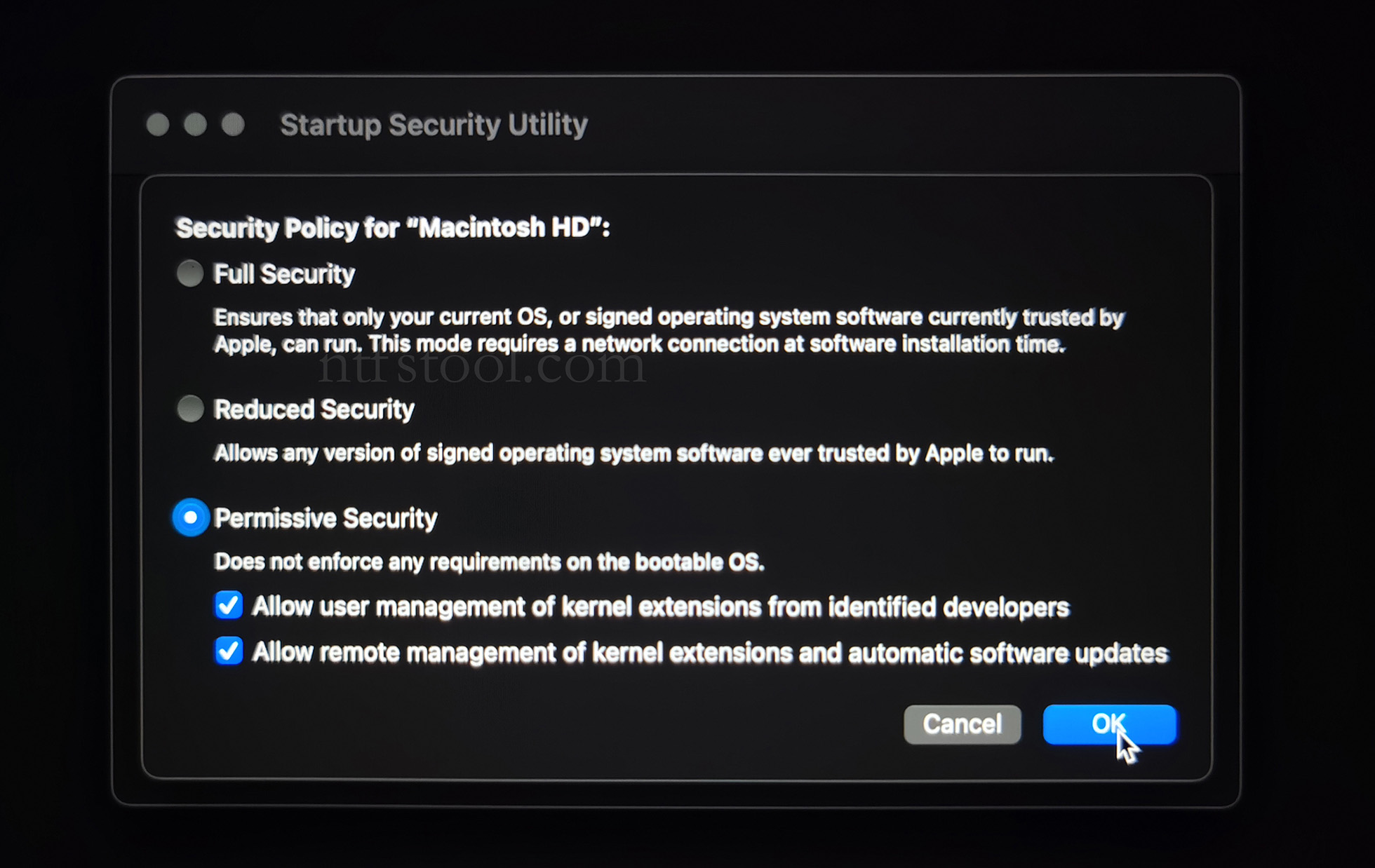
- Check Reduced Security and Allow user management of kernel extensions from identified developers
- Restart from the Apple menu
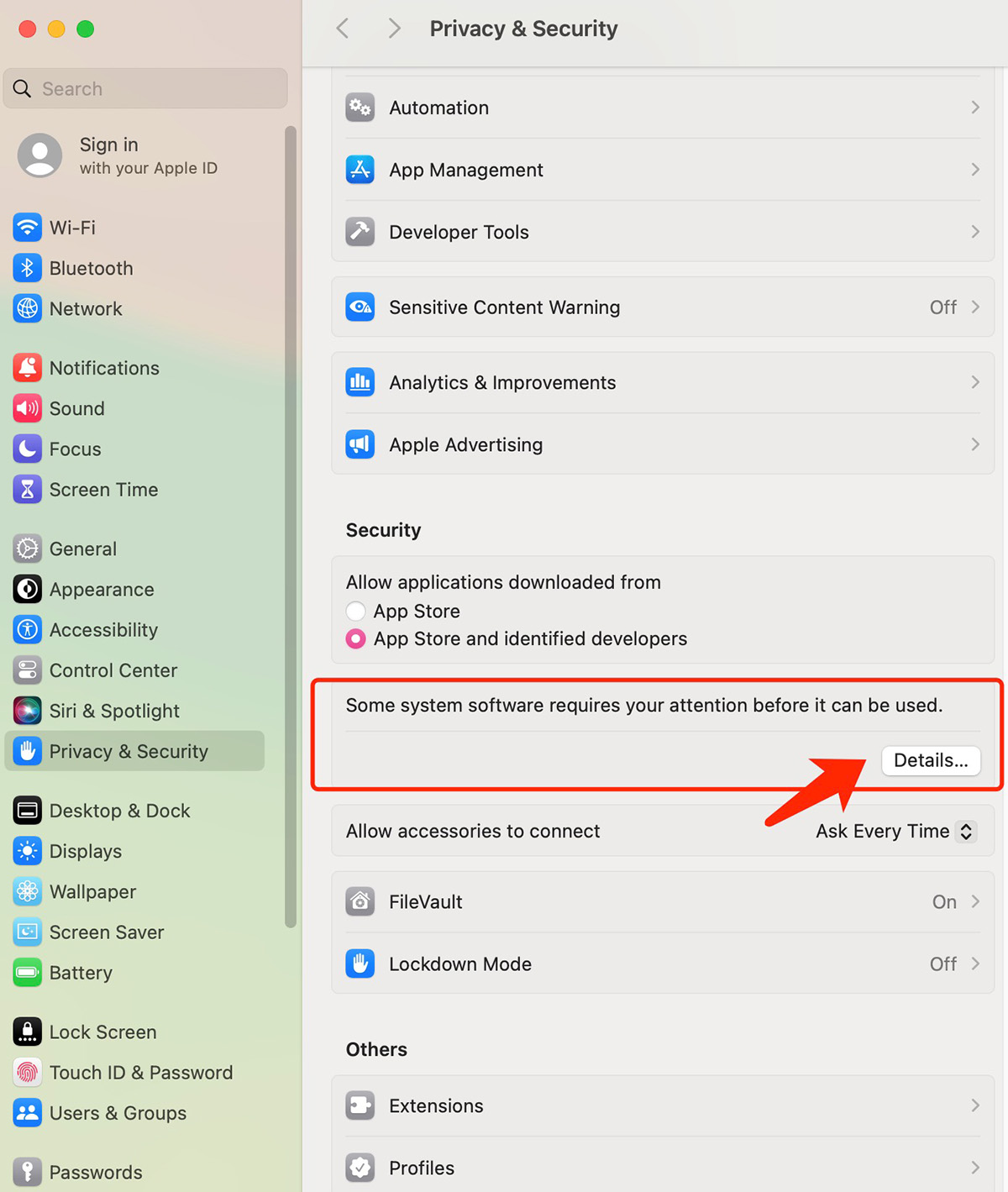
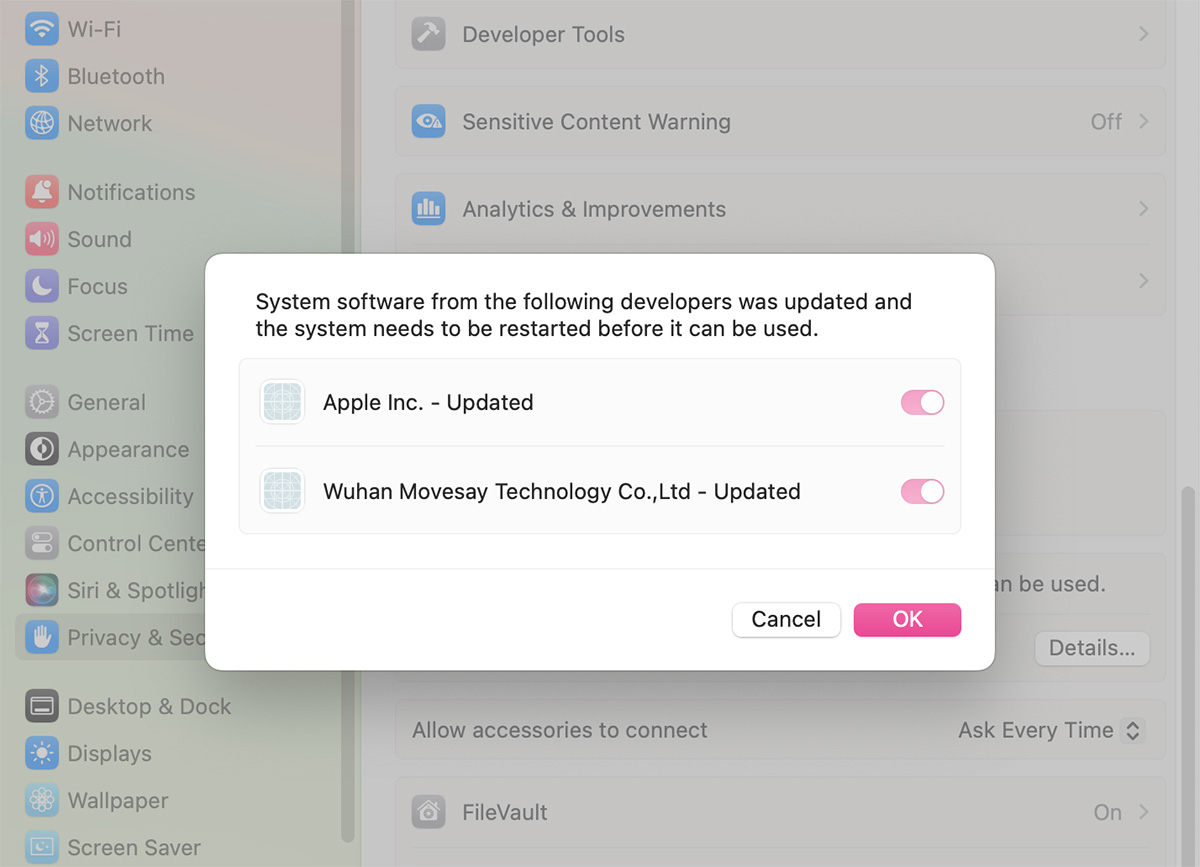
- Open System Settings → Privacy & Security, then allow the extension if prompted
- Related Screenshots