NTFSTool
ศูนย์ช่วยเหลือ NTFSTool
การติดตั้ง การเมานต์ครั้งแรก วิธีแก้ปัญหาที่พบบ่อย และช่องทางติดต่อเรา
เริ่มต้นใช้งาน
- 1
ดาวน์โหลด
ดาวน์โหลดจากเว็บไซต์นี้ คุณจะได้ NTFSTool Pro บน macOS 12 ขึ้นไป และเวอร์ชันคลาสสิกบน macOS 10.15–11
- 2
ติดตั้ง
NTFSTool Pro: เปิดไฟล์ DMG แล้วลาก NTFSTool Pro ไปไว้ในแอปพลิเคชัน เวอร์ชันคลาสสิก: เปิดไฟล์ pkg แล้วคลิกดำเนินการต่อ
- 3
เชื่อมต่อไดรฟ์
เสียบไดรฟ์ NTFS ในครั้งแรก macOS จะขอรหัสผ่านเข้าสู่ระบบของ Mac เพื่อให้ NTFSTool เมานต์ไดรฟ์ได้ รหัสผ่านจะถูกเข้ารหัสเก็บไว้ในพวงกุญแจ (Keychain) บน Mac เครื่องนี้ และไม่ถูกอัปโหลดไปที่ใด
- 4
เปิดใช้งาน
คุณเมานต์ได้ฟรี 3 ครั้ง หลังจากนั้นให้ซื้อไลเซนส์ แล้ววางคีย์จากอีเมลยืนยันการซื้อลงในแอป
คำถามที่พบบ่อย
ไดรฟ์ยังเมานต์เป็นแบบอ่านอย่างเดียว ทำอย่างไรดี?
ส่วนใหญ่เป็นเพราะ Windows ทิ้งไดรฟ์ไว้ในสถานะไฮเบอร์เนตหรือ “dirty” (Fast Startup) บนพีซี Windows ให้กด Shift ค้างไว้ขณะเลือก Shut down หรือปิด Fast Startup แล้วเชื่อมต่อไดรฟ์ใหม่ NTFSTool Pro ยังซ่อมไดรฟ์ได้ในคลิกเดียวด้วย
ไดรฟ์ไม่แสดงใน Finder
โดยค่าเริ่มต้น NTFSTool Pro จะแสดงไดรฟ์ที่เมานต์บนเดสก์ท็อปและในแถบด้านข้างของ Finder ให้ตรวจสอบ Finder › การตั้งค่า › แถบด้านข้าง › ดิสก์ภายนอก แล้วถอดไดรฟ์และเสียบใหม่
ทำไม NTFSTool ถึงขอรหัสผ่าน Mac ของฉัน?
การเมานต์ไดรฟ์ให้เขียนได้ต้องใช้สิทธิ์ผู้ดูแลระบบหนึ่งครั้ง รหัสผ่านถูกเข้ารหัสเก็บไว้ในพวงกุญแจบน Mac เครื่องนี้ ใช้เพื่อเมานต์ไดรฟ์เท่านั้น และไม่ถูกส่งไปที่ใดเลย
ต้องเปลี่ยน SIP เข้า recovery mode หรือเปลี่ยนการตั้งค่าความปลอดภัยไหม?
ไม่ต้อง NTFSTool ไม่ใช้ kernel extension และไม่เคยขอให้คุณลดความปลอดภัยของ Mac Apple Pay ยังใช้งานได้ตามปกติ
คีย์ไลเซนส์ของฉันอยู่ที่ไหน?
อยู่ในอีเมลยืนยันการซื้อของคุณ ถ้าหาไม่เจอ ส่งอีเมลถึง [email protected] พร้อมหมายเลขคำสั่งซื้อ แล้วเราจะส่งให้ใหม่
ขอคืนเงินได้อย่างไร?
อีเมลหาเราภายใน 45 วันหลังซื้อเพื่อรับเงินคืนเต็มจำนวน ไม่ถามเหตุผล ถ้า NTFSTool อ่านและเขียนไดรฟ์ของคุณไม่ได้ คุณขอคืนเงินเต็มจำนวนได้ทุกเมื่อ ไลเซนส์จะถูกยกเลิกหลังคืนเงิน
ข้อมูลของฉันปลอดภัยไหม?
NTFSTool ตรวจสอบข้อมูลที่เขียน และ Pro จะตรวจไดรฟ์ก่อนซ่อมเสมอ เช่นเดียวกับดิสก์ภายนอกทั่วไป ควรกดนำออก (Eject) ก่อนถอดไดรฟ์ทุกครั้ง
มีเวอร์ชันฟรีไหม?
มี — ฉบับฟรีอยู่ใน Mac App Store สำหรับ macOS 15.6 ขึ้นไป ดูเพิ่มเติม →
ถอนการติดตั้ง NTFSTool อย่างไร?
ทำตามคู่มือถอนการติดตั้งเพื่อลบแอปและ helper ออกอย่างหมดจด ดูเพิ่มเติม →
เคล็ดลับ: กดนำไดรฟ์ออกก่อนถอดทุกครั้ง และสำรองไฟล์สำคัญไว้เสมอ ดูข้อกำหนดฉบับเต็มได้ในข้อตกลงสิทธิ์การใช้งาน
เวอร์ชันเก่าที่ใช้ kernel extension (ข้อมูลย้อนหลัง)
เวอร์ชัน kext legacy (ประวัติ)
ขั้นตอนต่อไปนี้ใช้กับบิลด์ kernel extension ประวัติเท่านั้น เก็บไว้เป็นประวัติวิศวกรรมและสำหรับผู้ใช้เวอร์ชันเหล่านั้น ไม่ทำตามสำหรับตัวติดตั้งปัจจุบัน
Reason for Installing the NTFSTool Kernel Extension
Due to Microsoft's licensing restrictions, macOS has removed write support for the NTFS disk format. Historical NTFSTool releases therefore installed an Apple-signed kernel extension. This is engineering heritage. The current release does not use these steps.
Requirements and Steps for Installing Drivers in macOS Kernel (legacy only)
For Intel Chip Systems
Requirements: Disable System Integrity Protection (SIP)
- Enter system recovery mode, disable System Integrity Protection (SIP). Completely shut down your Mac, then start it up, and immediately press and hold Command+R during startup until the Apple logo appears for 3 seconds, then release the button and wait to enter Recovery mode
- Click 'Utilities' in the top toolbar, select 'Terminal'
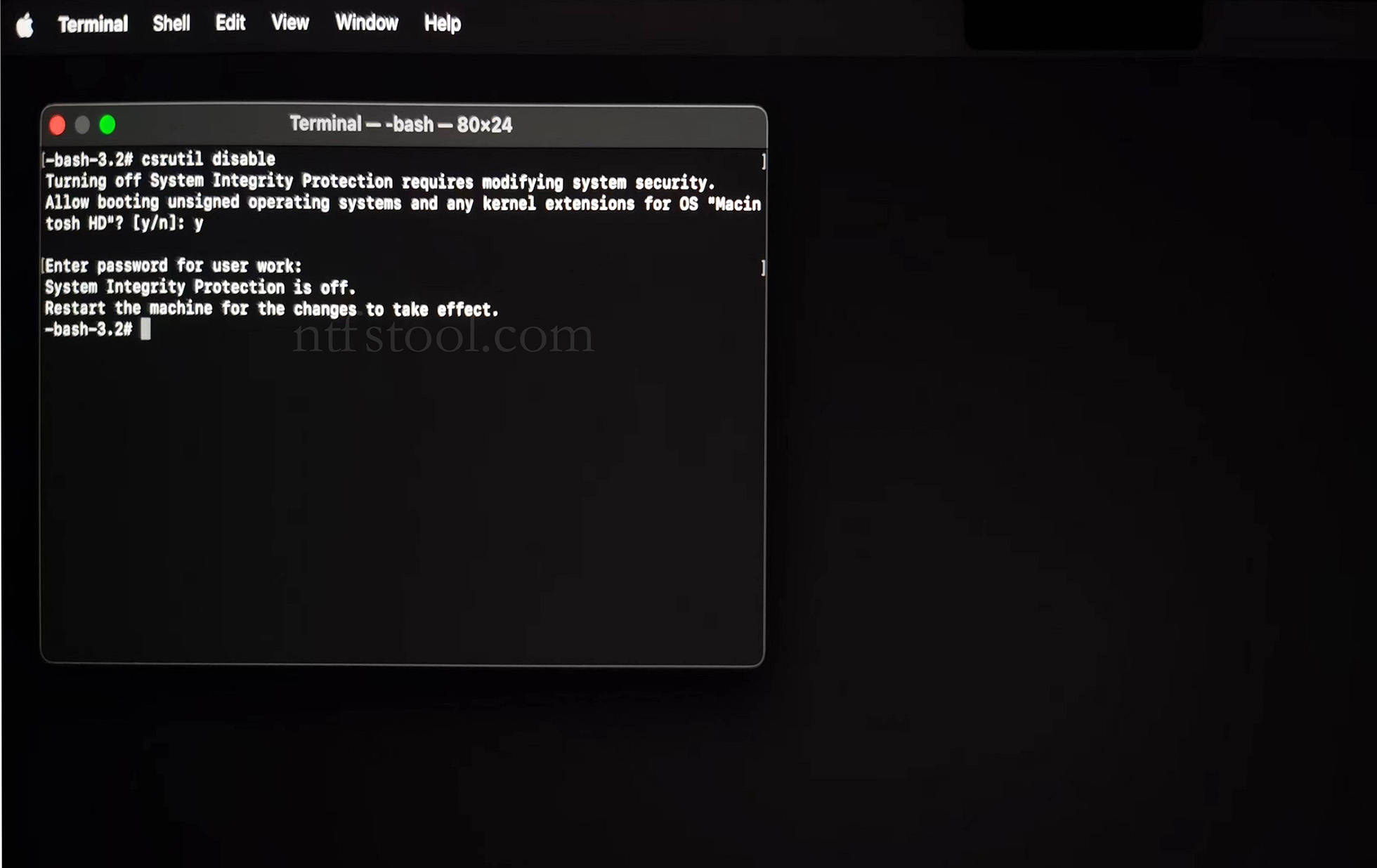
- Type 'csrutil disable' in the terminal, then press Enter
- Close the terminal and restart your Mac
- Related Screenshots
For Apple Silicon systems
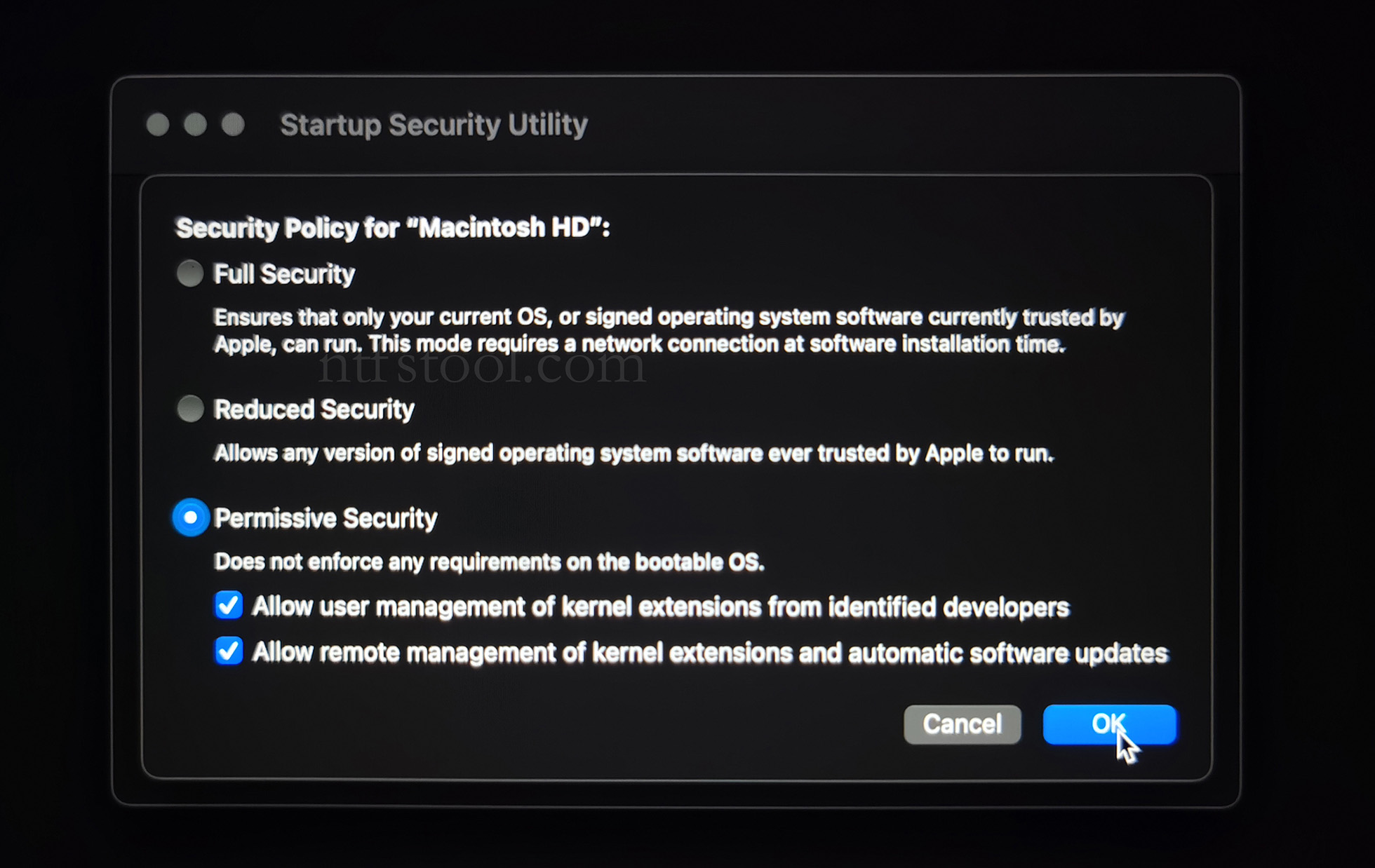
Requirements: Disable SIP; enable Allow user management of kernel extensions from identified developers.
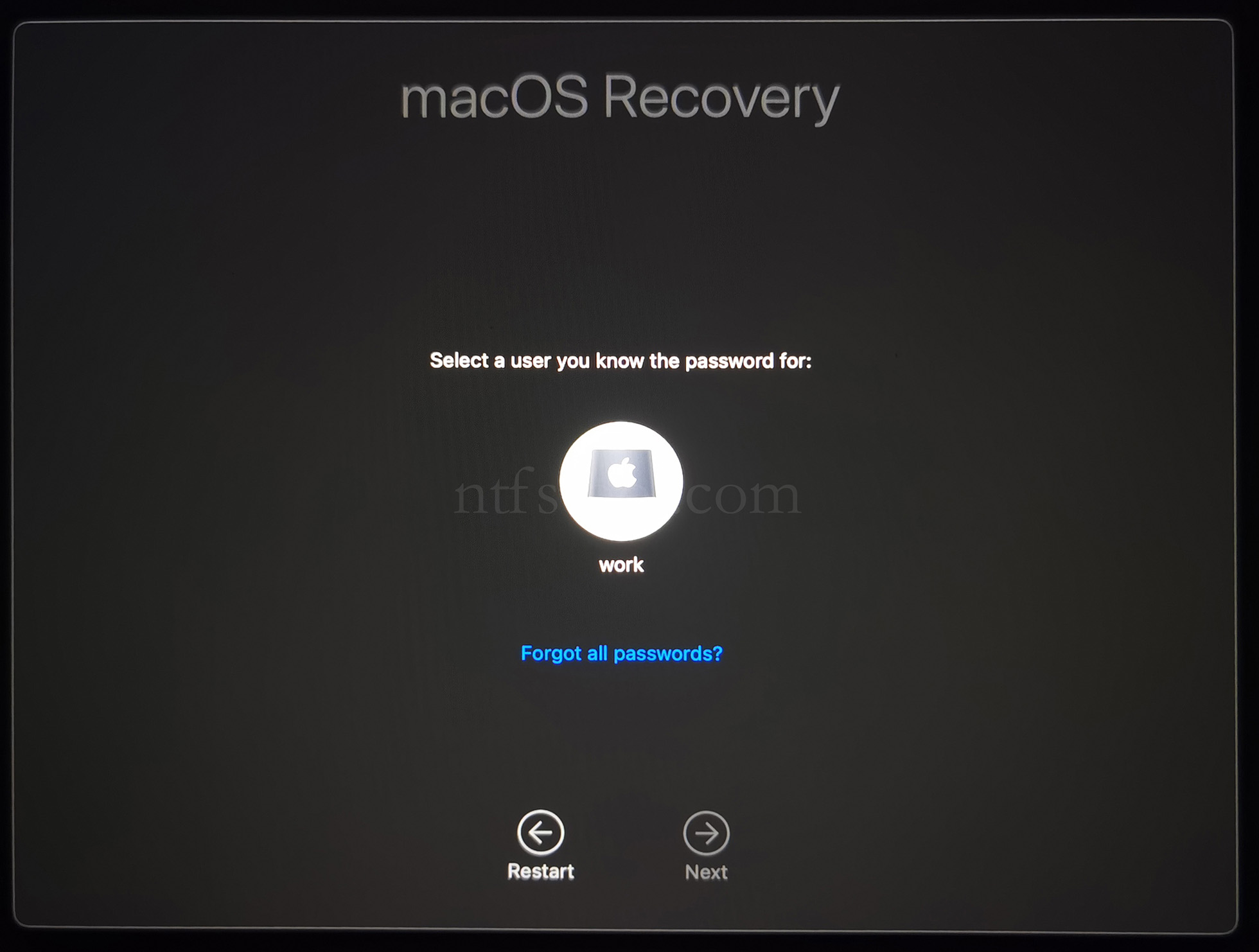
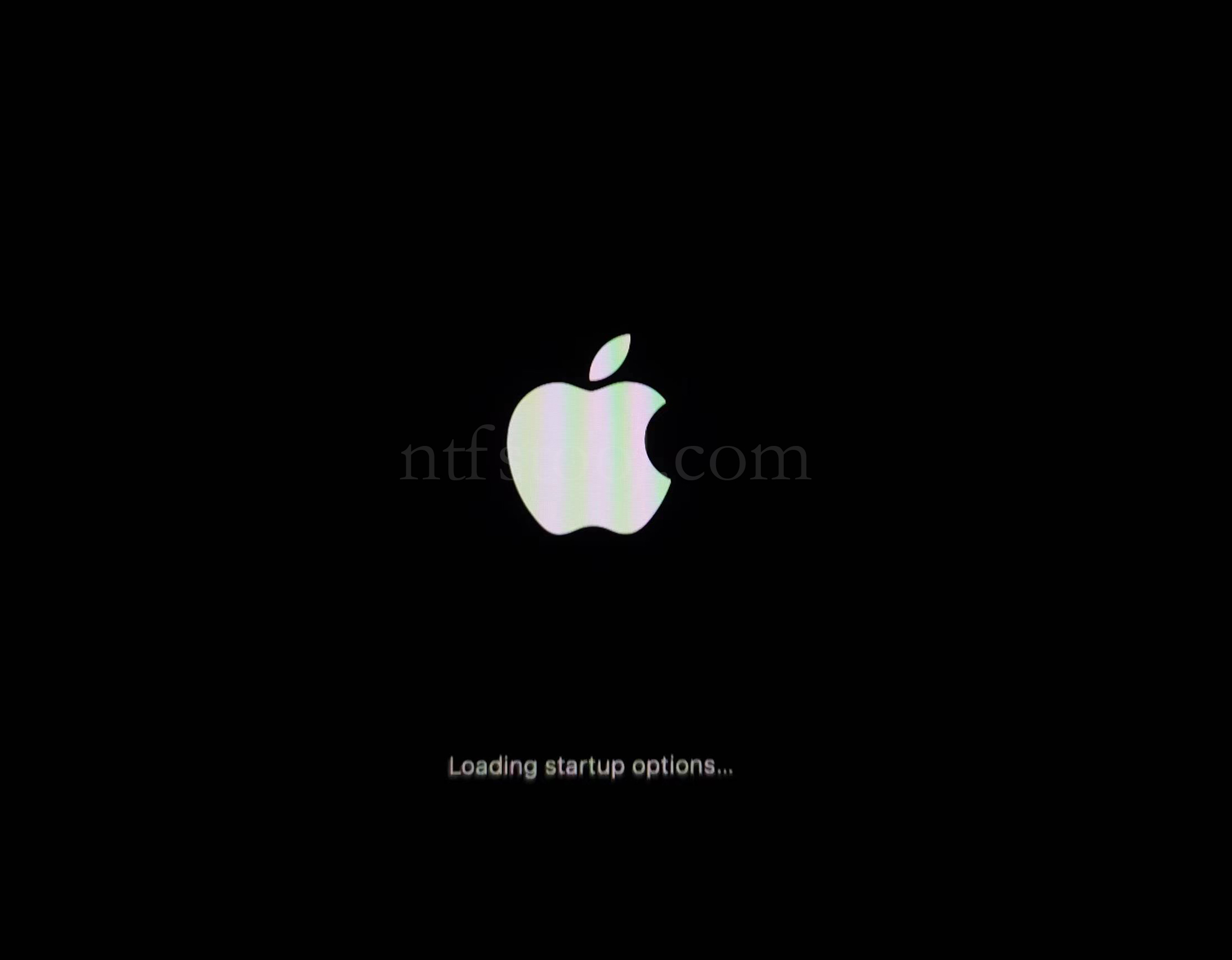
- Restart and hold the power button until Loading startup options appears, then enter recovery
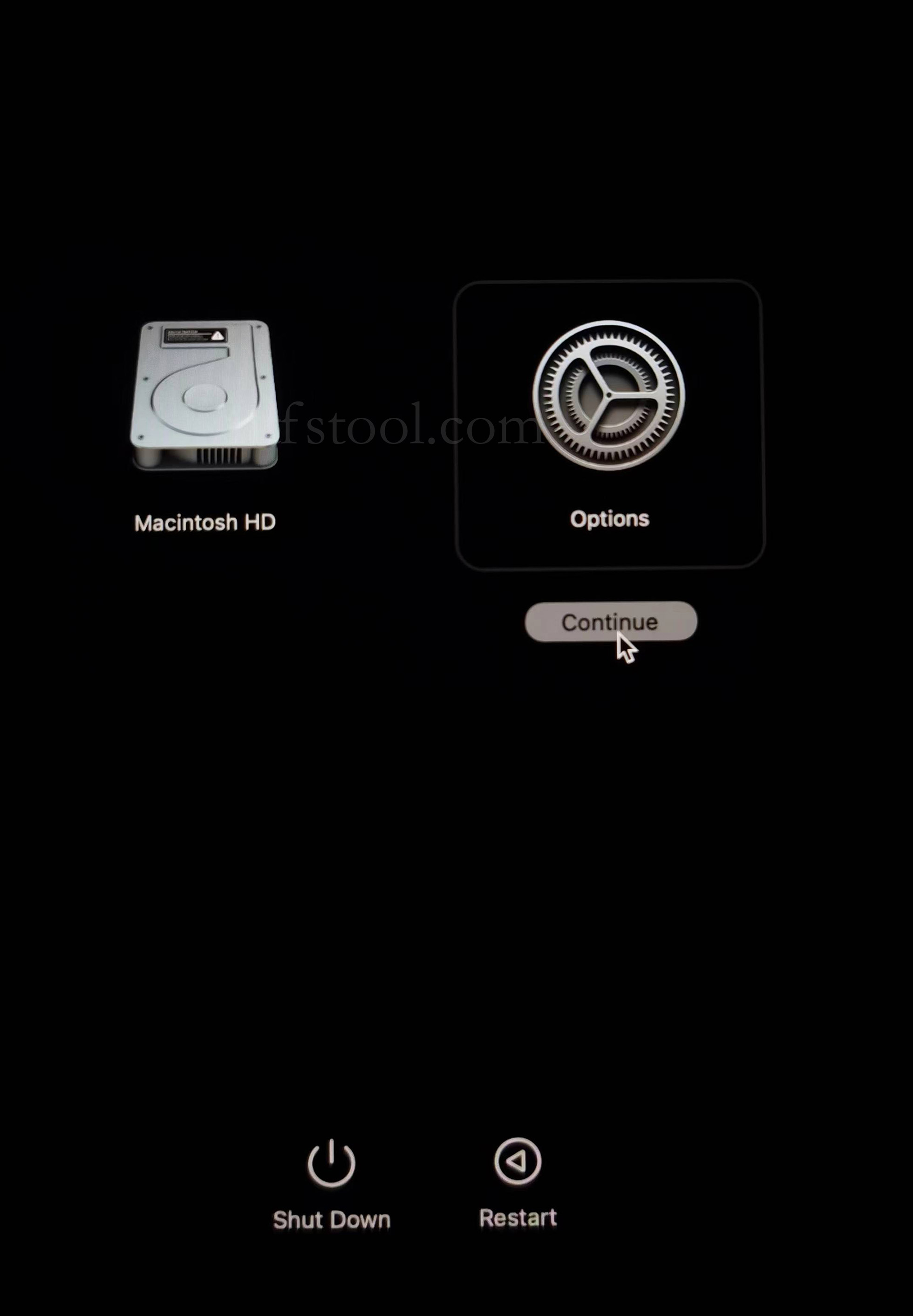
- Select Options, Continue
- Select the admin user and enter the password
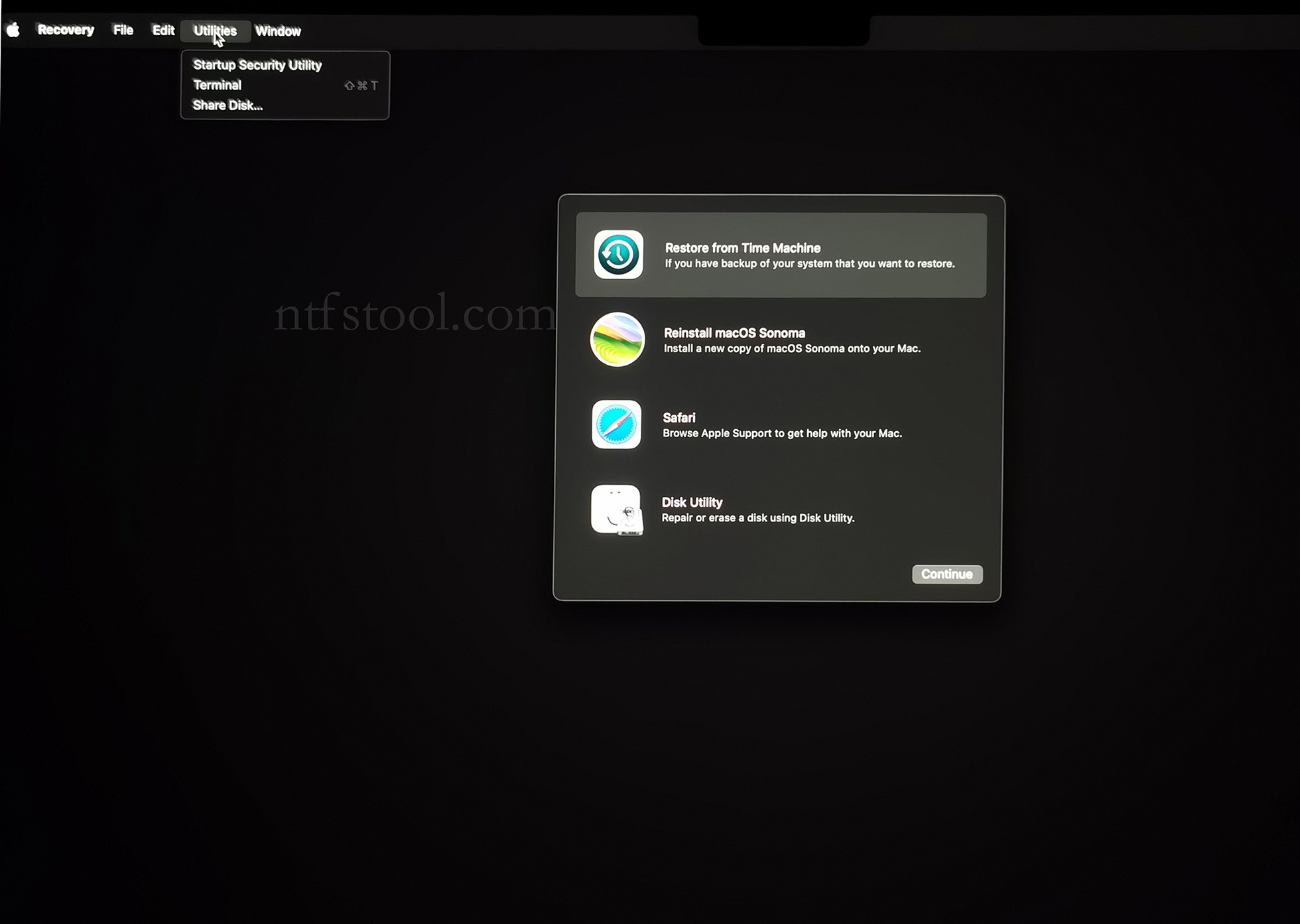
- Utilities → Terminal
- Type csrutil disable, press Enter
- Close Terminal
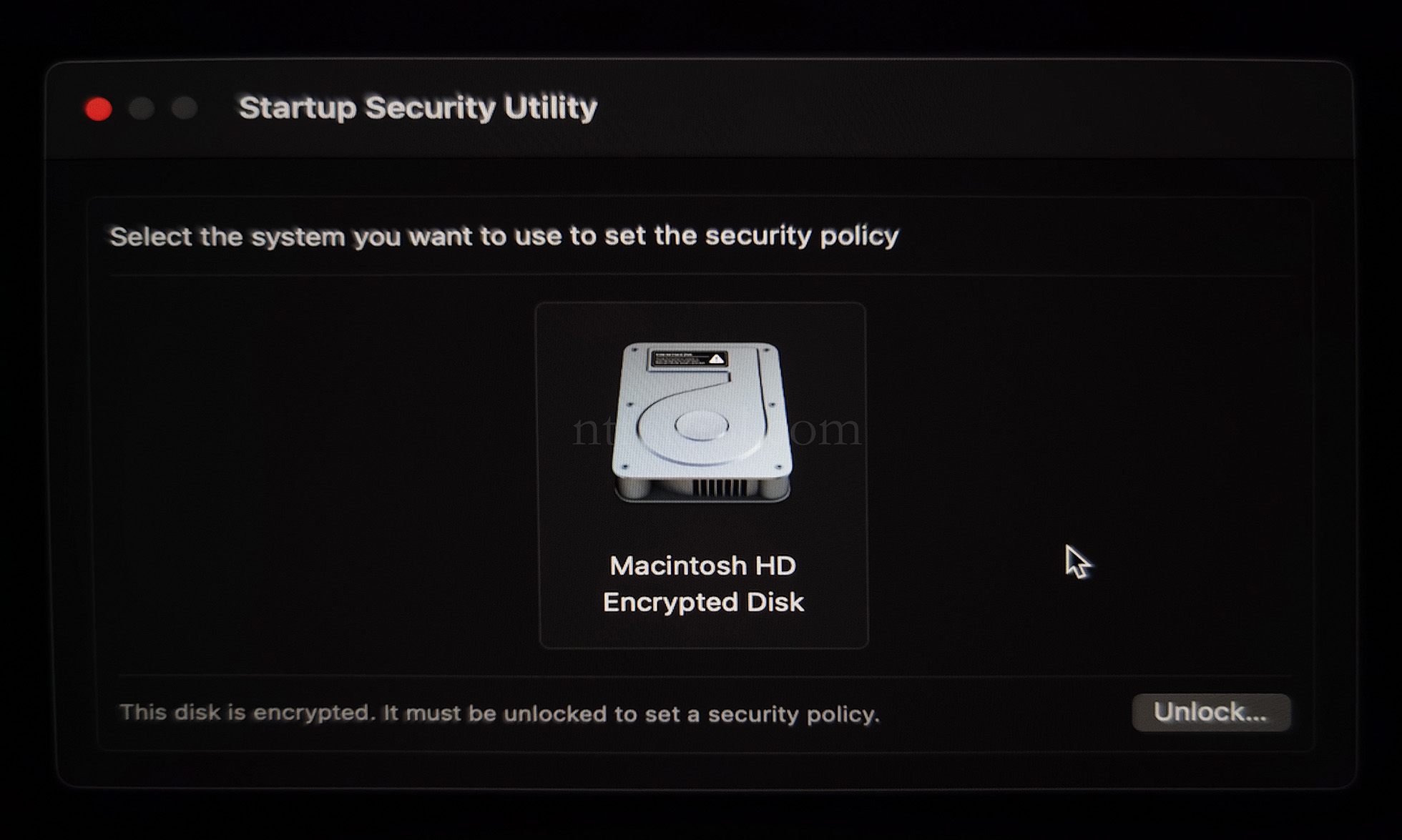
- Utilities → Startup Security Utility
- Select the system disk, then Security Policy
- Check Reduced Security and Allow user management of kernel extensions from identified developers
- Restart from the Apple menu
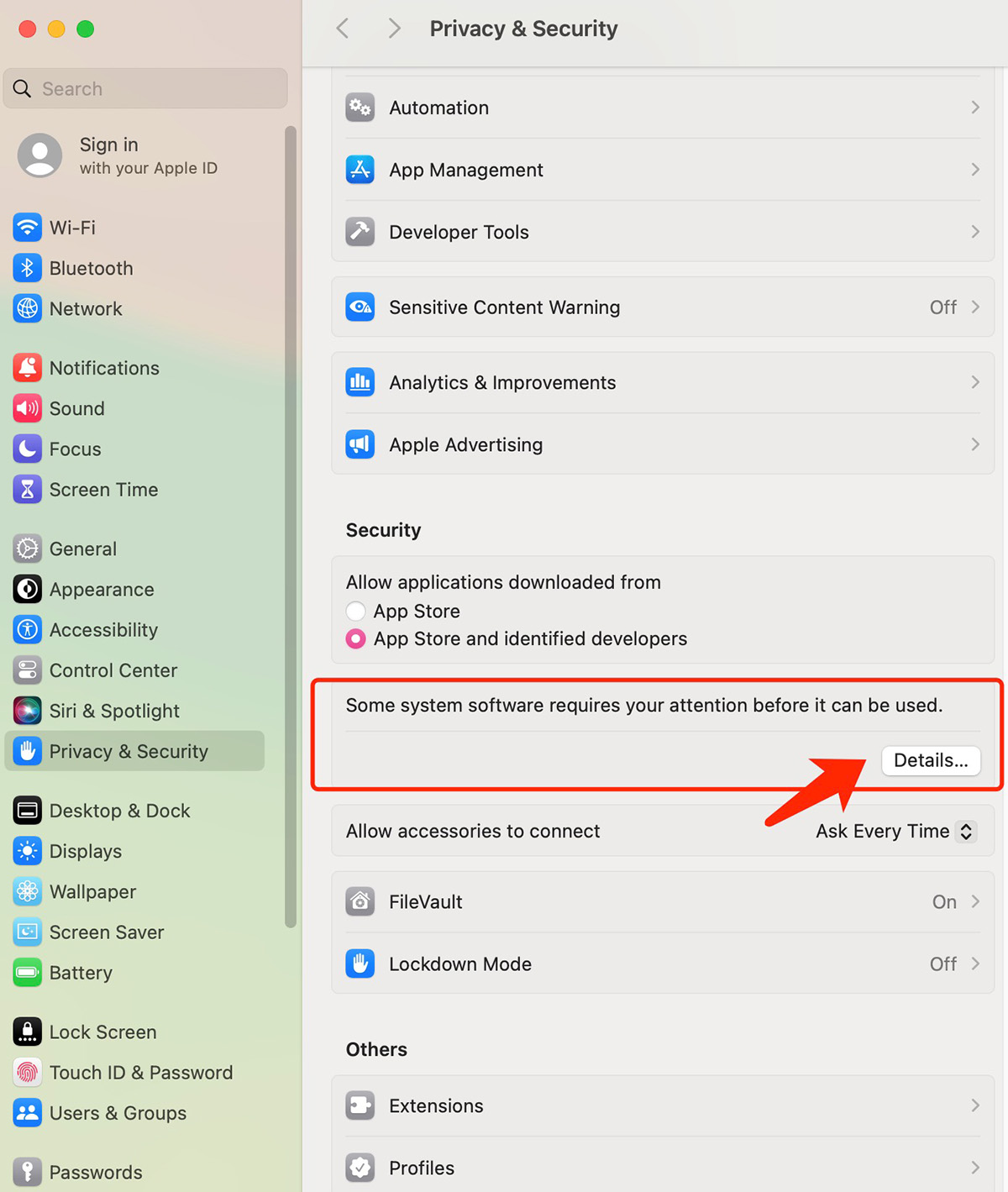
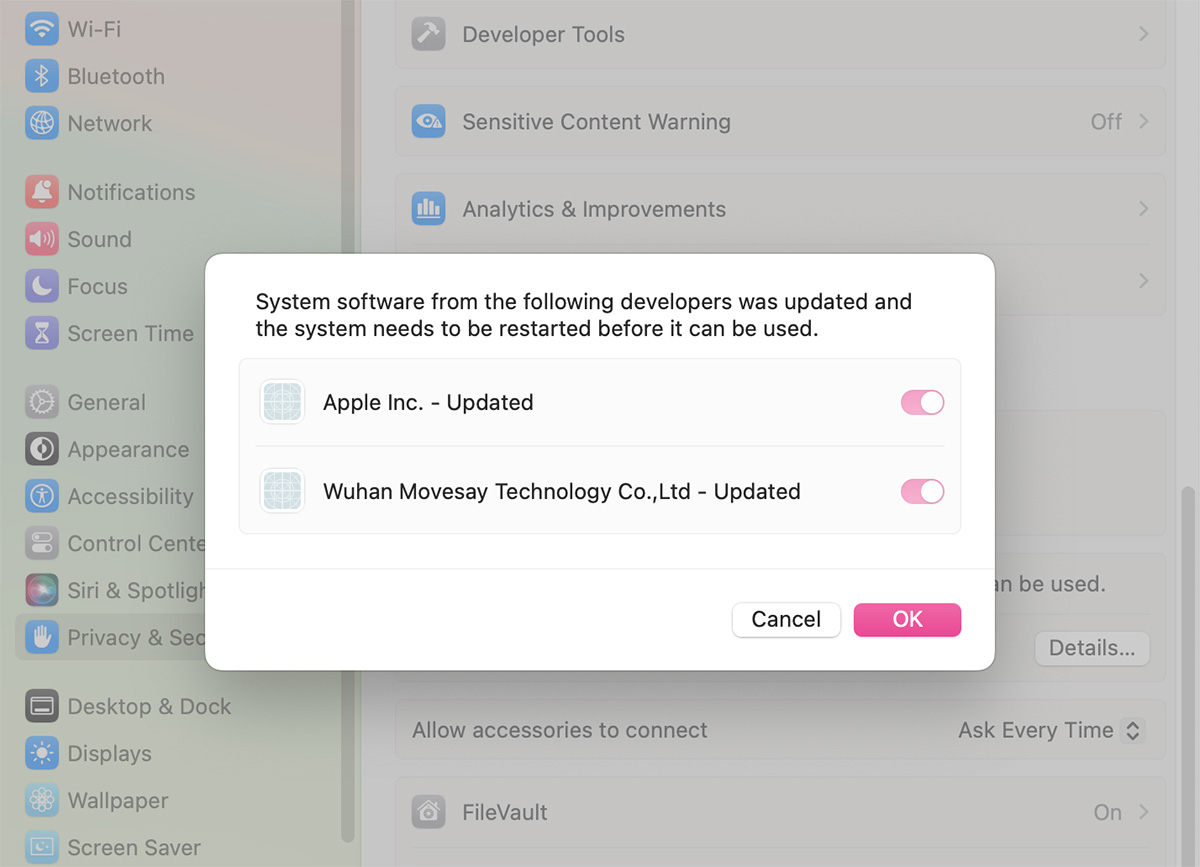
- Open System Settings → Privacy & Security, then allow the extension if prompted
- Related Screenshots