NTFSTool
NTFSTool ヘルプセンター
インストール、初回マウント、よくあるトラブルの解決法、お問い合わせ方法。
はじめに
- 1
ダウンロード
本サイトからダウンロードしてください。macOS 12 以降では NTFSTool Pro、macOS 10.15–11 ではクラシック版が入手できます。
- 2
インストール
NTFSTool Pro:DMG を開き、NTFSTool Pro を「アプリケーション」にドラッグします。クラシック版:pkg を開き、「続ける」をクリックします。
- 3
ドライブを接続
NTFS ドライブを接続します。初回は、NTFSTool がドライブをマウントできるよう、macOS が Mac のログインパスワードを求めます。パスワードはこの Mac のキーチェーンに暗号化して保存され、アップロードされることはありません。
- 4
ライセンス認証
3 回まで無料でマウントできます。その後はライセンスを購入し、購入メールに記載されたキーをアプリに貼り付けてください。
よくある質問
ドライブがまだ読み取り専用でマウントされます。どうすれば?
多くの場合、Windows がドライブを休止状態または「ダーティ」状態(高速スタートアップ)のまま残しています。Windows PC で Shift キーを押しながら「シャットダウン」を選ぶか、高速スタートアップをオフにしてから、再接続してください。NTFSTool Pro ならワンクリックで修復することもできます。
ドライブが Finder に表示されません。
NTFSTool Pro は、マウントしたドライブをデフォルトでデスクトップと Finder のサイドバーに表示します。Finder › 設定 › サイドバー › 外部ディスク を確認してから、ドライブを取り外して再接続してください。
NTFSTool が Mac のパスワードを求めるのはなぜですか?
書き込み可能な状態でドライブをマウントするには、一度だけ管理者権限が必要です。パスワードはこの Mac のキーチェーンに暗号化して保存され、ドライブのマウントにのみ使われ、どこにも送信されません。
SIP やリカバリモード、セキュリティ設定の変更は必要ですか?
必要ありません。NTFSTool はカーネル拡張を使わず、Mac のセキュリティを下げるよう求めることもありません。Apple Pay もそのまま使えます。
ライセンスキーはどこにありますか?
購入時のメールに記載されています。見つからない場合は、注文番号を添えて [email protected] までメールしてください。再送いたします。
返金を受けるには?
購入から 45 日以内にメールいただければ、理由を問わず全額返金します。NTFSTool でドライブの読み書きができない場合は、いつでも全額返金します。返金後、ライセンスは無効になります。
データは安全ですか?
NTFSTool は書き込みを検証し、Pro は修復の前にドライブをチェックします。どの外部ディスクでも同じですが、取り外す前には必ず取り出してください。
無料版はありますか?
はい。無料版は Mac App Store で配信中で、macOS 15.6 以降に対応しています。 詳しく見る →
NTFSTool をアンインストールするには?
アンインストールガイドに従えば、アプリとヘルパーをきれいに削除できます。 詳しく見る →
ヒント:ドライブを取り外す前には必ず取り出し、大切なファイルはバックアップしておきましょう。詳しい条件は使用許諾契約をご覧ください。
旧カーネル拡張版(過去のバージョン)
旧 kext バージョン(履歴)
以下の手順は旧カーネル拡張ビルドのみに適用。エンジニアリングの履歴と旧版ユーザー向けに残しています。現行インストーラーでは実行しないでください。
Reason for Installing the NTFSTool Kernel Extension
Due to Microsoft's licensing restrictions, macOS has removed write support for the NTFS disk format. Historical NTFSTool releases therefore installed an Apple-signed kernel extension. This is engineering heritage. The current release does not use these steps.
Requirements and Steps for Installing Drivers in macOS Kernel (legacy only)
For Intel Chip Systems
Requirements: Disable System Integrity Protection (SIP)
- Enter system recovery mode, disable System Integrity Protection (SIP). Completely shut down your Mac, then start it up, and immediately press and hold Command+R during startup until the Apple logo appears for 3 seconds, then release the button and wait to enter Recovery mode
- Click 'Utilities' in the top toolbar, select 'Terminal'
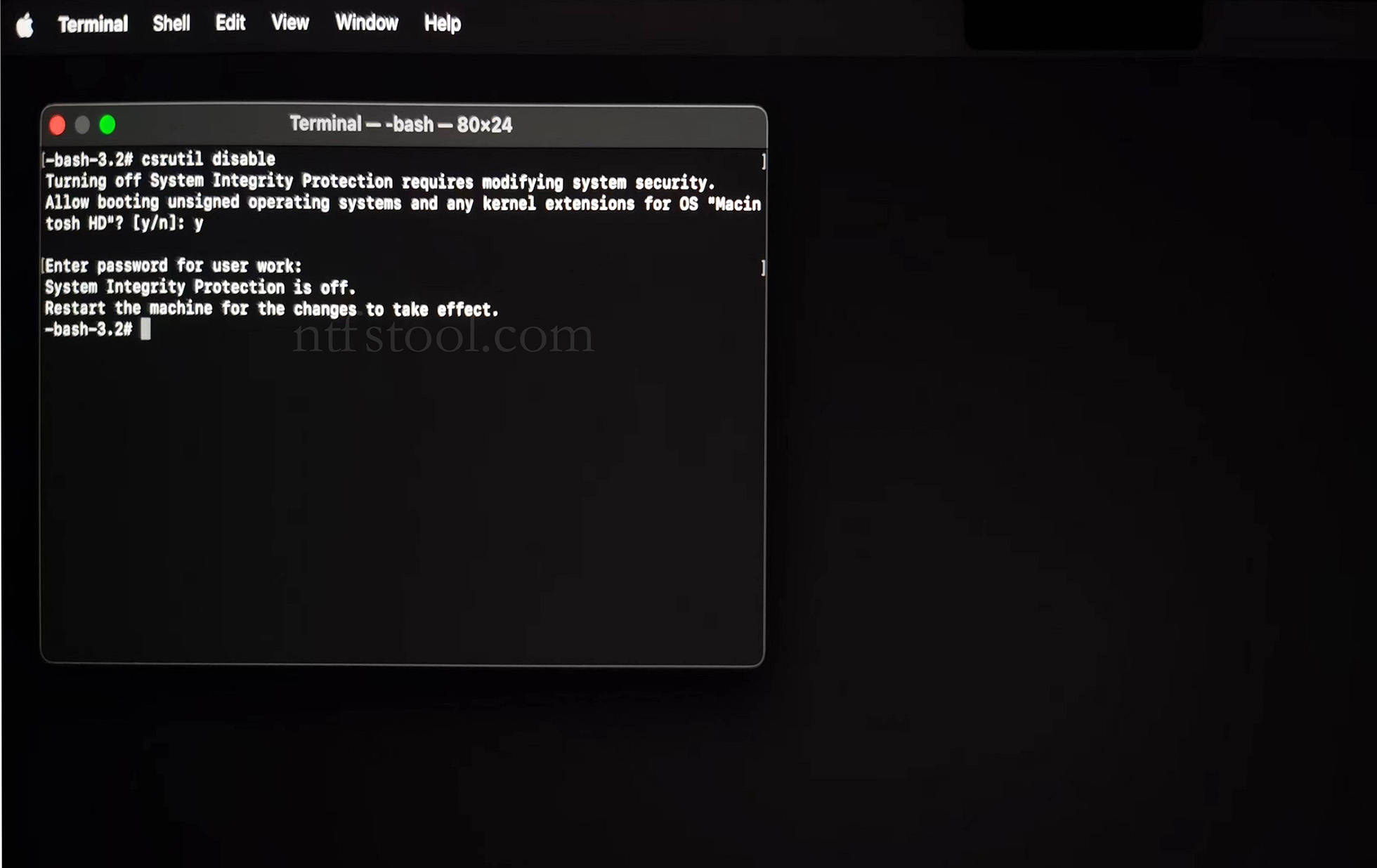
- Type 'csrutil disable' in the terminal, then press Enter
- Close the terminal and restart your Mac
- Related Screenshots

For Apple Silicon systems
Requirements: Disable SIP; enable Allow user management of kernel extensions from identified developers.
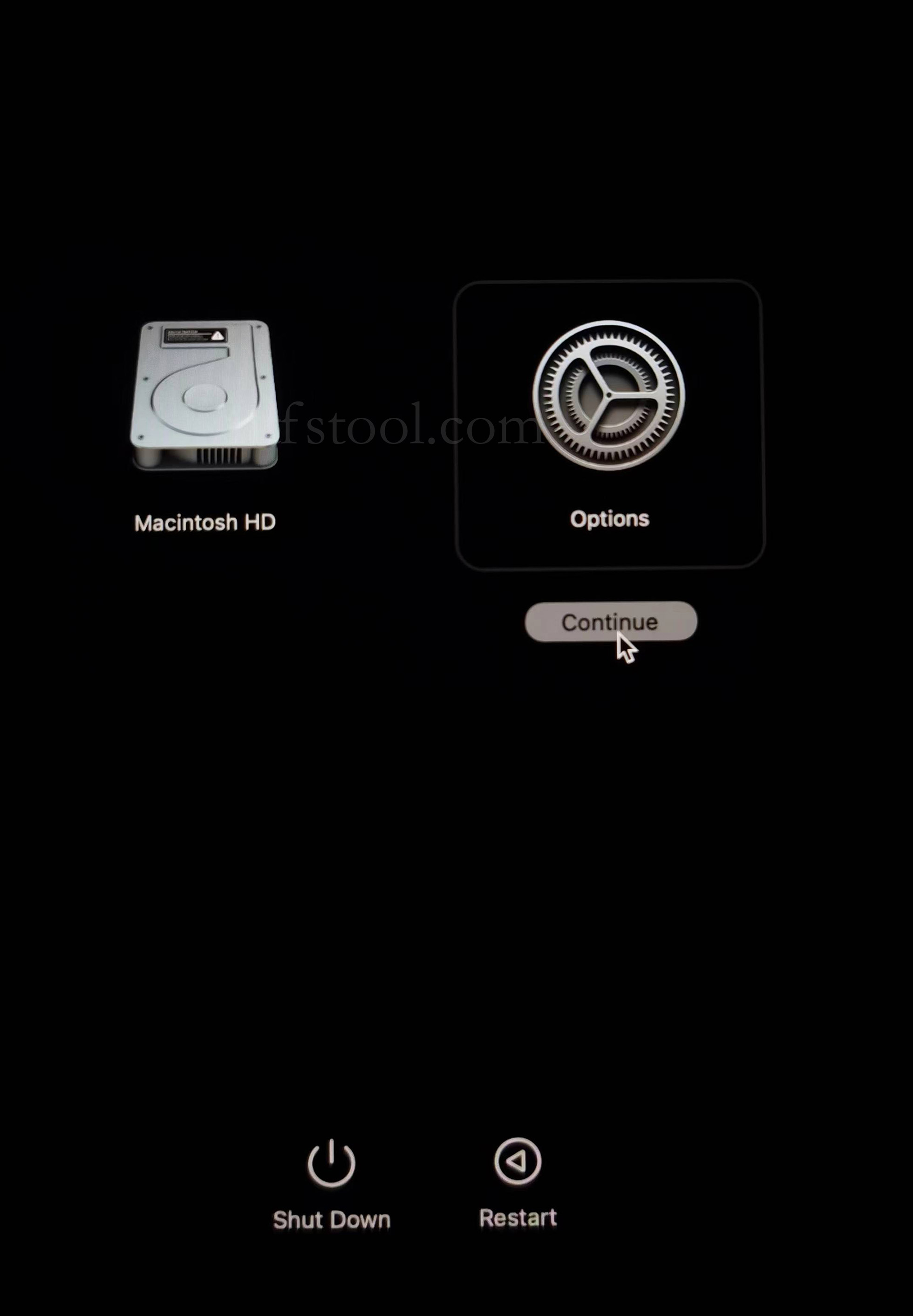
- Restart and hold the power button until Loading startup options appears, then enter recovery
- Select Options, Continue
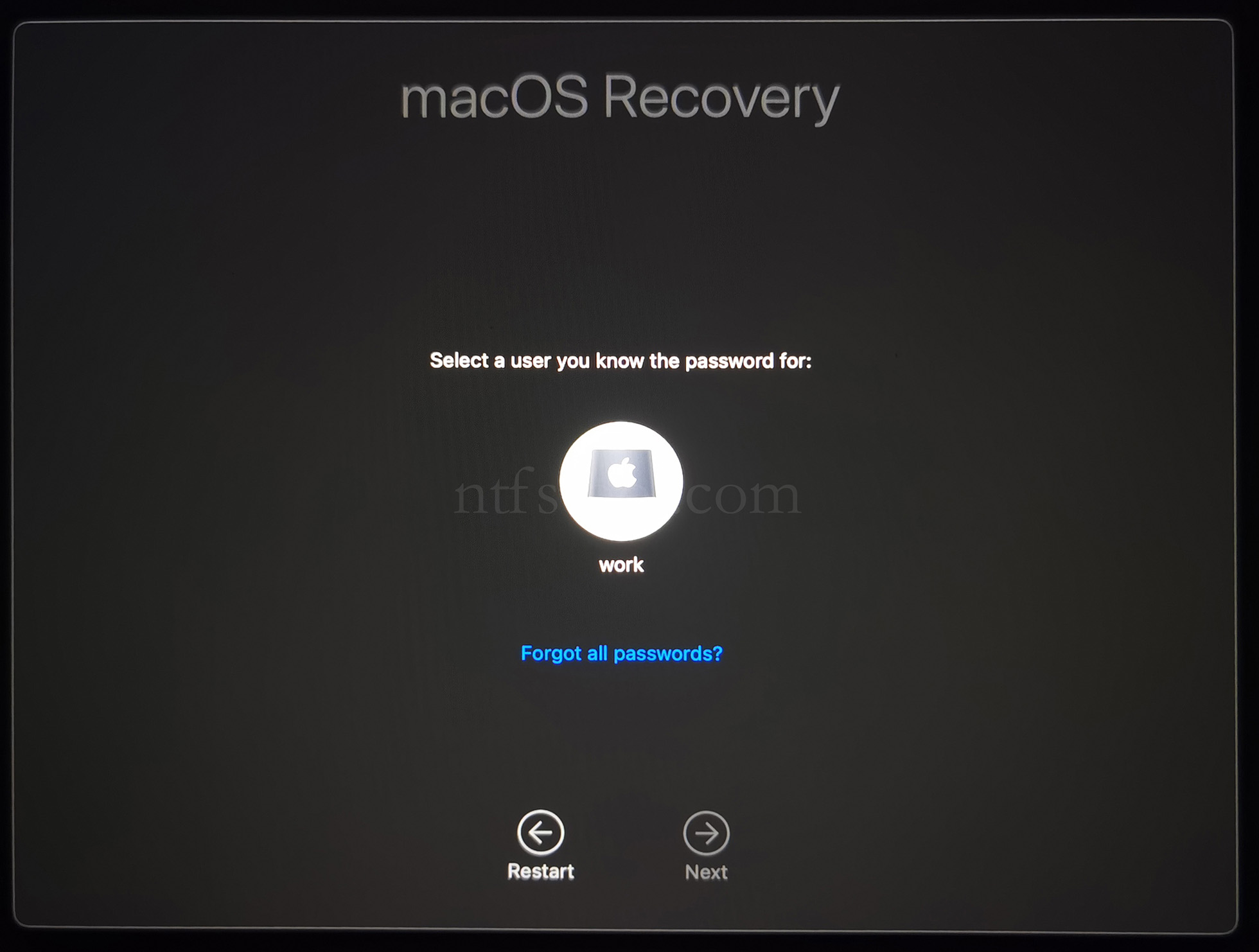
- Select the admin user and enter the password
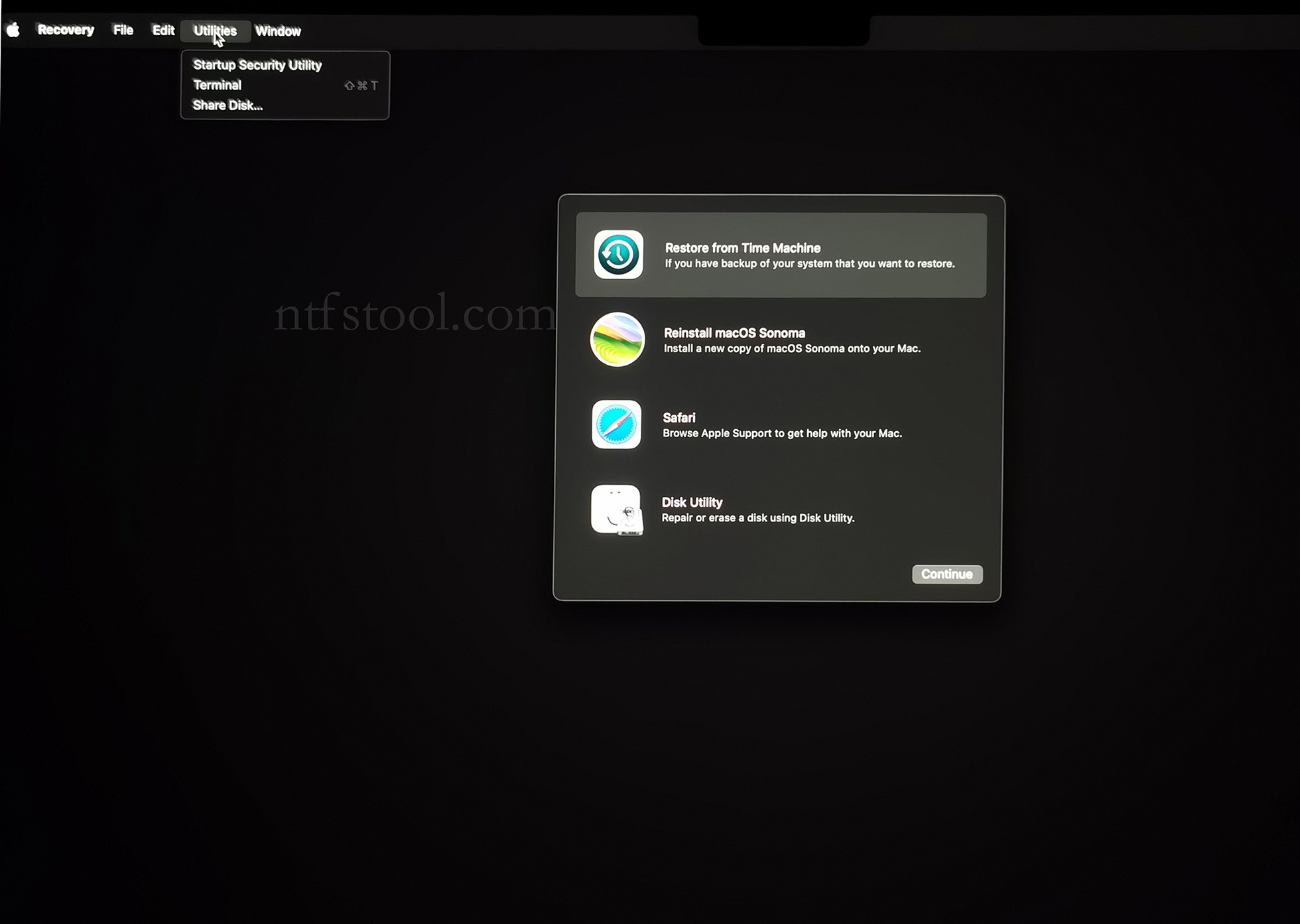
- Utilities → Terminal
- Type csrutil disable, press Enter
- Close Terminal
- Utilities → Startup Security Utility
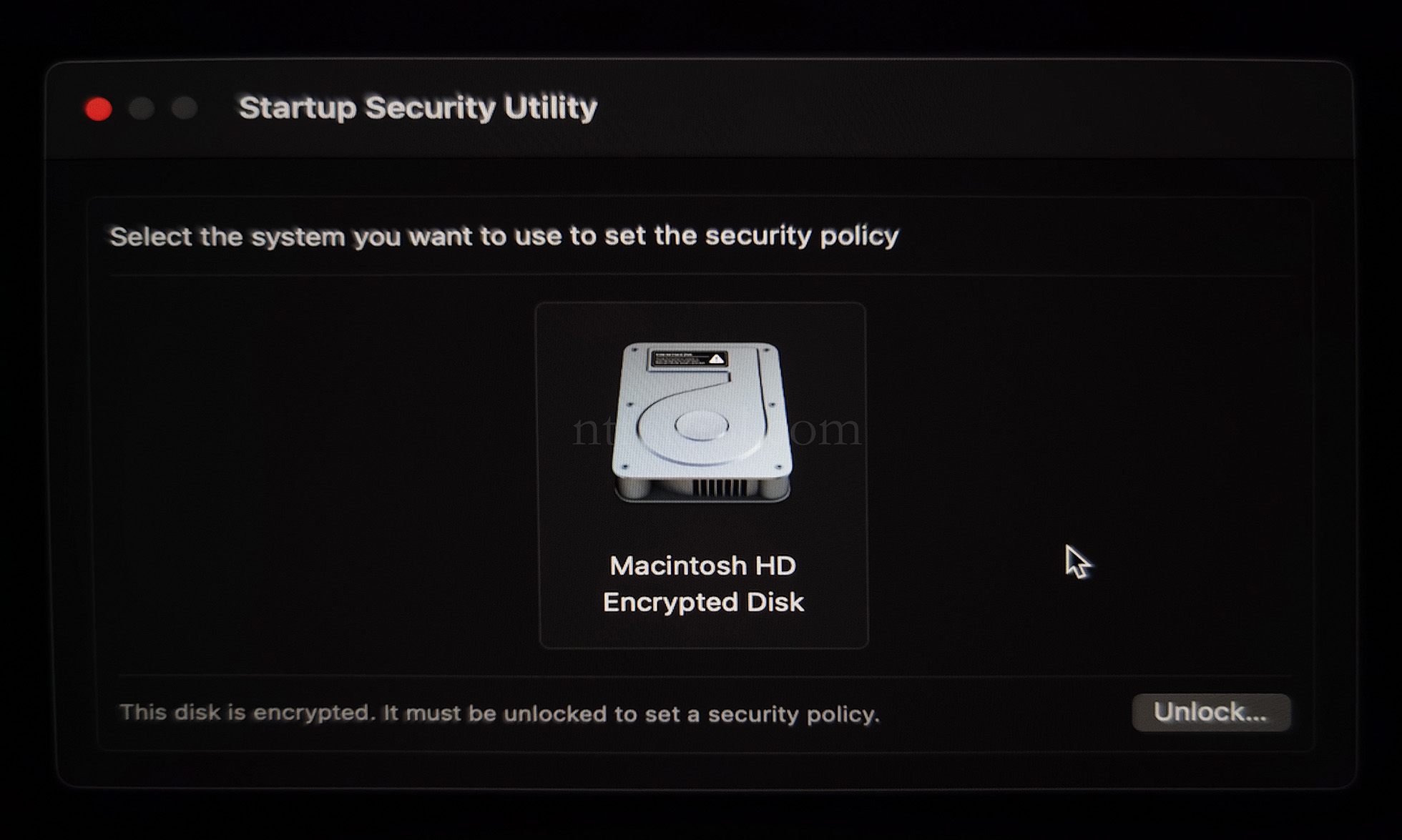
- Select the system disk, then Security Policy
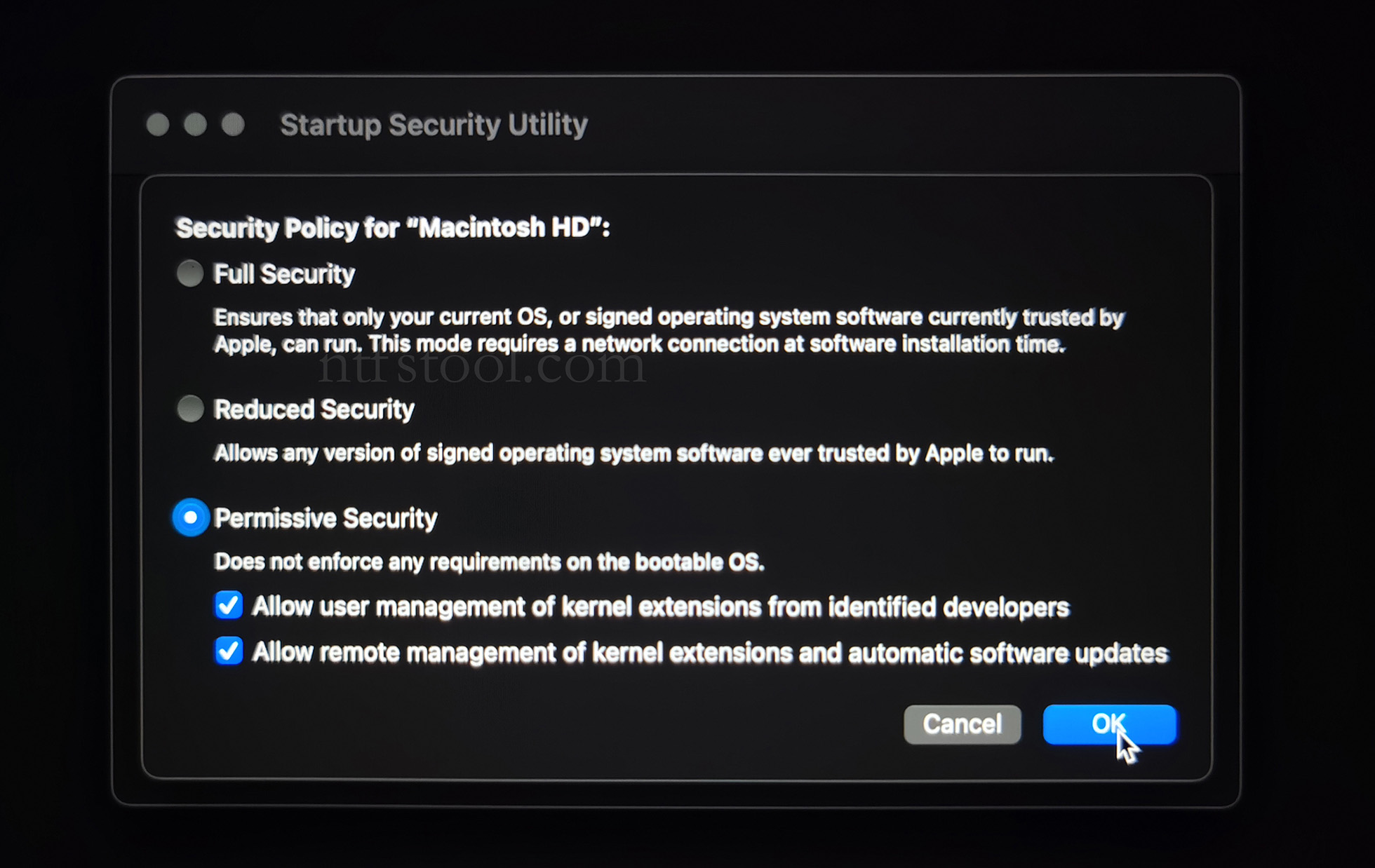
- Check Reduced Security and Allow user management of kernel extensions from identified developers
- Restart from the Apple menu
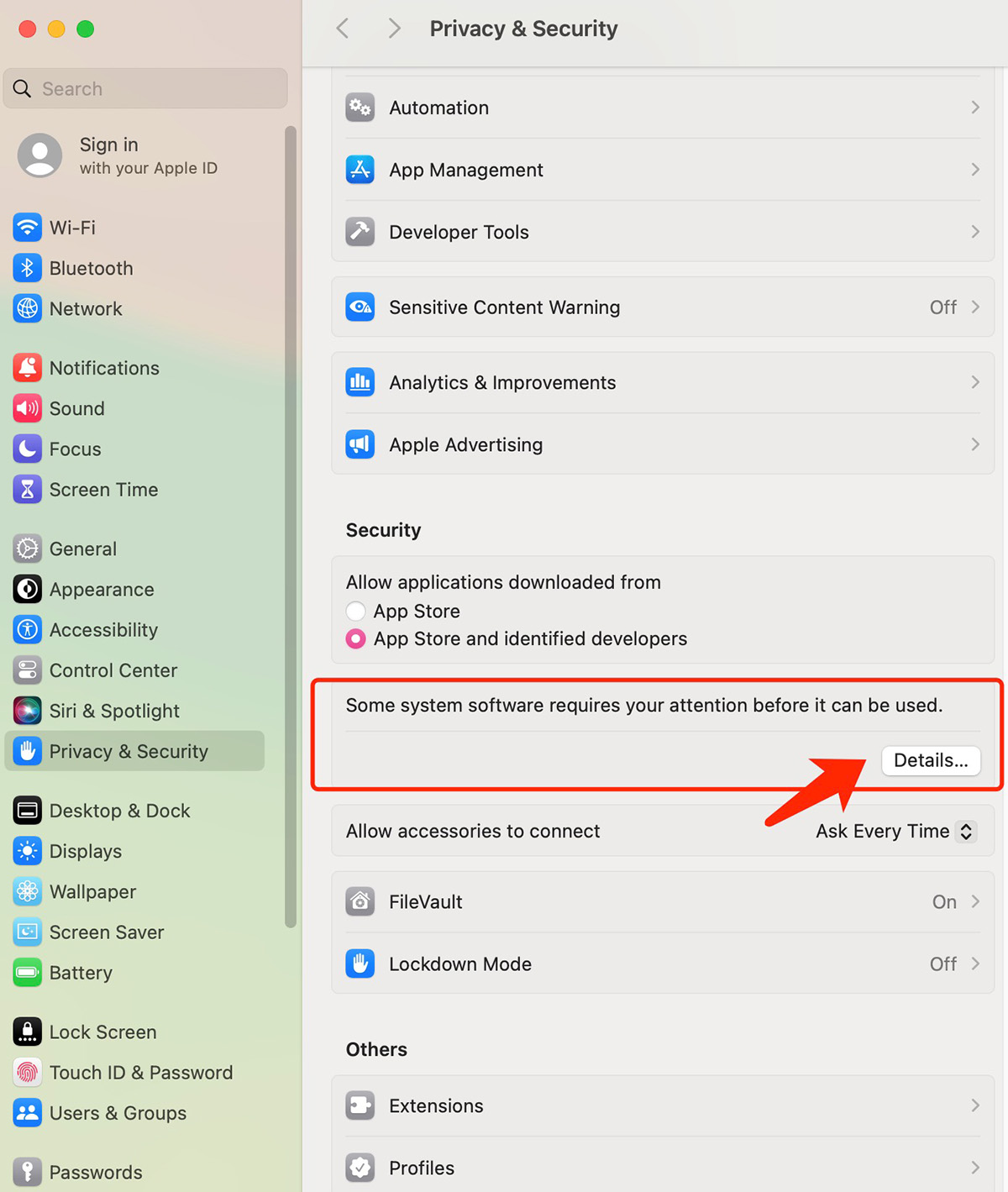
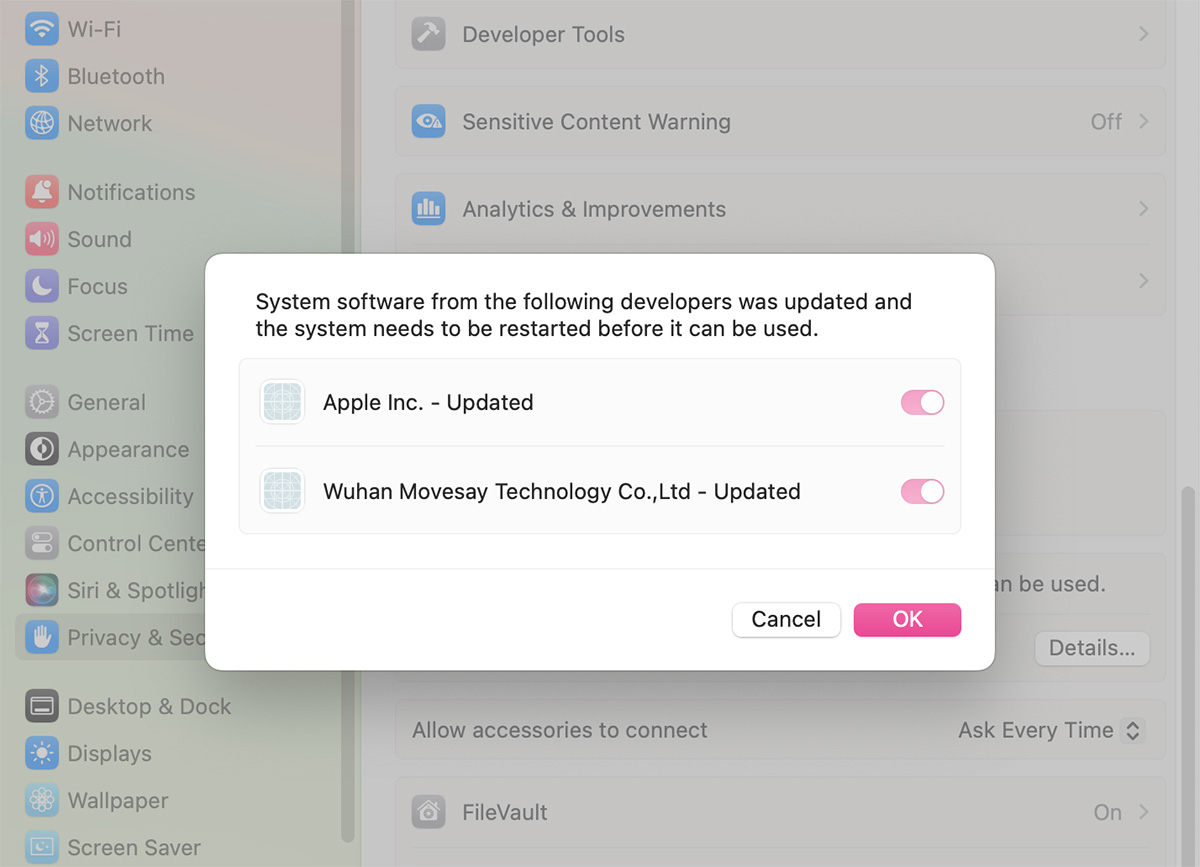
- Open System Settings → Privacy & Security, then allow the extension if prompted
- Related Screenshots