NTFSTool
Trung tâm trợ giúp NTFSTool
Cài đặt, mount lần đầu, cách khắc phục thường gặp và cách liên hệ chúng tôi.
Bắt đầu
- 1
Tải về
Tải từ trang này. Bạn sẽ nhận NTFSTool Pro trên macOS 12 trở lên và bản cổ điển trên macOS 10.15–11.
- 2
Cài đặt
NTFSTool Pro: mở tệp DMG và kéo NTFSTool Pro vào thư mục Ứng dụng. Bản cổ điển: mở pkg và nhấn Tiếp tục.
- 3
Kết nối ổ đĩa
Cắm ổ NTFS vào. Lần đầu tiên, macOS sẽ hỏi mật khẩu đăng nhập Mac để NTFSTool có thể mount ổ. Mật khẩu được mã hóa và lưu trong Chuỗi khóa (Keychain) trên chính chiếc Mac này, không bao giờ được tải lên.
- 4
Kích hoạt
Bạn có 3 lần mount miễn phí. Sau đó, hãy mua giấy phép và dán mã từ email mua hàng vào ứng dụng.
Câu hỏi thường gặp
Ổ vẫn chỉ mount ở chế độ chỉ đọc. Phải làm sao?
Thường là do Windows để ổ ở trạng thái ngủ đông hoặc “dirty” (Fast Startup). Trên máy Windows, giữ Shift khi chọn Shut down, hoặc tắt Fast Startup, rồi cắm lại ổ. NTFSTool Pro cũng có thể sửa ổ chỉ với một cú nhấp.
Ổ không hiện trong Finder.
Theo mặc định, NTFSTool Pro hiển thị ổ đã mount trên màn hình nền và trong thanh bên Finder. Hãy kiểm tra Finder › Cài đặt › Thanh bên › Ổ đĩa ngoài, rồi rút ra và cắm lại ổ.
Vì sao NTFSTool hỏi mật khẩu Mac của tôi?
Để mount ổ với quyền ghi, cần quyền quản trị viên một lần. Mật khẩu được mã hóa trong Chuỗi khóa trên chiếc Mac này, chỉ dùng để mount ổ và không bao giờ được gửi đi đâu.
Tôi có cần thay đổi SIP, vào recovery mode hay chỉnh cài đặt bảo mật không?
Không. NTFSTool không dùng kernel extension và không bao giờ yêu cầu bạn hạ bảo mật của Mac. Apple Pay vẫn hoạt động bình thường.
Mã giấy phép của tôi ở đâu?
Mã nằm trong email mua hàng của bạn. Nếu không tìm thấy, hãy email [email protected] kèm mã đơn hàng, chúng tôi sẽ gửi lại.
Làm sao để được hoàn tiền?
Gửi email cho chúng tôi trong vòng 45 ngày kể từ khi mua để được hoàn tiền đầy đủ, không cần lý do. Nếu NTFSTool không đọc và ghi được ổ của bạn, bạn được hoàn tiền đầy đủ bất cứ lúc nào. Giấy phép sẽ bị vô hiệu hóa sau khi hoàn tiền.
Dữ liệu của tôi có an toàn không?
NTFSTool kiểm tra lại dữ liệu sau khi ghi, và bản Pro kiểm tra ổ trước khi sửa. Như với mọi ổ đĩa ngoài, hãy luôn đẩy ổ ra trước khi rút.
Có bản miễn phí không?
Có — bản miễn phí có trên Mac App Store cho macOS 15.6 trở lên. Tìm hiểu thêm →
Làm sao để gỡ cài đặt NTFSTool?
Làm theo hướng dẫn gỡ cài đặt để xóa sạch ứng dụng và thành phần trợ giúp của nó. Tìm hiểu thêm →
Mẹo: luôn đẩy ổ ra trước khi rút, và sao lưu các tệp quan trọng. Điều khoản đầy đủ có trong Thỏa thuận cấp phép.
Các phiên bản dùng kernel extension cũ (tư liệu lịch sử)
Phiên bản kext legacy (lịch sử)
Các bước sau chỉ cho bản build kernel extension cũ. Giữ làm di sản kỹ thuật và cho người dùng phiên bản đó. Không làm theo cho trình cài hiện tại.
Reason for Installing the NTFSTool Kernel Extension
Due to Microsoft's licensing restrictions, macOS has removed write support for the NTFS disk format. Historical NTFSTool releases therefore installed an Apple-signed kernel extension. This is engineering heritage. The current release does not use these steps.
Requirements and Steps for Installing Drivers in macOS Kernel (legacy only)
For Intel Chip Systems
Requirements: Disable System Integrity Protection (SIP)
- Enter system recovery mode, disable System Integrity Protection (SIP). Completely shut down your Mac, then start it up, and immediately press and hold Command+R during startup until the Apple logo appears for 3 seconds, then release the button and wait to enter Recovery mode
- Click 'Utilities' in the top toolbar, select 'Terminal'
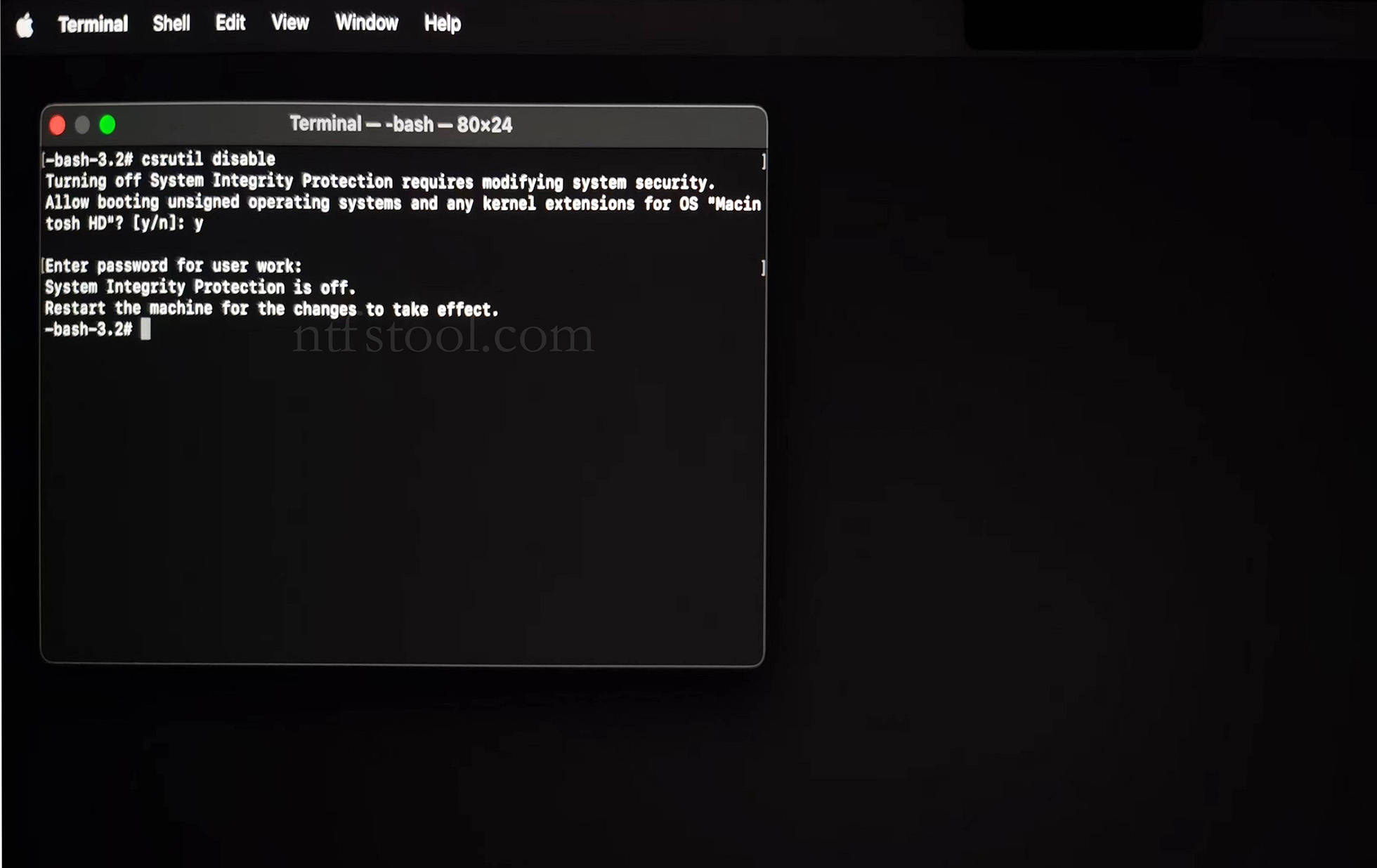
- Type 'csrutil disable' in the terminal, then press Enter
- Close the terminal and restart your Mac
- Related Screenshots
For Apple Silicon systems
Requirements: Disable SIP; enable Allow user management of kernel extensions from identified developers.
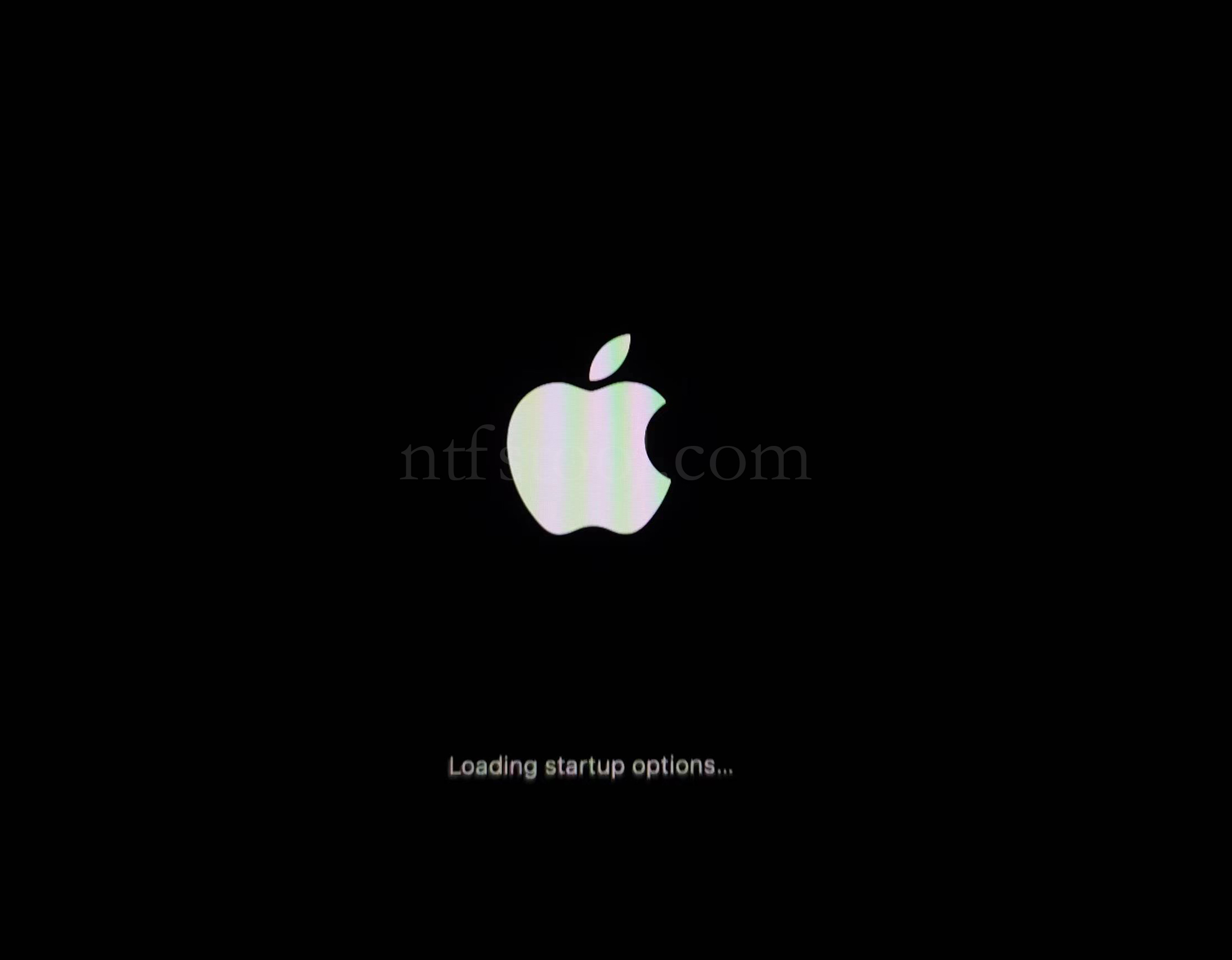
- Restart and hold the power button until Loading startup options appears, then enter recovery
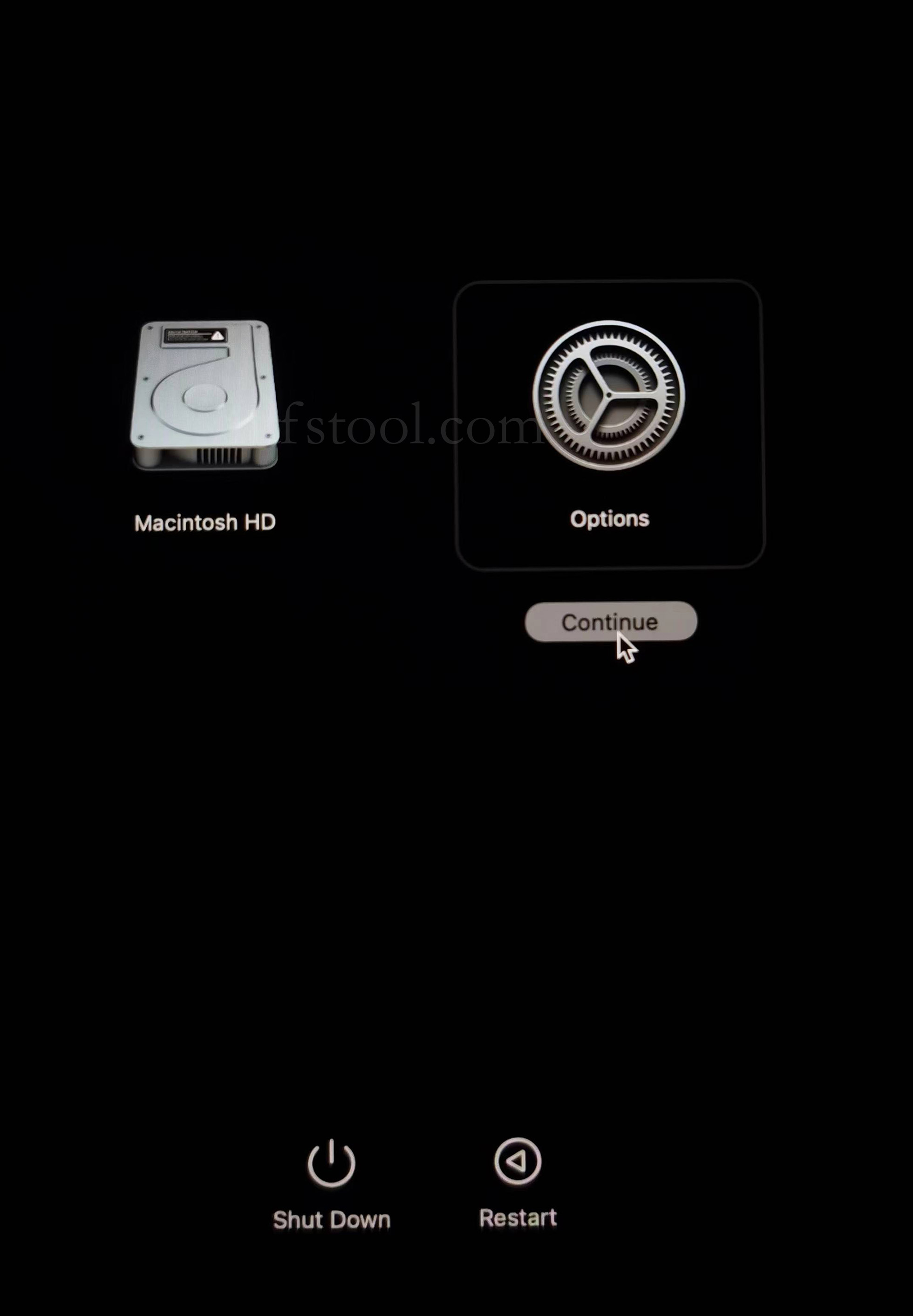
- Select Options, Continue
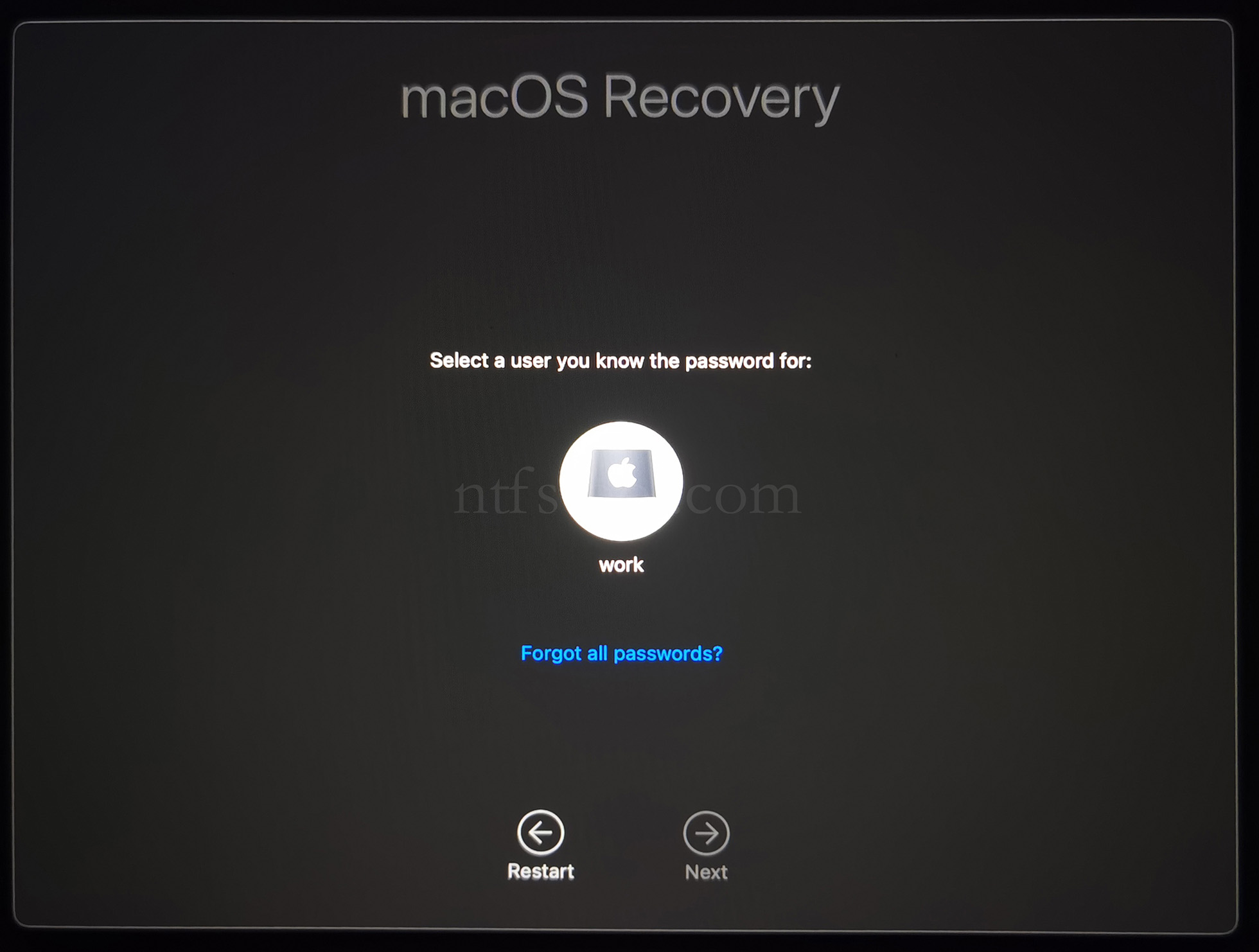
- Select the admin user and enter the password
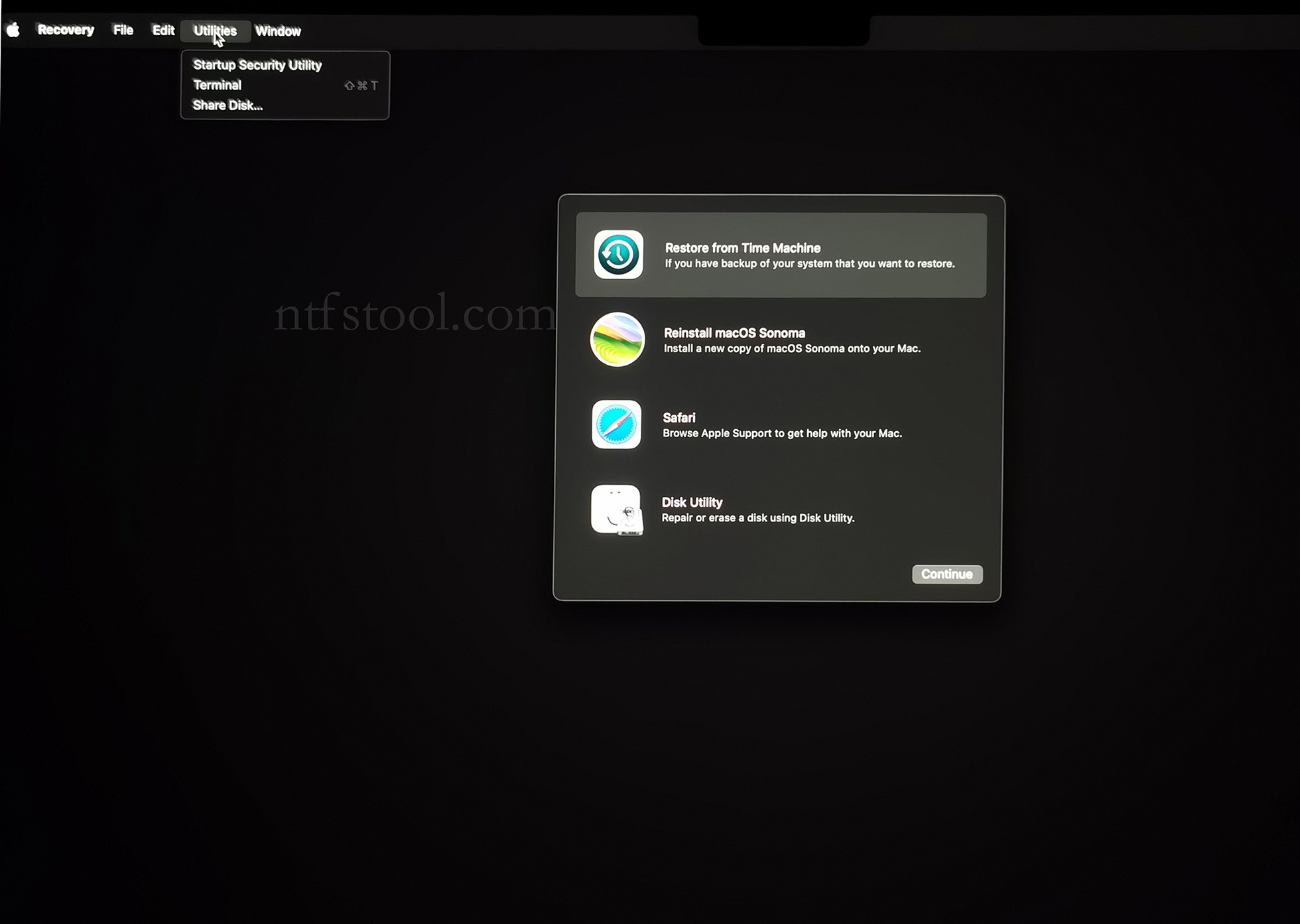
- Utilities → Terminal
- Type csrutil disable, press Enter
- Close Terminal
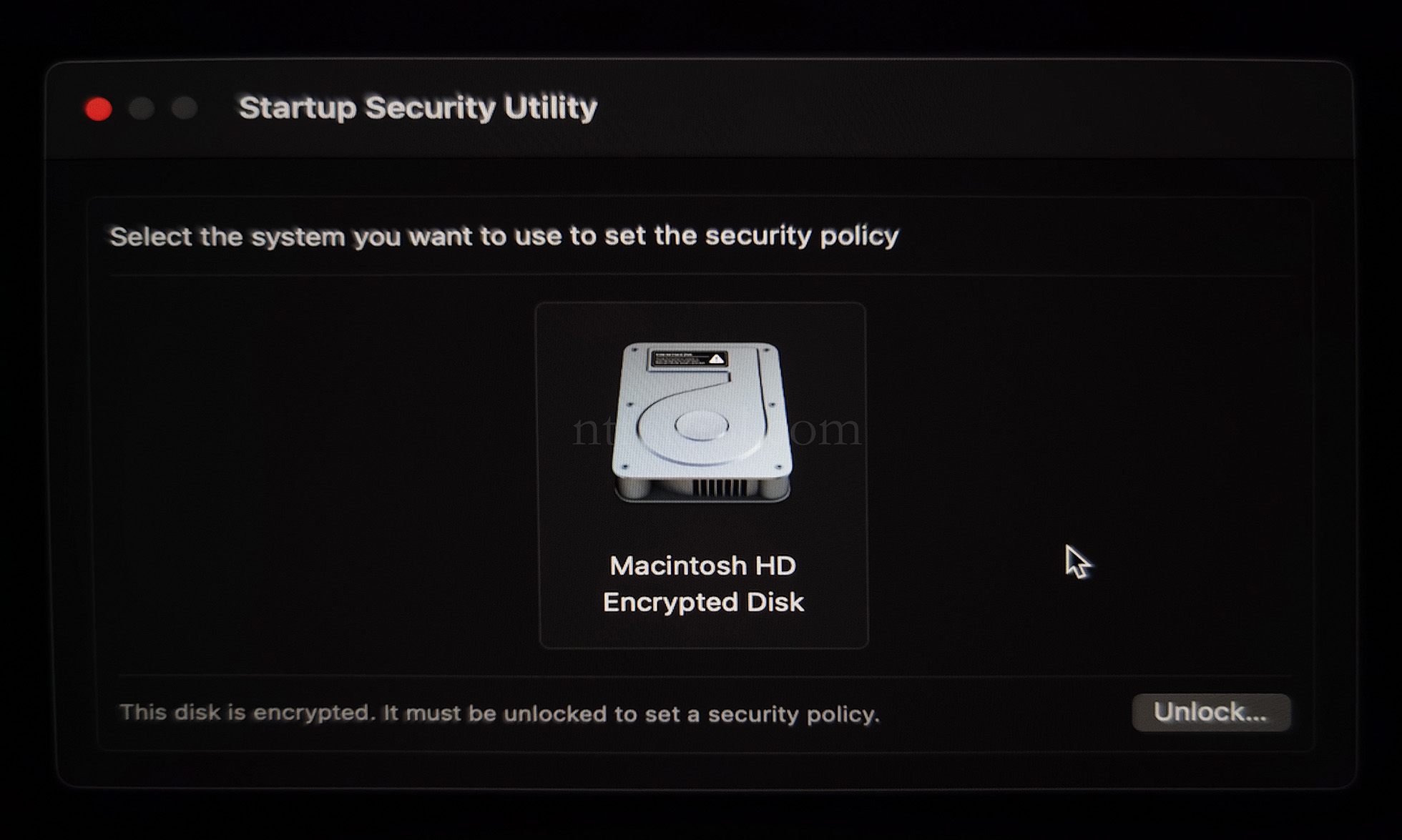
- Utilities → Startup Security Utility
- Select the system disk, then Security Policy
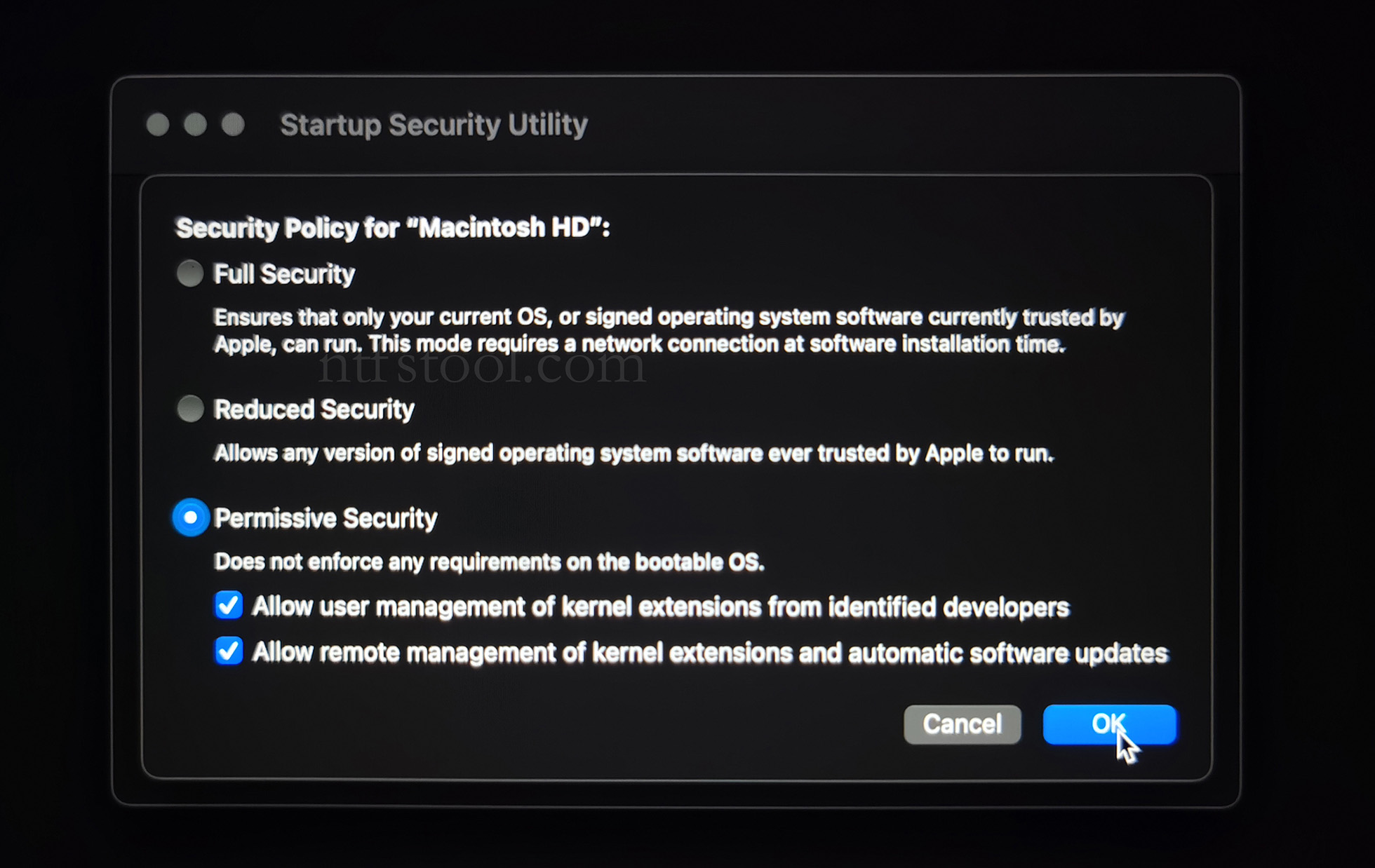
- Check Reduced Security and Allow user management of kernel extensions from identified developers
- Restart from the Apple menu
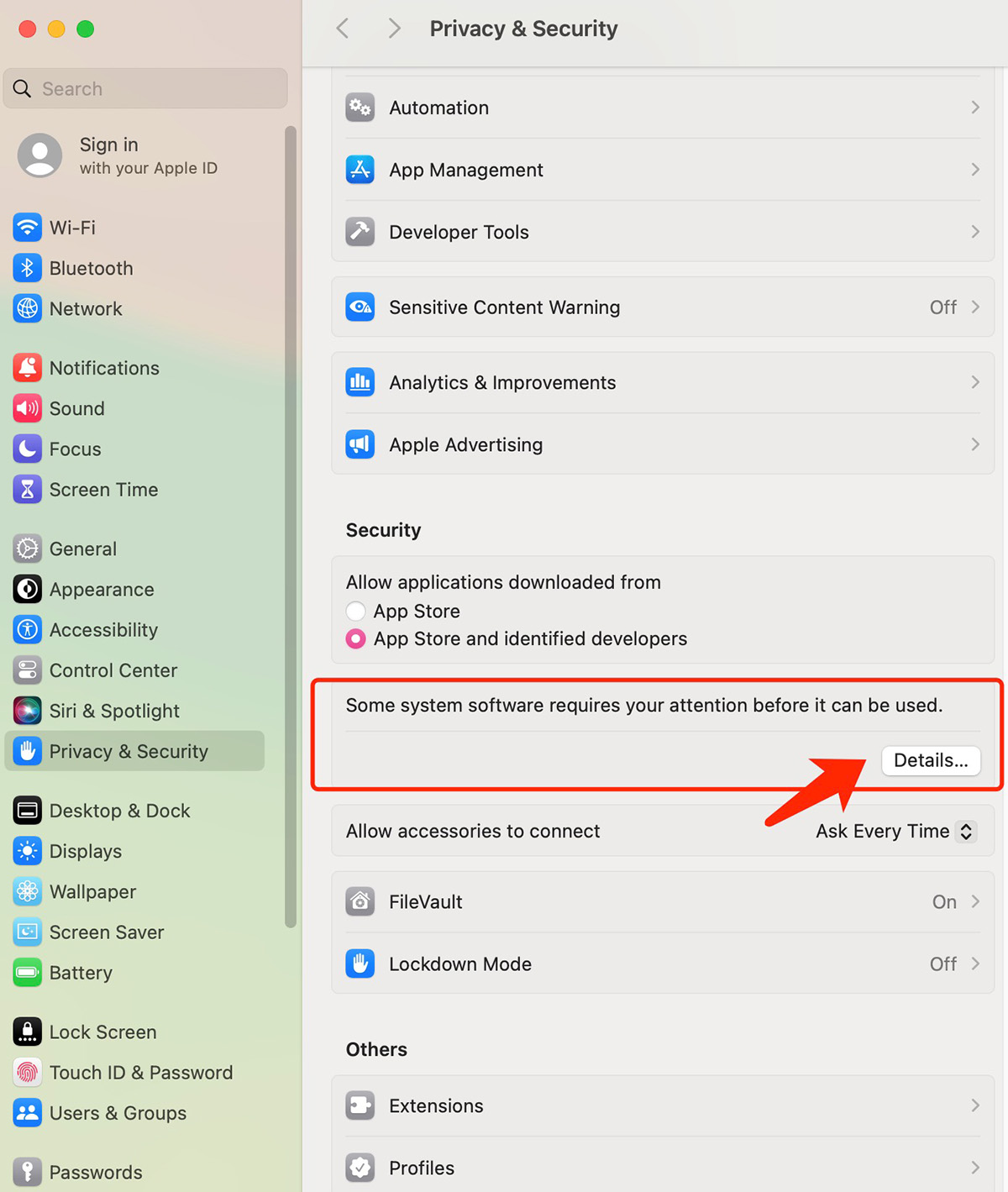
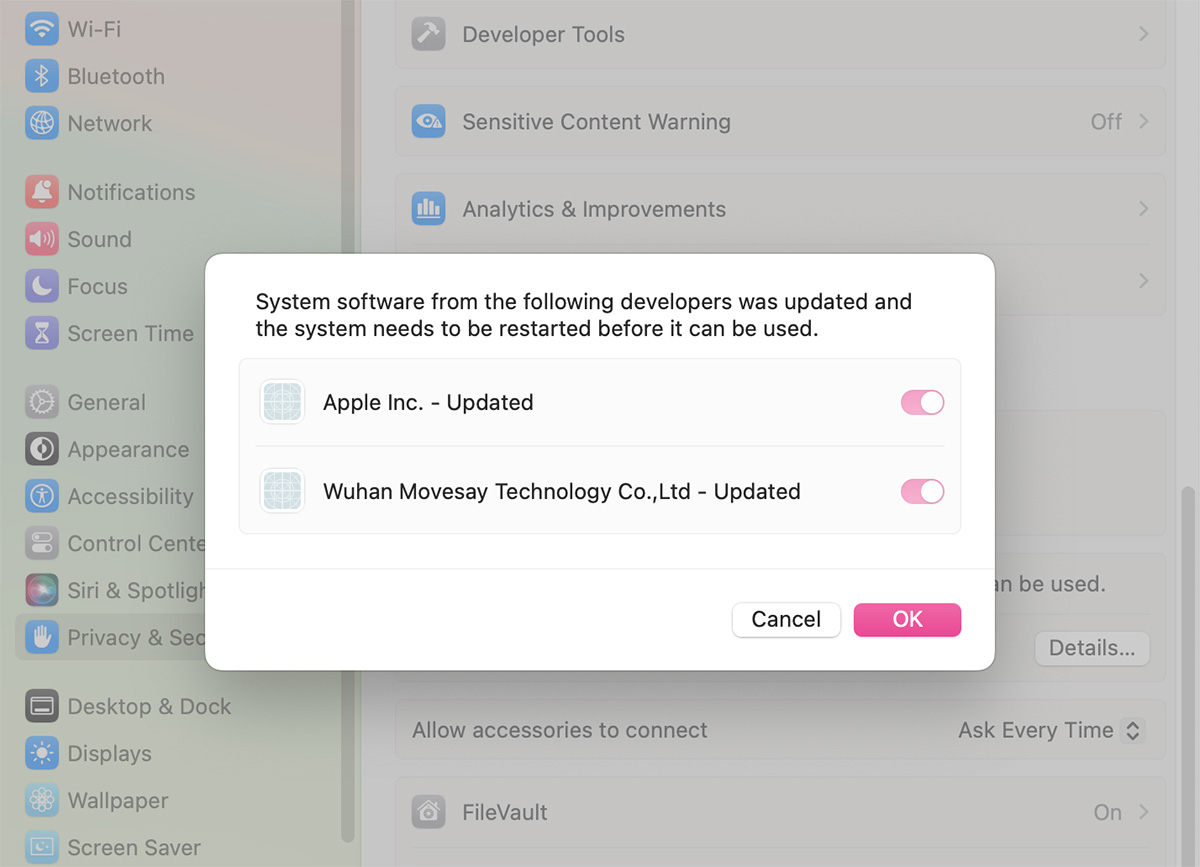
- Open System Settings → Privacy & Security, then allow the extension if prompted
- Related Screenshots