NTFSTool
NTFSTool 說明中心
安裝、首次掛載、常見問題排解,以及如何聯絡我們。
開始使用
- 1
下載
從本站下載。macOS 12 或更新版本會取得 NTFSTool Pro,macOS 10.15–11 會取得經典版。
- 2
安裝
NTFSTool Pro:打開 DMG,把 NTFSTool Pro 拖進「應用程式」。經典版:打開 pkg,按「繼續」完成安裝。
- 3
連接磁碟
插上 NTFS 磁碟。第一次使用時,macOS 會要求輸入 Mac 的登入密碼,讓 NTFSTool 掛載磁碟。密碼會加密儲存在這台 Mac 的鑰匙圈中,不會上傳。
- 4
啟用
可免費掛載 3 次。之後購買授權,把購買郵件中的授權碼貼到 App 裡即可。
常見問題
磁碟還是唯讀,怎麼辦?
通常是 Windows 讓磁碟處於休眠或「髒」狀態(快速啟動)。在 Windows 電腦上按住 Shift 再點「關機」,或關閉快速啟動,然後重新連接。NTFSTool Pro 也能一鍵修復。
Finder 裡看不到磁碟。
NTFSTool Pro 預設會把已掛載的磁碟顯示在桌面和 Finder 側邊欄。請檢查 Finder › 設定 › 側邊欄 › 外接磁碟,然後拔下磁碟重新連接。
為什麼 NTFSTool 要我輸入 Mac 密碼?
以可寫入方式掛載磁碟需要一次管理者權限。密碼加密儲存在這台 Mac 的鑰匙圈中,只用於掛載磁碟,不會傳送到任何地方。
需要更改 SIP、進復原模式或改安全性設定嗎?
不需要。NTFSTool 不使用核心擴充套件,也不會要求你降低 Mac 的安全性。Apple Pay 照常可用。
授權碼在哪裡?
在你的購買郵件裡。找不到的話,請附上訂單編號寄信到 [email protected],我們會重新寄給你。
如何退款?
購買後 45 天內來信即可全額退款,不問原因。如果 NTFSTool 無法讀寫你的磁碟,任何時候都能全額退款。退款後授權會失效。
資料安全嗎?
NTFSTool 會驗證寫入,Pro 在修復前會先檢查磁碟。和所有外接磁碟一樣,拔除前請務必先退出。
有免費版嗎?
有。免費版已在 Mac App Store 上架,支援 macOS 15.6 或更新版本。 了解更多 →
如何解除安裝 NTFSTool?
依照解除安裝指南操作,即可乾淨移除 App 及其輔助元件。 了解更多 →
提示:拔除磁碟前請務必先退出,並備份重要檔案。完整條款請見授權協議。
舊版核心擴充套件版本(歷史資料)
歷史 kext 版本
以下步驟僅適用於歷史內核擴充版本,作為工程底蘊與舊版使用者文檔保留。現行安裝請不要執行這些步驟。
Reason for Installing the NTFSTool Kernel Extension
Due to Microsoft's licensing restrictions, macOS has removed write support for the NTFS disk format. Historical NTFSTool releases therefore installed an Apple-signed kernel extension. This is engineering heritage. The current release does not use these steps.
Requirements and Steps for Installing Drivers in macOS Kernel (legacy only)
For Intel Chip Systems
Requirements: Disable System Integrity Protection (SIP)
- Enter system recovery mode, disable System Integrity Protection (SIP). Completely shut down your Mac, then start it up, and immediately press and hold Command+R during startup until the Apple logo appears for 3 seconds, then release the button and wait to enter Recovery mode
- Click 'Utilities' in the top toolbar, select 'Terminal'
- Type 'csrutil disable' in the terminal, then press Enter
- Close the terminal and restart your Mac
- Related Screenshots

For Apple Silicon systems
Requirements: Disable SIP; enable Allow user management of kernel extensions from identified developers.
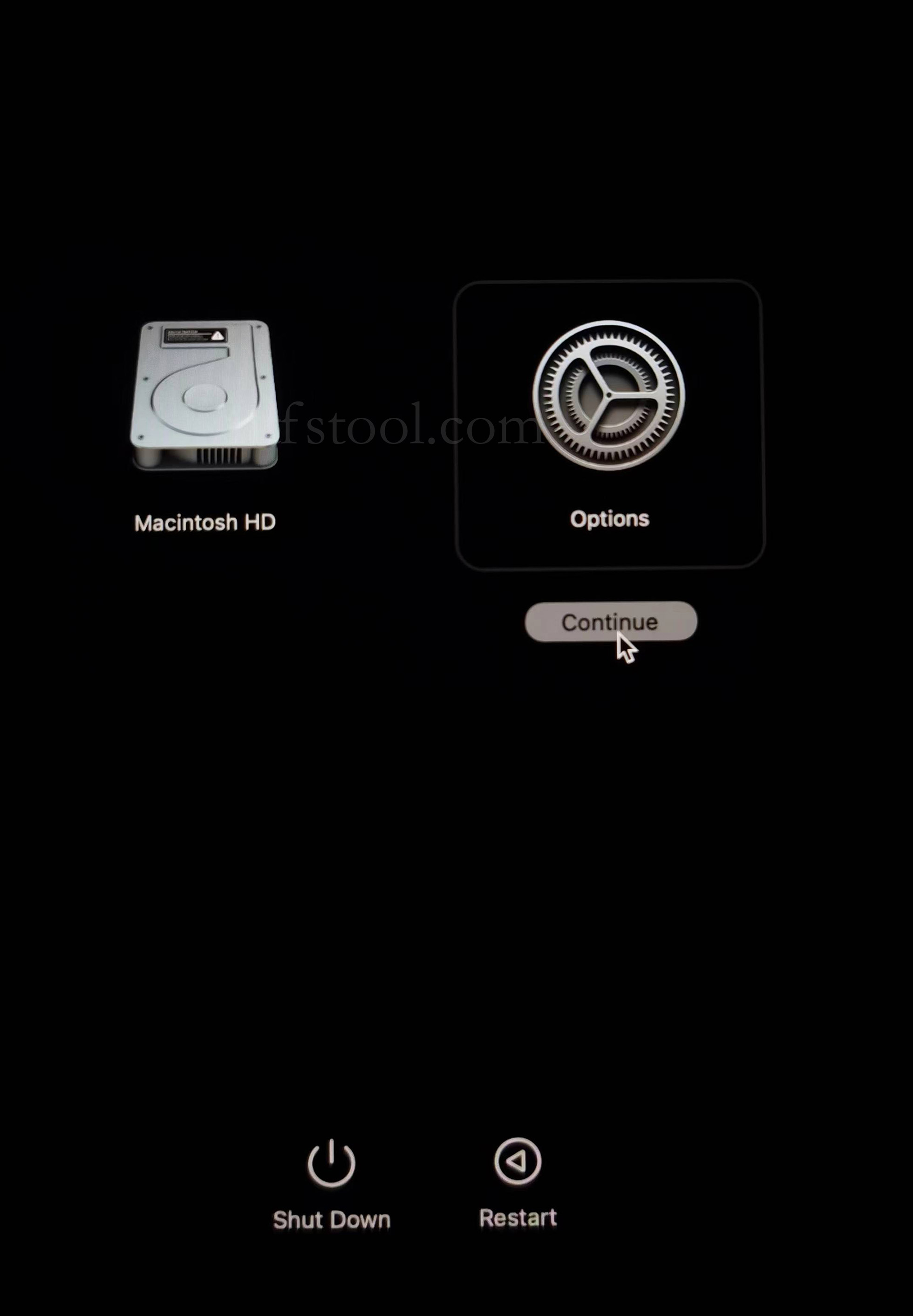
- Restart and hold the power button until Loading startup options appears, then enter recovery
- Select Options, Continue
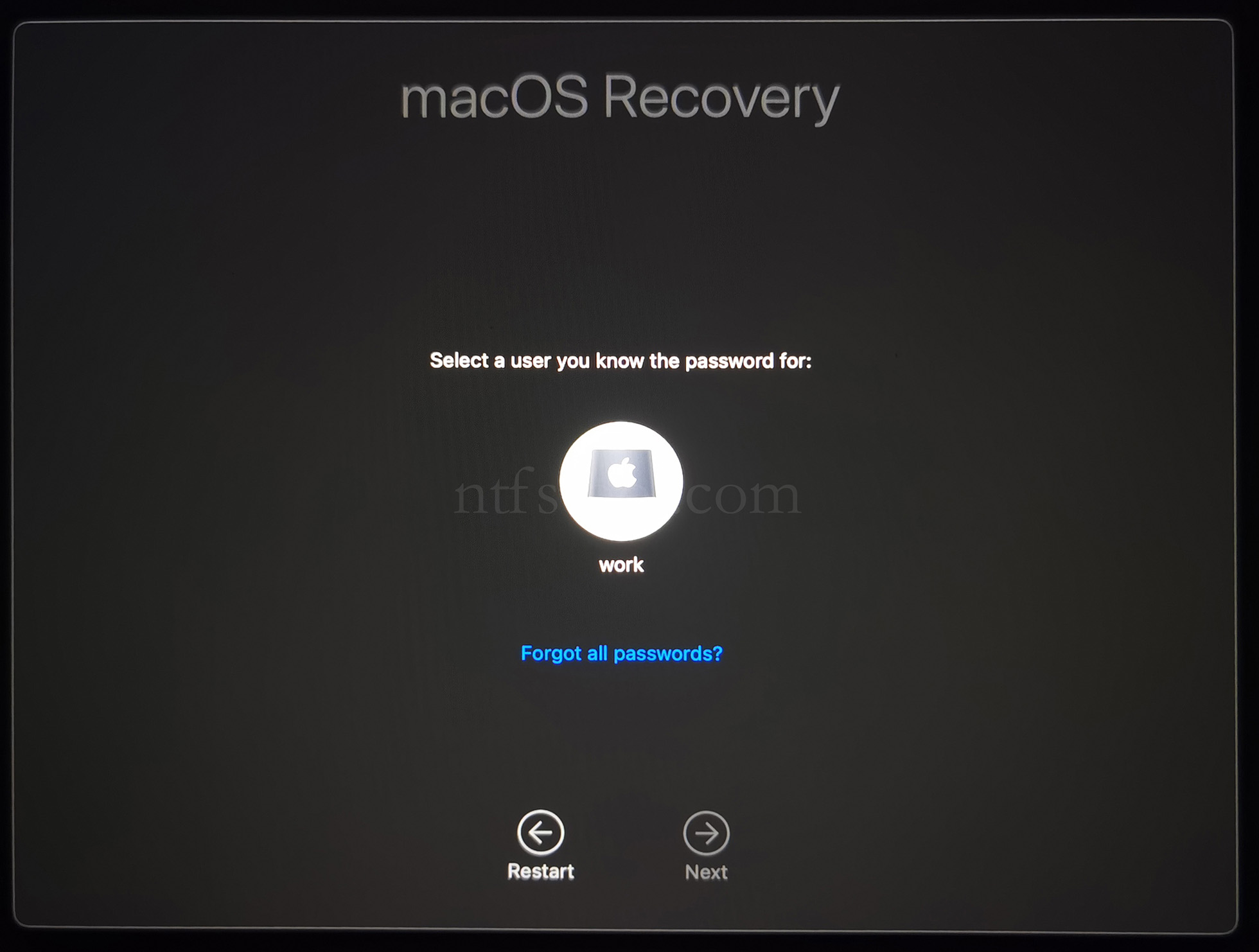
- Select the admin user and enter the password
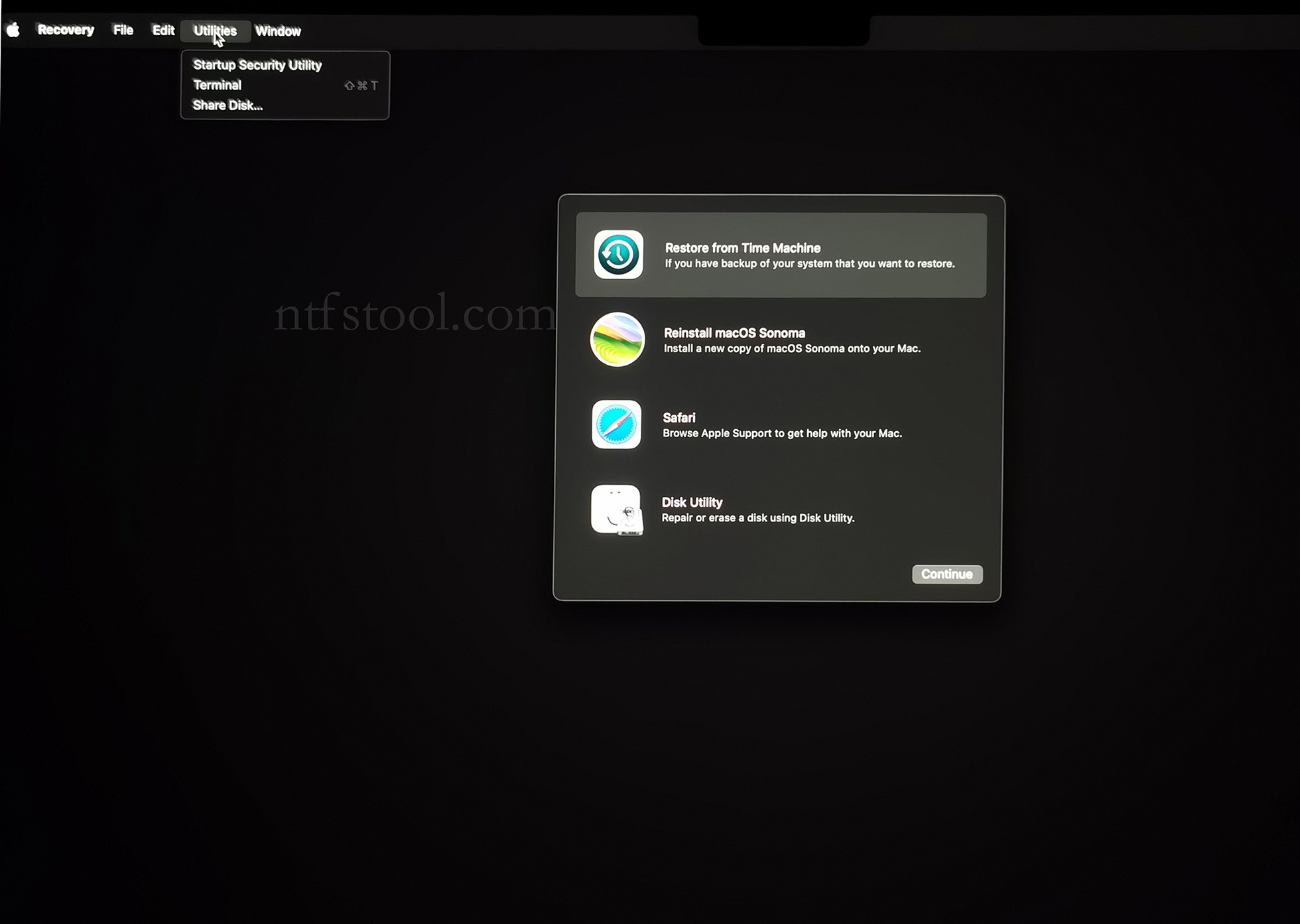
- Utilities → Terminal
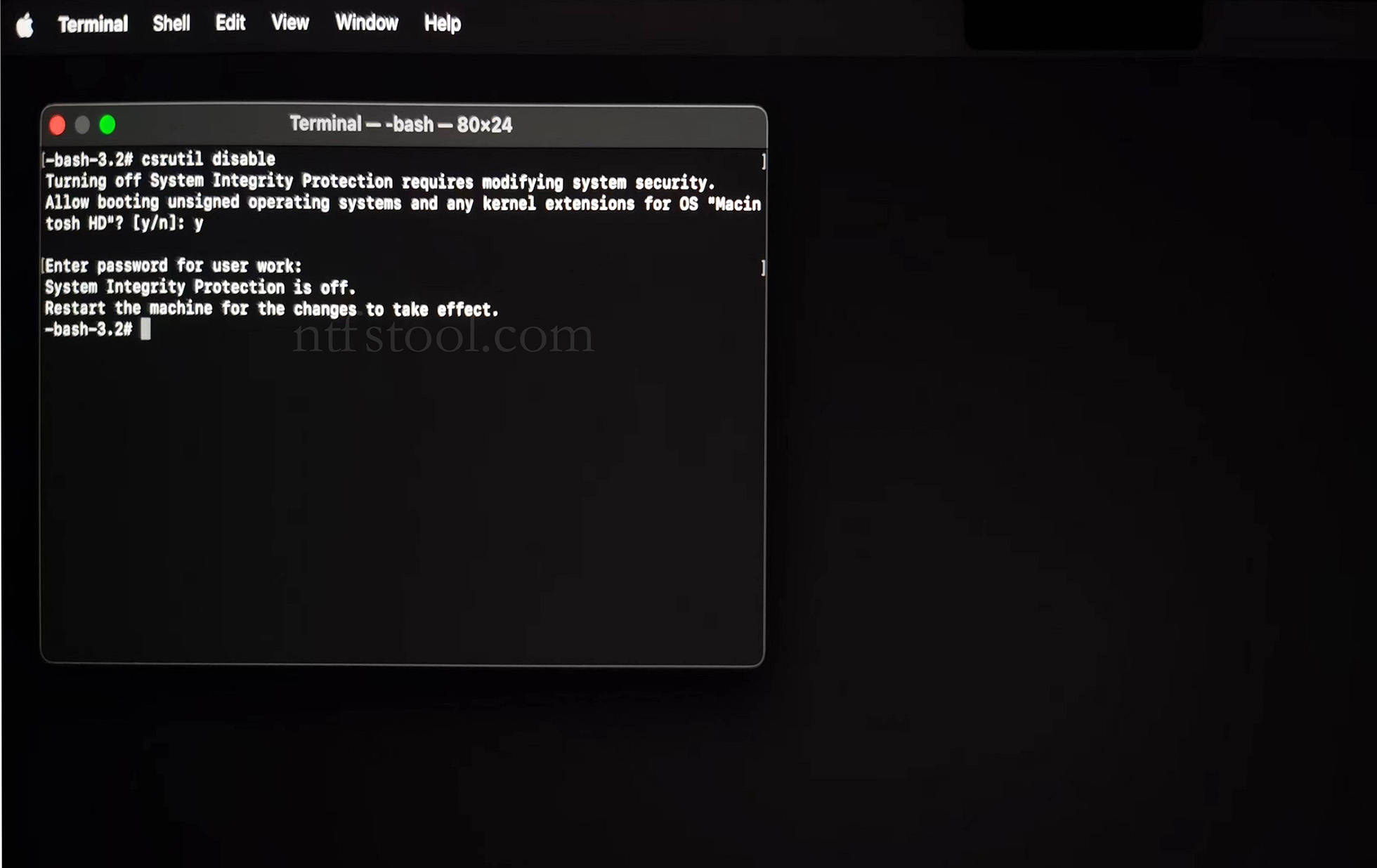
- Type csrutil disable, press Enter
- Close Terminal
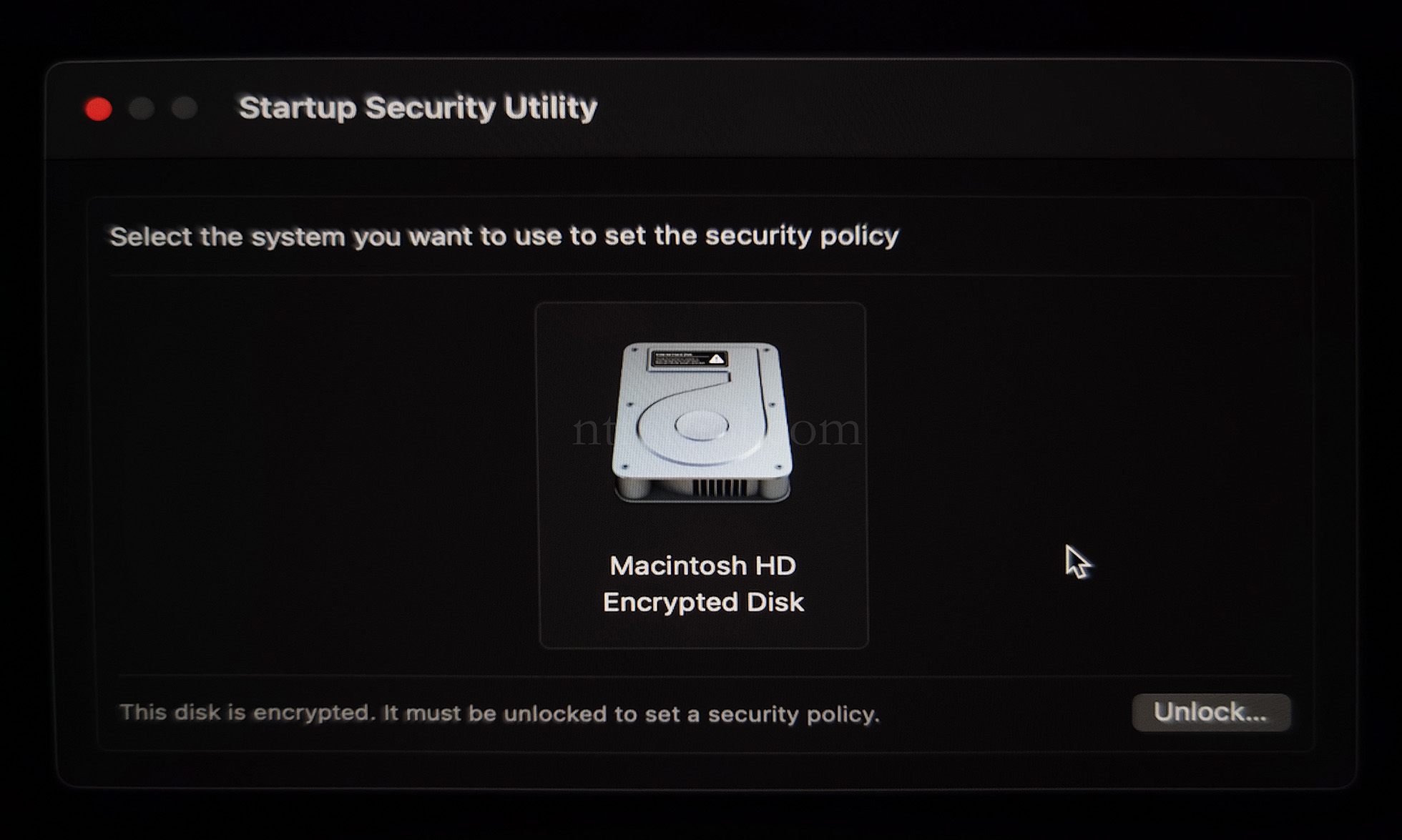
- Utilities → Startup Security Utility
- Select the system disk, then Security Policy
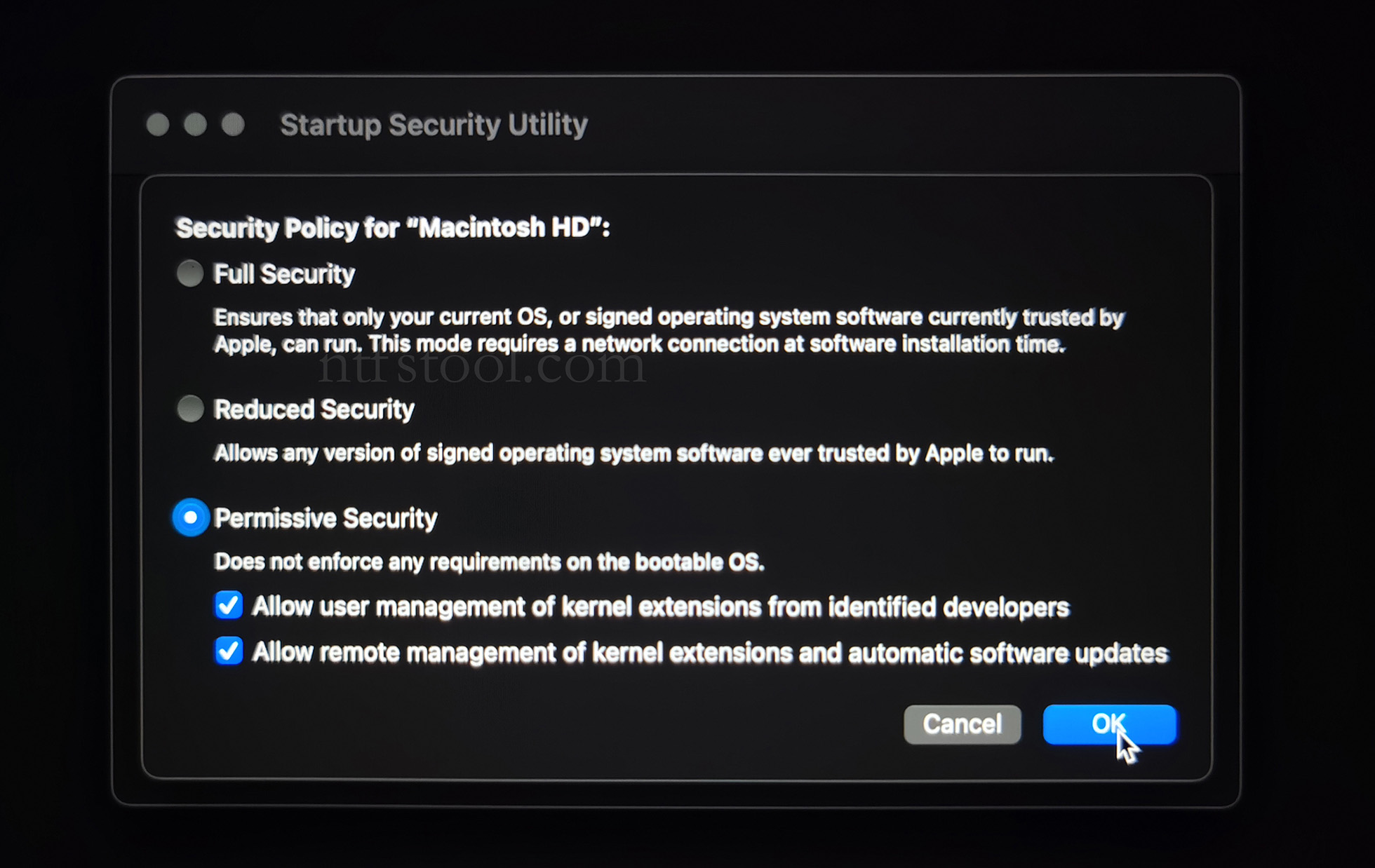
- Check Reduced Security and Allow user management of kernel extensions from identified developers
- Restart from the Apple menu
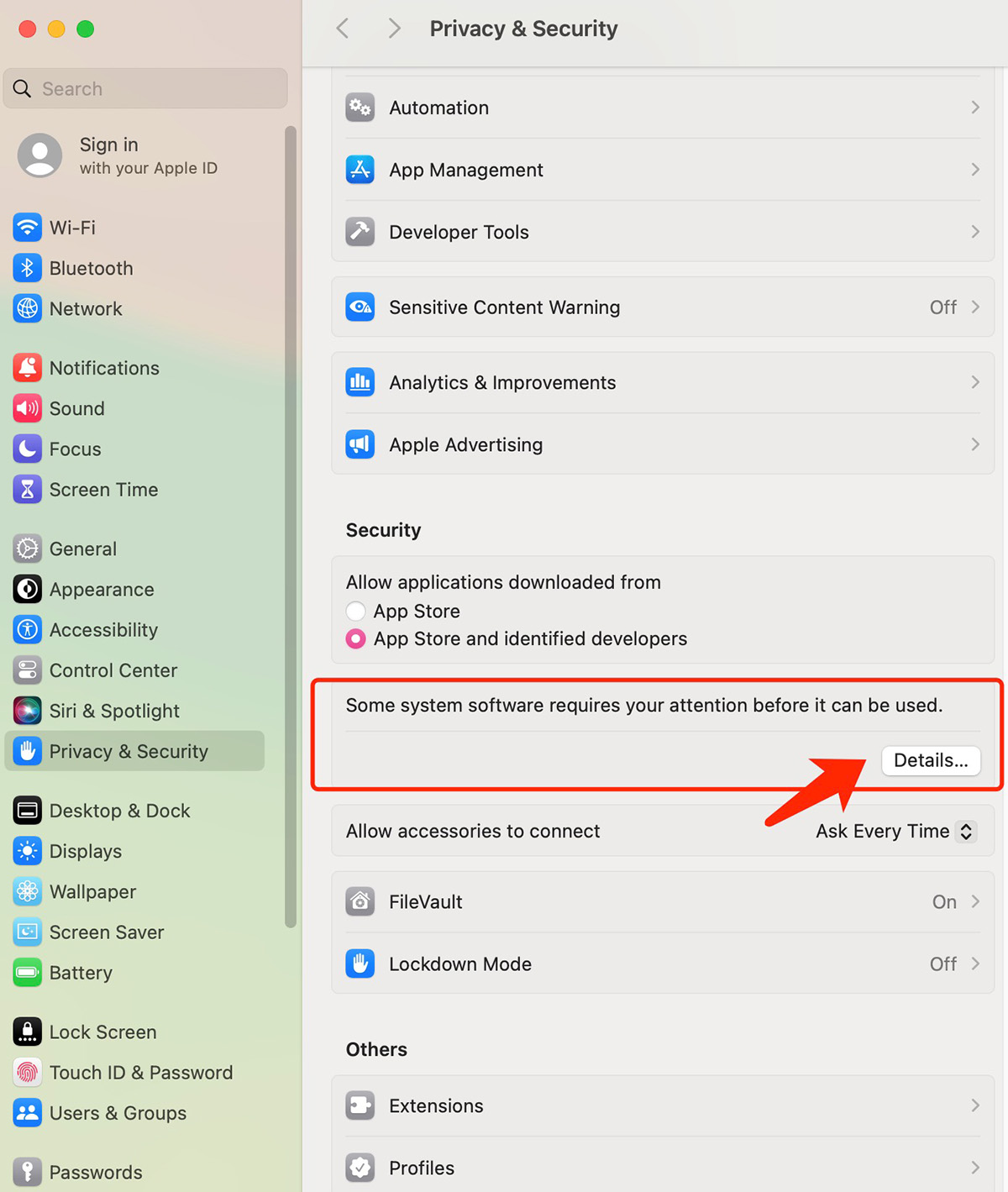
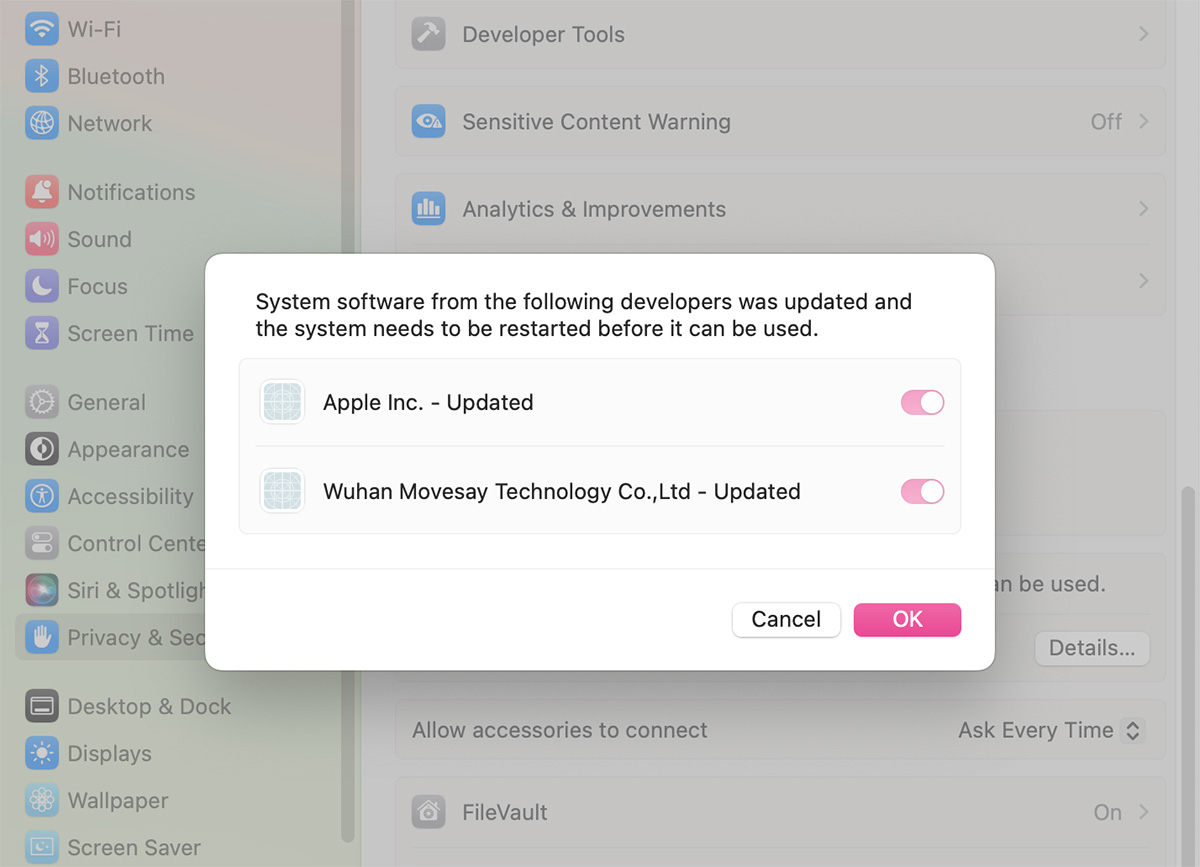
- Open System Settings → Privacy & Security, then allow the extension if prompted
- Related Screenshots