NTFSTool
NTFSTool सहायता केंद्र
इंस्टॉल, पहला माउंट, आम समस्याओं के हल, और हमसे संपर्क कैसे करें।
शुरू करें
- 1
डाउनलोड करें
इसी साइट से डाउनलोड करें। macOS 12 या बाद पर आपको NTFSTool Pro मिलेगा और macOS 10.15–11 पर क्लासिक संस्करण।
- 2
इंस्टॉल करें
NTFSTool Pro: DMG खोलें और NTFSTool Pro को Applications में खींचें। क्लासिक संस्करण: pkg खोलें और Continue पर क्लिक करें।
- 3
अपनी ड्राइव जोड़ें
NTFS ड्राइव लगाएँ। पहली बार macOS आपके Mac का लॉगिन पासवर्ड माँगेगा, ताकि NTFSTool ड्राइव माउंट कर सके। यह इसी Mac के Keychain में एन्क्रिप्ट होकर सेव रहता है और कभी अपलोड नहीं होता।
- 4
एक्टिवेट करें
आपको 3 मुफ़्त माउंट मिलते हैं। उसके बाद लाइसेंस खरीदें और खरीद वाले ईमेल से लाइसेंस की ऐप में पेस्ट करें।
आम सवाल
मेरी ड्राइव अब भी केवल-पढ़ें मोड में माउंट हो रही है। अब क्या करूँ?
आमतौर पर Windows ने ड्राइव को हाइबरनेट या “dirty” अवस्था (Fast Startup) में छोड़ा होता है। Windows PC पर Shift दबाए रखकर Shut down चुनें, या Fast Startup बंद करें, फिर ड्राइव दोबारा जोड़ें। NTFSTool Pro एक क्लिक में ड्राइव रिपेयर भी कर सकता है।
ड्राइव Finder में नहीं दिखती।
NTFSTool Pro डिफ़ॉल्ट रूप से माउंट की गई ड्राइव को डेस्कटॉप और Finder साइडबार में दिखाता है। Finder › सेटिंग्स › साइडबार › बाहरी डिस्क जाँचें, फिर ड्राइव निकालकर दोबारा लगाएँ।
NTFSTool मेरा Mac पासवर्ड क्यों माँगता है?
लिखने की अनुमति के साथ ड्राइव माउंट करने के लिए एक बार एडमिन अधिकार चाहिए। पासवर्ड इसी Mac के Keychain में एन्क्रिप्ट रहता है, सिर्फ़ ड्राइव माउंट करने में इस्तेमाल होता है, और कहीं नहीं भेजा जाता।
क्या मुझे SIP, रिकवरी मोड या सुरक्षा सेटिंग्स बदलनी होंगी?
नहीं। NTFSTool कोई कर्नेल एक्सटेंशन इस्तेमाल नहीं करता और कभी आपके Mac की सुरक्षा कम करने को नहीं कहता। Apple Pay पहले की तरह चलता है।
मेरी लाइसेंस की कहाँ है?
यह आपके खरीद वाले ईमेल में है। न मिले तो अपने ऑर्डर नंबर के साथ [email protected] पर ईमेल करें, हम दोबारा भेज देंगे।
रिफ़ंड कैसे पाएँ?
खरीद के 45 दिनों के भीतर हमें ईमेल करें और बिना कोई सवाल पूरा रिफ़ंड पाएँ। अगर NTFSTool आपकी ड्राइव पढ़-लिख नहीं पाता, तो आपको कभी भी पूरा रिफ़ंड मिलता है। रिफ़ंड के बाद लाइसेंस निष्क्रिय कर दिया जाता है।
क्या मेरा डेटा सुरक्षित है?
NTFSTool लिखे गए डेटा की जाँच करता है, और Pro रिपेयर से पहले ड्राइव की जाँच करता है। किसी भी बाहरी डिस्क की तरह, निकालने से पहले हमेशा Eject करें।
क्या कोई मुफ़्त संस्करण है?
हाँ — मुफ़्त संस्करण macOS 15.6 या बाद के लिए Mac App Store पर है। और जानें →
NTFSTool अनइंस्टॉल कैसे करें?
ऐप और उसके हेल्पर को पूरी तरह हटाने के लिए अनइंस्टॉल गाइड का पालन करें। और जानें →
सुझाव: ड्राइव निकालने से पहले हमेशा Eject करें, और ज़रूरी फ़ाइलों का बैकअप रखें। पूरी शर्तें हमारे लाइसेंस समझौते में हैं।
पुराने कर्नेल एक्सटेंशन वाले संस्करण (ऐतिहासिक)
लेगेसी kext संस्करण (ऐतिहासिक)
निम्नलिखित चरण केवल ऐतिहासिक कर्नेल एक्सटेंशन बिल्ड पर लागू। इंजीनियरिंग विरासत और उन संस्करणों के उपयोगकर्ताओं के लिए रखे गए। वर्तमान इंस्टॉलर के लिए न अनुसरण करें।
Reason for Installing the NTFSTool Kernel Extension
Due to Microsoft's licensing restrictions, macOS has removed write support for the NTFS disk format. Historical NTFSTool releases therefore installed an Apple-signed kernel extension. This is engineering heritage. The current release does not use these steps.
Requirements and Steps for Installing Drivers in macOS Kernel (legacy only)
For Intel Chip Systems
Requirements: Disable System Integrity Protection (SIP)
- Enter system recovery mode, disable System Integrity Protection (SIP). Completely shut down your Mac, then start it up, and immediately press and hold Command+R during startup until the Apple logo appears for 3 seconds, then release the button and wait to enter Recovery mode
- Click 'Utilities' in the top toolbar, select 'Terminal'
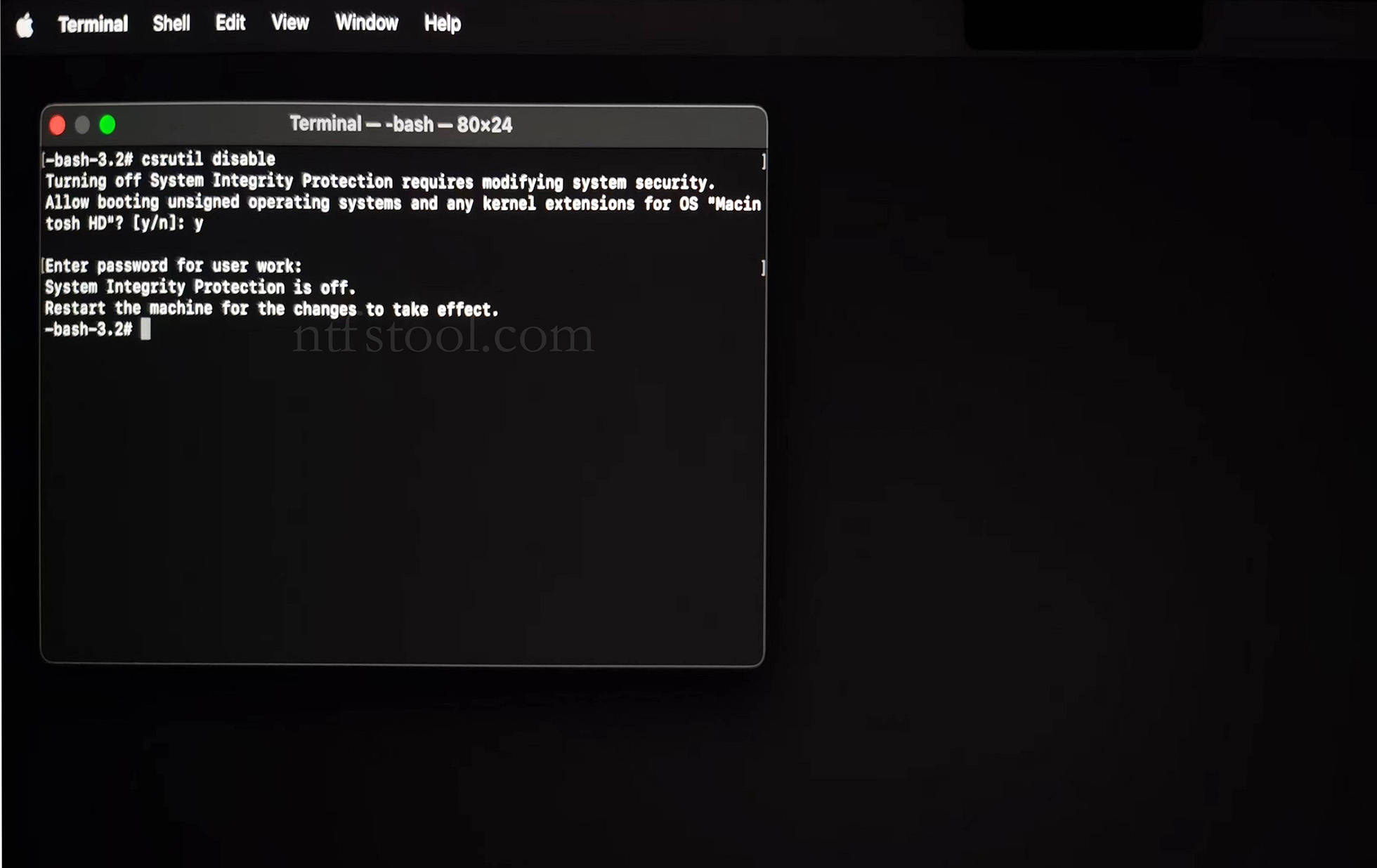
- Type 'csrutil disable' in the terminal, then press Enter
- Close the terminal and restart your Mac
- Related Screenshots
For Apple Silicon systems
Requirements: Disable SIP; enable Allow user management of kernel extensions from identified developers.
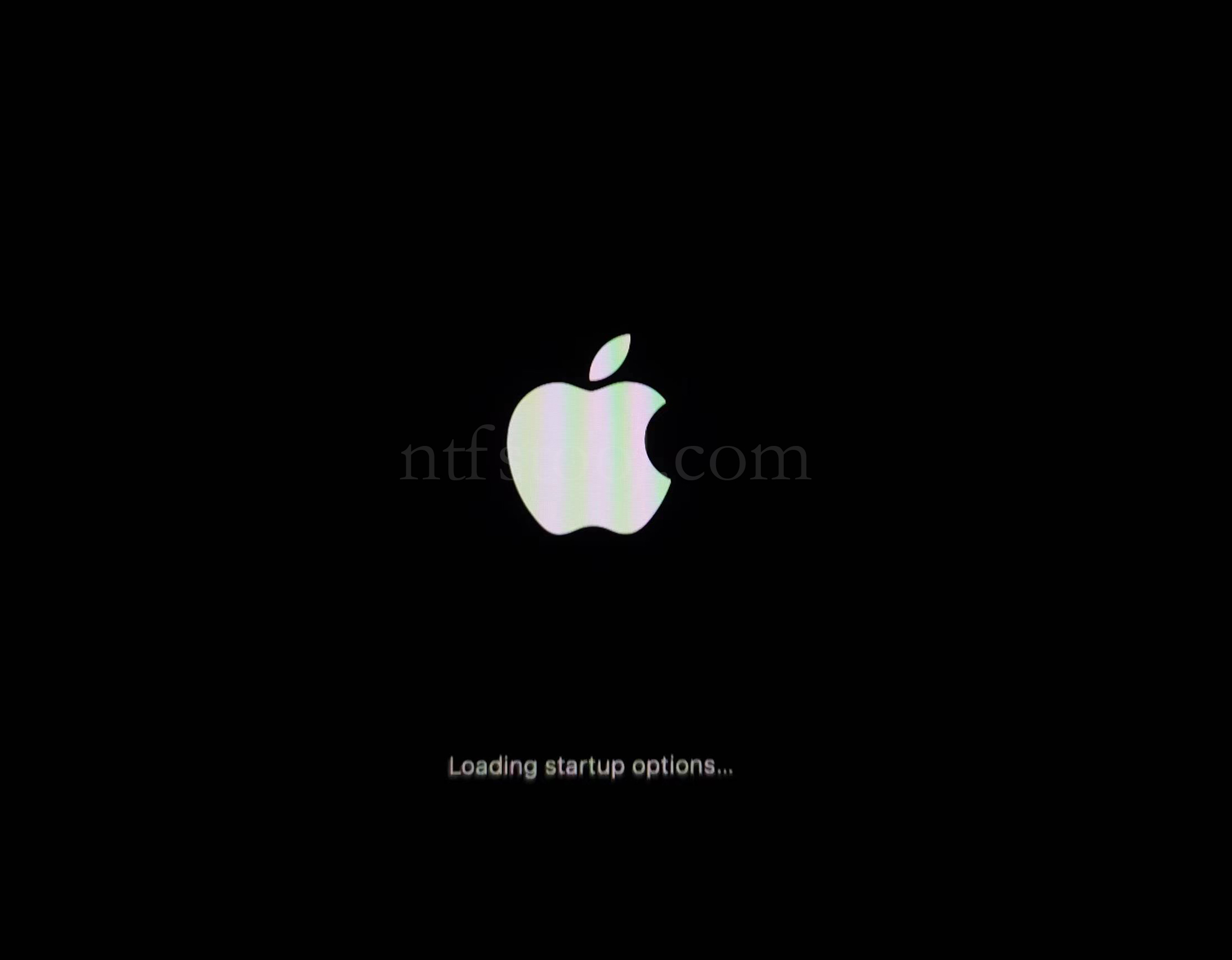
- Restart and hold the power button until Loading startup options appears, then enter recovery
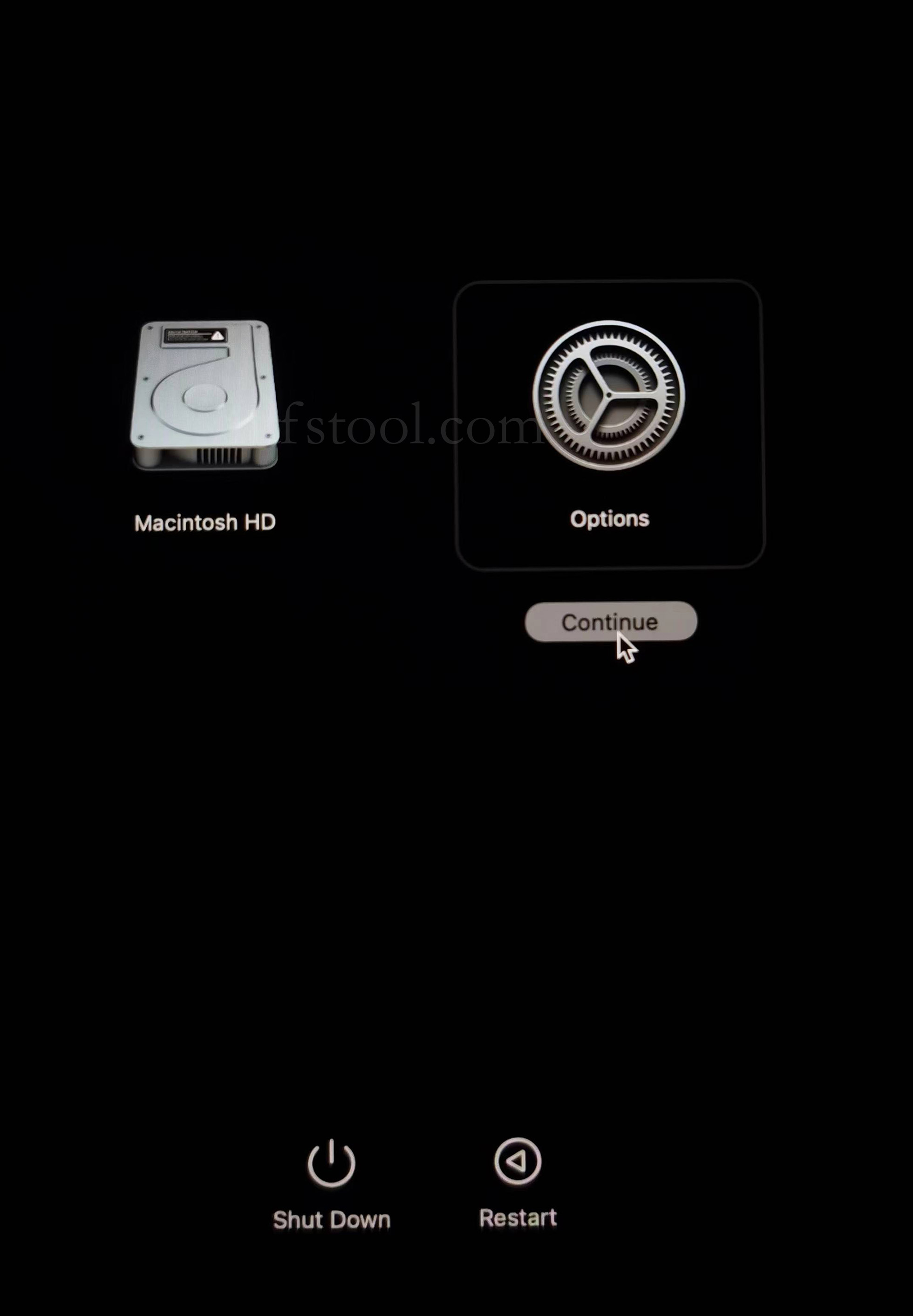
- Select Options, Continue
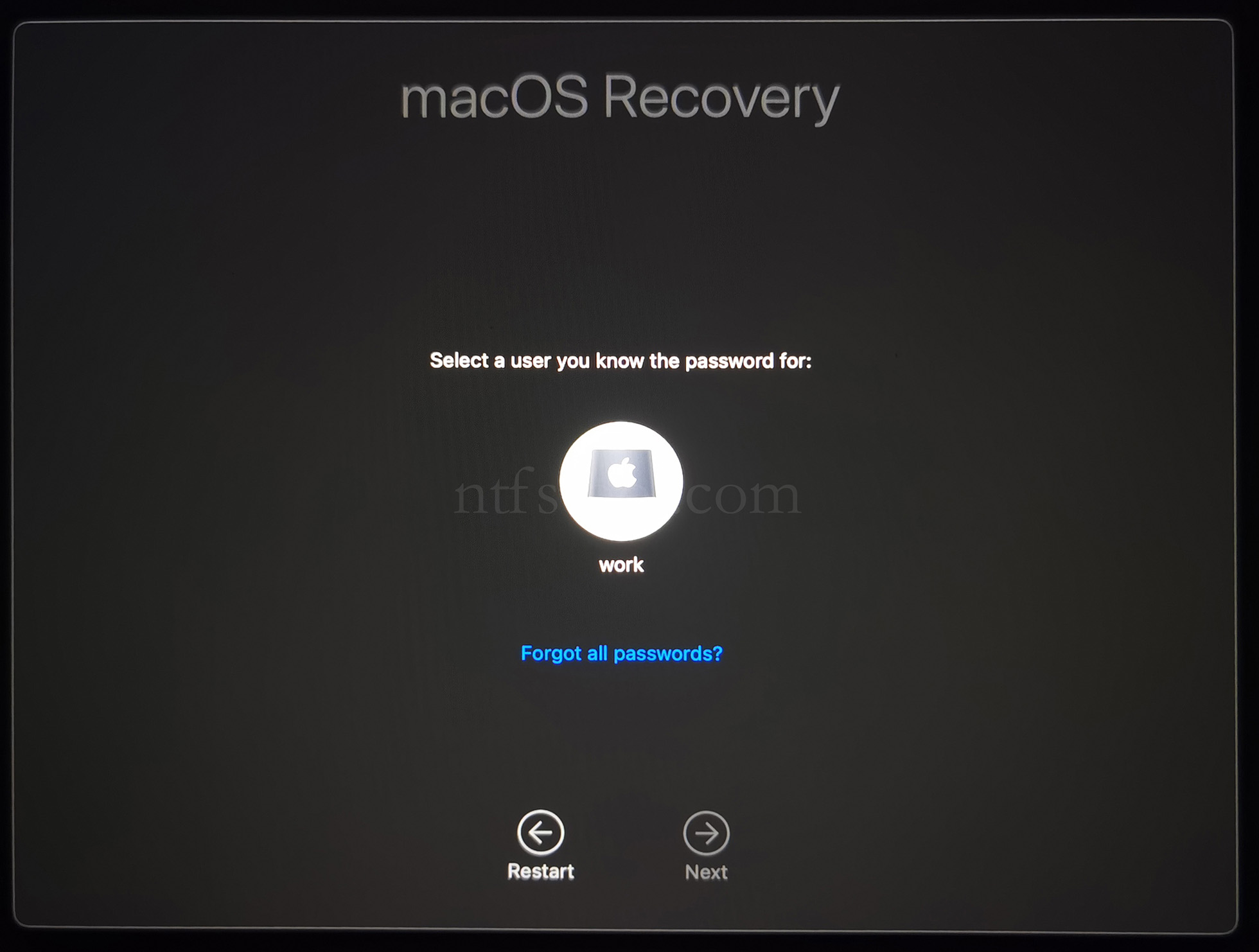
- Select the admin user and enter the password
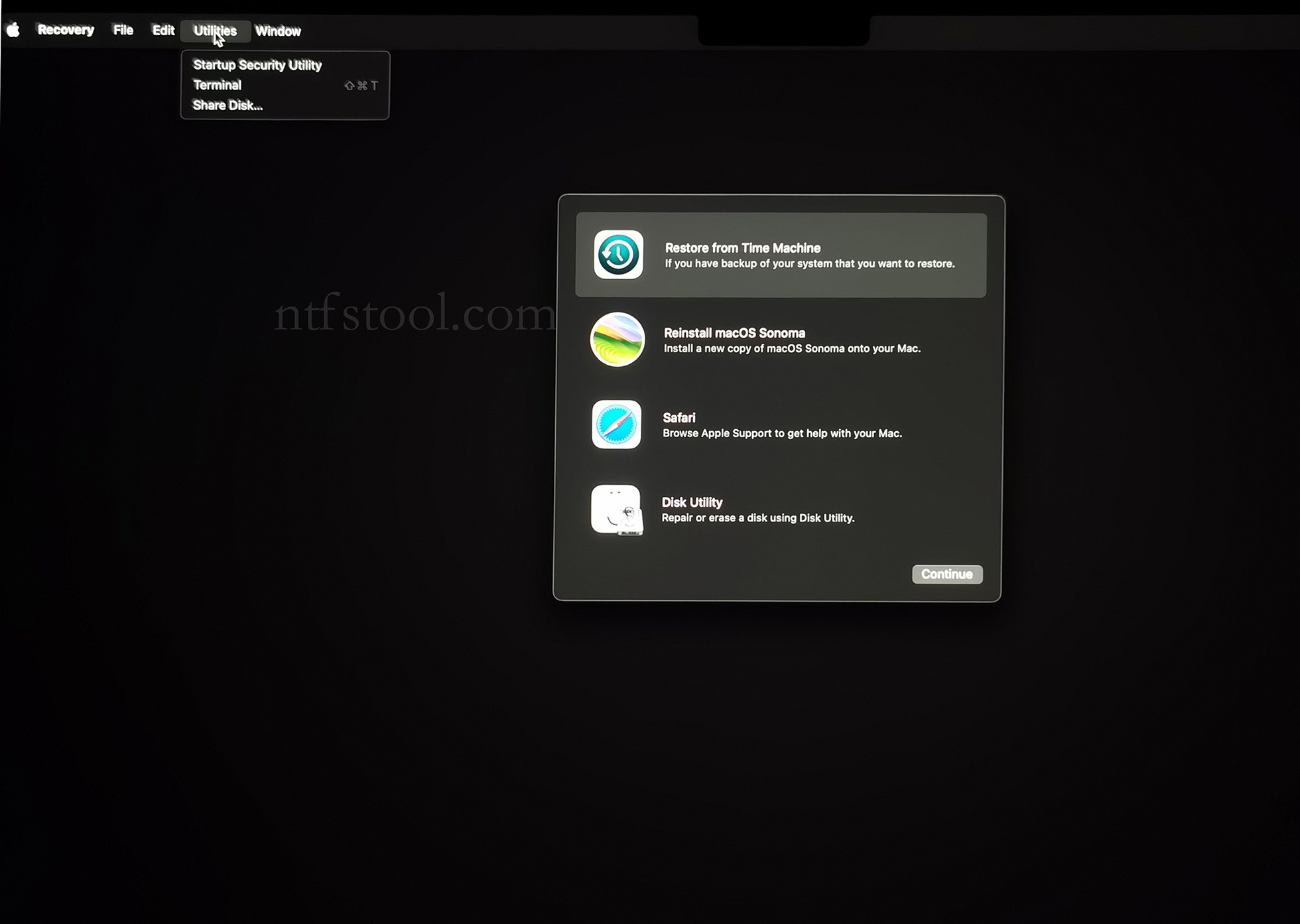
- Utilities → Terminal
- Type csrutil disable, press Enter
- Close Terminal
- Utilities → Startup Security Utility
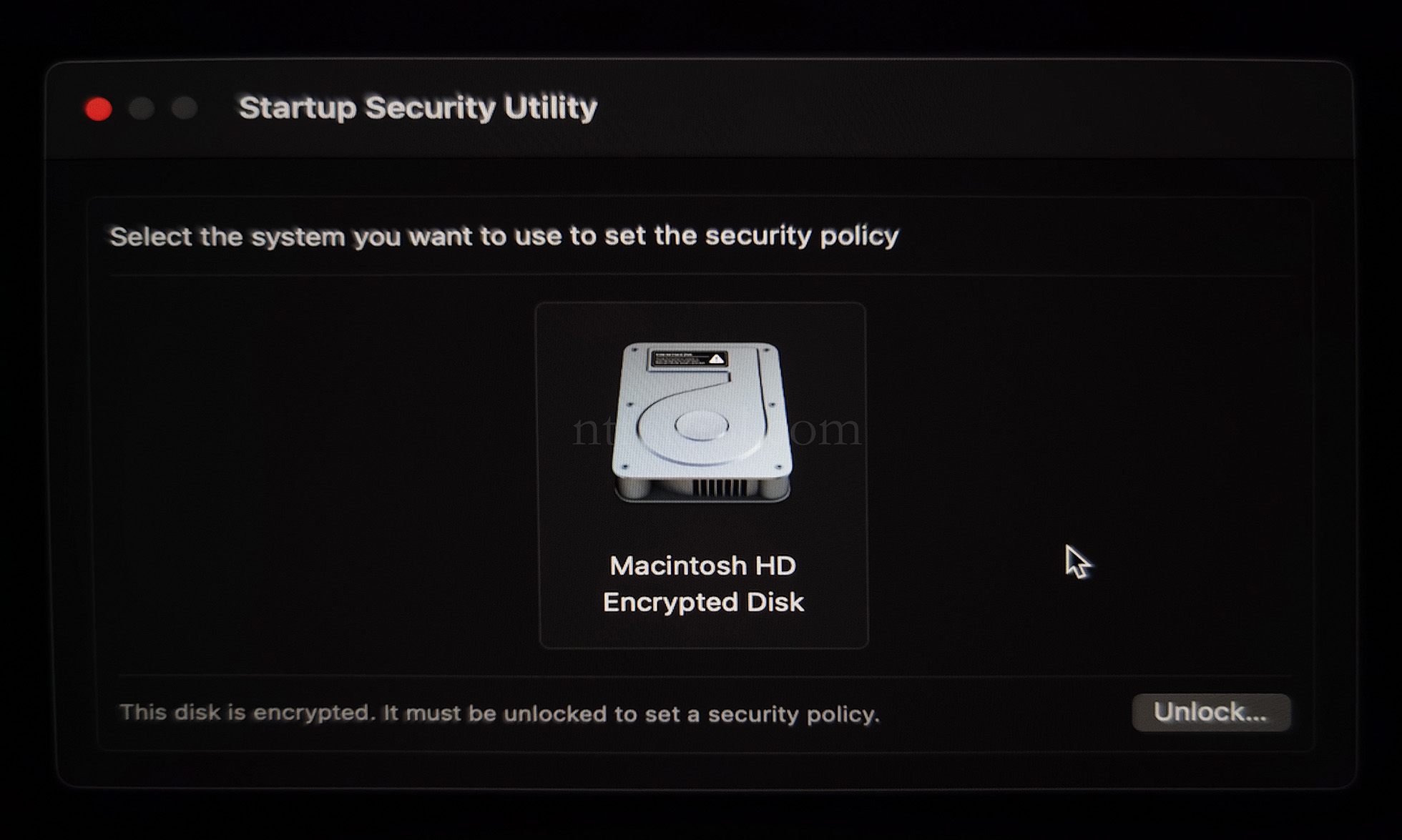
- Select the system disk, then Security Policy
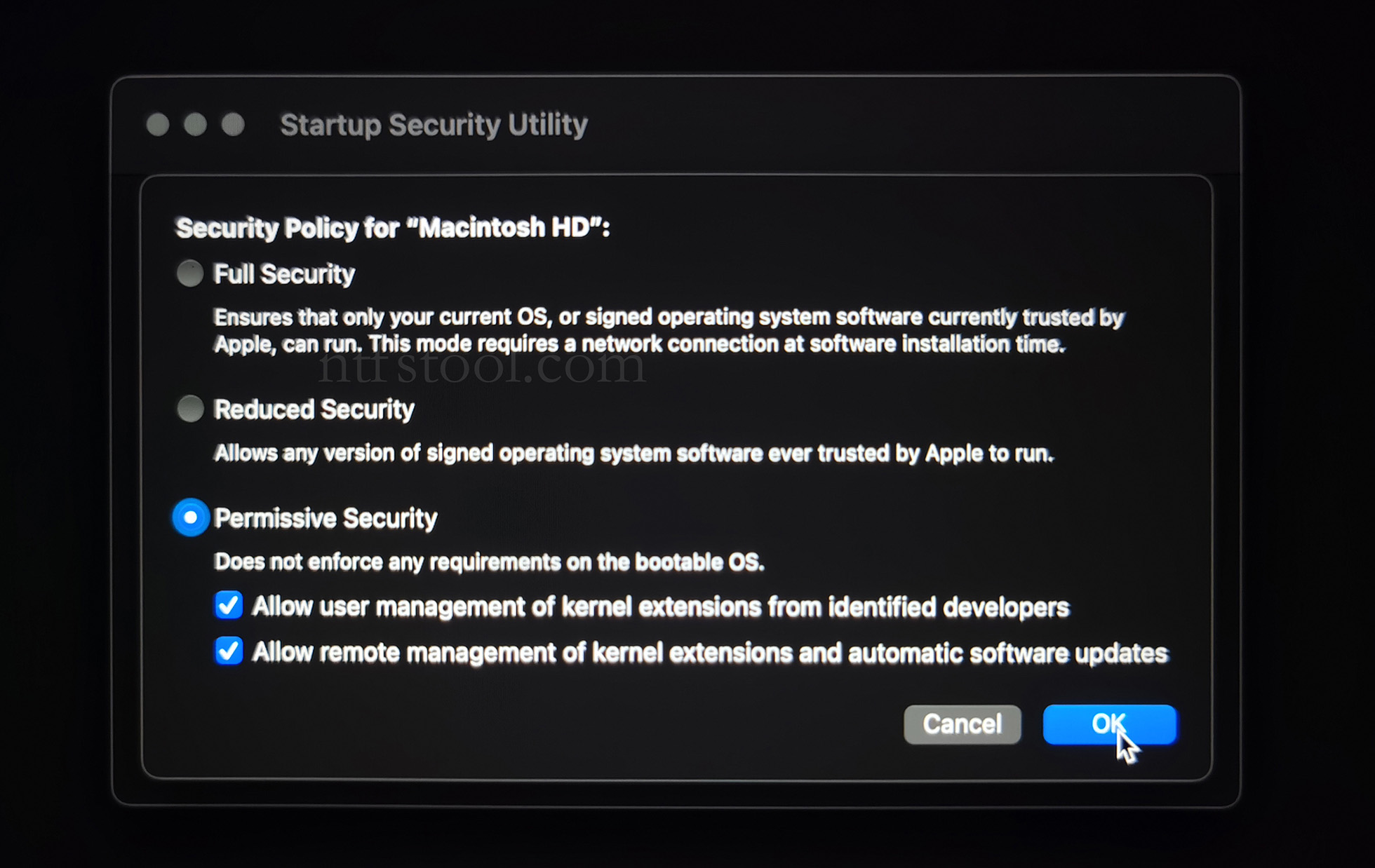
- Check Reduced Security and Allow user management of kernel extensions from identified developers
- Restart from the Apple menu
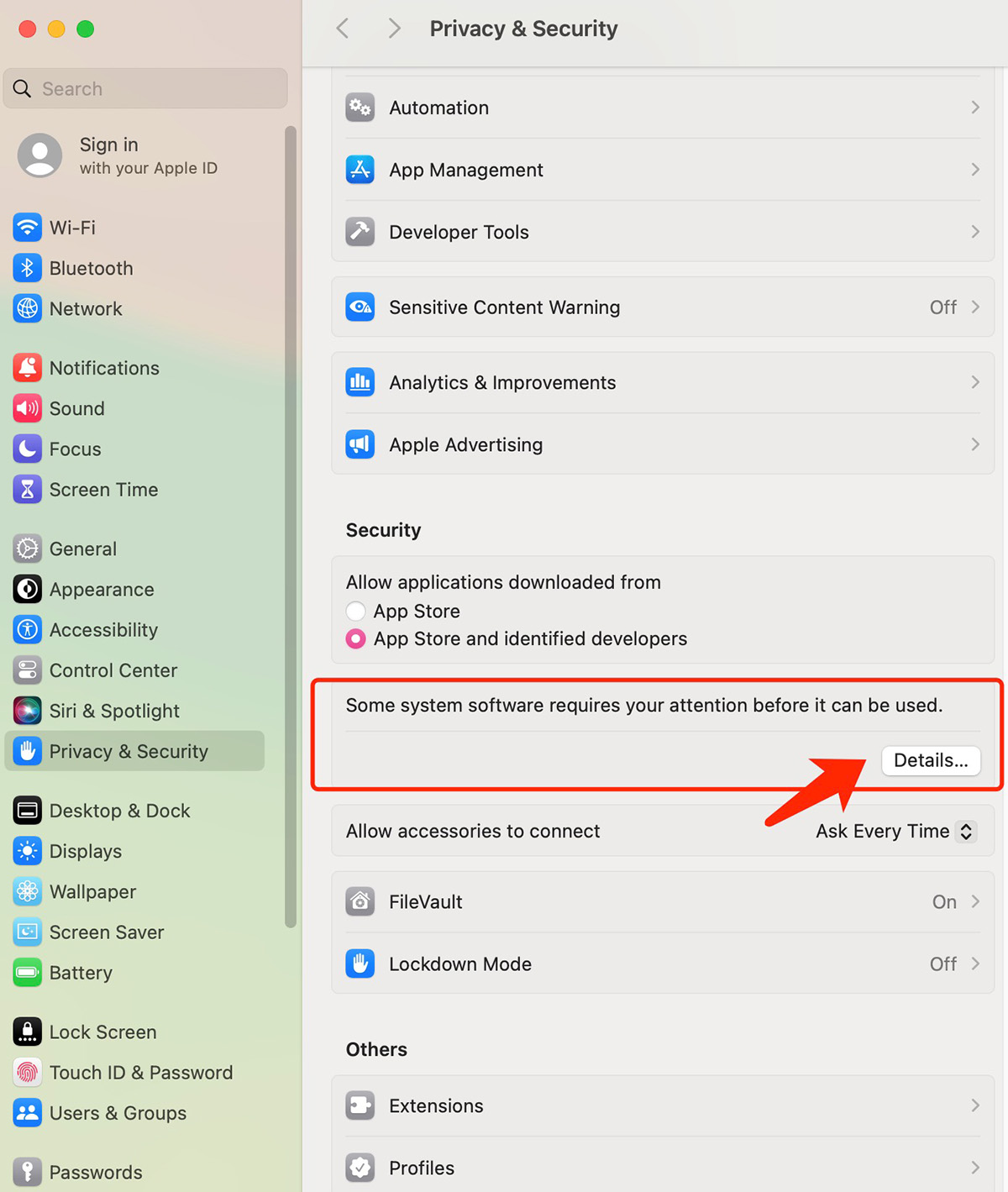
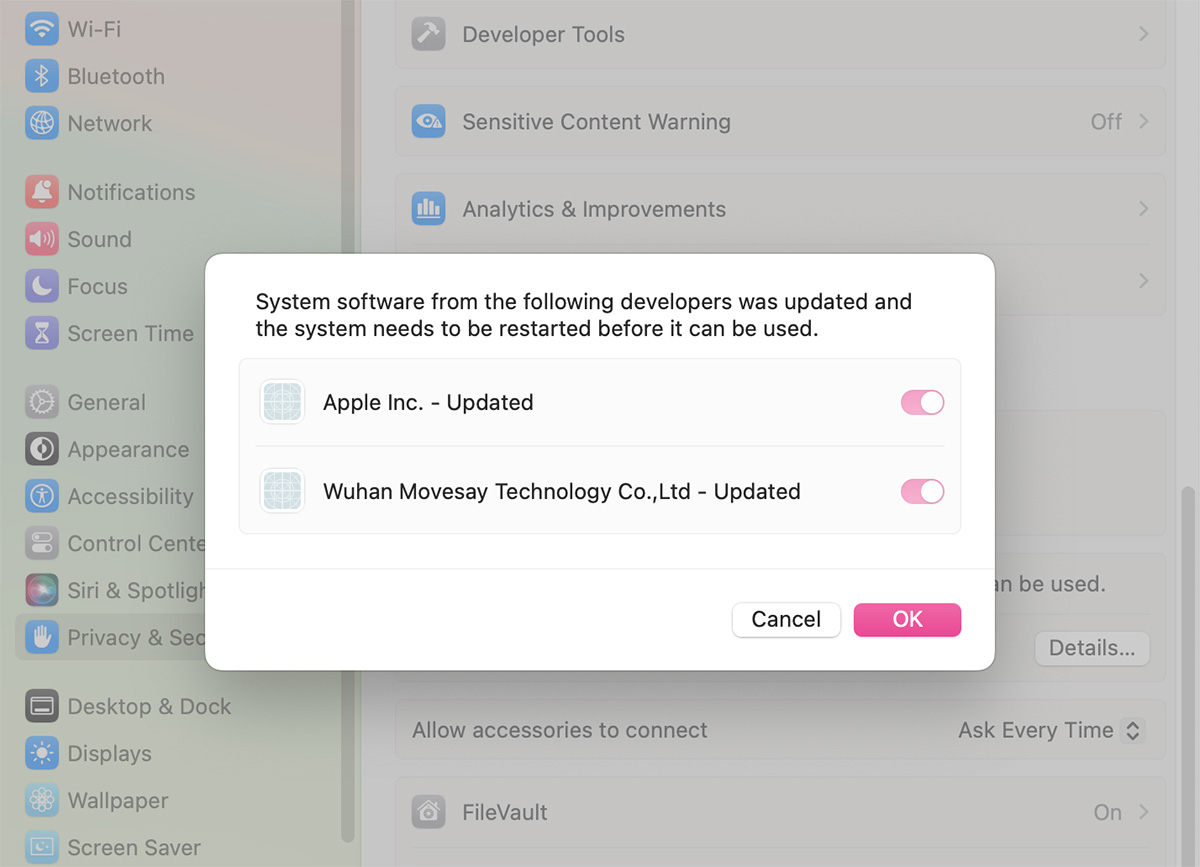
- Open System Settings → Privacy & Security, then allow the extension if prompted
- Related Screenshots