
Every file is fingerprinted
SHA-256 is computed while copying. The backup is then re-read from disk (bypassing the cache) and compared.
Free beta · macOS 13+ · about 4 MB
NTFS2exFAT backs up your drive, proves every file arrived intact, formats it as exFAT and copies everything back. And it refuses to erase anything until you have confirmed.
Your NTFS drive, full of files.
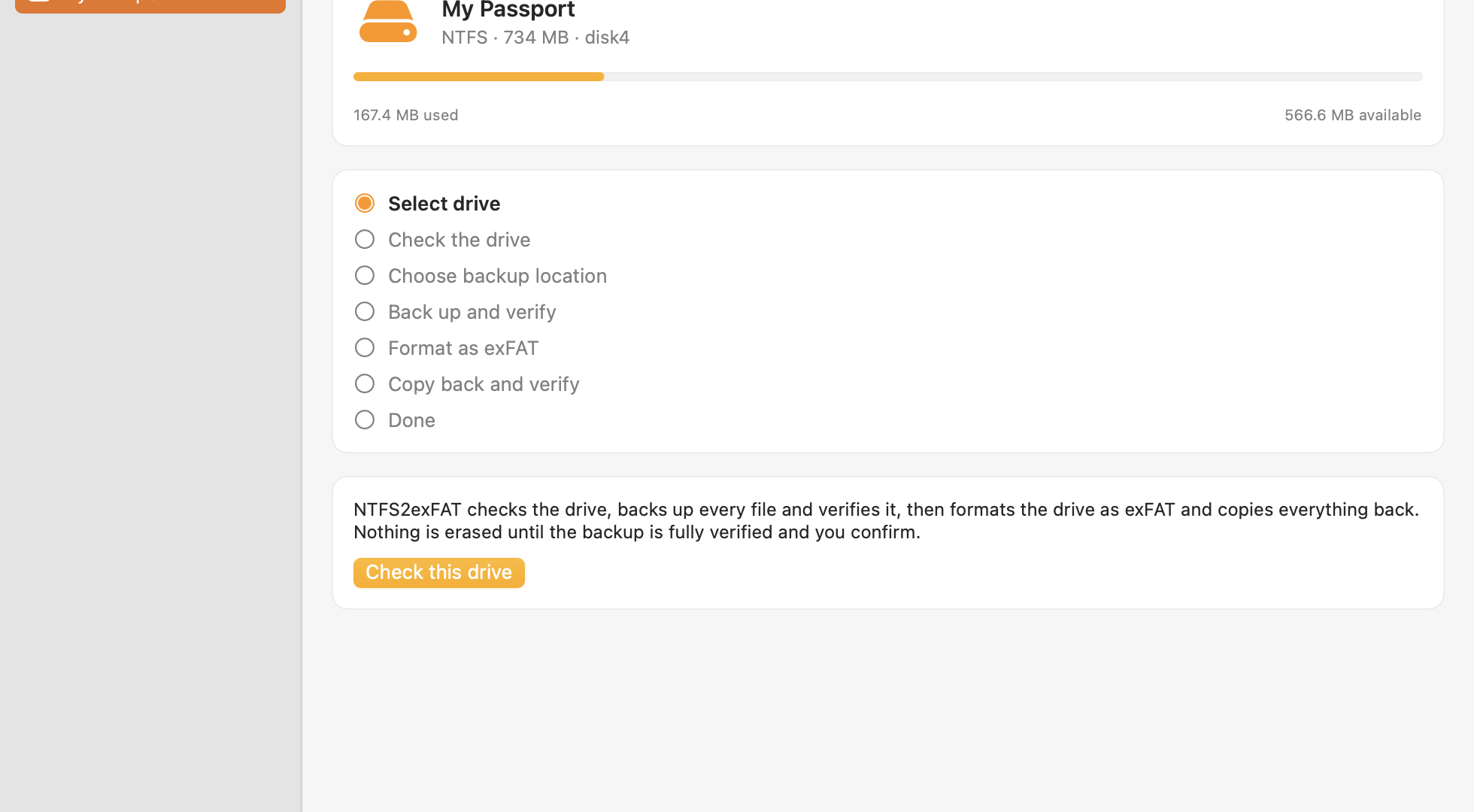
NTFS2exFAT is a free macOS app that converts an NTFS drive to exFAT. There is no way to rewrite NTFS into exFAT in place, so it does the only safe thing automatically: back up, verify every file, format, copy back, verify again.
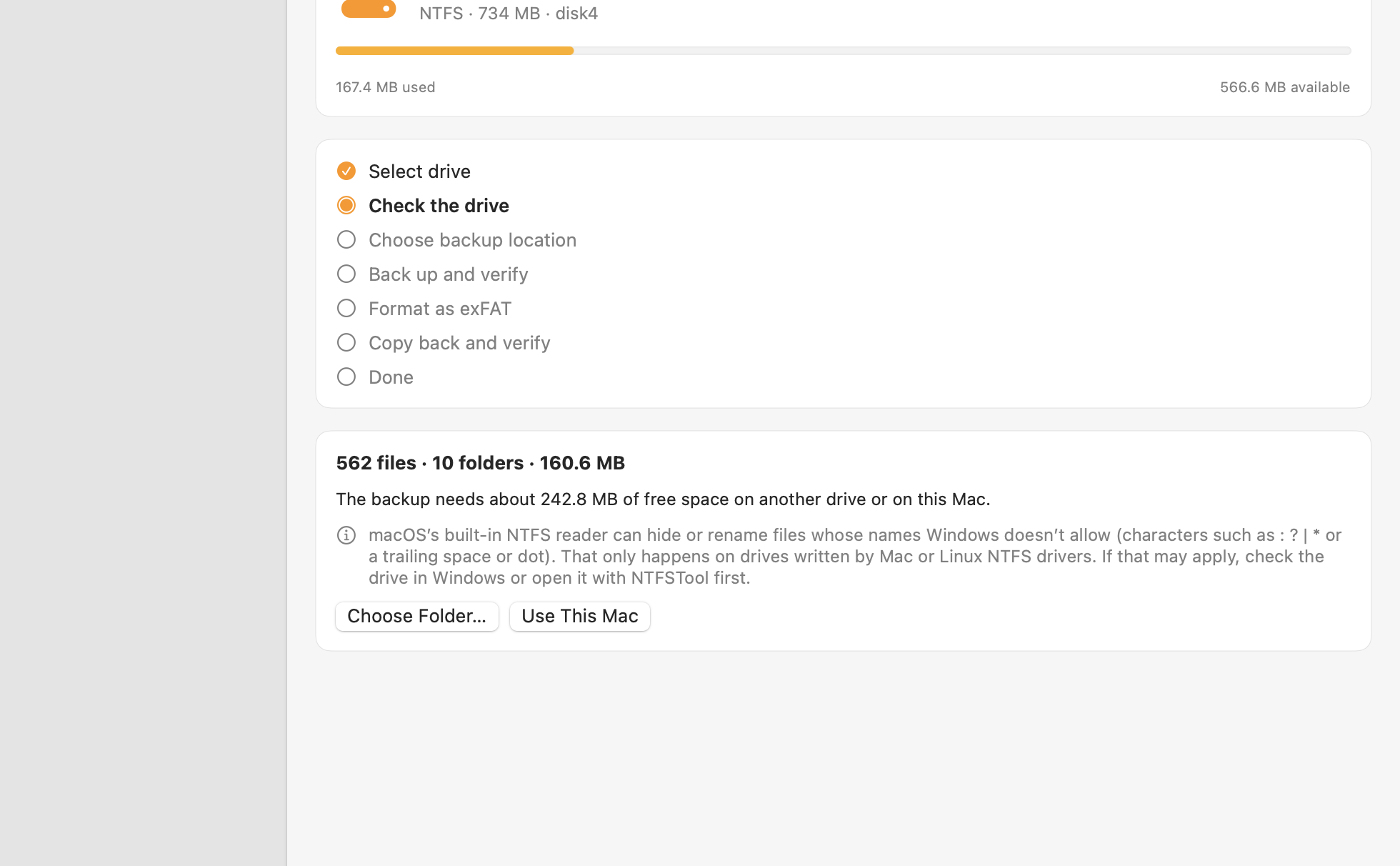
You choose a drive and a backup location. The app does the careful part.
Every file is copied to a backup folder while its SHA-256 is computed. Then each backup file is read back from disk and compared. A single flipped byte is caught.
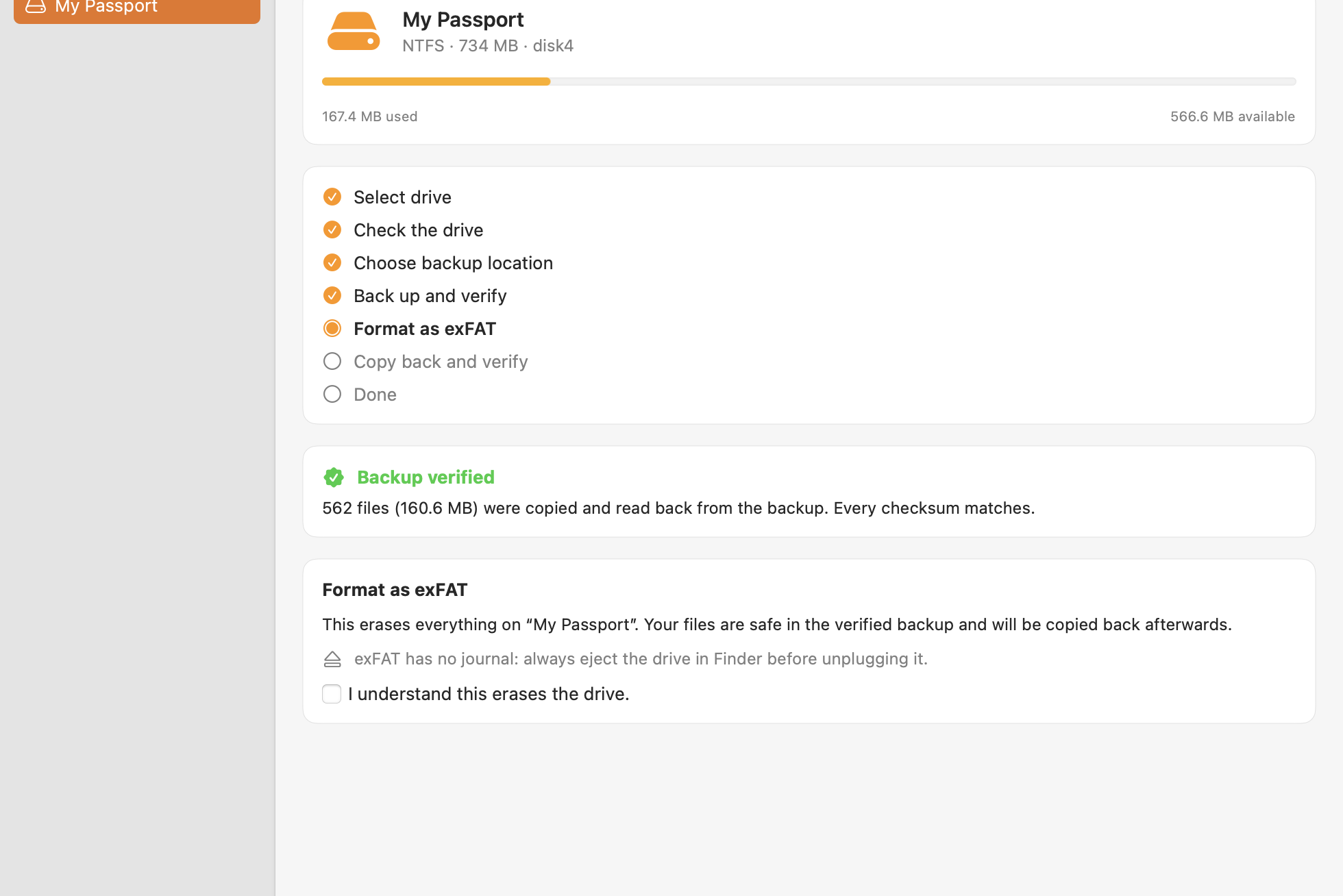
Only after the backup is fully verified, the drive is unchanged, and you typed its exact name, the drive is formatted as exFAT.
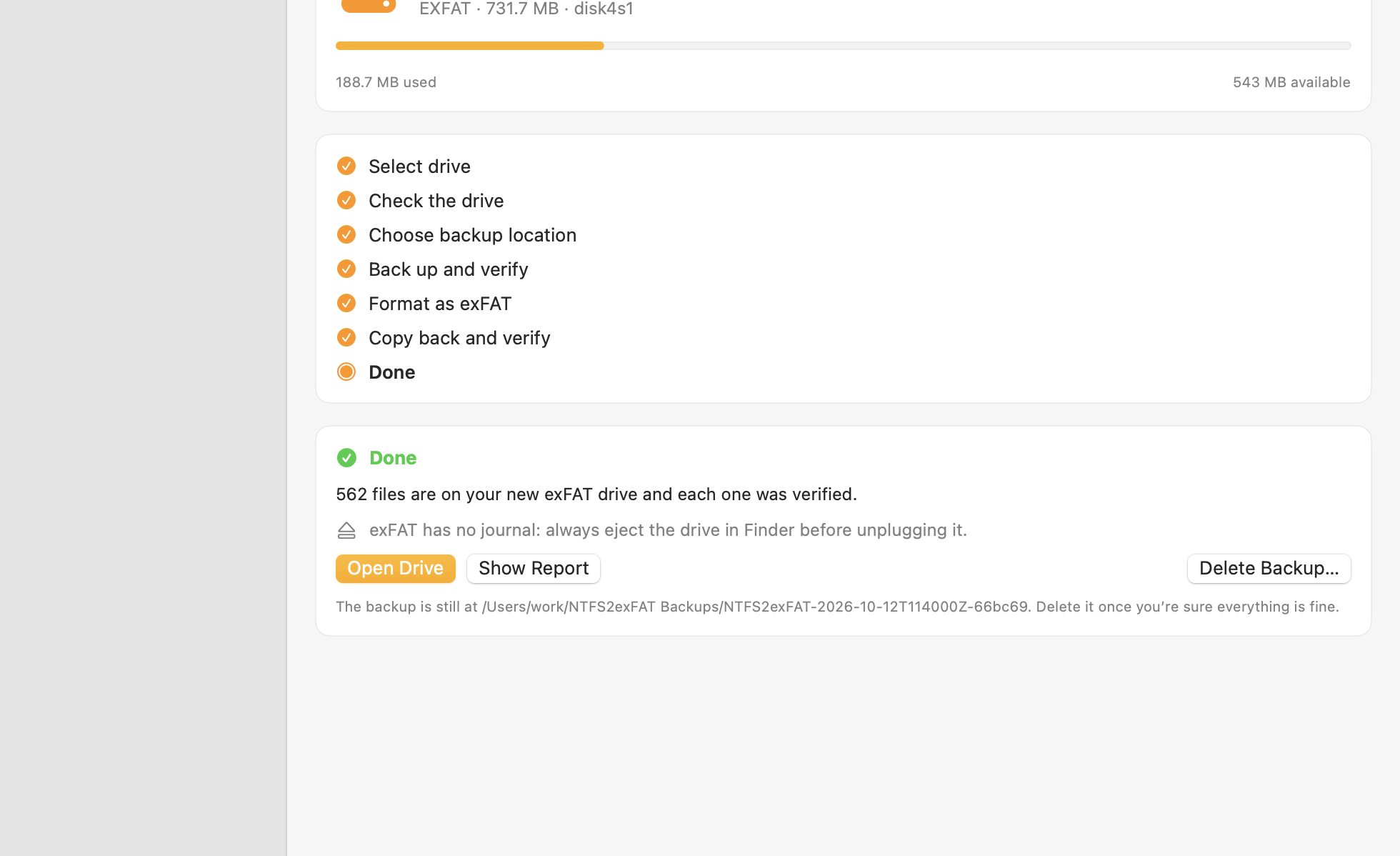
Everything is copied to the new exFAT volume and verified again. You get a report listing anything that had to be renamed.
NTFS and exFAT keep data in completely different on-disk structures. There is no safe way to rewrite one into the other in place, and macOS has no such feature. The only safe path is: copy everything off, format, copy it back. NTFS2exFAT automates exactly that and adds a safety net at every step.
“Convert in place”: a magic button that changes the file system without moving data. It does not exist for NTFS to exFAT.
Back up, verify, format, restore, verify. Slower than magic, but you can prove nothing was lost.
Formatting is the one step you cannot undo. So the app treats it with suspicion.
SHA-256 is computed while copying. The backup is then re-read from disk (bypassing the cache) and compared.
The format button does not even appear until the backup is fully verified, the drive is still the same one, and the backup is not on that drive. You then type the exact drive name.
Progress is stored in a manifest. Pause any time, quit, come back later. Even an interrupted format is recognised the next time.
The backup is never deleted automatically. You delete it yourself once you are sure.
Every renamed file, every skipped item, every unreadable file is listed. Nothing is silently dropped.
The conversion engine and a command-line tool are open source under the MIT license.
Seven clear steps in a native Mac window. Real screenshots from version 0.1.0.
Answer one question. Honest answers, even when the answer is “do not convert”.
How will you use this drive?
A rough planning tool. Real speed depends on your drives and cables.
The data is read and written several times (copy, verify, restore, verify), so allow for about four full passes. Estimates only.
The manual method with Disk Utility and Finder works. It just leaves all the checking to you.
| By hand (Disk Utility + Finder) | NTFS2exFAT | |
|---|---|---|
| Verifies every file by checksum | No. You compare by eye | Yes, SHA-256 on every file |
| Blocks formatting until the backup is proven | No | Yes |
| Protects against formatting the wrong drive | Up to you | Checks the drive identity and asks for the exact name |
| Resume after an interruption | Start over | Resumes from the manifest |
| Report of renamed or skipped files | No | Yes |
| Handles names exFAT does not allow | Copy fails or you notice later | Renamed and listed in the report |
| Price | Free | Free beta |
Plug the same external drive into a Mac and a PC without installing anything.
No more third-party driver just to write to a Windows drive on your Mac.
exFAT has no 4 GB file limit and no permissions to fight with.
Rebuild an old external drive on a fresh exFAT volume with everything verified.
A safety tool should be honest about its limits.
: ? | * " < >, or a trailing space or dot). This only happens on drives written by Mac or Linux NTFS drivers. The app warns when the drive reports more used space than it can see, but it cannot detect a single hidden file. If that may apply to your drive, check it in Windows or with NTFSTool first.._* are copied but cannot be byte-verified on exFAT, because macOS merges them into extended attributes. The report counts them.No. NTFS and exFAT organise data in completely different on-disk structures, so no tool can rewrite one into the other in place. The only safe method is to back up, format and copy back. NTFS2exFAT automates that and verifies each step.
Not if every step succeeds, and the app is designed so you find out before anything is erased: it refuses to format until every backup file is read back and its SHA-256 checksum matches. Keep the drive connected and your Mac awake, and keep the backup until you are happy.
Enough for a full backup of the files on the drive, plus a small margin, on another drive or on your Mac. The app calculates it for you and refuses to start if there is not enough.
It depends mostly on your drive and cable, because the data is read and written several times (copy, verify, restore, verify). A rough way to plan: about four full passes over the data. The calculator above gives an estimate.
Progress is kept in a manifest next to the backup. Before the format step nothing on your drive has been changed. If the format itself was interrupted, the app recognises that on the next start and continues from the verified backup.
exFAT is supported natively by macOS and by modern versions of Windows. Remember to eject the drive before unplugging it: exFAT has no journal and can be damaged by pulling it out while it is in use.
The current beta is free. If paid versions come later, they will be announced on this site. The conversion engine and command-line tool stay open source.
No file data leaves your Mac. The app can send anonymous usage counts (for example that a conversion finished). It never sends file names, paths or drive names, and you can switch it off in Settings.
The engine that copies, verifies, formats and restores is open source (MIT). Read it, run it from the command line, or build your own tool on top of it.
Download the free beta, pick a drive and a backup location, and let the app do the careful part.
Free beta · notarized by Apple · macOS 13+ · 1.8 MB
Prefer to do it by hand? Read the step-by-step manual guide.