
Nothing is uploaded
Screenshots, extracted text and files stay on your Mac. There is no cloud upload and no history to sync.
Free and open source · macOS 14+ · 2.7 MB
Press ⌥A, drag to select, mark it up, press Return. wxShot works when WeChat is closed or signed out, and steps aside when WeChat is signed in.

Short answer: WeChat's built-in screenshot only works while WeChat is running and signed in. wxShot is a free, open-source Mac app that gives you the same ⌥A screenshot flow without logging in to WeChat, and it hands the shortcut back to WeChat automatically once WeChat is signed in.
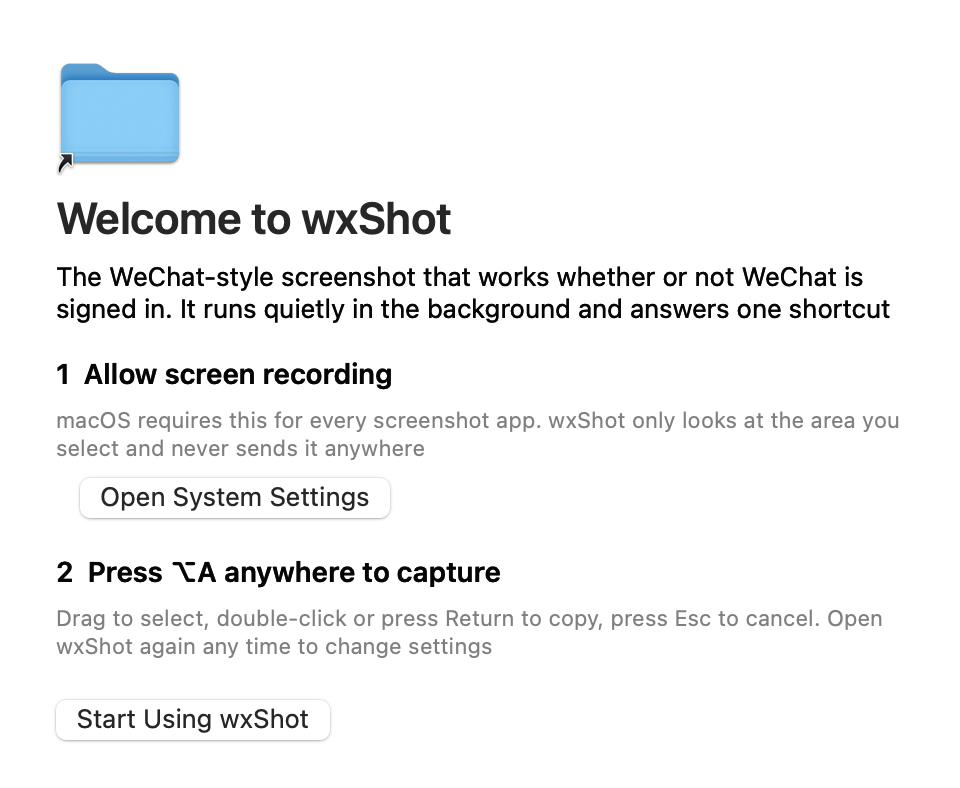
About a minute. The first launch opens a short welcome window.
Download the DMG, open it and drag wxShot into Applications. Then open it once.
macOS asks for this for every screenshot app. In System Settings > Privacy & Security > Screen Recording, switch wxShot on. macOS may ask you to quit and reopen the app.
Drag to select an area, mark it up if you like, then double-click or press Return to copy it. Esc cancels.
The screenshot in WeChat is a feature of the WeChat app. It works while WeChat is running and signed in. If WeChat is closed, sitting on the login screen or signed out, there is nothing listening for the shortcut. That is a side effect of where the feature lives, not a fault in your Mac.
Press ⌥A and get the familiar select-and-mark-up screenshot, whether or not you happen to be signed in to WeChat.
It is a small background app that listens for ⌥A itself. With WeChat closed or signed out, wxShot takes the screenshot. Once WeChat is signed in, wxShot hands the shortcut back to WeChat by default, so you never think about it.
A screenshot tool sees whatever is on your screen. So this one is built to keep it there.
Screenshots, extracted text and files stay on your Mac. There is no cloud upload and no history to sync.
The extract-text button uses Apple Vision on your Mac. The image is not sent to any server.
A few anonymous “still in use” pings in the first month: install id, version, system, language and whether WeChat is running. Switch them off in Settings.
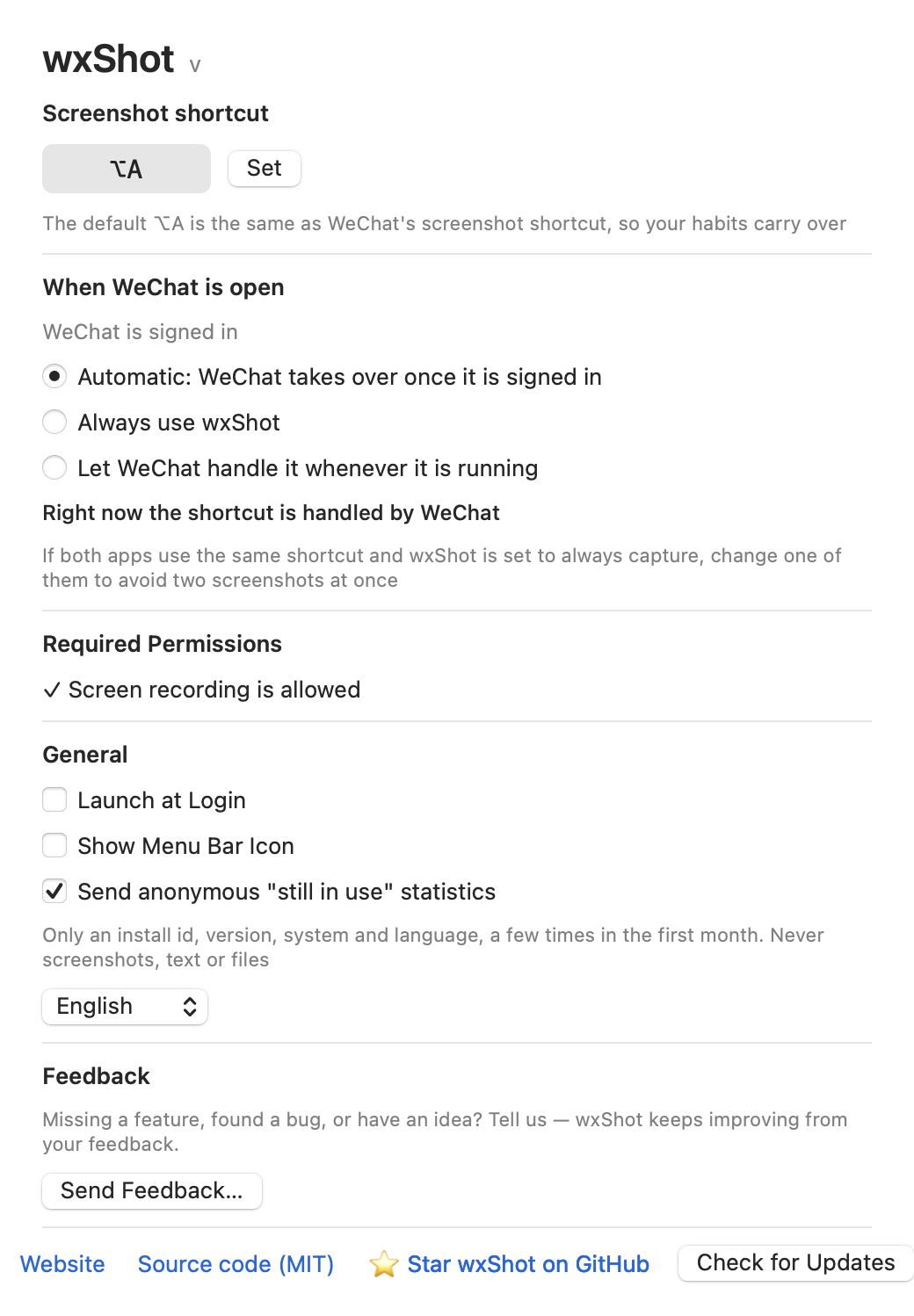
wxShot's default shortcut is the same ⌥A, so your habit carries over. This is how the two share it.
| Situation | The WeChat screenshot | wxShot |
|---|---|---|
| WeChat is not running | Not available. The shortcut belongs to the WeChat app. | Takes the screenshot. |
| WeChat is on the login screen or signed out | Needs a signed-in WeChat to work. | Takes the screenshot. |
| WeChat is signed in (default setting) | Works with its own shortcut. | Steps aside and hands the shortcut back to WeChat. |
| Setting: always use wxShot | Still responds to its own shortcut. | Takes the screenshot. If both use the same key, two screenshots can open, so change one shortcut. |
| Setting: let WeChat handle it whenever it is running | Handles it while running. | Stays out of the way while WeChat is running. |
The setting lives in wxShot Settings under “When WeChat is open”: automatic, always wxShot, or always WeChat. You can also change wxShot's own shortcut.
Real screenshots from version 0.1.0. The toolbar image is at the top of this page.
Based on public information in October 2026. macOS changes over time, so tell us if something here is out of date.
| Feature | wxShot | macOS built-in (⌘⇧4, ⌘⇧5) |
|---|---|---|
| Open source | Yes, MIT | No, part of macOS |
| Works the same whether or not WeChat is signed in | Yes | Yes |
| Same ⌥A habit as the WeChat screenshot | Yes, by default | No, different shortcuts |
| Scrolling (long) screenshot | Yes | No |
| Text extraction inside the capture tool | Yes, offline with Apple Vision | No (Live Text works on images afterwards) |
| Scope | Screenshots only, by design | Screenshots and screen recording |
You need a quick capture and do not want to open WeChat and sign in just for that.
A Mac where WeChat is not installed, or not allowed, but you still like ⌥A and the same markup tools.
Select an area, add arrows and numbered markers, blur private details with mosaic, press Return and paste.
Use the long screenshot button, scroll inside the selection and watch the image stitch together live.
Extract text on a selection, offline, when the text in a picture cannot be selected.
Pin a capture so it stays on top of all your windows while you work.
A small tool should be honest about its edges.
The screenshot is part of the WeChat app and only works while WeChat is running and signed in. wxShot is a separate app with its own ⌥A shortcut, so it works when WeChat is closed or signed out.
⌥A (Option+A) by default, the same as the usual WeChat screenshot key. You can change it in Settings.
No. Screenshots, extracted text and files never leave your Mac. The only network traffic is optional anonymous “still in use” pings that you can turn off in Settings.
Yes. wxShot is free and open source under the MIT license.
wxShot is a fork of capcap by realskyrin (MIT license). We removed upload, history and recording, and added the WeChat shortcut hand-off. The source is on GitHub.
Download wxShot, allow Screen Recording once, and your screenshot shortcut works whether or not WeChat is running.
Free · MIT open source · notarized by Apple · macOS 14+ · 2.7 MB