 NTFSTool
在 Mac 上安裝 NTFSTool
現行版本(建議)
從本站下載,打開 pkg 完成安裝,然後連接 NTFS 磁碟。現行版不需要復原模式或 csrutil。
通過網頁索引免費使用
可在設定中開啟網頁索引免費使用。僅限公開網路索引:在裝置閒置時協助公共網路索引以獲得免費權益;絕不掃描、採集或監控您的個人檔案、通訊記錄與瀏覽紀錄。可隨時關閉。詳見服務條款與網頁索引隱私。
使用環境說明:網頁索引功能適用於個人與家庭網路環境。若在公司辦公網路或機構受管裝置上使用,建議選擇終身授權版本(完全離線),以符合所在組織的 IT 管理規範。
安全讀寫建議:NTFSTool 採用嚴格的底層寫入校驗機制。由於跨系統檔案操作直接與物理儲存互動,請在中斷連線前務必先執行“安全退出”,並對關鍵資料保持定期備份。軟體按現行標準提供,因斷電斷電、強行拔出或裝置老化導致的資料問題,開發者不承擔連帶責任。
Operational Telemetry: To maintain license verification and troubleshoot filesystem stability, the software collects necessary non-personal technical data, including anonymous hardware identifiers, macOS build version, and error crash logs.
Mac 預設能寫入 NTFS 嗎?
不能。macOS 可以讀取微軟 NTFS 卷,但不能寫入。NTFSTool 提供完整讀寫。
現行 NTFSTool 還要裝內核擴充或關閉 SIP 嗎?
不需要。現行版完全免驅動,在使用者空間一鍵安裝。內核步驟僅適用於歷史版本,見說明頁「歷史 kext 版本」章節。
NTFSTool 免費嗎?
可以免費使用:在應用程式內開啟網頁索引即可。僅限公開網路索引:在裝置閒置時協助公共網路索引以獲得免費權益;絕不掃描、採集或監控您的個人檔案、通訊記錄與瀏覽紀錄。也可以購買 39 美元終身授權用於完全離線使用。最終價格以付款頁面為準。
誰發布 NTFSTool?
由 NTFSTool Inc. 官方發布。Apple 曾為歷史架構签發內核擴充签名資格。現行包經 Developer ID 签名並 Apple 公證。請只從 ntfstool.com 下載。
支援哪些 Mac 和系統?
Intel 與 Apple Silicon。需要 macOS 10.15 或更高版本。
NTFSTool 上過 Mac App Store 嗎?
上過,並計畫再次上架。目前不在架上,請使用本站官方下載。
NTFSTool 和 Paragon / Tuxera 比怎麼樣?
NTFSTool 是終身買斷替代方案:一次 $39 USD(最終價格以支付頁為準),現行免驅動使用者空間安裝,也可選網頁索引免費使用。Paragon 與 Tuxera 多為按年付費,且常随 macOS 大版本需要更新。對比頁:https://ntfstool.com/vs-paragon-tuxera.html
歷史 kext 版本
以下步驟僅適用於歷史內核擴充版本,作為工程底蘊與舊版使用者文檔保留。現行安裝請不要執行這些步驟。
Reason for Installing the NTFSTool Kernel Extension
Due to Microsoft's licensing restrictions, macOS has removed write support for the NTFS disk format. Historical NTFSTool releases therefore installed an Apple-signed kernel extension. This is engineering heritage. The current release does not use these steps.
Requirements and Steps for Installing Drivers in macOS Kernel (legacy only)
For Intel Chip Systems
Requirements: Disable System Integrity Protection (SIP)
- Enter system recovery mode, disable System Integrity Protection (SIP). Completely shut down your Mac, then start it up, and immediately press and hold Command+R during startup until the Apple logo appears for 3 seconds, then release the button and wait to enter Recovery mode
- Click 'Utilities' in the top toolbar, select 'Terminal'
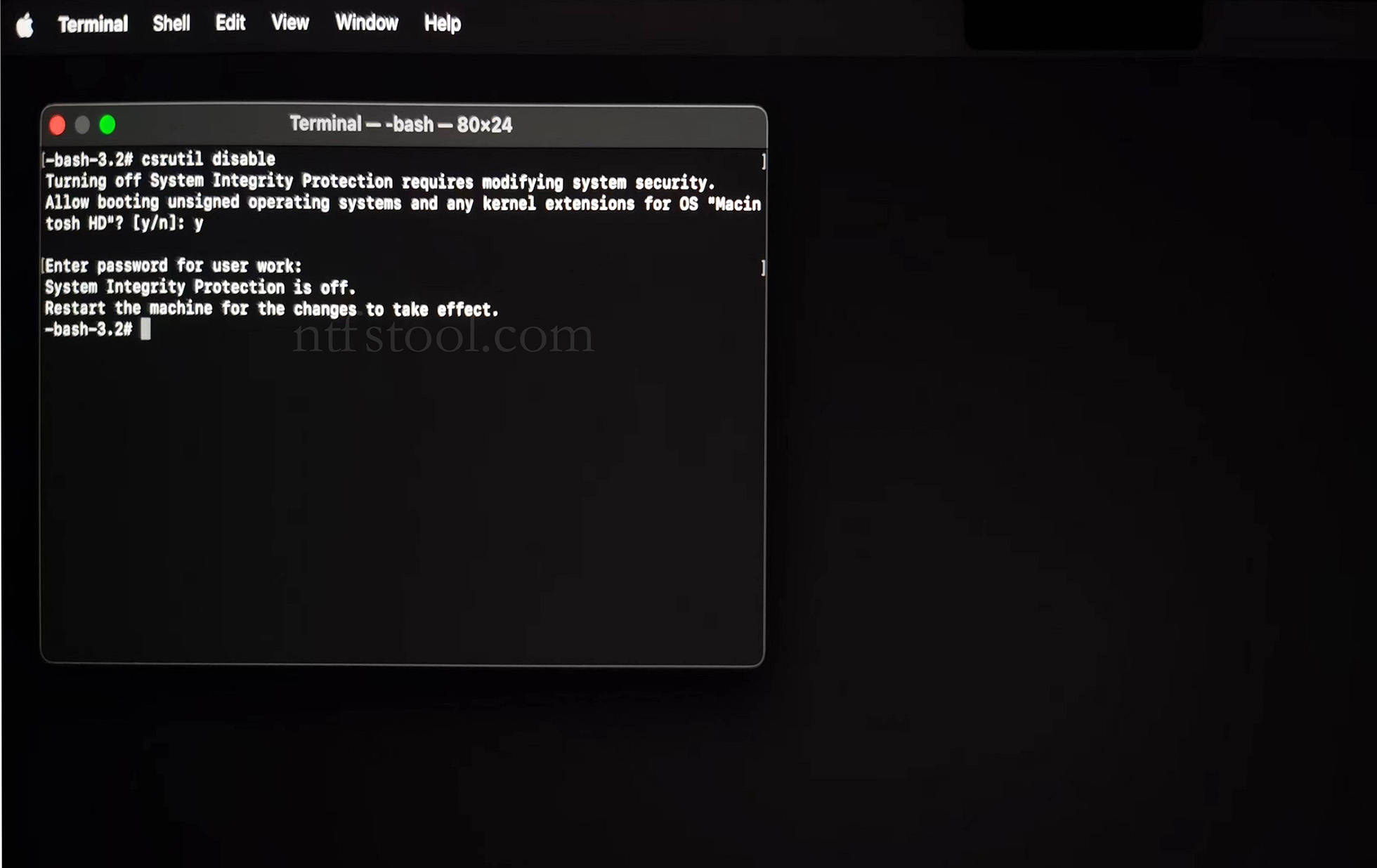
- Type 'csrutil disable' in the terminal, then press Enter
- Close the terminal and restart your Mac
- Related Screenshots
For Apple Silicon systems
Requirements: Disable SIP; enable Allow user management of kernel extensions from identified developers.
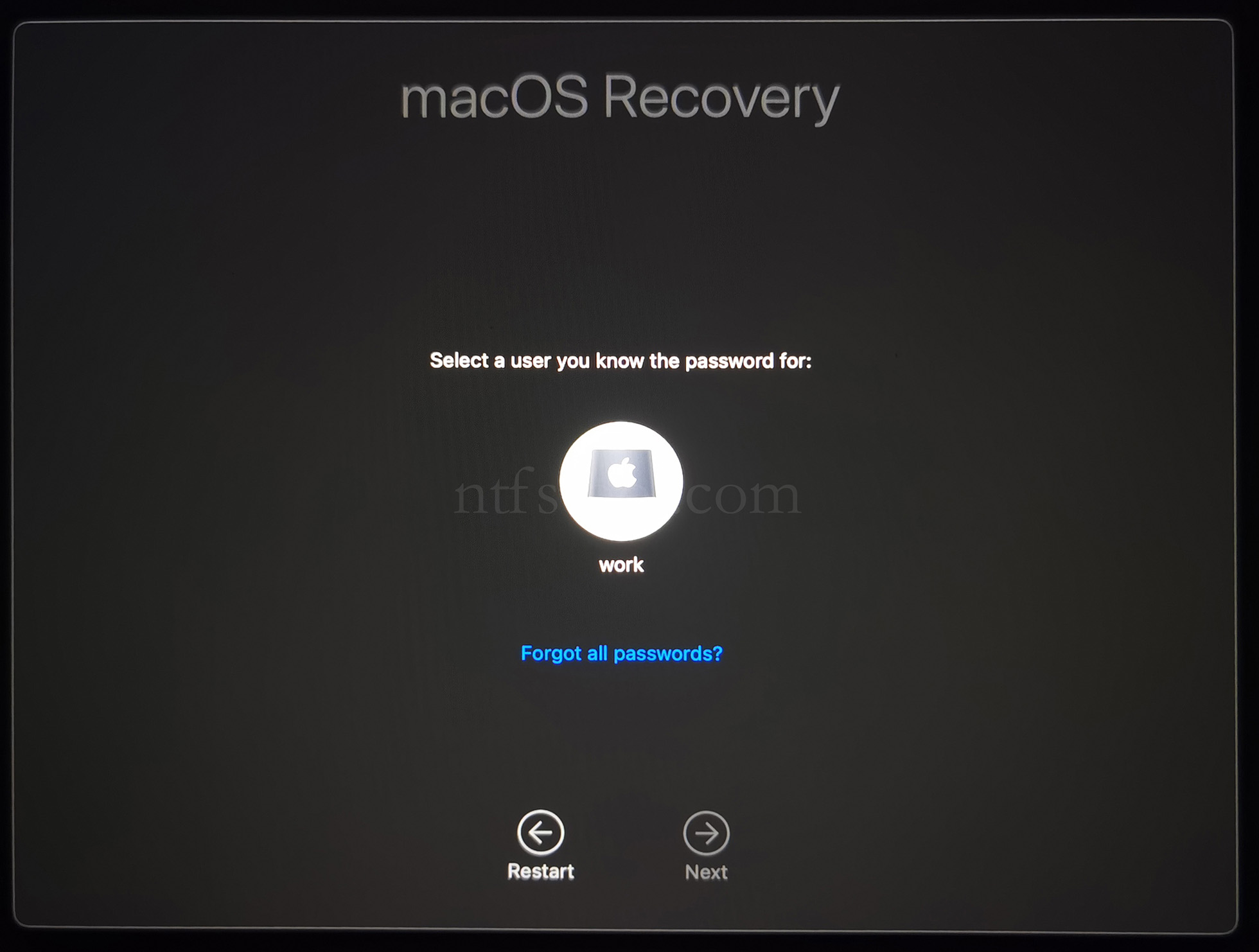
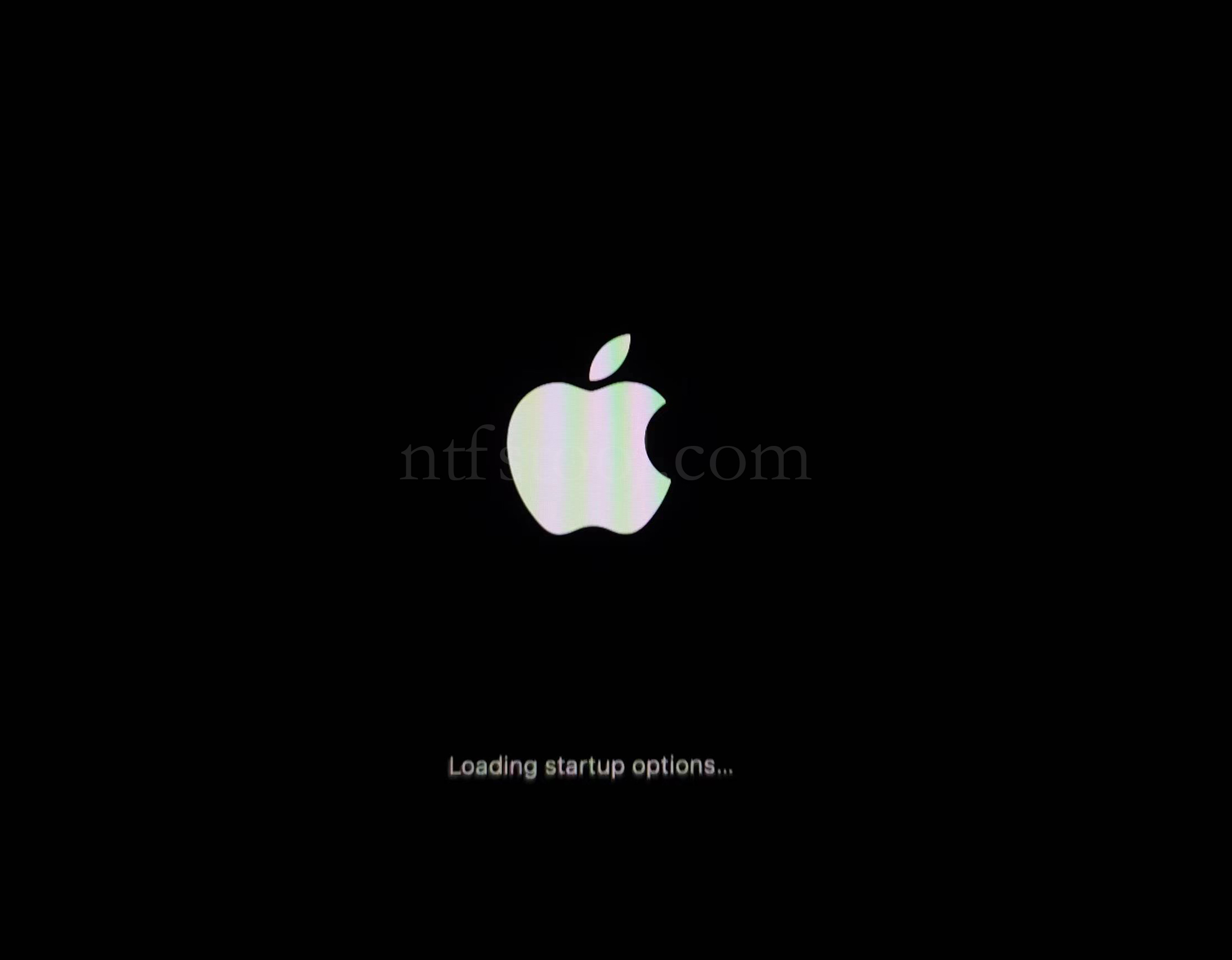
- Restart and hold the power button until Loading startup options appears, then enter recovery
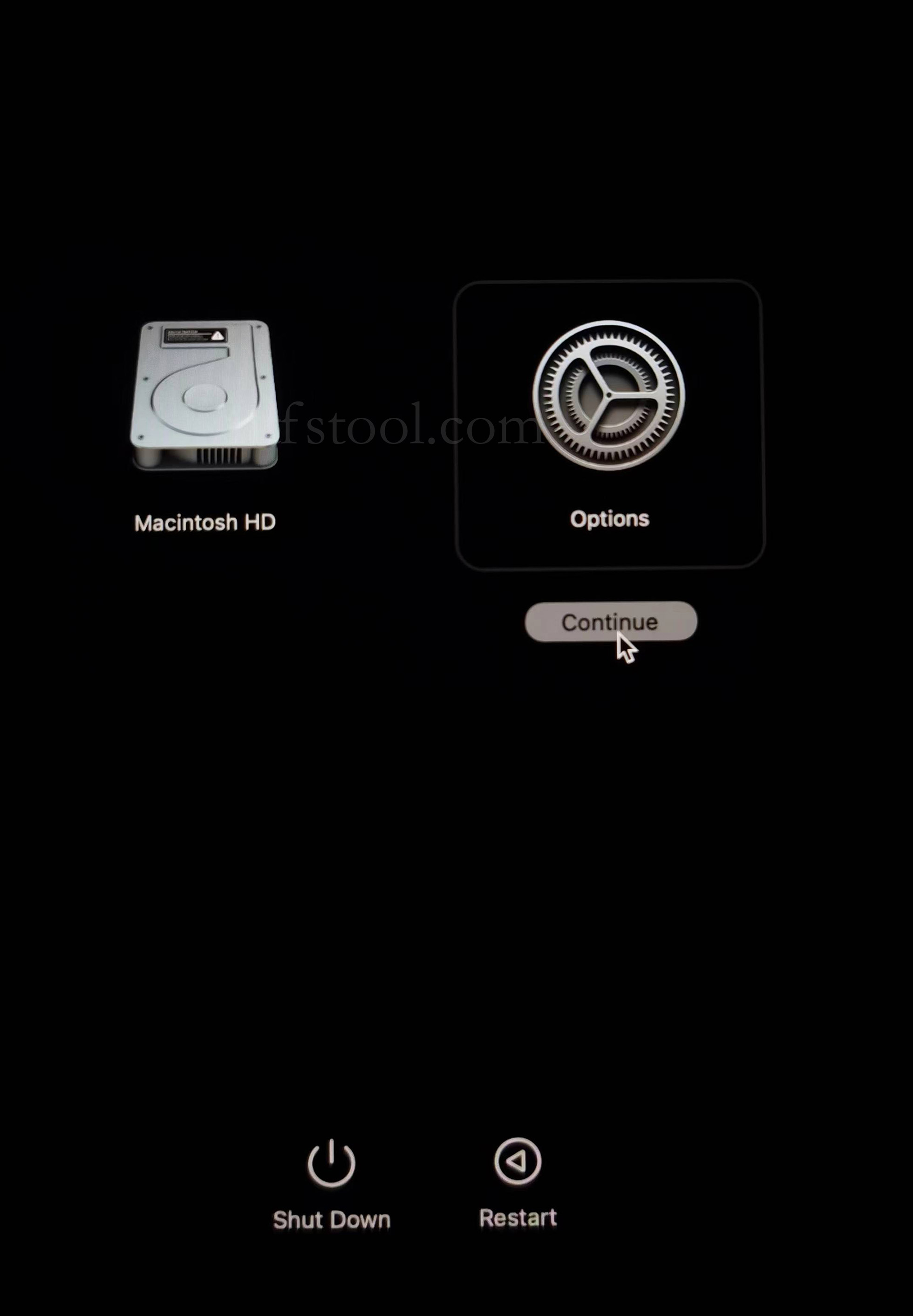
- Select Options, Continue
- Select the admin user and enter the password
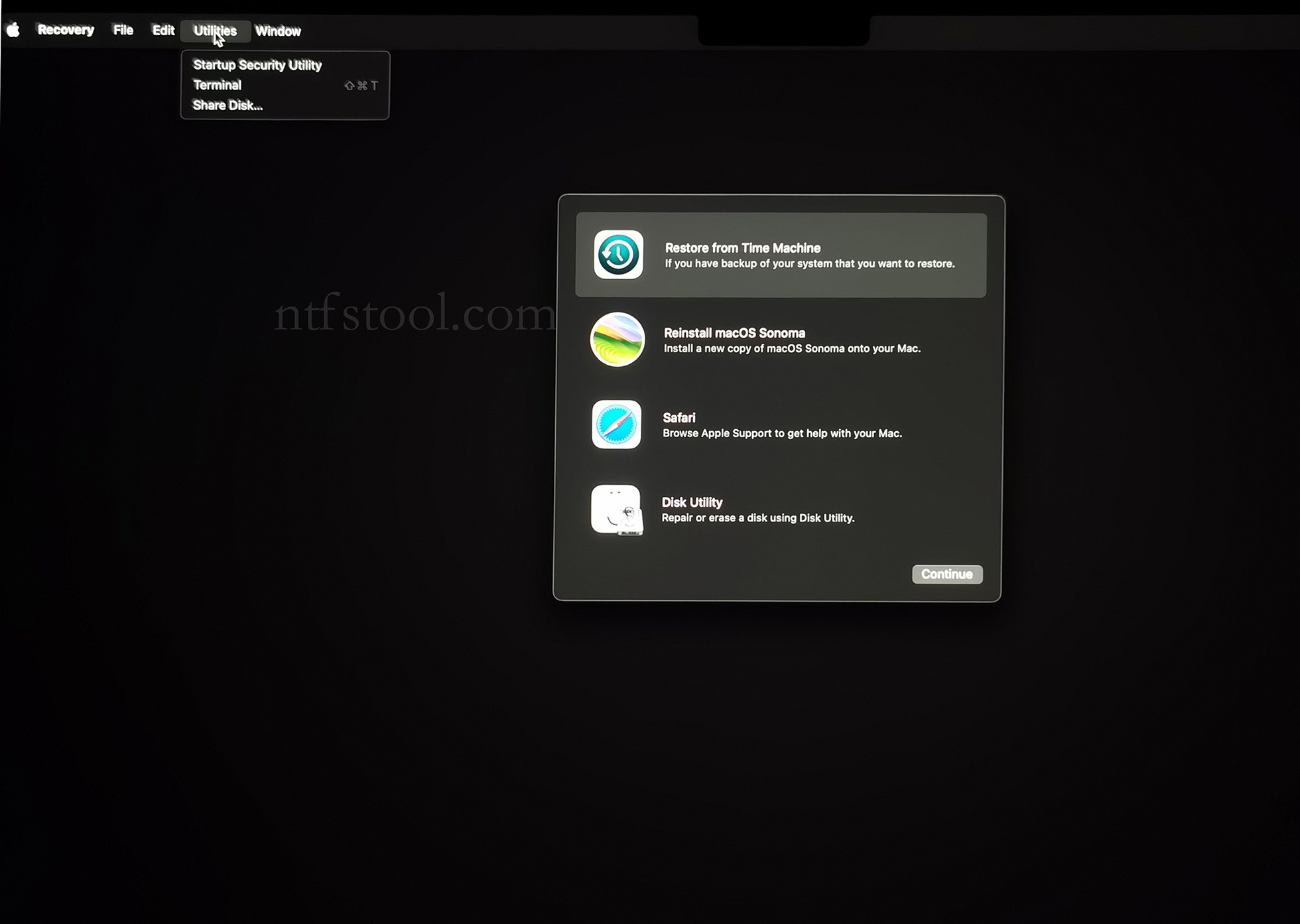
- Utilities → Terminal
- Type csrutil disable, press Enter
- Close Terminal
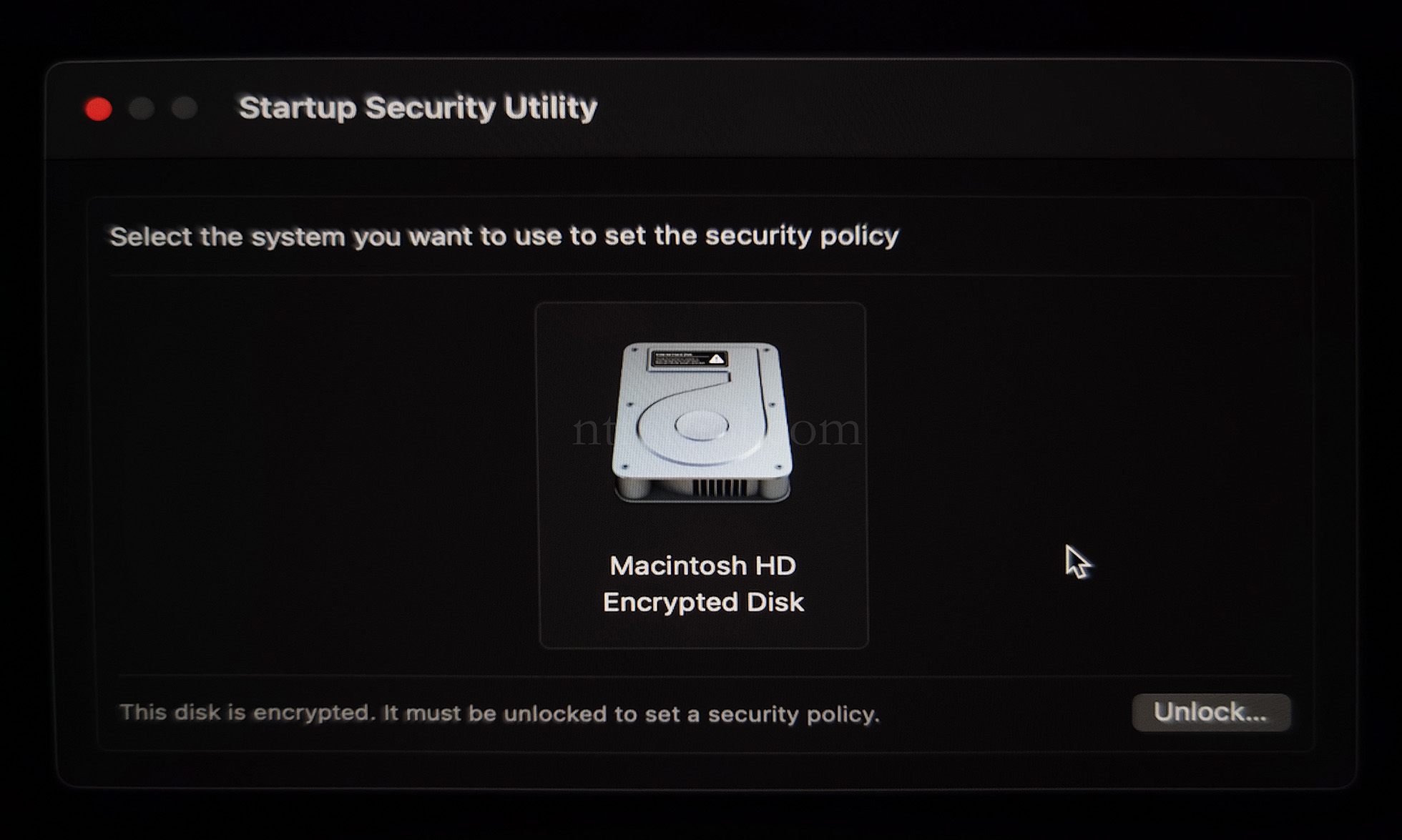
- Utilities → Startup Security Utility
- Select the system disk, then Security Policy
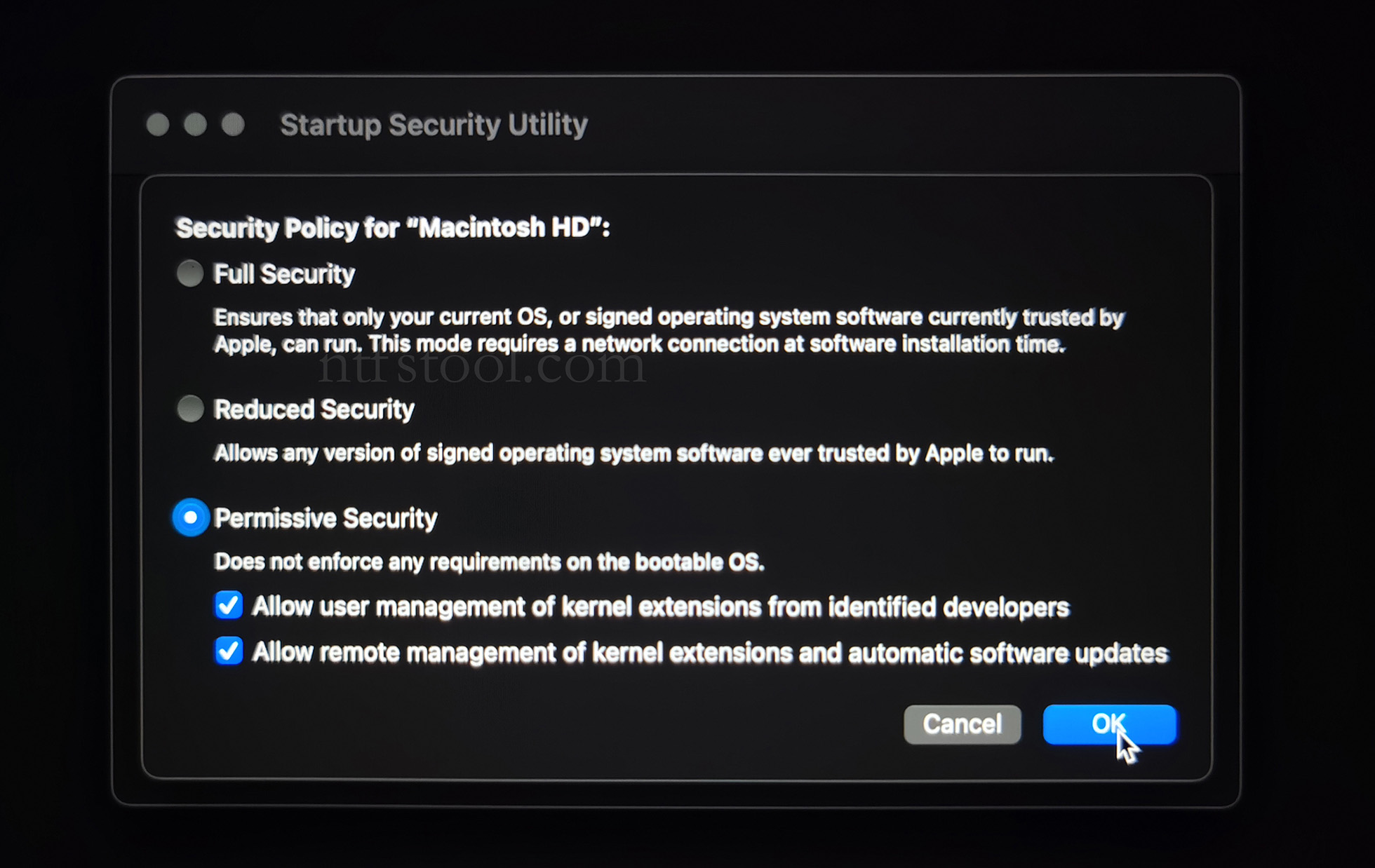
- Check Reduced Security and Allow user management of kernel extensions from identified developers
- Restart from the Apple menu
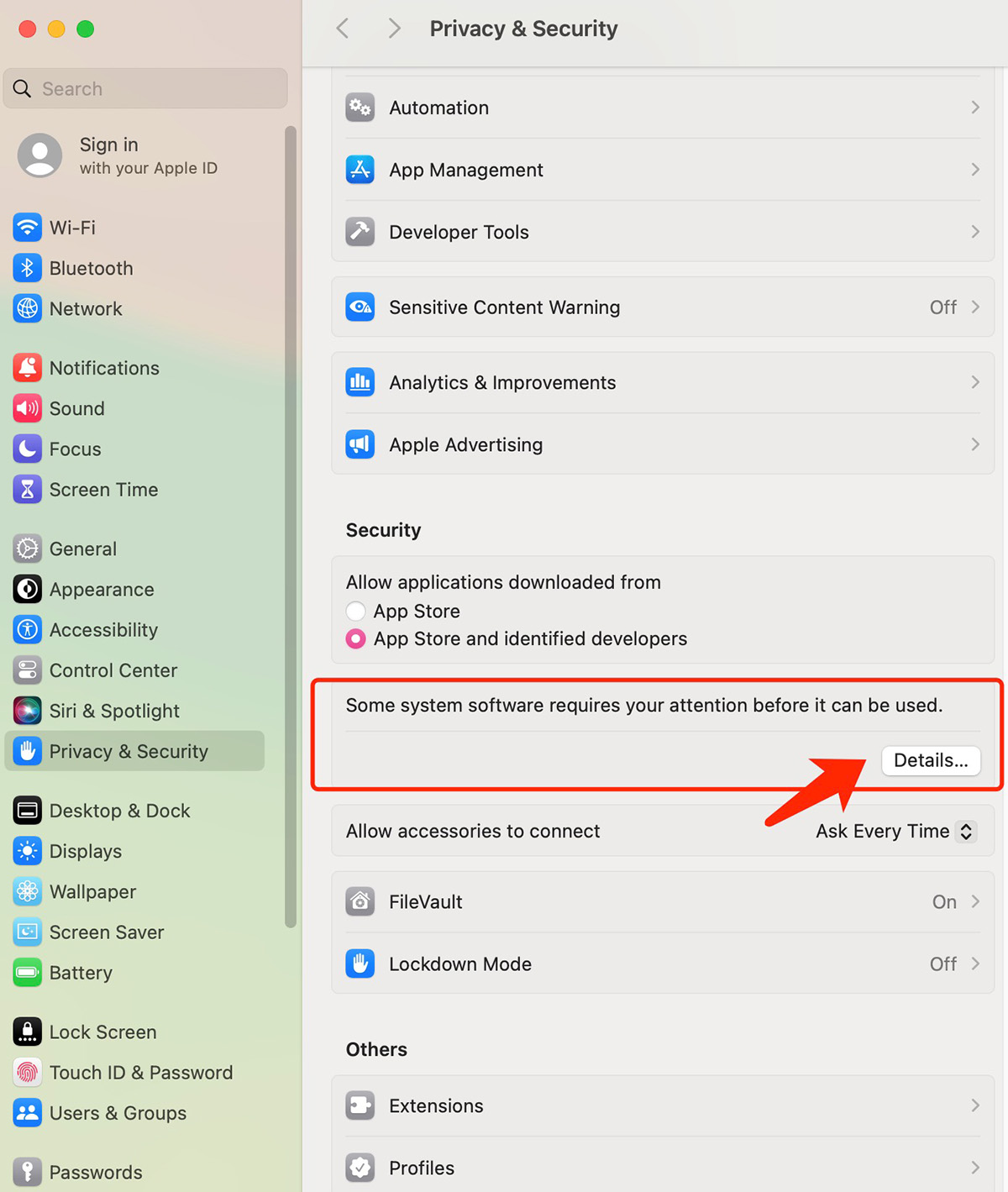
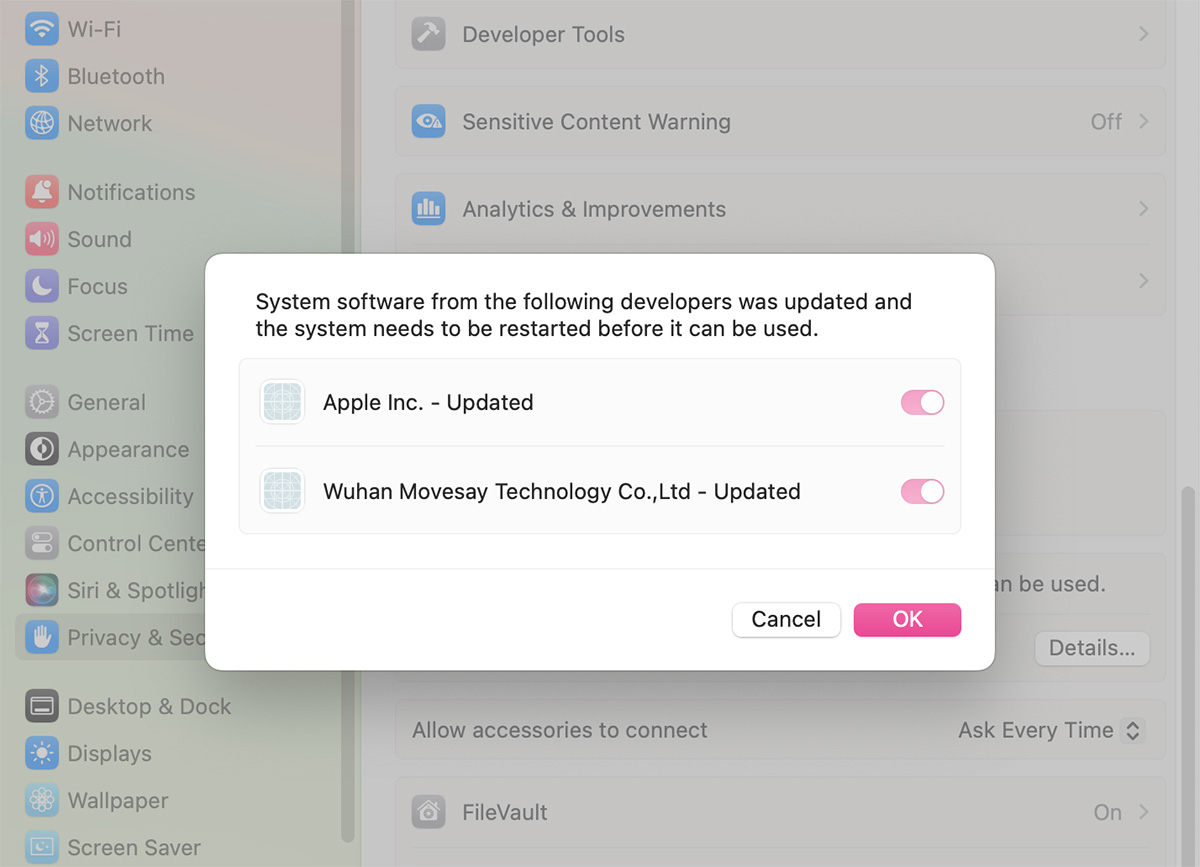
- Open System Settings → Privacy & Security, then allow the extension if prompted
- Related Screenshots