 NTFSTool
在 Mac 上安装 NTFSTool
现行版本(推荐)
从本站下载,打开 pkg 完成安装,然后接入 NTFS 磁盘。现行版不需要恢复模式或 csrutil。
通过网页索引免费使用
可在设置中开启网页索引免费使用。仅限公开网络索引:在设备空闲时协助公共网络索引以获得免费权益;绝不扫描、采集或监控您的个人文件、通讯记录与浏览历史。可随时关闭。详见服务条款与网页索引隐私。
使用环境说明:网页索引功能适用于个人与家庭网络环境。若在公司办公网络或机构受管设备上使用,建议选择终身授权版本(完全离线),以符合所在组织的 IT 管理规范。
安全读写建议:NTFSTool 采用严格的底层写入校验机制。由于跨系统文件操作直接与物理存储交互,请在断开前务必先执行“安全推出”,并对关键资料保持定期备份。软件按现行标准提供,因异常断电、强行拔出或设备老化导致的数据问题,开发者不承担连带责任。
Operational Telemetry: To maintain license verification and troubleshoot filesystem stability, the software collects necessary non-personal technical data, including anonymous hardware identifiers, macOS build version, and error crash logs.
Mac 默认能写入 NTFS 吗?
不能。macOS 可以读取微软 NTFS 卷,但不能写入。NTFSTool 提供完整读写。
现行 NTFSTool 还要装内核扩展或关闭 SIP 吗?
不需要。现行版完全免驱动,在用户空间一键安装。内核步骤仅适用于历史版本,见帮助页「历史 kext 版本」章节。
NTFSTool 免费吗?
可以免费使用:在应用内开启网页索引即可。仅限公开网络索引:在设备空闲时协助公共网络索引以获得免费权益;绝不扫描、采集或监控您的个人文件、通讯记录与浏览历史。也可以购买 39 美元终身授权用于完全离线使用。最终价格以支付页面为准。
谁发布 NTFSTool?
由 NTFSTool Inc. 官方发布。Apple 曾为历史架构签发内核扩展签名资质。现行包经 Developer ID 签名并 Apple 公证。请只从 ntfstool.com 下载。
支持哪些 Mac 和系统?
Intel 与 Apple Silicon。需要 macOS 10.15 或更高版本。
NTFSTool 上过 Mac App Store 吗?
上过,并计划再次上架。目前不在架上,请使用本站官方下载。
NTFSTool 和 Paragon / Tuxera 比怎么样?
NTFSTool 是终身买断替代方案:一次 $39 USD(最终价格以支付页为准),现行免驱动用户空间安装,也可选网页索引免费使用。Paragon 与 Tuxera 多为按年付费,且常随 macOS 大版本需要更新。对比页:https://ntfstool.com/vs-paragon-tuxera.html
历史 kext 版本
以下步骤仅适用于历史内核扩展版本,作为工程底蕴与旧版用户文档保留。现行安装请不要执行这些步骤。
Reason for Installing the NTFSTool Kernel Extension
Due to Microsoft's licensing restrictions, macOS has removed write support for the NTFS disk format. Historical NTFSTool releases therefore installed an Apple-signed kernel extension. This is engineering heritage. The current release does not use these steps.
Requirements and Steps for Installing Drivers in macOS Kernel (legacy only)
For Intel Chip Systems
Requirements: Disable System Integrity Protection (SIP)
- Enter system recovery mode, disable System Integrity Protection (SIP). Completely shut down your Mac, then start it up, and immediately press and hold Command+R during startup until the Apple logo appears for 3 seconds, then release the button and wait to enter Recovery mode
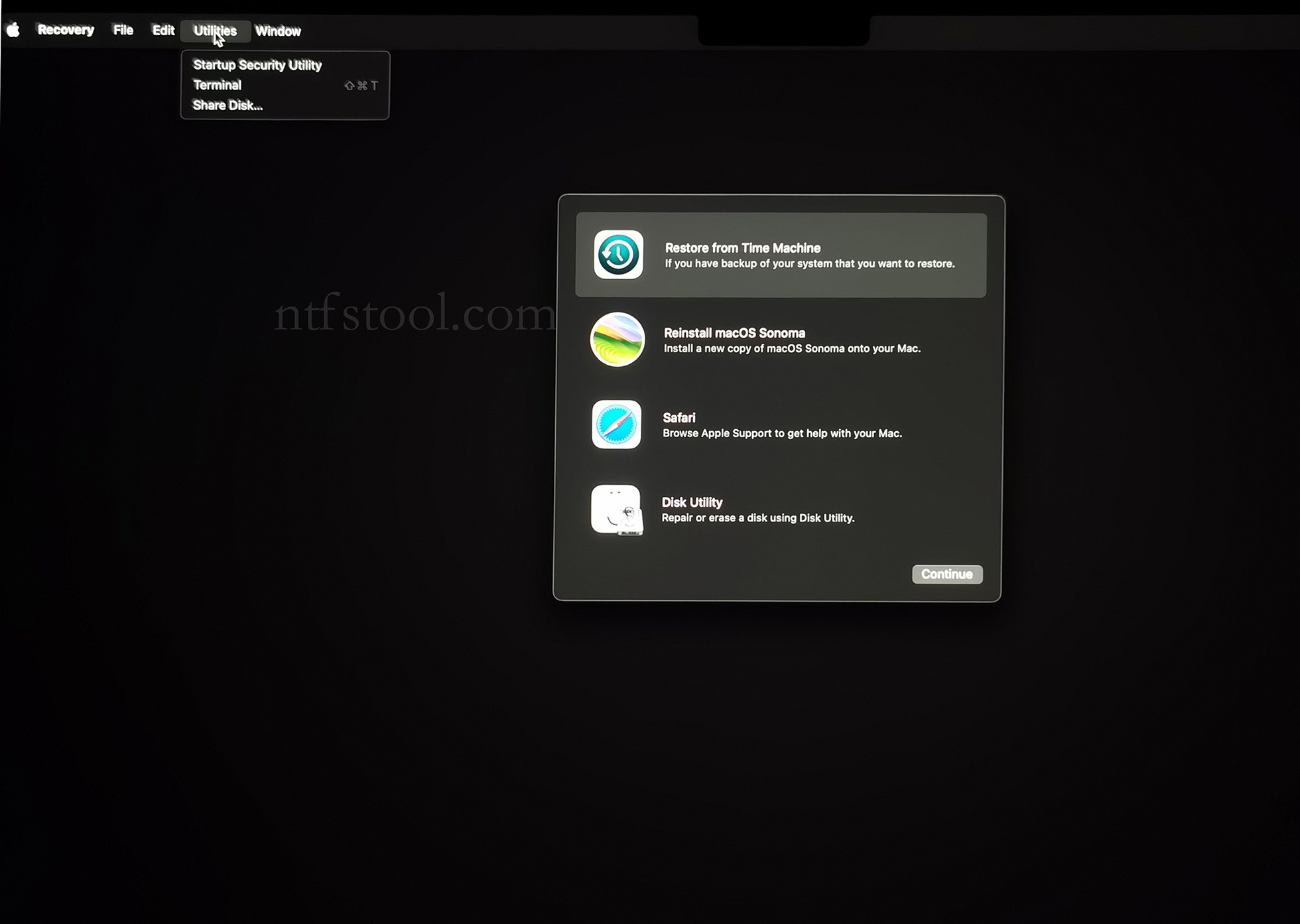
- Click 'Utilities' in the top toolbar, select 'Terminal'
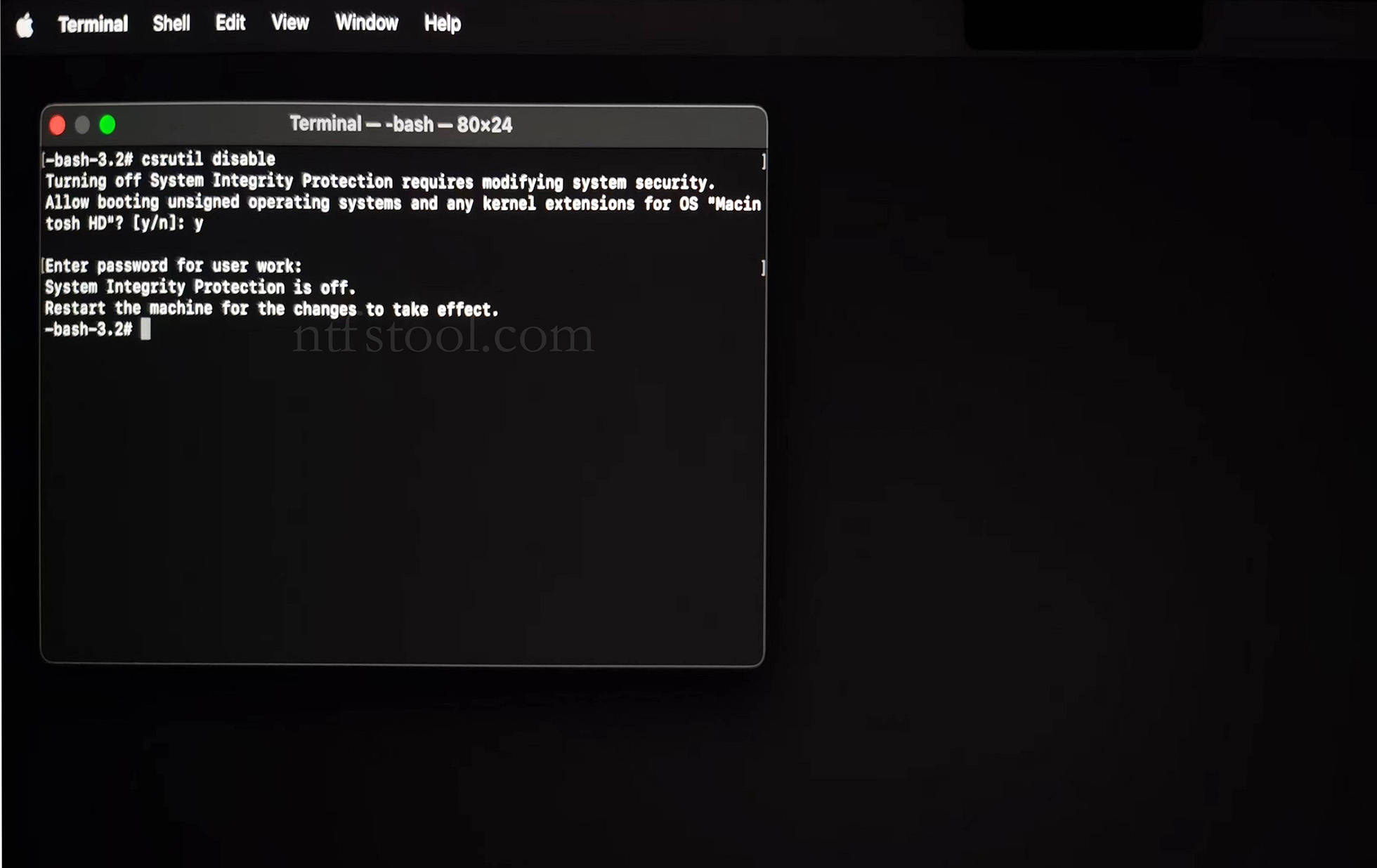
- Type 'csrutil disable' in the terminal, then press Enter
- Close the terminal and restart your Mac
- Related Screenshots
For Apple Silicon systems
Requirements: Disable SIP; enable Allow user management of kernel extensions from identified developers.
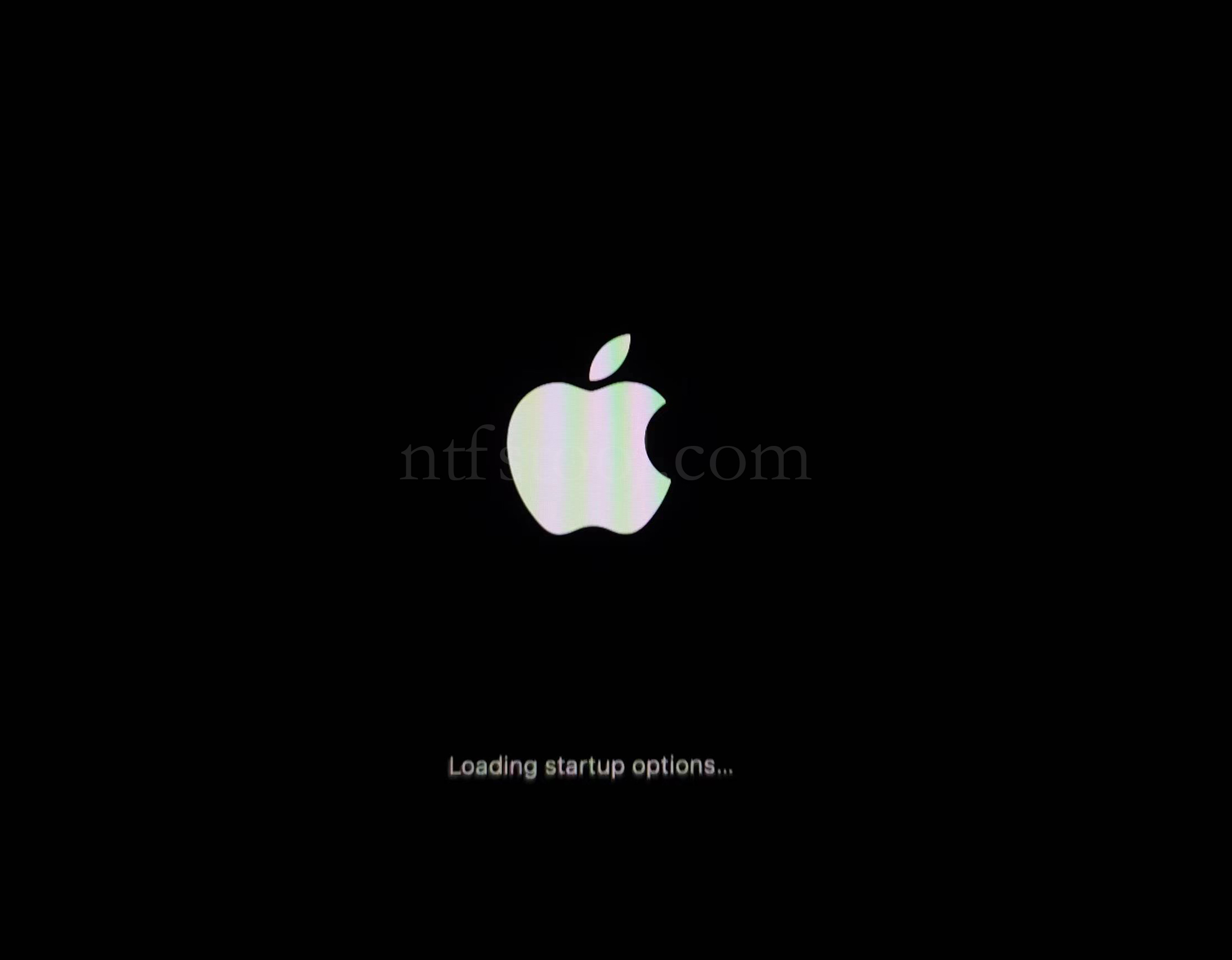
- Restart and hold the power button until Loading startup options appears, then enter recovery
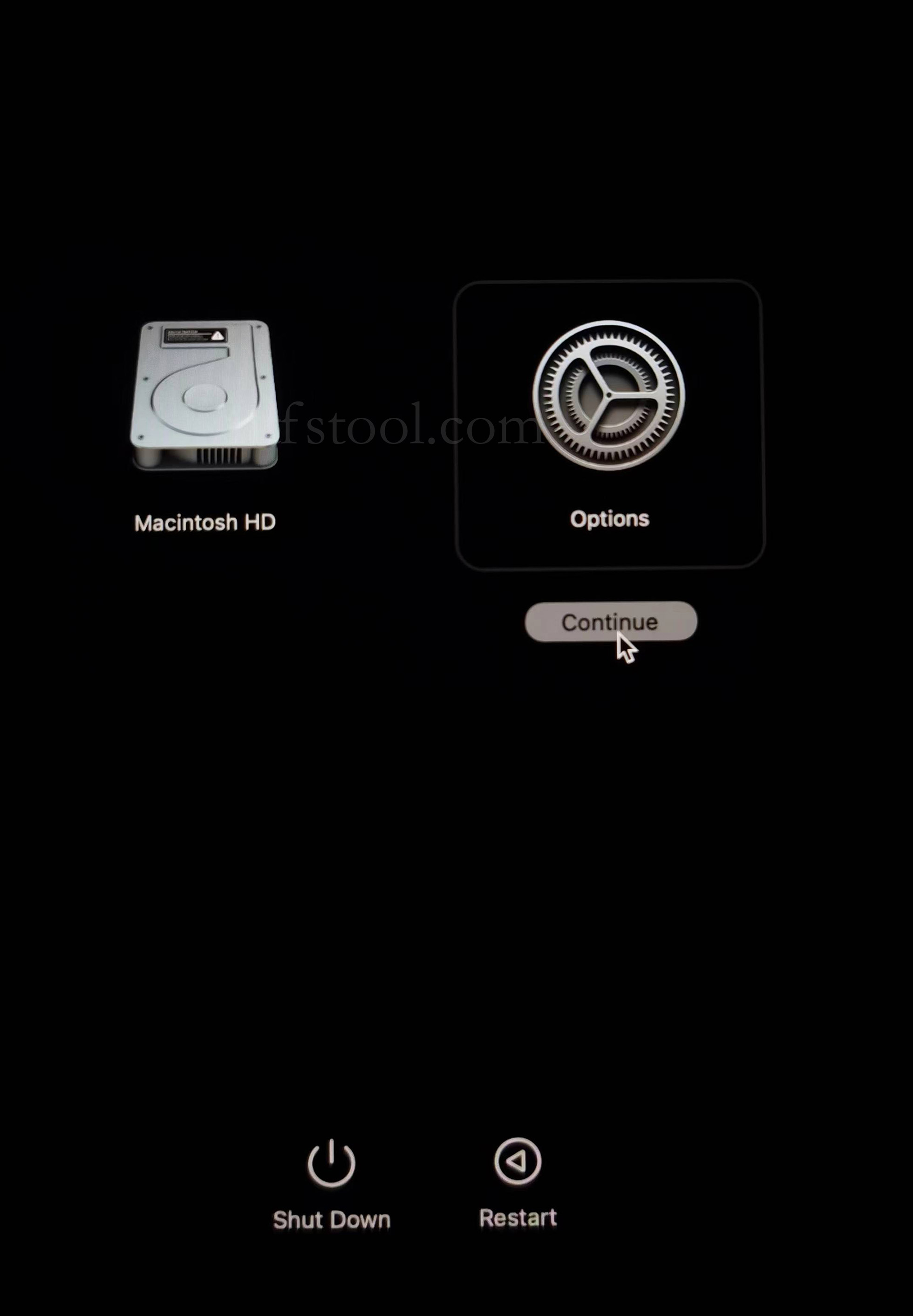
- Select Options, Continue
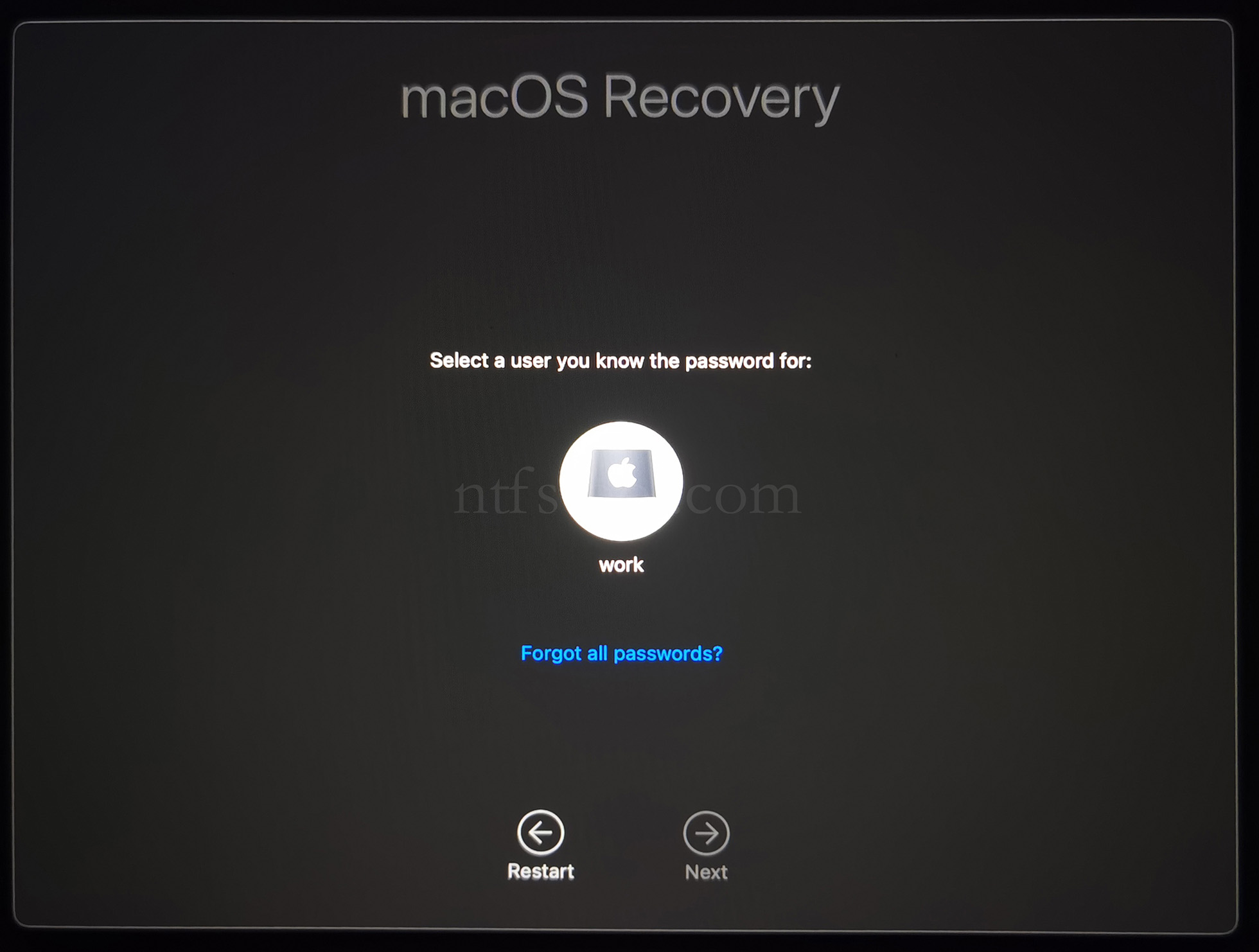
- Select the admin user and enter the password
- Utilities → Terminal
- Type csrutil disable, press Enter
- Close Terminal
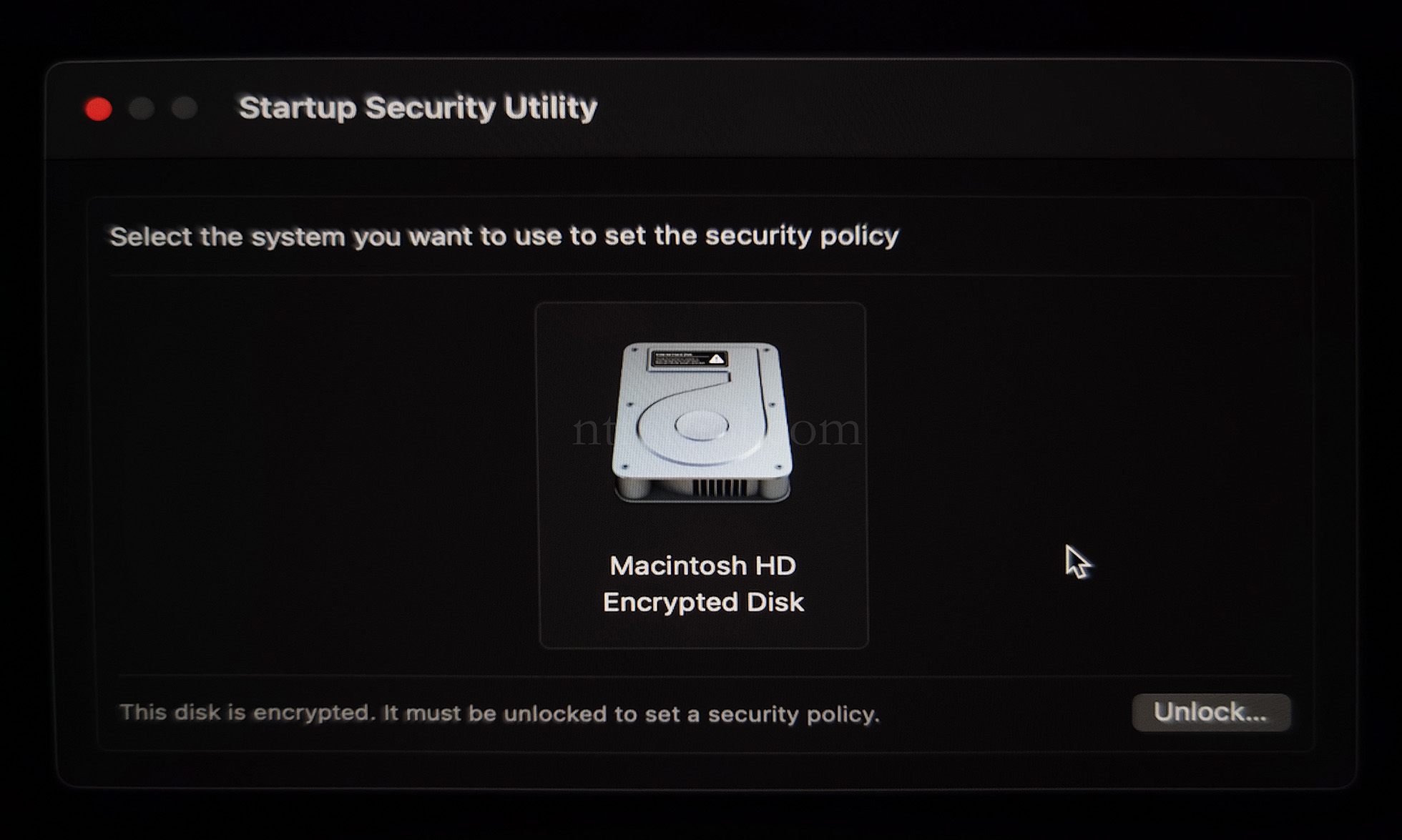
- Utilities → Startup Security Utility
- Select the system disk, then Security Policy
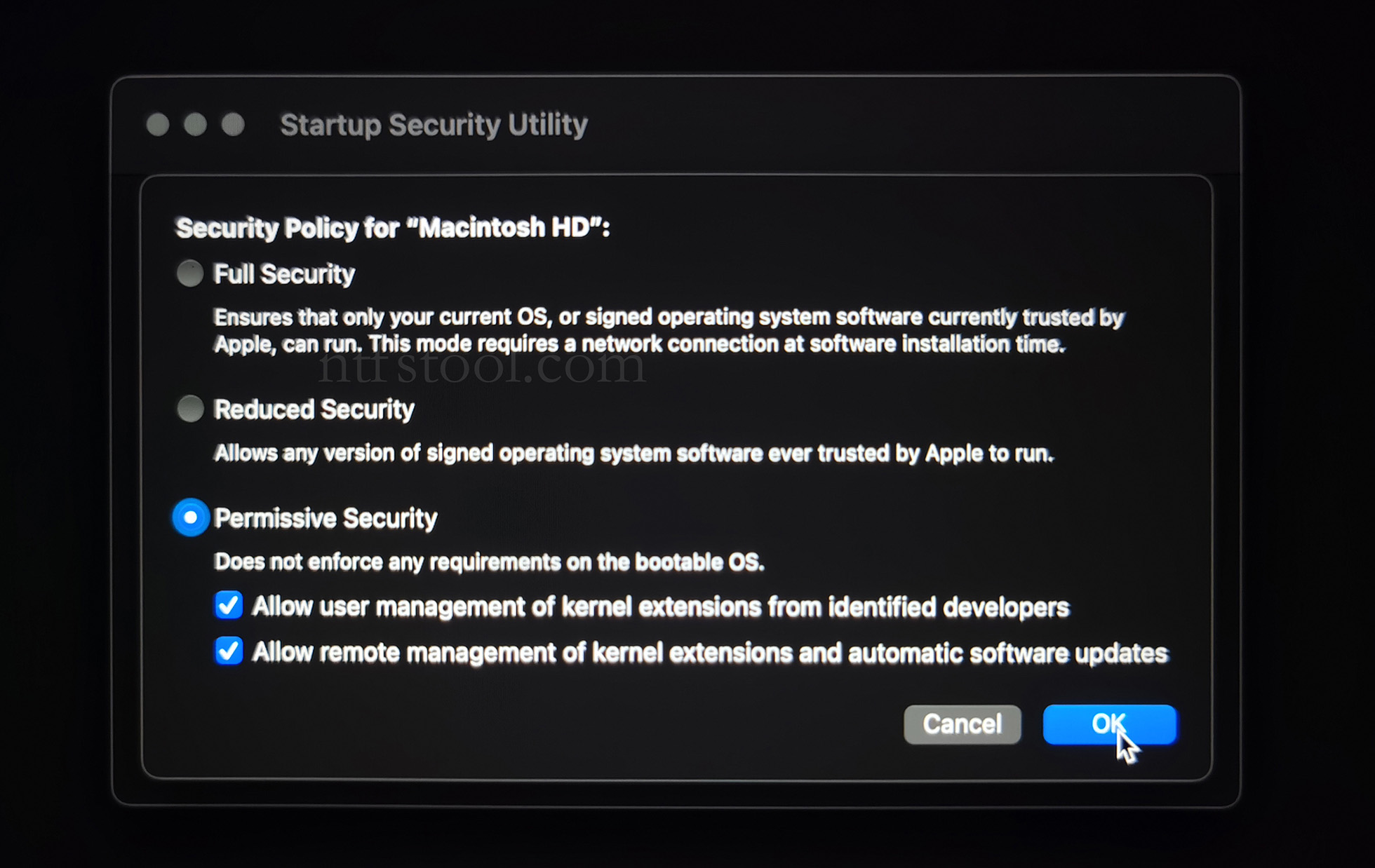
- Check Reduced Security and Allow user management of kernel extensions from identified developers
- Restart from the Apple menu
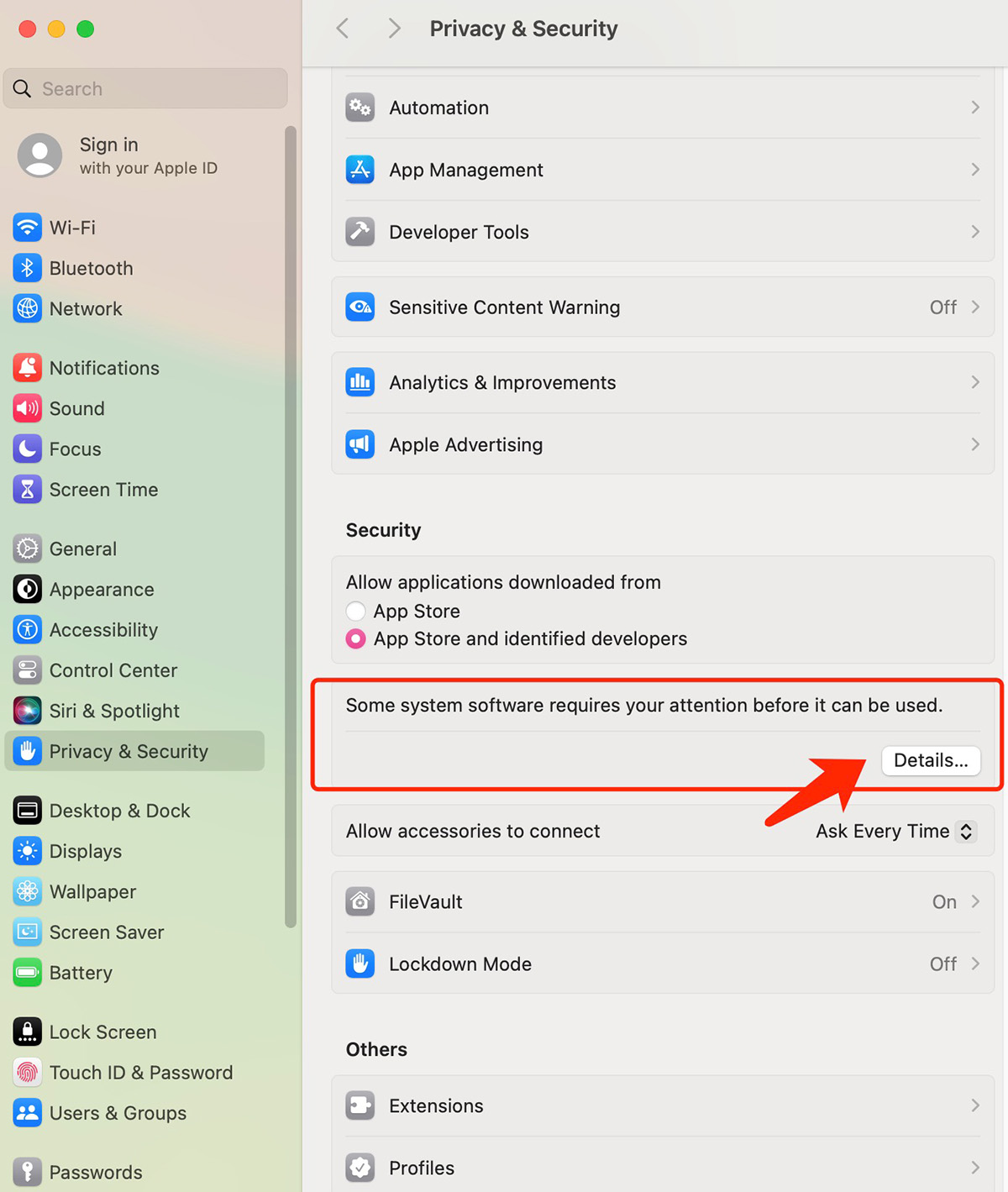
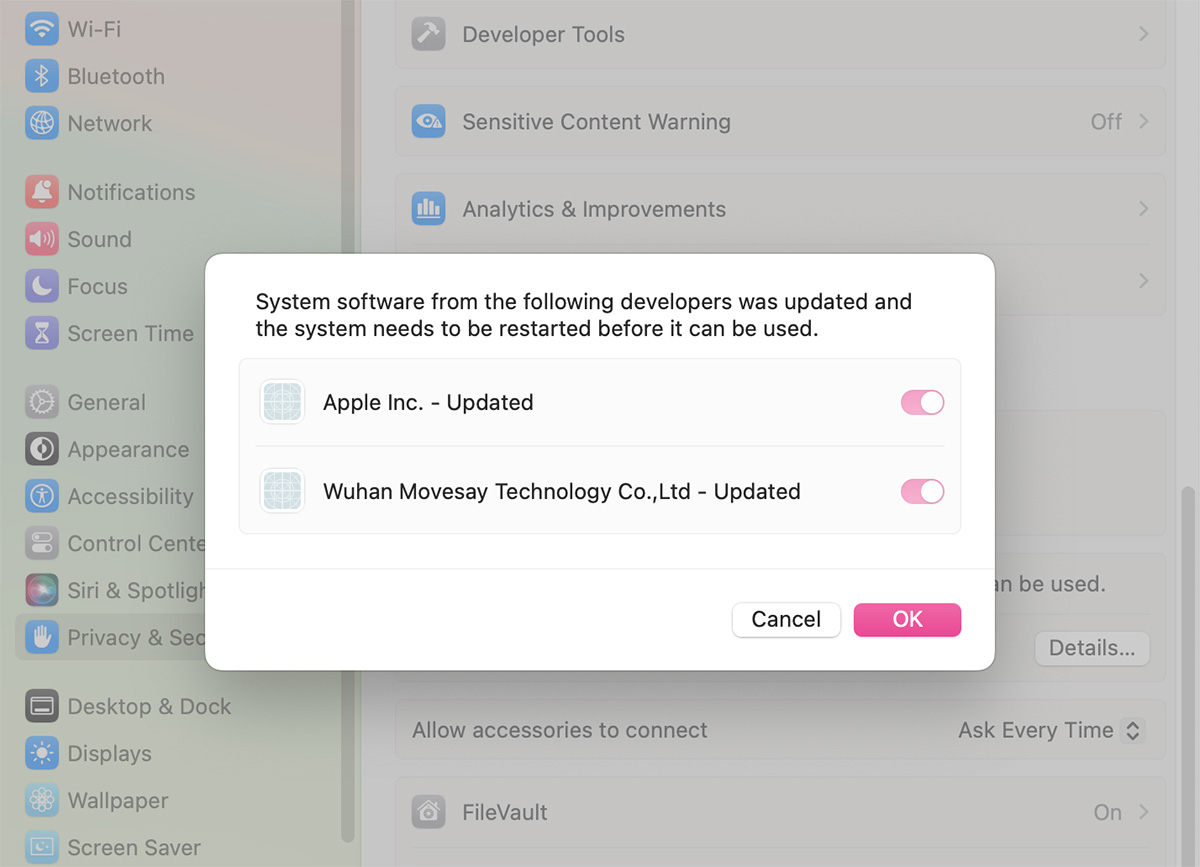
- Open System Settings → Privacy & Security, then allow the extension if prompted
- Related Screenshots