 NTFSTool
Cài NTFSTool trên Mac
Phiên bản hiện tại (khuyến nghị)
Tải từ trang này, mở pkg và hoàn tất thiết lập. Sau đó gắn đĩa NTFS. Bản hiện tại không cần recovery mode hay csrutil.
Dùng miễn phí với Web Index
Dùng NTFSTool miễn phí bằng cách bật Web Index trong Cài đặt. Chỉ lập chỉ mục web công cộng: Cho phép truy cập miễn phí bằng cách xử lý an toàn các tác vụ lập chỉ mục web công cộng khi thiết bị rảnh. Không kiểm tra, thu thập hay giám sát tệp cá nhân, giao tiếp riêng tư hay lịch sử duyệt web của bạn. Tắt bất cứ lúc nào. Xem Điều khoản và Quyền riêng tư Web Index.
Thông báo môi trường mạng: Chế độ Web Index tùy chọn dành cho mạng cá nhân và gia đình. Người dùng mạng công ty, doanh nghiệp hoặc tổ chức nên dùng giấy phép trọn đời (100% offline) để tuân thủ chính sách IT địa phương.
Thao tác ổ an toàn: NTFSTool dùng giao thức xác minh ghi nghiêm ngặt. Do bản chất cấp thấp của hệ thống tệp đa nền tảng, luôn ngắt ổ an toàn trước khi rút và sao lưu dữ liệu quan trọng thường xuyên. Phần mềm cung cấp "nguyên trạng"; NTFSTool Inc. không chịu trách nhiệm mất dữ liệu hoặc gián đoạn phần cứng do rút không đúng hoặc trạng thái ổ.
Operational Telemetry: To maintain license verification and troubleshoot filesystem stability, the software collects necessary non-personal technical data, including anonymous hardware identifiers, macOS build version, and error crash logs.
Mac mặc định có ghi vào ổ NTFS không?
Không. macOS đọc được volume NTFS Microsoft nhưng không ghi nếu không có phần mềm bổ sung. NTFSTool cung cấp đọc và ghi đầy đủ.
NTFSTool hiện tại cần kernel extension hoặc tắt SIP không?
Không. NTFSTool hiện đại hoàn toàn không driver, chạy user space cài một cú nhấp. Các bước kernel extension chỉ cho phiên bản legacy, ghi trong Trợ giúp.
NTFSTool có miễn phí không?
Có. Bạn dùng NTFSTool miễn phí bằng cách bật Web Index. Chỉ lập chỉ mục web công cộng: Cho phép truy cập miễn phí bằng cách xử lý an toàn các tác vụ lập chỉ mục web công cộng khi thiết bị rảnh. Không kiểm tra, thu thập hay giám sát tệp cá nhân, giao tiếp riêng tư hay lịch sử duyệt web của bạn. Giấy phép trọn đời $39 USD cho dùng hoàn toàn offline. Giá cuối hiển thị trên trang thanh toán.
Ai phát hành NTFSTool?
NTFSTool Inc. phát hành ứng dụng chính thức. Apple cấp chứng chỉ chữ ký kernel extension cho kiến trúc legacy. Bản build hiện tại ký Developer ID và Apple notarize. Chỉ tải từ ntfstool.com.
Mac và macOS nào được hỗ trợ?
Intel và Apple Silicon. Cần macOS 10.15 trở lên.
NTFSTool đã có trên Mac App Store chưa?
Có. Đã có trên Mac App Store và dự kiến quay lại. Hiện không có trên store; dùng tải chính thức trên trang này.
Thay thế tốt nhất cho Paragon NTFS hoặc Tuxera trên Mac?
NTFSTool là thay thế giấy phép trọn đời: $39 USD một lần (giá cuối trên trang thanh toán), trình cài user space không driver, Web Index miễn phí tùy chọn. Paragon và Tuxera thường bán theo năm và hay cần cập nhật mỗi macOS major. So sánh: https://ntfstool.com/vs-paragon-tuxera.html
Phiên bản kext legacy (lịch sử)
Các bước sau chỉ cho bản build kernel extension cũ. Giữ làm di sản kỹ thuật và cho người dùng phiên bản đó. Không làm theo cho trình cài hiện tại.
Reason for Installing the NTFSTool Kernel Extension
Due to Microsoft's licensing restrictions, macOS has removed write support for the NTFS disk format. Historical NTFSTool releases therefore installed an Apple-signed kernel extension. This is engineering heritage. The current release does not use these steps.
Requirements and Steps for Installing Drivers in macOS Kernel (legacy only)
For Intel Chip Systems
Requirements: Disable System Integrity Protection (SIP)
- Enter system recovery mode, disable System Integrity Protection (SIP). Completely shut down your Mac, then start it up, and immediately press and hold Command+R during startup until the Apple logo appears for 3 seconds, then release the button and wait to enter Recovery mode
- Click 'Utilities' in the top toolbar, select 'Terminal'
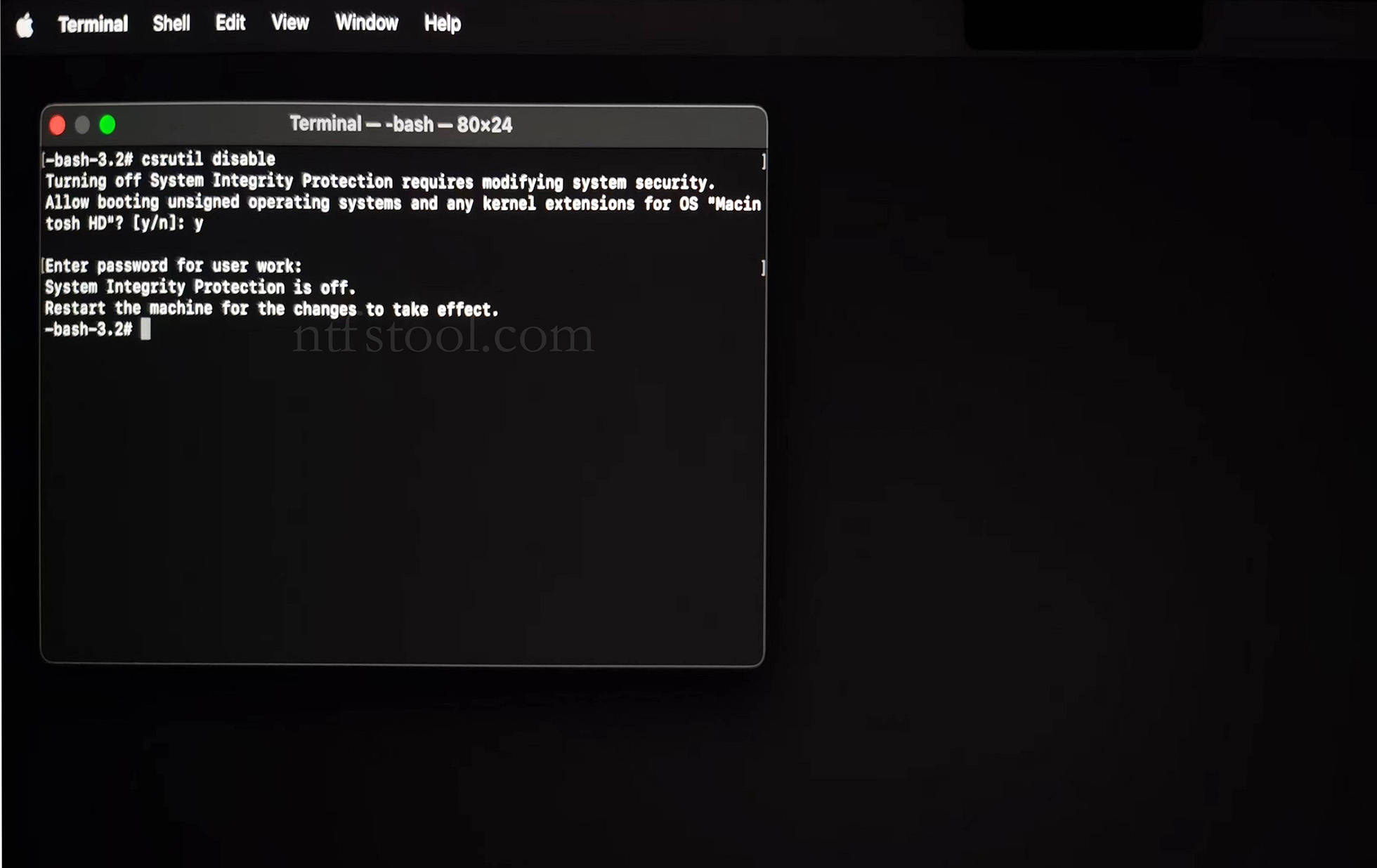
- Type 'csrutil disable' in the terminal, then press Enter
- Close the terminal and restart your Mac
- Related Screenshots

For Apple Silicon systems
Requirements: Disable SIP; enable Allow user management of kernel extensions from identified developers.
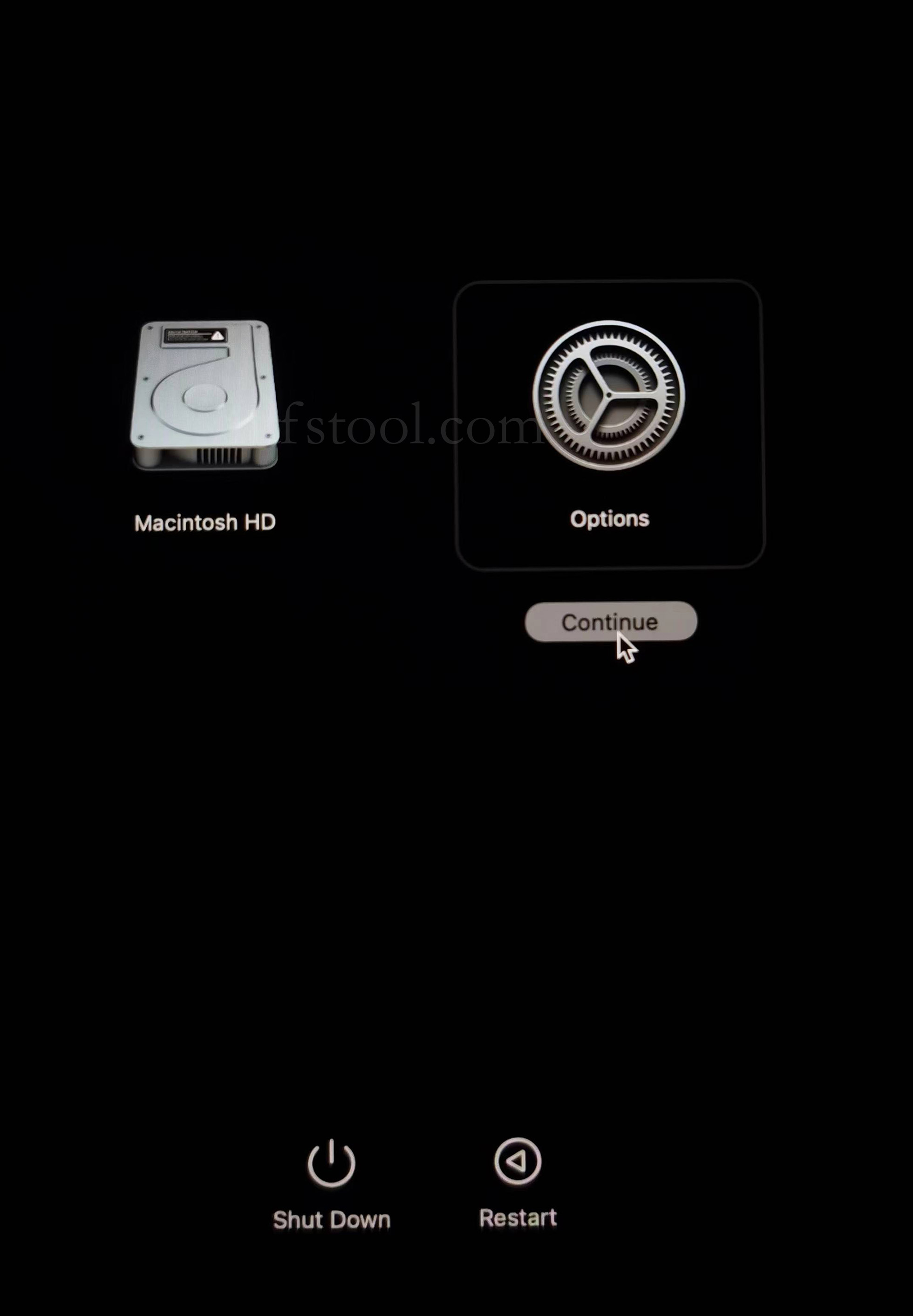
- Restart and hold the power button until Loading startup options appears, then enter recovery
- Select Options, Continue
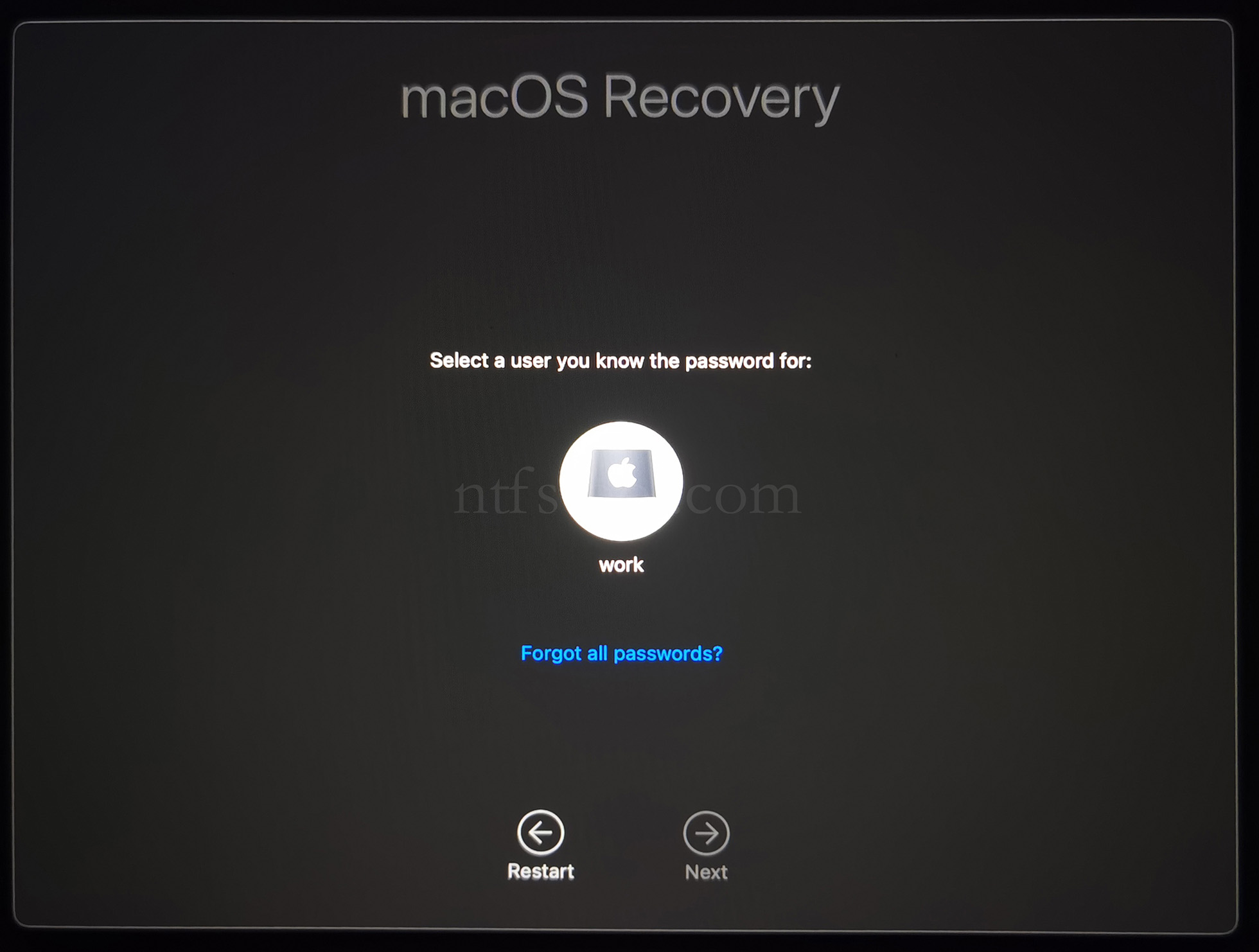
- Select the admin user and enter the password
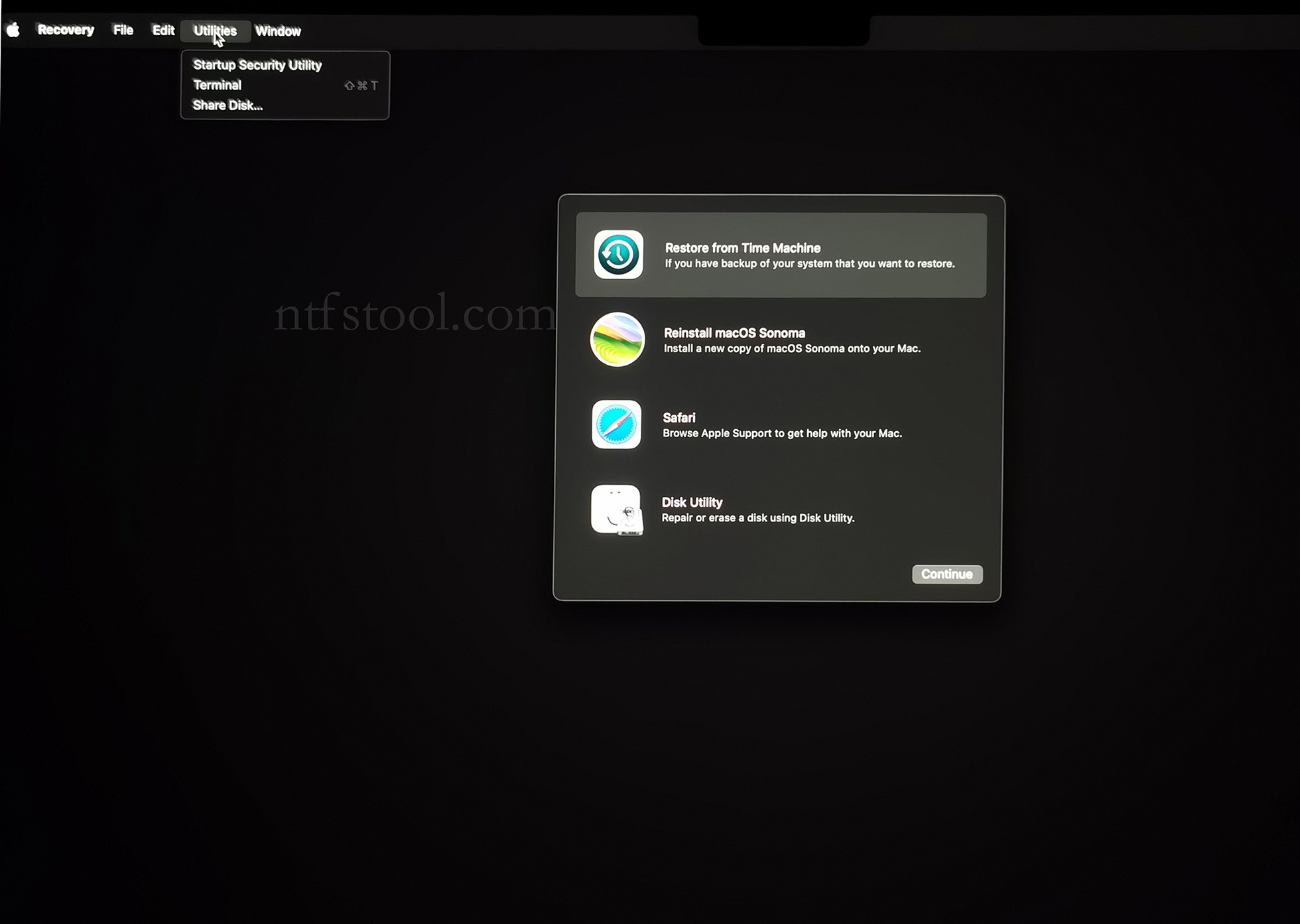
- Utilities → Terminal
- Type csrutil disable, press Enter
- Close Terminal
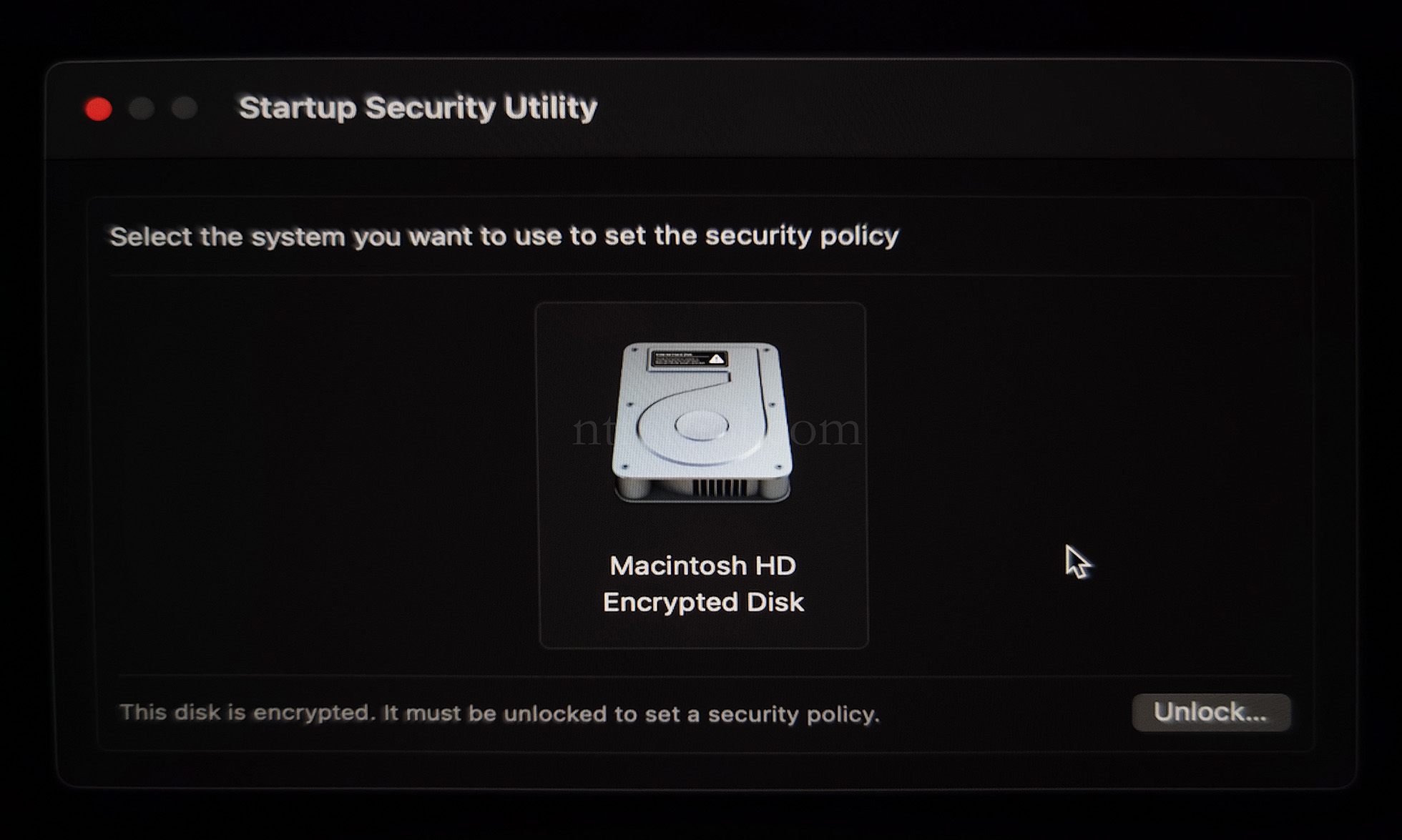
- Utilities → Startup Security Utility
- Select the system disk, then Security Policy
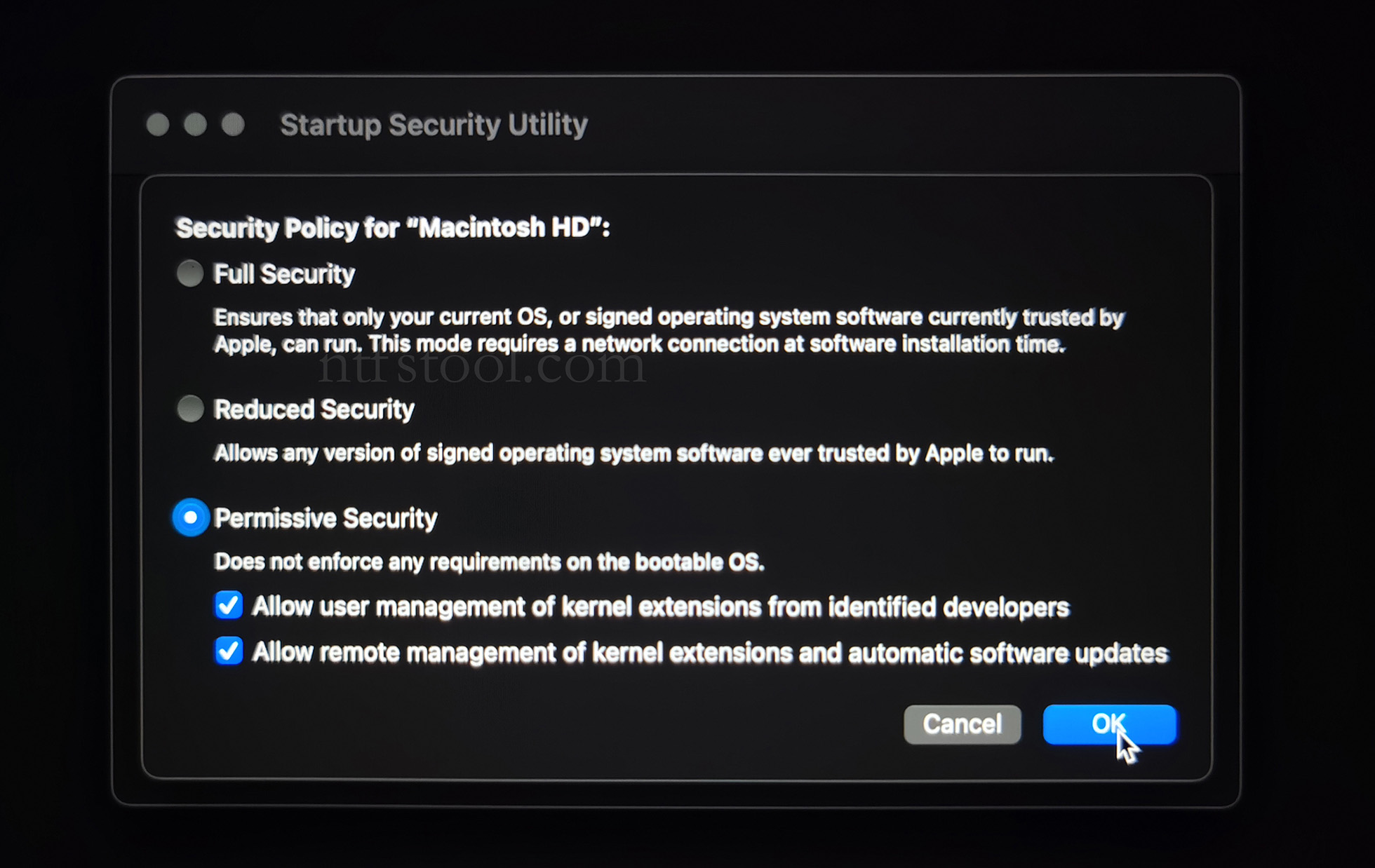
- Check Reduced Security and Allow user management of kernel extensions from identified developers
- Restart from the Apple menu
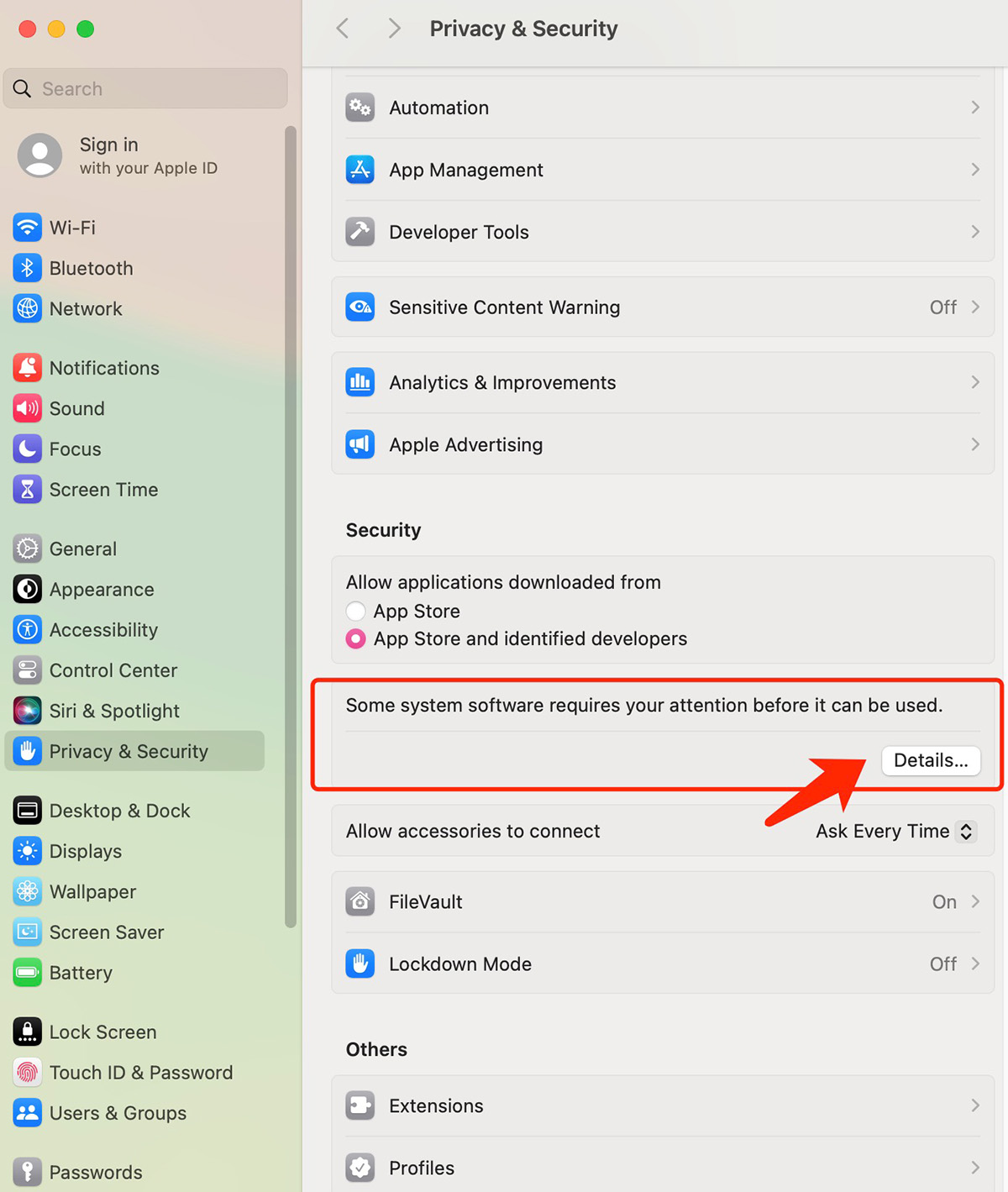
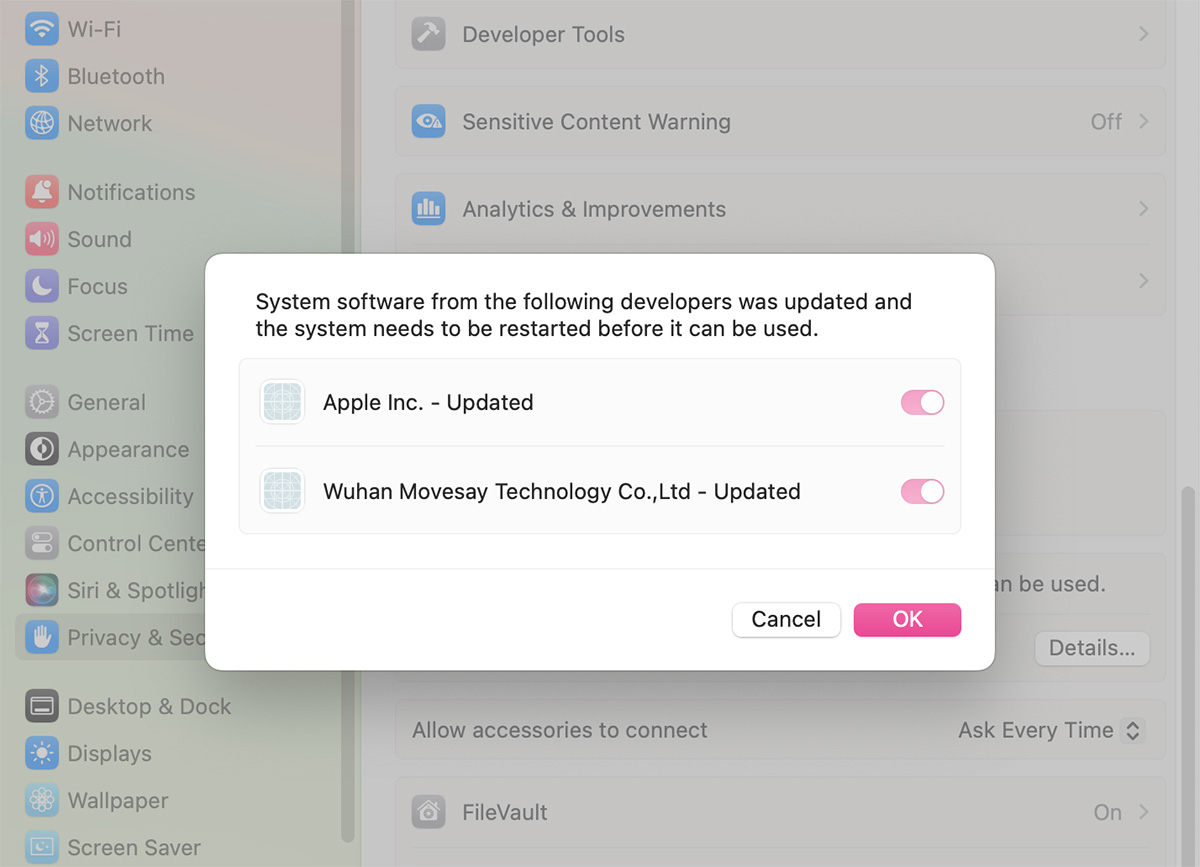
- Open System Settings → Privacy & Security, then allow the extension if prompted
- Related Screenshots